
How to Keep Your Cisco Jabber Status Available
Cisco Jabber sets you to Away after 15 minutes without input and when you lock Windows. Where to raise the timer, how to turn off away-on-lock, the jabber-config.xml parameters IT controls, and why Jabber still shows In a meeting or Offline.
To keep your Cisco Jabber status Available, raise the inactivity timer and turn off away-on-lock. In Jabber for Windows, open File > Options > Status (on a Mac, Jabber > Preferences > Status), set the minutes before Jabber shows you as Away to the highest value allowed, and untick the option to show Away when you lock the computer. Cisco's parameter reference gives the defaults: Jabber changes to Away after 15 minutes of inactivity, and, on Windows, as soon as you lock the operating system. If the settings are greyed out, your IT team sets them in jabber-config.xml.
If you have moved from Jabber to Slack, Slack Green keeps your Slack status active from our servers during the hours you set, with nothing running on your computer.
Why Jabber leaves Available
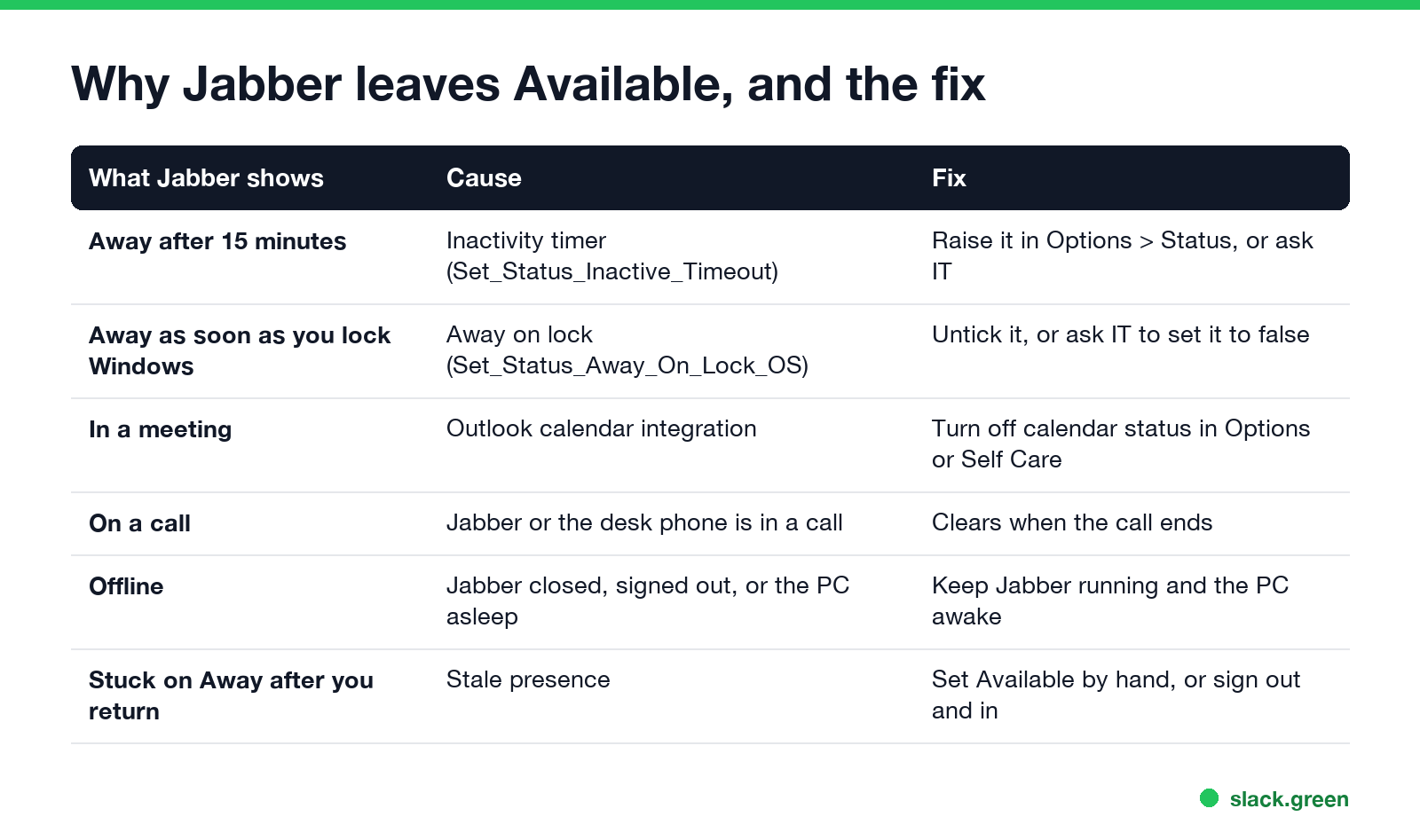
| What Jabber shows | Cause | Fix |
|---|---|---|
| Away after 15 minutes | Inactivity timer | Raise it in Options > Status, or ask IT |
| Away as soon as you lock Windows | Away on lock | Untick it, or ask IT to set it to false |
| In a meeting | Outlook calendar integration | Turn off calendar status in Options, or in the Self Care portal |
| On a call | Jabber or the linked desk phone is in a call | Clears when the call ends |
| Offline | Jabber closed or signed out, or the PC asleep | Keep Jabber running and the PC awake |
| Stuck on Away after you come back | Stale presence | Pick Available by hand, or sign out and back in |
The Away timer counts time without keyboard or mouse input. Picking Available by hand does not stop it: after the timer runs out, Jabber sets Away again.
Change the Away timer in Jabber for Windows and Mac
Windows
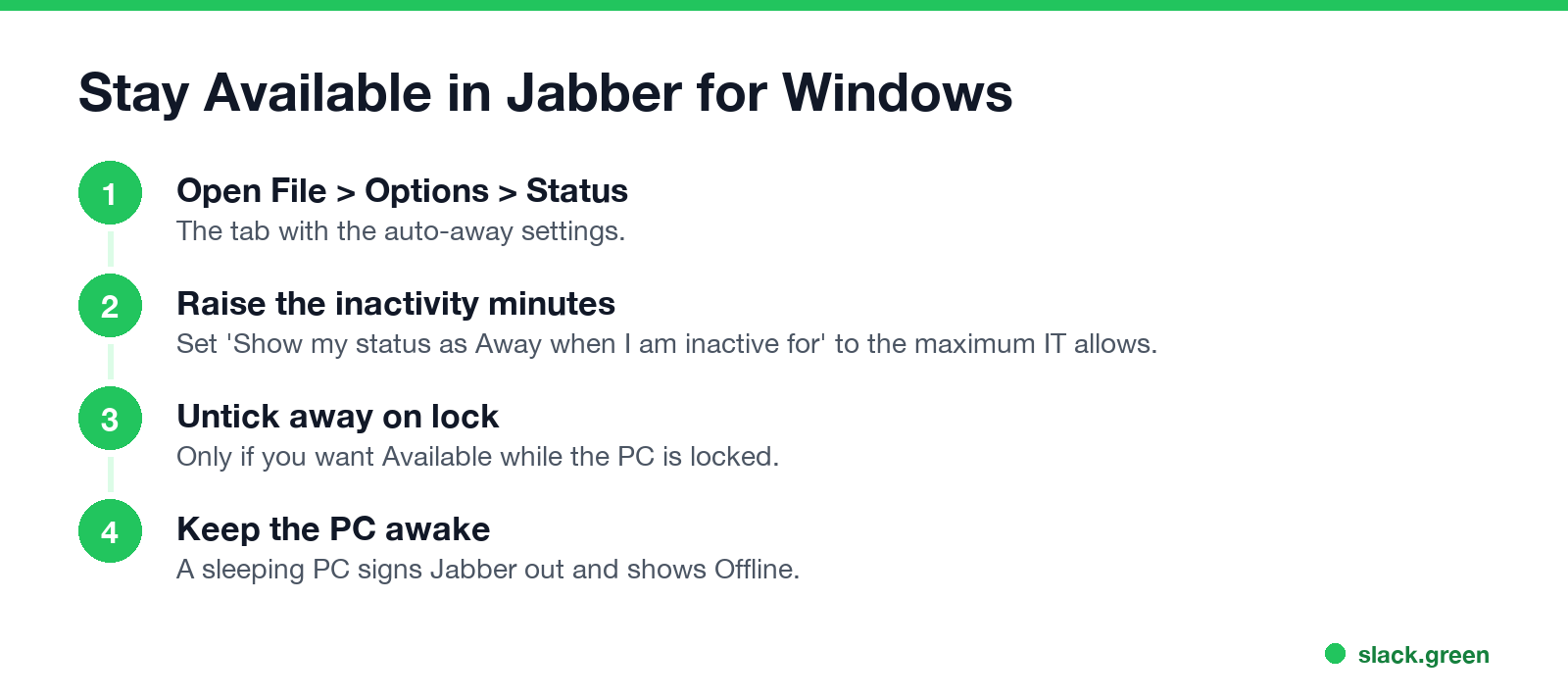
- In the Jabber hub window, open the File menu (or the gear menu), then Options.
- Select the Status tab.
- Next to Show my status as Away when I am inactive for, set the number of minutes. Higher means more time before Away.
- Untick Show my status as Away when I lock my computer if you want to stay Available while the screen is locked.
- Select Apply and OK.
Mac
Open Jabber > Preferences > Status and change the same inactivity setting. The lock option in Cisco's reference applies to Jabber for Windows only.
Some companies lock these settings. If they are greyed out or reset after you restart Jabber, the values come from IT.
The jabber-config.xml parameters IT controls
Never appear "away" on Slack again
Cloud-based. No downloads. Works 24/7 even when your laptop is off.
Cisco's Parameters Reference Guide for Cisco Jabber lists three client options, in the Options group:
| Parameter | What it does | Default |
|---|---|---|
Set_Status_Away_On_Inactive | Changes status to Away when the user is inactive (Windows) | true |
Set_Status_Inactive_Timeout | Minutes of inactivity before Away (desktop clients) | 15 |
Set_Status_Away_On_Lock_OS | Changes status to Away when the user locks the OS (Windows) | true |
An admin sets them in the jabber-config.xml file that Jabber downloads from the TFTP server:
<?xml version="1.0" encoding="utf-8"?>
<config version="1.0">
  <Options>
    <Set_Status_Inactive_Timeout>60</Set_Status_Inactive_Timeout>
    <Set_Status_Away_On_Lock_OS>false</Set_Status_Away_On_Lock_OS>
  </Options>
</config>
Jabber reads the file when it signs in, so users need to sign out and back in to pick up a change. A thread on the Cisco Community forum reports that changing Set_Status_Inactive_Timeout had no effect on Jabber for iPhone; the timer is a desktop setting.
In a meeting, On a call and Offline
In a meeting comes from your Outlook calendar. The University at Buffalo's Jabber guide maps it this way: a Busy calendar entry shows In a meeting, and Out of Office in the calendar shows Away. To stop it, turn off calendar-based status in Jabber's Options (the Calendar or Status tab, depending on version), or in the Cisco Unified Communications Self Care portal under IM & Availability, untick Automatically update status when there is a meeting on my calendar.
On a call is set while Jabber, or the desk phone Jabber controls, is in a call. It clears when you hang up.
Offline means Jabber is not connected: you closed it, signed out, lost the network, or the computer went to sleep. Stopping sleep is covered in how to stop your computer from sleeping.
If you cannot change the settings
Only input resets the Away timer. Keeping the computer awake stops Offline, but not Away. A mouse jiggler or a key-press script creates input and keeps Jabber Available on a desktop; what those look like to IT is in can a mouse jiggler be detected. The same rules apply to other chat apps: how to keep your Webex status active covers Cisco's newer app, which many companies are moving Jabber users to, and how to keep your Teams status Available covers Microsoft Teams.
FAQ
Never appear "away" on Slack again
Cloud-based. No downloads. Works 24/7 even when your laptop is off.
How long before Jabber shows Away? 15 minutes without keyboard or mouse input by default. On Windows, it also shows Away when you lock the computer.
How do I stop Jabber from going Away? In Options > Status, raise the inactivity minutes and untick away-on-lock. If the settings are locked, IT sets them in jabber-config.xml.
Why does Jabber say In a meeting when I am not in one? Jabber reads your Outlook calendar. A Busy event shows In a meeting; turn off calendar status in Options or the Self Care portal.
Why is my Jabber status stuck on Away? Pick Available by hand. If it stays, sign out and back in to refresh presence.
Does Jabber on iPhone have an away timer? The inactivity timer parameter is for desktop clients. Mobile Jabber follows its own rules for background and sleep.
Stop Jiggling Your Mouse.
Join hundreds of remote workers who never worry about their Slack status. Set it up once, stay green forever.
Related Articles
KeepingYouAwake vs Amphetamine: Which Mac Keep-Awake App to Use
KeepingYouAwake is a free, open-source menu bar switch that runs Apple's caffeinate for you. Amphetamine is a free App Store app with triggers, schedules and a closed-lid mode. Pick KeepingYouAwake for one click and Homebrew, Amphetamine for automation. Neither keeps Slack or Teams active.
Computer Locks After 15 Minutes? How to Tell If Group Policy Set It
A work laptop that locks after exactly 15 minutes, with screen settings greyed out, is almost always following a policy from IT: the Windows machine inactivity limit, a forced screen saver, or an Intune device lock. Security baselines and PCI DSS ask for 15 minutes. How to see which policy it is, and what you can and cannot change.
How to Keep a Citrix Session Active: Find Which Timeout Logs You Out
A Citrix session can end from four different timers: Windows locking inside the virtual desktop, the Citrix session idle timer, the Citrix Gateway session time-out, and the StoreFront web page timeout. Only input from your own device into the Citrix window resets them. How to tell which one hit you and what keeps each one quiet.