
Slack Chrome Extensions: What Exists and What Got Removed
Most searches for a Slack Chrome extension want one of three things: a stay-active extension, a setup helper, or small workflow tweaks. The famous stay-active ones were removed in 2024. What remains, and what replaced them.
Searches for a Slack Chrome extension usually want one of three things: an extension that keeps the green dot on, a helper for connecting Slack to another tool, or small notification and formatting tweaks. The first category has a history worth knowing before you install anything.
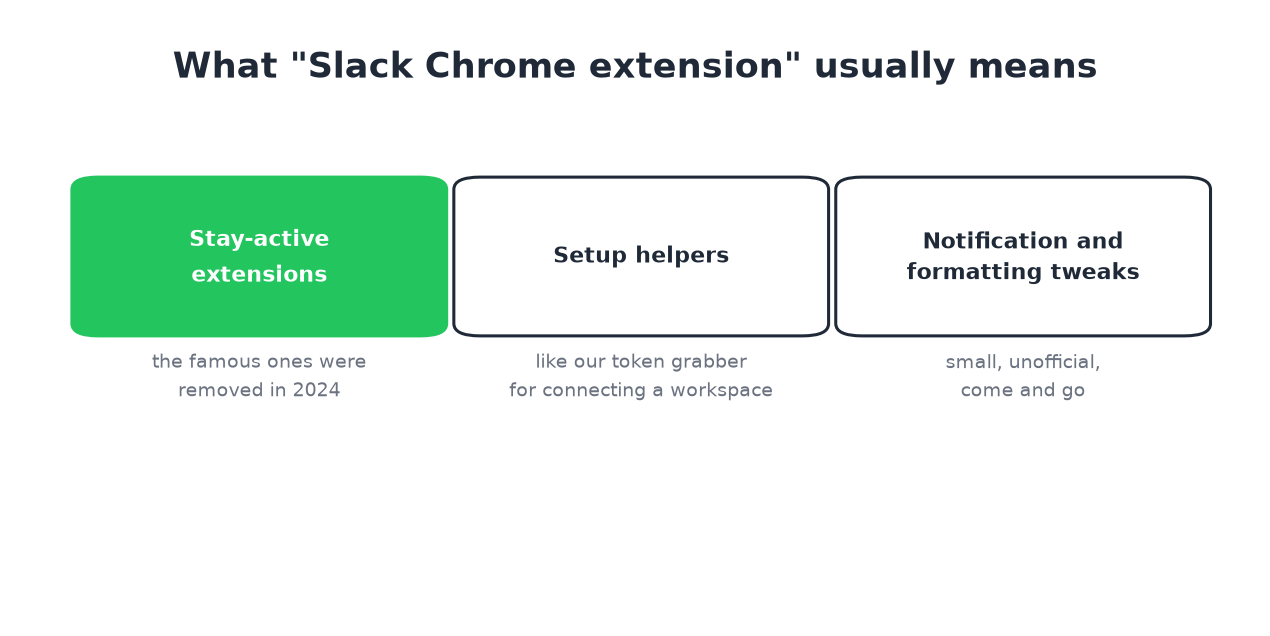
We build Slack Green, which includes one extension in the second category, so the products in this page are described with their trade-offs stated.
The stay-active extensions, and why they died
For years the popular answer to Slack's 10-minute away flip was a Chrome extension that simulated activity in the Slack tab. The mechanism was right: input inside the Slack window is the only thing the timer counts.
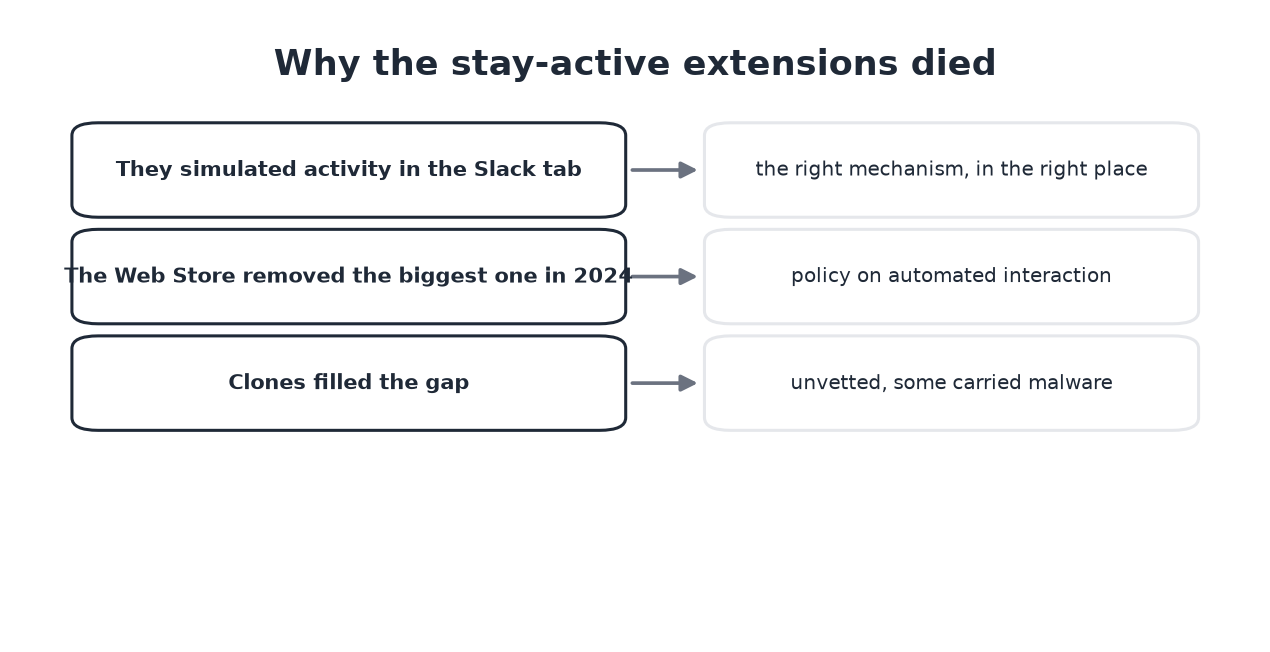
Then the Chrome Web Store removed the biggest one in 2024 under its automated-interaction policies, clones appeared, and some of the clones carried malware. Today, installing an unknown stay-active extension means trusting an unvetted script with a tab that holds your Slack session tokens. The tools comparison rates the category 2.5 of 5 for exactly that reason.
What we ship as an extension
The Slack Green extension does one narrow job: it reads your own session tokens from your logged-in Slack tab so you can connect a workspace in two clicks instead of digging through DevTools. It does not simulate activity, run in the background, or stay necessary: you can remove it after setup, and the presence work happens server-side where no store policy can kill it.
Extension or server, the honest split
Slack에서 다시는 '자리 비움'으로 표시되지 마세요
클라우드 기반. 다운로드 불필요. 노트북이 꺼져 있어도 24시간 작동.
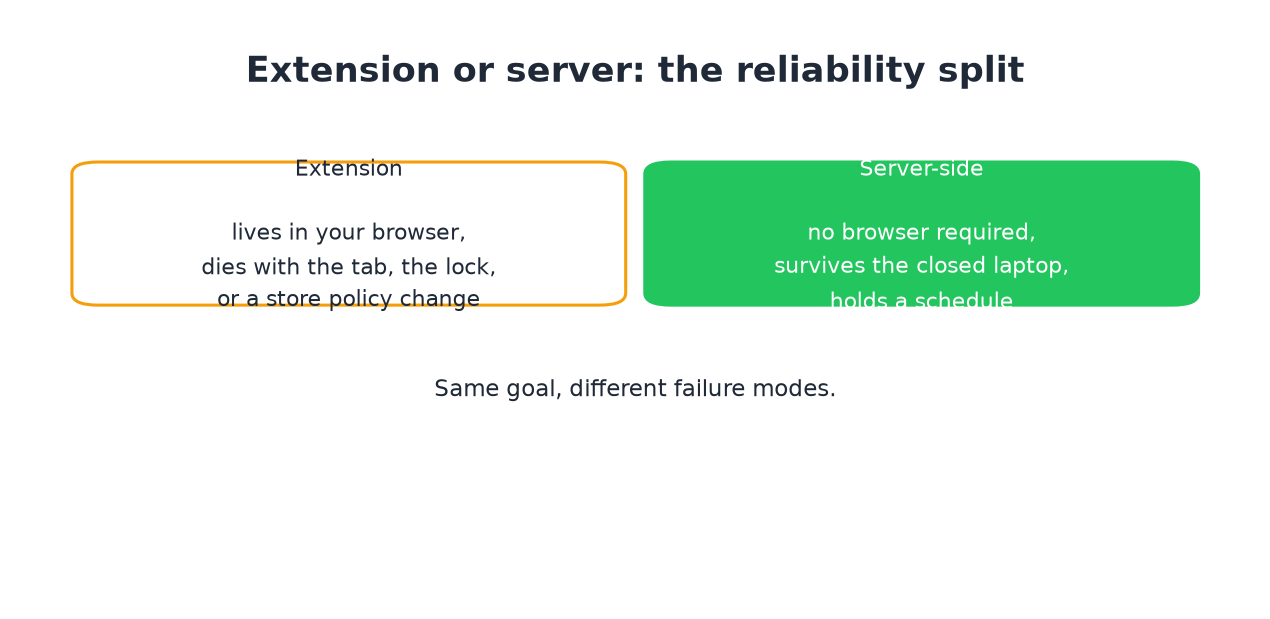
An extension lives inside your browser: it stops at a closed tab, a locked machine, or a policy change you do not control. A server-side service keeps working with the laptop shut and follows a schedule. If the dot is the job, the split decides it. If a quick tweak is the job, an extension is fine, chosen carefully.
Choosing safely
- • Check the developer name and site on the store listing.
- • Prefer extensions that work without reading your Slack page content; review the permissions list before installing.
- • Treat "always active" listings with the 2024 history in mind: the
Frequently asked questions
Is there a Chrome extension that keeps Slack active? Clones exist, the vetted originals are gone, and the category dies with your browser being open anyway. The alternatives are compared in how to keep Slack active.
Is the Slack Green extension required to use Slack Green? No. It is a setup shortcut. The manual path does the same thing in a few more clicks, and the CLI skips the browser entirely.
Do extensions work with Slack's desktop app? No. Chrome extensions only see Slack in a browser tab. The desktop app is outside their reach, which is one more reason the category is fragile.
The short version
Slack에서 다시는 '자리 비움'으로 표시되지 마세요
클라우드 기반. 다운로드 불필요. 노트북이 꺼져 있어도 24시간 작동.
The extension era of keeping Slack green ended in 2024. What survived: narrow setup helpers, small tweaks, and the server-side approach that does not depend on a browser being open. Pick by what you need surviving: the dot, or just a better tab.
Related Articles
How to Delay and Schedule Slack Messages
Slack can send a message later: the schedule menu sits on the arrow next to Send. What it can do, what it cannot (no undo-send), the steps on desktop and mobile, and when a reminder fits better.
Slack Green vs 마우스 지글러: 정직한 비교
마우스 지글러와 Slack Green은 같은 문제를 서로 다른 기계에서 풉니다. 지글러는 내 기기에서 입력을 흉내 내므로 기기가 켜져 있고, 잠기지 않고, 커서가 Slack 위에 있는 동안만 통합니다. Slack Green은 서버에서 진짜 Slack 세션을 유지하므로 노트북을 닫아도 동작합니다. 이 차이 하나가 아래 비교의 거의 전부를 결정합니다.
슬랙 활성 상태 유지 방법: 2026년 기준 전부 비교
슬랙은 입력이 없으면 10분 뒤 자리비움으로 바뀌고, 이를 끄는 설정은 없습니다. 상태를 활성으로 유지하는 모든 방법과 비용, 그리고 조용히 실패하는 꼼수들을 정리했습니다.