
How to Change Your Status on Slack, Desktop and Mobile
Slack has two things called status: the active or away dot, and a custom status with an emoji and text. Here is how to change each one on desktop and mobile, how to clear them, and what each control really changes.
To change your status on Slack, click your profile picture in the sidebar. Then pick one of two options. Update your status sets a custom status, an emoji plus a short message such as "In a meeting". Set yourself as away (or Set yourself as active) changes the presence dot next to your name. On the mobile app you tap your profile picture and see the same two options.
These two controls are separate systems, and most "my status will not change" questions come from mixing them up. A custom status is a label you write. The dot is Slack's own record of whether you used Slack in the last few minutes. This guide covers both, on desktop and mobile, plus clearing a status, the snooze Z, and the one thing no menu in Slack can change.
We build Slack Green, a service that keeps the presence dot green from a server on the working hours you choose. That is the one part of Slack status you cannot set by hand, so this page points it out where it matters and not elsewhere.
Status vs presence: the two things Slack calls status
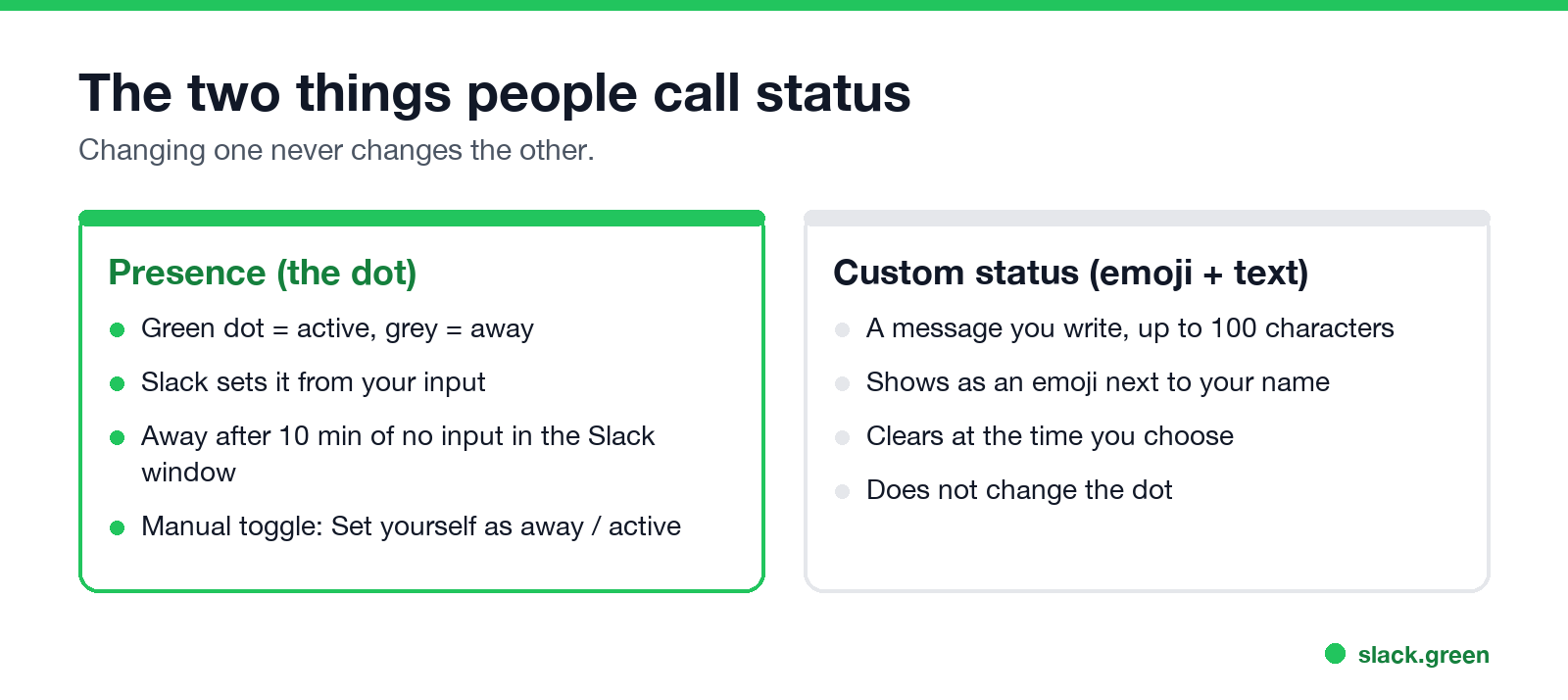
Slack's own help page uses two words. A status is "a message that lets others know what you're up to". Availability, also called presence, is the dot next to your display name.
| Presence (the dot) | Custom status (emoji + text) | |
|---|---|---|
| What people see | Green dot for active, grey for away | An emoji next to your name, full text on hover or in your profile |
| Who sets it | Slack, from your activity. You can force away | You |
| How it changes on its own | Away after 10 minutes with no input in the Slack window on desktop | Clears at the time you picked |
| Searched as | active status, online status, away status | Slack status message, custom status |
Changing one does nothing to the other. You can show "On vacation" with a green dot, or "At my desk" with a grey one. The full mechanics of the dot are in Slack active status explained.
How to change your custom status on Slack desktop
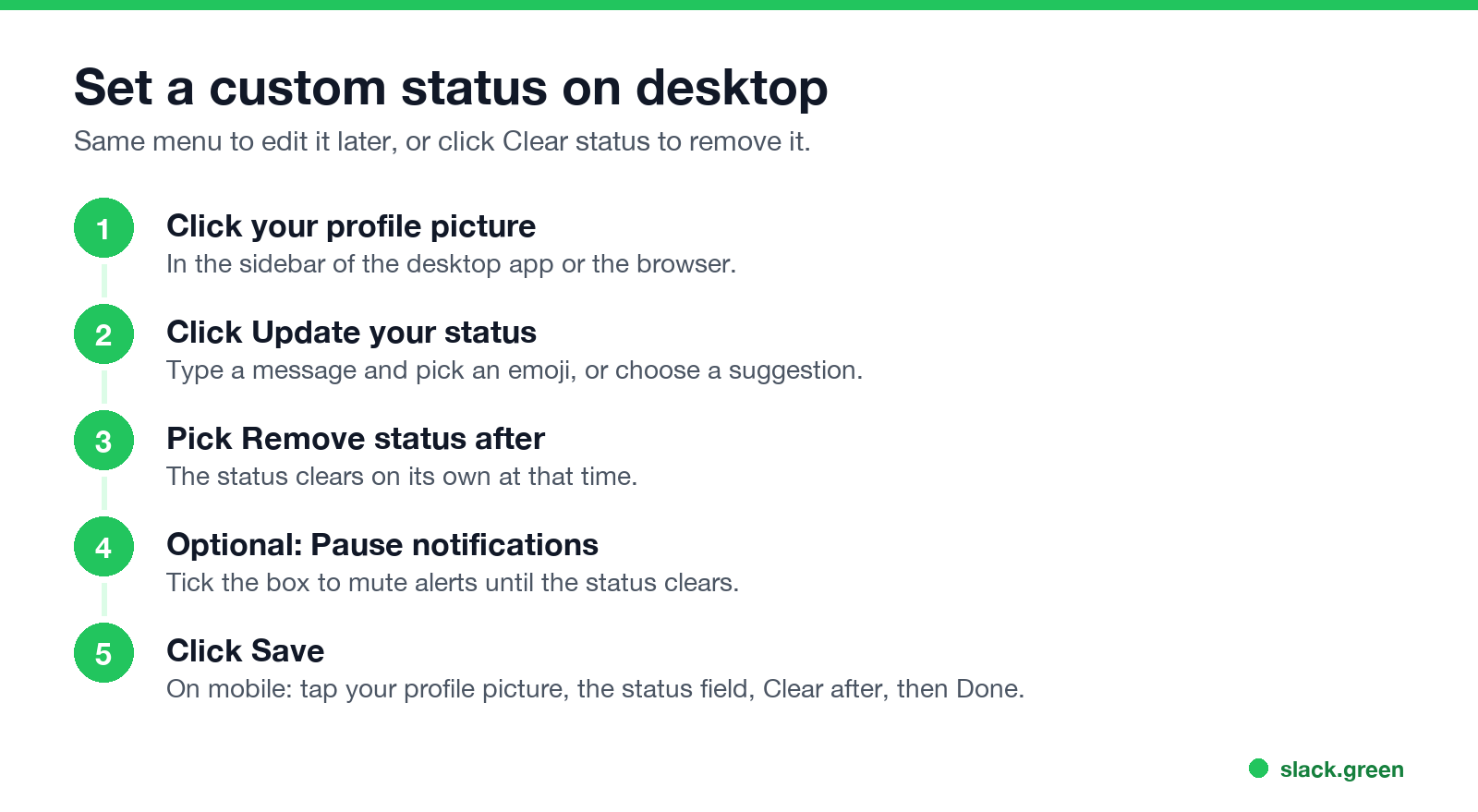
These steps work in the desktop app and in Slack in a browser.
- Click your profile picture in the sidebar.
- Click the Update your status field.
- Type a message and pick an emoji, or choose one of the suggested statuses. If you pick no emoji, Slack shows a speech balloon by default.
- Click Remove status after... and choose when the status clears.
- Optional: tick Pause notifications to mute alerts until the status clears.
- Click Save.
The emoji now shows next to your name everywhere people see your name. The full text shows when someone hovers over the emoji or opens your profile. What every dot, z and default status emoji means to the people who see it is in our guide to Slack status icons. The status message is short: Slack's API caps it at 100 characters, so write one line. If you need words, the free Slack status ideas tool has lines sorted by situation, and funny Slack status ideas has the lighter set.
To edit or clear a status, click your profile picture again. Click your current status to edit it, or click Clear status to remove it.
How to change your status on the Slack mobile app
Nunca mais apareça como "ausente" no Slack
Na nuvem. Sem downloads. Funciona 24/7 mesmo com seu notebook desligado.
The iPhone and Android apps use the same flow with taps:
To edit or clear it later, tap your profile picture, then tap your current status to edit it, or tap Clear. A status you set on your phone is the same status on your desktop, because it belongs to your account in that workspace.
How to change your active, away, or online status
This is the dot. Slack sets it for you. You are active when Slack is open on your desktop or phone. You go away after 10 minutes with no input in the Slack window on desktop, or when you leave or close the app on mobile.
To change it by hand:
Two details the menu does not tell you:
To look offline on purpose, the away toggle is the whole method, and can you appear offline on Slack shows what others can and cannot see. To stay green, Slack has no setting. The dot follows input, so every method feeds the timer: your own clicks, input sent to the Slack window, or a server that holds your session active, which is what Slack Green does on a schedule. The trade-offs of each method are in how to keep Slack active.
What each Slack status control changes
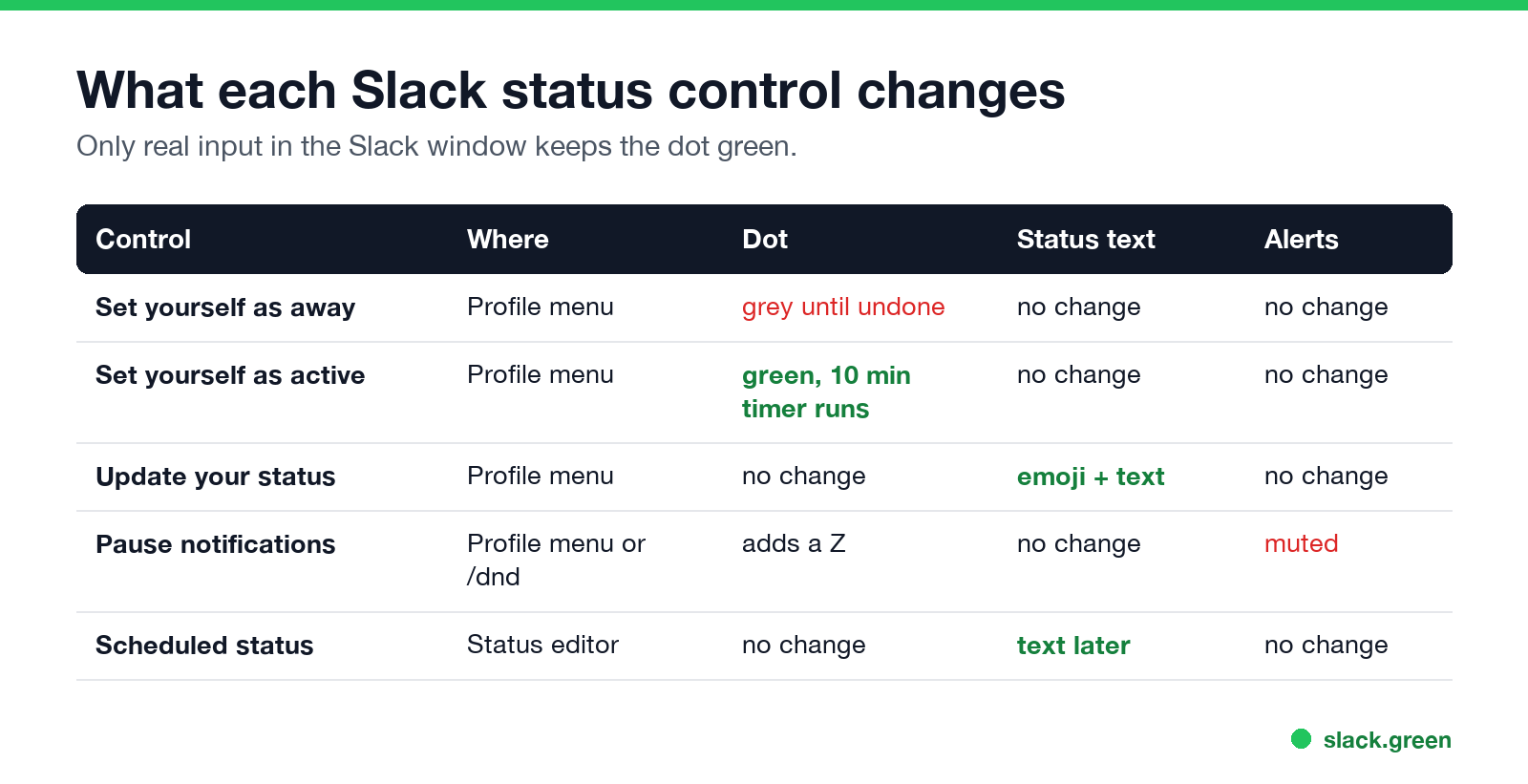
| Control | Where | Dot | Status text | Notifications |
|---|---|---|---|---|
| Set yourself as away | Profile menu | Grey until you undo it | No change | No change |
| Set yourself as active | Profile menu | Green, then the 10-minute timer runs | No change | No change |
| Update your status | Profile menu | No change | Emoji and text | No change, unless you tick Pause notifications |
| Pause notifications | Profile menu or /dnd | Adds a Z | No change | Paused |
| Scheduled status | Status editor, Duration menu | No change | Emoji and text at a set time | No change |
| Automatic statuses | Preferences | No change | Set during huddles, focus mode, after working hours | No change |
How to change your snooze status on Slack
Nunca mais apareça como "ausente" no Slack
Na nuvem. Sem downloads. Funciona 24/7 mesmo com seu notebook desligado.
"Snooze" is the Z that shows on your dot when notifications are paused. Slack now calls this Pause notifications, and older versions called it Do Not Disturb. It mutes alerts. It does not make you away.
/dnd for 30 mins, /dnd until 5pm, or /dnd off in theIf a Z shows up that you did not set, your notification schedule or an admin default is the usual cause. What the green dot with a Z means explains each case, and the Slack Do Not Disturb guide covers schedules and exceptions in full.
Scheduled and automatic statuses
Slack can set a status for you in two ways.
Scheduled status. In the status editor, open the Duration menu and click Choose a start and end time. The status turns on and off at those times, and your computer does not need to be on. You can queue up to five. A scheduled status runs once, with no repeat option, so for a daily lunch or focus block see how to schedule a Slack status.
Automatic statuses. Slack can show that you may be slow to reply while you are in a huddle, in focus mode, or after your working hours. On desktop, click your profile picture, open Preferences, and tick or untick each one under Automatic statuses.
Neither one touches the dot. A scheduled "Out for lunch" still leaves you green if your Slack window is getting input, and grey if not.
Frequently asked questions
How do I change my status on Slack? Click your profile picture in the sidebar. Choose Update your status for an emoji and message, or Set yourself as away or active for the dot. On mobile, tap your profile picture for the same options.
How do I change my status on the Slack mobile app? Tap your profile picture, tap the status field, type a message, pick an emoji, set Clear after, and tap Done. For the dot, tap Set yourself away or Set yourself as active in the same screen.
Why does my Slack status change back to away? If you set yourself away by hand, it stays until you set yourself active. If not, the 10-minute timer did it: no input in the Slack window for 10 minutes on desktop, or the app left the screen on your phone. Why Slack goes idle so quickly covers sleep and lock as well.
Can I set my Slack status to always active? No setting does it. Set yourself as active only resets the timer once. Keeping the dot green takes input in Slack, from you, from software, or from a server like Slack Green.
Does a custom status like "Available" keep me green? No. The text is a label. The dot only follows activity.
How do I clear a Slack status? Click or tap your profile picture, then Clear status on desktop or Clear on mobile. To avoid doing it by hand, set Remove status after when you create the status. If your status keeps disappearing on its own, the six causes are in Slack keeps clearing my status.
The short version
Nunca mais apareça como "ausente" no Slack
Na nuvem. Sem downloads. Funciona 24/7 mesmo com seu notebook desligado.
Profile picture, then Update your status for the emoji and text, or Set yourself as away/active for the dot. Set an expiry on every custom status. Use Pause notifications for the Z. The dot is the one part you cannot fix in a menu, because it follows your last 10 minutes of Slack input. If you want it to follow your working hours instead, that is what Slack Green is for. Every other Slack status question, from icons to outages, is linked from our Slack status hub.
Pare de Mexer o Mouse.
Centenas de trabalhadores remotos não se preocupam mais com o status do Slack. Configure uma vez, fique verde para sempre.
Related Articles
Slack Saved for Later: Where the Later Tab Is and How It Works
Saved messages in Slack live in the Later tab, which replaced stars and Saved items in 2023. Hover a message and click Save for later, or press A. Add a reminder, mark items complete, and find them with is:saved. Where Later is on desktop and mobile, and what changed.
Slack Multiple Workspaces: Use, Switch and Stay Active in Each
You can sign in to several Slack workspaces in one app and switch with Ctrl+Tab or Cmd/Ctrl plus a number. Each workspace has its own account, status, presence and Do Not Disturb, so you can be active in one and away in another. How to add, switch and manage them.
Microsoft Teams Status Icons Meaning: Every Colour and Symbol
In Microsoft Teams, a green check means Available, red means Busy, In a meeting or In a call, red with a white bar means Do not disturb or Presenting, a yellow clock means Away or Be right back, a grey circle with an x means Offline, and a purple arrow means Out of office. Which ones Teams sets for you, and which wins.