
Best Chrome Extensions for Remote Workers, by the Job They Do
14 Chrome extensions for remote work, grouped by the job: async video, meetings, focus, writing, passwords, tabs, screenshots, time tracking and keeping the screen on. Each checked on the Chrome Web Store, with user counts, cost, and the extensions to avoid on a work laptop.
The best Chrome extensions for remote workers cover the jobs an office used to do for you: Loom for short video updates instead of meetings, the Zoom Chrome Extension for scheduling, StayFocusd or Momentum for focus, Grammarly and Text Blaze for writing, Bitwarden or 1Password for passwords, OneTab for tab overload, GoFullPage for screenshots, Toggl Track or Clockify for time tracking, and Keep Awake to keep the screen on. We opened each one's Chrome Web Store page on 27 September; the user counts below are what the store showed that day.
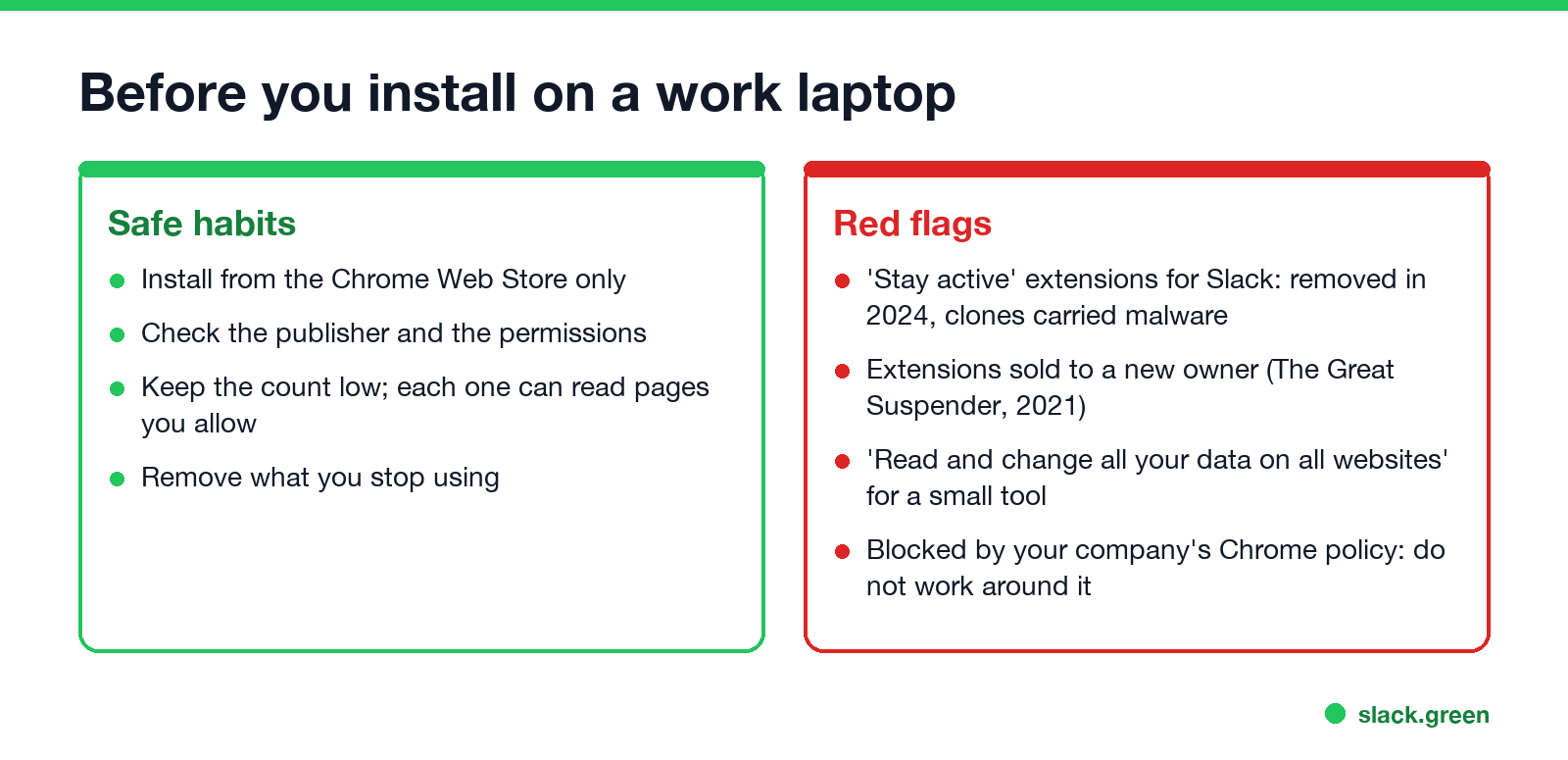
Two things we left out on purpose. Extensions that promise to keep Slack green were removed from the Chrome Web Store in 2024 and their clones carried malware, as covered in Slack Chrome extensions. If a green Slack dot is the job, Slack Green keeps it active from our servers during the hours you set, with no extension running in your browser.
The shortlist
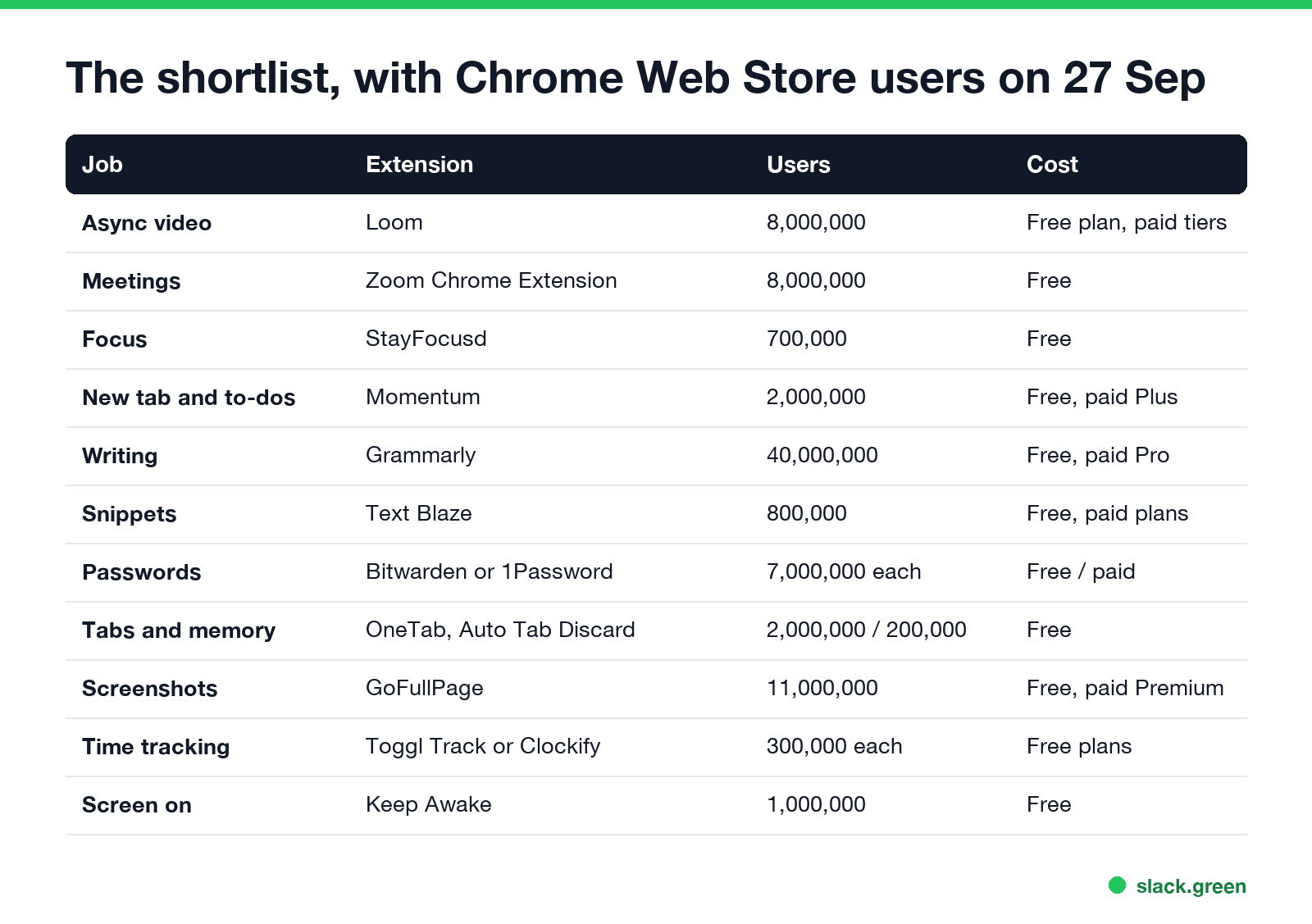
| Job | Extension | Users on the Chrome Web Store | Cost |
|---|---|---|---|
| Async video | Loom | 8,000,000 | Free plan, paid tiers |
| Meetings | Zoom Chrome Extension | 8,000,000 | Free |
| Focus | StayFocusd | 700,000 | Free |
| New tab and to-dos | Momentum | 2,000,000 | Free, paid Plus |
| Writing | Grammarly | 40,000,000 | Free, paid Pro |
| Snippets | Text Blaze | 800,000 | Free, paid plans |
| Passwords | Bitwarden, 1Password | 7,000,000 each | Bitwarden free; 1Password paid |
| Tabs and memory | OneTab, Auto Tab Discard | 2,000,000 and 200,000 | Free |
| Screenshots | GoFullPage | 11,000,000 | Free, paid Premium |
| Time tracking | Toggl Track, Clockify | 300,000 each | Free plans |
| Screen on | Keep Awake | 1,000,000 | Free |
Meetings and async updates: Loom and Zoom
Loom records your screen, camera and voice from the toolbar and gives you a link to paste in Slack, Teams or email. A 3-minute walkthrough replaces a lot of "quick calls" across time zones. The free plan limits video length; teams pay for longer recordings.
The Zoom Chrome Extension adds a Zoom button to Google Calendar events, so an invite carries a meeting link without opening the Zoom app. If you set a Zoom status too, see how to keep your Zoom status active. For time zones across a team, our free Slack time zone converter turns one time into everyone's local time.
Focus: StayFocusd and Momentum
Never appear "away" on Slack again
Cloud-based. No downloads. Works 24/7 even when your laptop is off.
StayFocusd limits the time you spend on sites you choose, then blocks them for the rest of the day. It also has a "nuclear option" that blocks everything but an allow list for a set number of hours.
Momentum replaces Chrome's new tab page with a single focus line for the day, a short to-do list and a clock. It is the lighter option: a reminder, not a block.
Writing and snippets: Grammarly and Text Blaze
Grammarly checks spelling, grammar and tone in Gmail, Slack in the browser, Google Docs and most text boxes. Remote work runs on writing, so it earns its place for most people. Company data rules matter here: Grammarly sends the text it checks to its servers, and some employers block it.
Text Blaze expands short commands into saved text: /standup becomes your daily update template, /intro your meeting intro. It fills in dates and form fields as it goes.
Passwords, tabs and screenshots
- • Bitwarden and 1Password fill passwords and one-time codes from a vault. Bitwarden has a free personal plan; 1Password is paid. Many companies issue one of them, so check before you install your own.
- • OneTab collapses every open tab into one list page with one click, which frees memory and gives you a clean window. Auto Tab Discard suspends tabs you have not used for a while, so they stop using memory, and reloads them when you click. Chrome's built-in Memory Saver does a simpler version of the same thing.
- • GoFullPage captures a whole scrolling page as one image or PDF, handy for bug reports and design feedback.
Time tracking and keeping the screen on
Never appear "away" on Slack again
Cloud-based. No downloads. Works 24/7 even when your laptop is off.
Toggl Track and Clockify add a timer button inside tools such as Jira, Asana, Trello, GitHub and Google Docs, so you can log time where the work happens. Both have free plans. They record what you start and stop yourself, which is a different thing from employer monitoring software; how to tell if that is on your laptop is in how to tell if you are being monitored at work.
Keep Awake keeps the screen on, or only the system awake, from a toolbar icon. It does not create input, so Slack and Teams still show you Away; the full explanation is in keep awake Chrome extension.
Before you install on a work laptop
FAQ
What are the best Chrome extensions for working from home? Loom for video updates, Zoom for scheduling, StayFocusd or Momentum for focus, Grammarly for writing, Bitwarden or 1Password for passwords, and OneTab for tabs.
Is there a Chrome extension to keep Slack active? Not a safe one. The popular stay-active extensions were removed from the Chrome Web Store in 2024, and clones carried malware.
Are Chrome extensions safe on a work computer? Most listed here are from large, known publishers. Check permissions, keep the count low, and follow your company's policy.
Which Chrome extension keeps my screen from turning off? Keep Awake. It keeps the display or the system on, but it does not keep Slack or Teams active.
Do time tracking extensions monitor me? Toggl Track and Clockify record only the timers you start. Employer monitoring software is a separate, installed program.
Stop Jiggling Your Mouse.
Join hundreds of remote workers who never worry about their Slack status. Set it up once, stay green forever.
Related Articles
KeepingYouAwake vs Amphetamine: Which Mac Keep-Awake App to Use
KeepingYouAwake is a free, open-source menu bar switch that runs Apple's caffeinate for you. Amphetamine is a free App Store app with triggers, schedules and a closed-lid mode. Pick KeepingYouAwake for one click and Homebrew, Amphetamine for automation. Neither keeps Slack or Teams active.
Computer Locks After 15 Minutes? How to Tell If Group Policy Set It
A work laptop that locks after exactly 15 minutes, with screen settings greyed out, is almost always following a policy from IT: the Windows machine inactivity limit, a forced screen saver, or an Intune device lock. Security baselines and PCI DSS ask for 15 minutes. How to see which policy it is, and what you can and cannot change.
How to Keep a Citrix Session Active: Find Which Timeout Logs You Out
A Citrix session can end from four different timers: Windows locking inside the virtual desktop, the Citrix session idle timer, the Citrix Gateway session time-out, and the StoreFront web page timeout. Only input from your own device into the Citrix window resets them. How to tell which one hit you and what keeps each one quiet.