
Does Caffeine Keep Teams Active? Windows Yes, Mac No
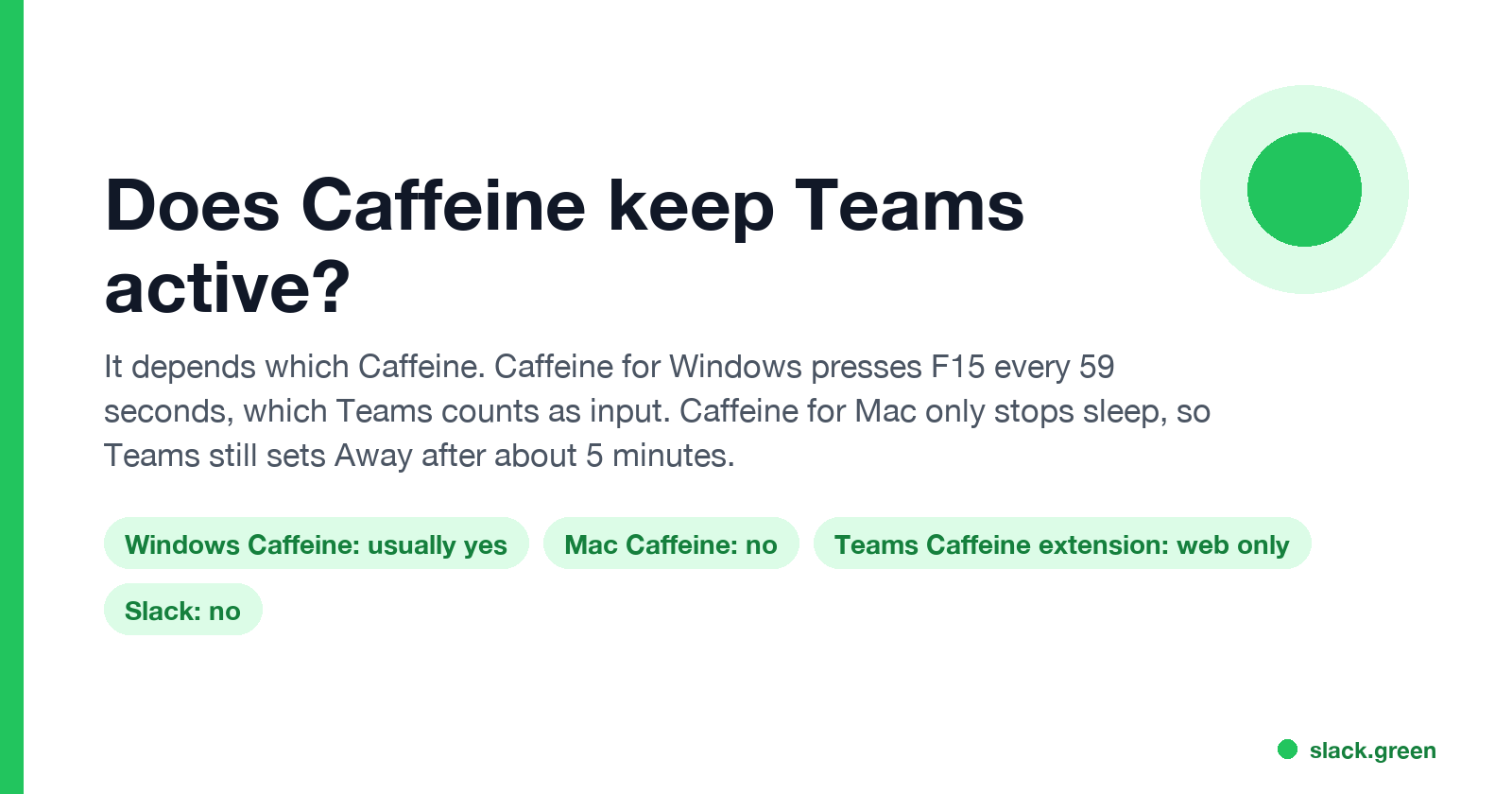
Caffeine for Windows presses F15 every 59 seconds, and Teams counts that as keyboard input, so it usually keeps you Available while the PC stays unlocked. Caffeine for Mac and Amphetamine only stop sleep, so Teams still sets Away after about 5 minutes. The Teams Caffeine Chrome extension works only for Teams on the web.
It depends which Caffeine you mean. Caffeine for Windows, the free Zhorn Software app, usually keeps Microsoft Teams active: it sends an F15 key event every 59 seconds, Windows counts that as keyboard input, and Teams never reaches its idle timer of about 5 minutes. Caffeine for Mac and Amphetamine do not. They stop the Mac from sleeping but send no input, so Teams still turns yellow after about 5 minutes. Teams Caffeine is a separate Chrome extension that fakes mouse movement in Teams on the web. None of them stop the instant Away you get when the screen locks.
We build Slack Green, which keeps your Slack status active from a server during the hours you set. It does not work with Teams. Many of our users run both apps, and Caffeine behaves differently in each, so this page covers Teams and ends with the Slack answer.
Which Caffeine keeps Teams green
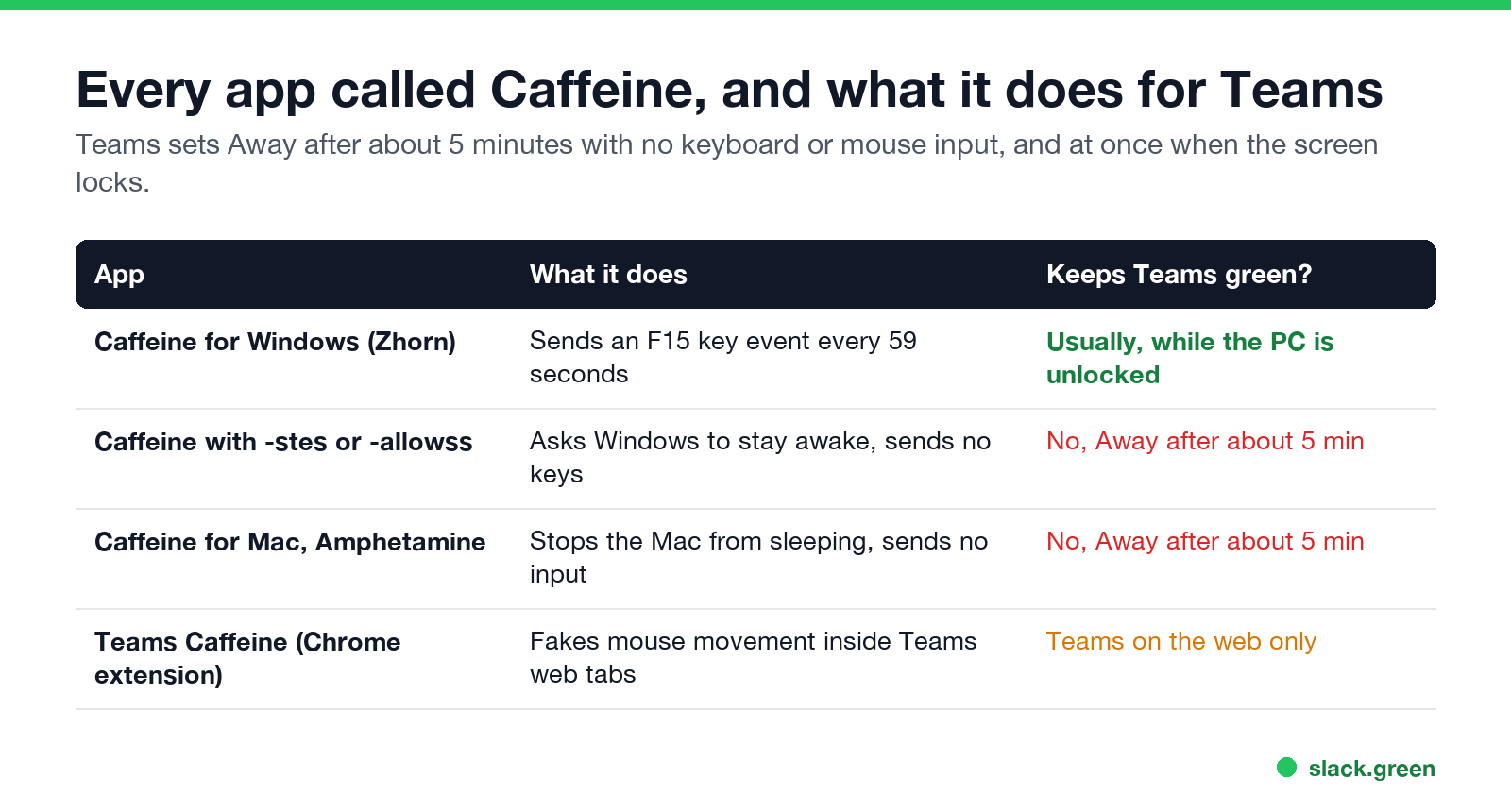
| App | What it does | Keeps Teams green? |
|---|---|---|
| Caffeine for Windows (default) | Sends an F15 key event every 59 seconds | Usually yes, while the PC is unlocked |
Caffeine for Windows with -stes or -allowss | Asks Windows to stay awake, sends no keys | No |
Caffeine for Mac, Amphetamine, caffeinate | Stops the Mac from sleeping, sends no input | No |
| Teams Caffeine (Chrome extension) | Fakes mouse movement inside Teams web tabs | Teams on the web only |
| Windows sleep set to Never | Keeps the PC awake, sends no input | No |
Teams decides your status from input, not from whether the screen is on. It sets Away after about 5 minutes with no keyboard or mouse input anywhere on the computer, sets Away at once when you lock the screen, and sets Offline when the computer sleeps. A keep-awake tool that sends no input only fixes the last one. The full list of timers is in how long before Teams shows you as Away.
Caffeine for Windows: why it works for Teams
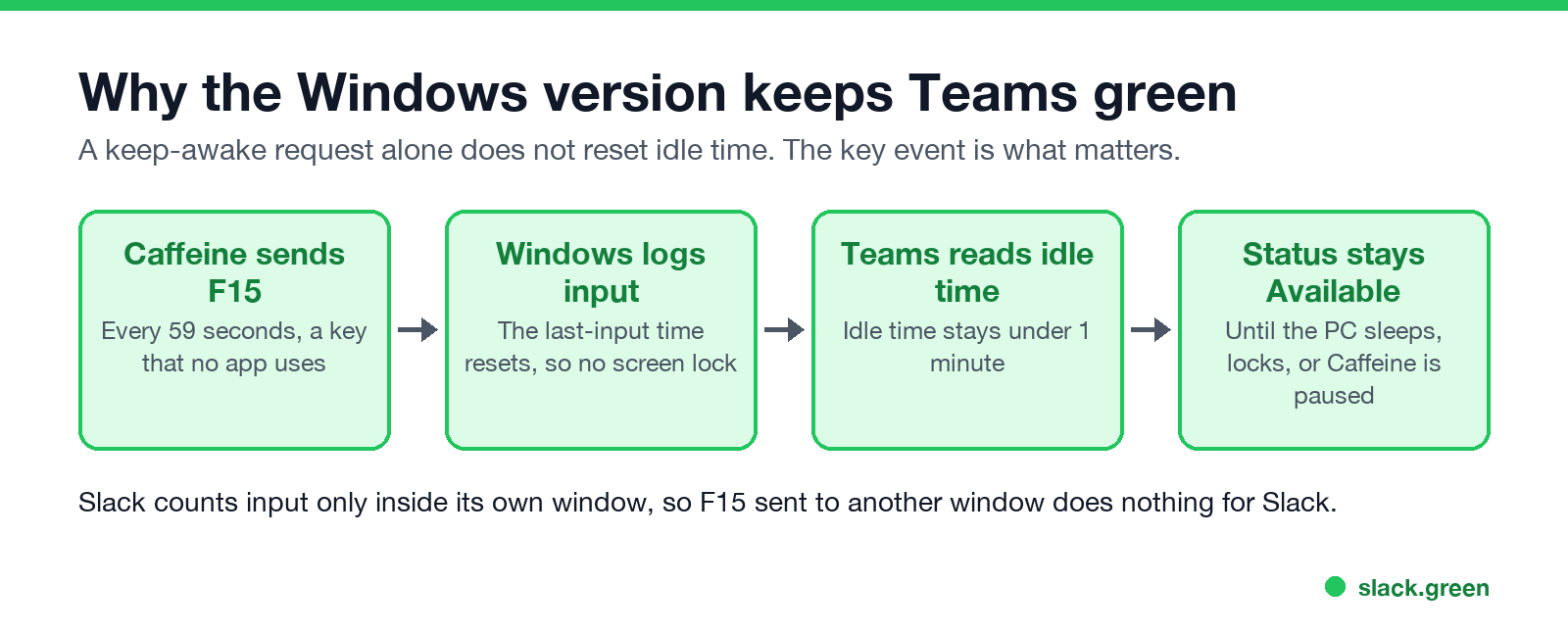
Zhorn Software's own page says Caffeine "works by simulating a keypress once every 59 seconds, so your machine thinks you're still working at the keyboard". The default key is F15, which almost no program uses. Windows records it as input and resets its idle time. Teams reads that same idle time, so it never gets to 5 minutes and keeps you Available.
This is why some guides say "Caffeine does not keep Teams active". They test the Mac app, or a Windows sleep setting, which send no input. The Windows app in its default mode does send input.
If Caffeine runs and Teams still goes yellow, check these in order:
- The tray icon is a full coffee pot. Double-clicking the icon pauses Caffeine. An empty pot means it is off.
- You did not start it with
-stesor-allowss. Zhorn's notes say these modes keep the machine awake "but not simulate activity, meaning any app which tracks user input will not see any". - Try a full key press. By default Caffeine sends only a key-up event. The
-keypressswitch sends a full key down and key up, which some setups need. - The screen still locks. A company lock policy that ignores simulated keys still sets you Away. Caffeine cannot fix that.
- Another device sets your status. Teams shows the status of the device you used last. A phone with Teams in the background can show Away. See Teams status stuck on Away.
To start Caffeine with a full key press, only during work hours, and only while the PC is plugged in, use a shortcut with these switches:
caffeine64.exe -keypress -activeperiods:0900-1800 -onac -notwhenlocked-activeperiods takes a time range, -onac limits it to AC power, and -notwhenlocked pauses it when you lock the PC. Setup steps and every useful switch are in Caffeine app for Windows.
Caffeine for Mac: why Teams still goes Away
Never appear "away" on Slack again
Cloud-based. No downloads. Works 24/7 even when your laptop is off.
Caffeine for Mac is a different app with the same name, first from IntelliScape. It and Amphetamine hold a power assertion that stops the Mac from sleeping. They do not press keys or move the mouse. macOS idle time keeps counting, and Teams sets you Away about 5 minutes after your last real input, with the screen still lit.
The built-in caffeinate command does the same thing, and you can check it yourself:
# keeps the display and system awake, sends no input
caffeinate -d -i
Leave that running, do not touch the Mac, and Teams turns yellow at about the 5-minute mark. Keep-awake apps on a Mac do stop the Offline status that sleep causes, and that is still useful. For more, see the best app to keep a Mac awake and the caffeinate command.
To keep Teams green on a Mac, you need something that makes input, such as a mouse jiggler. Mac options are in mouse jiggler for Mac.
What is Teams Caffeine?
Teams Caffeine is a free browser extension for Chrome and Edge, open source on GitHub under the name g-guerzoni/teams-caffeine. Its README says it "keeps your Microsoft Teams status active by simulating mouse movement at regular intervals". It runs only on Microsoft Teams pages, so it helps only if you use Teams in the browser at teams.microsoft.com. It does not touch the Teams desktop app, and it cannot stop a screen lock or sleep.
Other keep-awake extensions only stop the computer from sleeping. The difference is in keep-awake Chrome extensions.
Can IT see that you use Caffeine?
On a company PC, often yes. Caffeine is a running process that software inventory and endpoint tools can list, and one Reddit thread in r/antiwork is titled "IT department detected use of the Caffeine app". Windows also marks simulated key events as injected input, which monitoring tools can read. Teams itself does not report how the input arrived. More detail is in can a mouse jiggler be detected.
Does Caffeine keep Slack active too?
Never appear "away" on Slack again
Cloud-based. No downloads. Works 24/7 even when your laptop is off.
No, in most cases. Slack counts input only inside its own window. Caffeine for Windows sends F15 to whatever window is in front, so Slack sees it only while Slack is the focused window. Keeping the PC awake stops the Away you get from sleep, but Slack still turns grey 10 minutes after your last input in Slack. We tested the Mac version in does Caffeine keep Slack active. Tools that keep Teams and Slack both green are compared in keep Teams and Slack active.
FAQ
Does Caffeine keep Teams active?
Caffeine for Windows usually does, because it sends an F15 key every 59 seconds. Caffeine for Mac does not, because it only stops sleep.
Why is Caffeine not keeping Teams active?
Caffeine may be paused, started with -stes, or on a Mac. A screen lock policy or another signed-in device can also set Away. Try the -keypress switch on Windows.
Is there a Caffeine for Teams?
Teams Caffeine is a Chrome and Edge extension for Teams on the web. For the desktop app, use Caffeine for Windows or a mouse jiggler.
Does Amphetamine keep Teams active?
No. It stops the Mac from sleeping but sends no input, so Teams sets Away after about 5 minutes.
Is Caffeine safe to use at work?
The app is small freeware from zhornsoftware.co.uk. Your company may still block it or see it running, so check your IT policy.
Stop Jiggling Your Mouse.
Join hundreds of remote workers who never worry about their Slack status. Set it up once, stay green forever.
Related Articles
Can My Employer See My Browsing If I Use a VPN? It Depends Whose
A personal VPN hides the sites you visit from the office network, but not from monitoring software, a managed browser or IT on a work laptop. The company VPN shows your employer every site it carries. What each setup hides.
Teams Status on Multiple Devices: The Last Device You Used Wins
Signed in to Teams on a computer and a phone? Your status comes from the device you used most recently. That is why a quick look at your phone can turn you Away, and why a phone in your pocket shows Away instead of Offline at night.
Zoom Do Not Disturb: How to Turn It On, Schedule It, and What It Blocks
To turn on Do not disturb in Zoom, click your profile picture, point at your status and choose Do not disturb, then a time from 20 minutes to 24 hours, or Custom for a daily schedule. It blocks pop-up notifications for Zoom Team Chat and Zoom Phone calls. Busy, by contrast, mutes nothing. How the two differ, and how to keep a Zoom meeting free of pop-ups.