
Slack Spoiler Text: No Spoiler Tag Exists, What Works Instead
Slack has no spoiler formatting. We sent Discord's ||text||, Reddit's >!text!< and //text// in Slack on 29 September 2026: all three show in plain sight. A thread reply is the workaround that hides the answer.
Slack has no spoiler tag. There is no formatting that blurs or hides text until someone clicks it, in the composer or through the API. Discord's ||text||, Reddit's >!text!< and the //text// form some people suggest all show up exactly as typed. To hide a spoiler in Slack, post a warning in the channel and put the spoiler in a thread reply, so people see it only when they open the thread.
We tested every form below on 29 September 2026 in Slack in the browser, in a one-person test workspace, by typing in the message box and by sending the same text through chat.postMessage.
Spoiler syntax from other apps does not work
Here is what Slack showed for each form. The last two lines are Slack's real strikethrough and code formatting, for comparison:
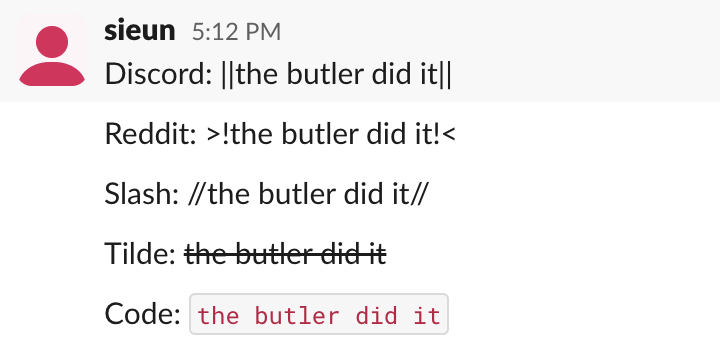 !the butler did it!<" and "Slash: //the butler did it//" all shown in plain text, then "the butler did it" struck through, then in red code font" class="rounded-lg shadow-lg my-8 w-full" />
| What we sent | Where it comes from | What Slack showed |
|---|---|---|
| Two pipes on each side | Discord | The text and the pipes, readable |
>!text!< | The text and the marks, readable | |
//text// | Suggested on forums | The text and the slashes, readable |
~text~ | Slack strikethrough | A line through the text, still readable |
| Backticks around the text | Slack inline code | Red code font, still readable |
Typing the Discord and Reddit forms in the message box gave the same result. When we read the message back with conversations.history, Slack had saved it as a plain text element, with the pipes and marks as ordinary characters. No style was attached. Which marks Slack does format is in how to bold text in Slack, and you can check any text with the Markdown to Slack converter.
The API rejects a spoiler style
Slack's newer message format, rich_text blocks, lets a text element carry styles such as bold, italic, strike and code. We tried adding "spoiler": true to the style:
{
  "type": "text",
  "text": "the butler did it",
  "style": { "spoiler": true }
}
Slack refused the message:
{
  "ok": false,
  "error": "invalid_blocks",
  "errors": [
    "invalid additional property: spoiler [json-pointer:/blocks/0/elements/0/elements/0/style]"
  ]
}
So an app cannot add a spoiler style either.
Never appear "away" on Slack again
Cloud-based. No downloads. Works 24/7 even when your laptop is off.
Put the spoiler in a thread
A thread reply is the only hiding place we found that works for everyone and needs no app. Post the warning in the channel, then reply to your own message with the spoiler. The channel shows the warning and "1 reply". The answer stays out of view until someone clicks it:

Leave "Also send to" unchecked when you reply, or Slack posts the reply to the channel too. This also works for a spoiler image: attach the image to the thread reply, not to the channel message. If a thread you follow keeps showing as unread, see Slack threads keep showing unread.
Workarounds that did not hide anything
- • Blank lines. We posted the warning, 30 lines with a single dot, then the answer. Slack showed all 32 lines with no "Show more" fold, so the answer sat in plain view one scroll down.
- • A button without an app. We sent a Block Kit message with a "Show spoiler" button through
chat.postMessage. It posted and showed the button. Clicking it did nothing, because a button only works when an app receives the click and answers it. A custom Slack app with interactivity turned on could reply to the click with a message only the clicker sees, but that is an app you build and host.
FAQ
Is there a Slack app for spoilers? Apps for this exist in the Slack Marketplace. They post the hidden text for you and reveal it on a click. We did not test them. Your workspace admin may need to approve an app before you can add it.
Stop Jiggling Your Mouse.
Join hundreds of remote workers who never worry about their Slack status. Set it up once, stay green forever.
Related Articles
Slack Member ID: Where to Copy It, and What the U Means
A Slack member ID is the U... code that identifies a person. Copy it from their profile under the three-dot menu, or look it up with users.info and users.list. Tested in two workspaces, with the ID formats we found.
Slack API Rate Limits: What We Hit, and the 429 You Get Back
Slack answers too many calls with HTTP 429 and a Retry-After header. We burst chat.postMessage, conversations.history and an incoming webhook from an internal app and logged every response: where the 429s started, the bodies, and a retry loop that never hit one.
Slack files.upload Deprecated: The 3-Step Upload That Replaces It
files.upload now returns method_deprecated. Use files.getUploadURLExternal, POST the bytes, then files.completeUploadExternal, or files_upload_v2 in the SDK. Tested with curl and Python, including two silent failures.