
Teams Status on Multiple Devices: The Last Device You Used Wins
Signed in to Teams on a computer and a phone? Your status comes from the device you used most recently. That is why a quick look at your phone can turn you Away, and why a phone in your pocket shows Away instead of Offline at night.
When you are signed in to Microsoft Teams on more than one device, your status comes from the device you used most recently. Microsoft's presence documentation gives the example directly: if you are working on your computer, your presence comes from the computer; "when they disconnect on the computer, their presence then comes from the status of the mobile device." A status you pick by hand, such as Busy or Appear offline, is different: it belongs to your account and shows on every device.
That one rule explains most surprises. Checking a message on your phone makes the phone the latest device, and the phone app shows Away as soon as it goes back to the background. Slack uses a different rule, where any active device keeps you green; see Slack active on multiple devices. For Slack, Slack Green keeps your presence active from a server during the hours you set, whatever your own devices are doing.
How each device reports your status
Each device works out a status on its own. Teams then shows the one from the device you touched last.
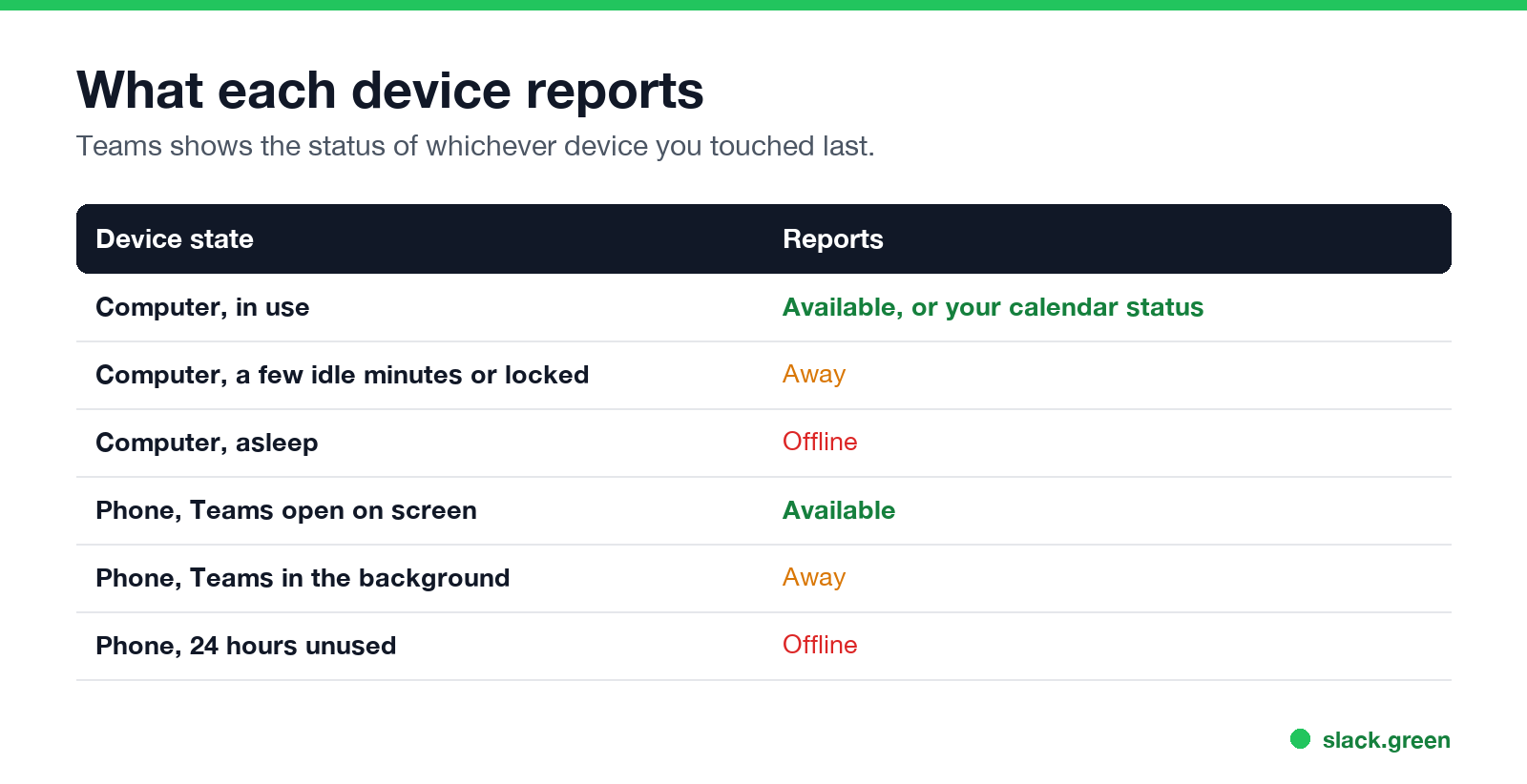
| Device state | Status that device reports |
|---|---|
| Computer, in use | Available, or your calendar status such as In a meeting |
| Computer, a few minutes without input | Away |
| Computer, screen locked | Away |
| Computer, asleep | Offline |
| Phone, Teams open on screen | Available |
| Phone, Teams in the background | Away |
| Phone, 24 hours without use | Offline |
| Signed out everywhere | Offline |
The computer rules count input anywhere on the computer, not only in Teams. The phone rule is strict: any time the Teams app is not on screen, the phone reports Away. The minutes and exceptions are in how long before Teams shows you as Away.
Common setups and what coworkers see
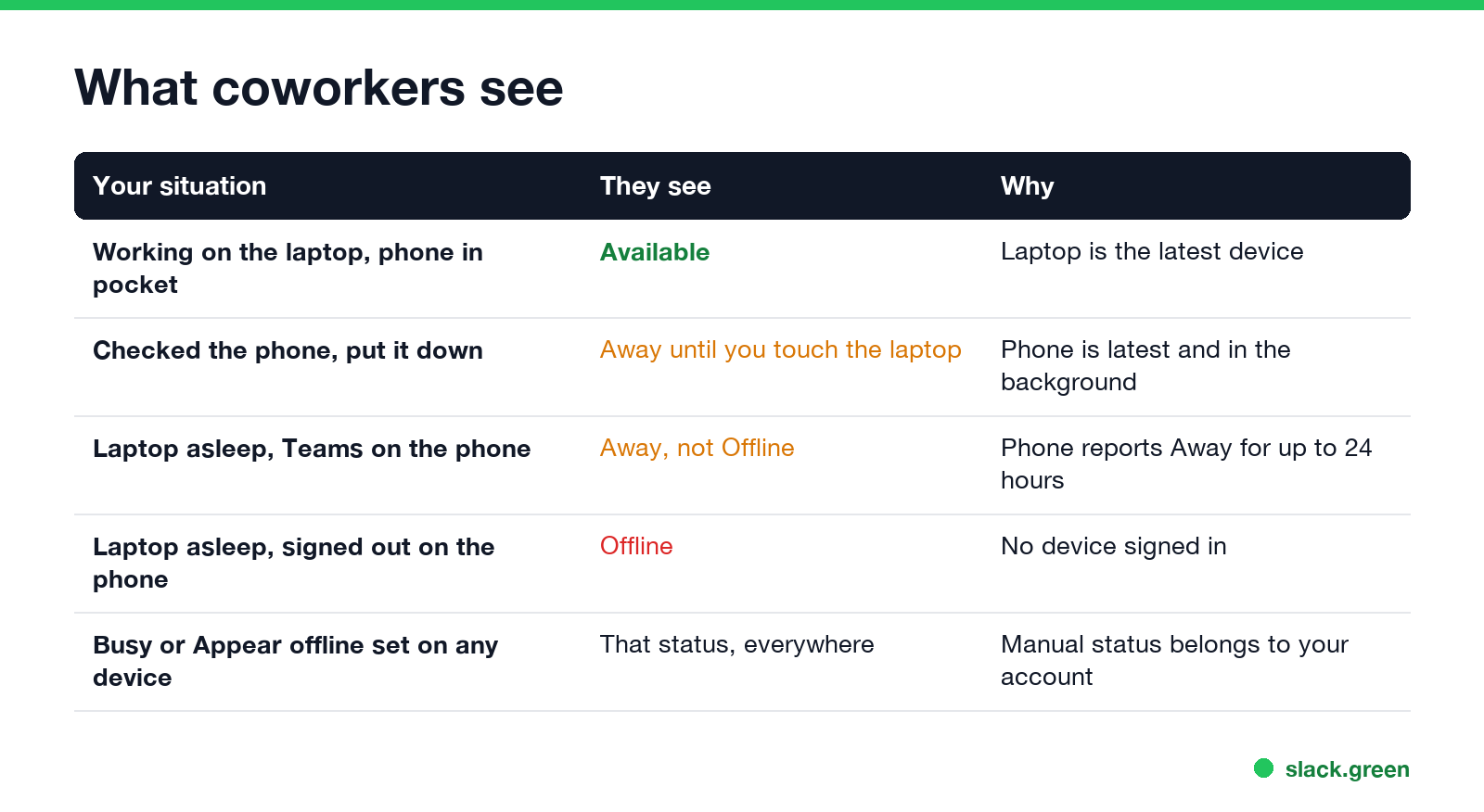
| Your situation | What coworkers see | Why |
|---|---|---|
| Working on the laptop, phone in your pocket | Available | The laptop is the most recent device |
| You check a message on your phone, then put it down | Away, until you touch the laptop | The phone became the most recent device, and it is in the background |
| Laptop asleep, Teams on the phone in your bag | Away, not Offline | The phone reports Away for up to 24 hours |
| Laptop asleep, signed out of Teams on the phone | Offline | No device is signed in |
| Laptop closed, reading chats on the phone | Available | The phone is in use with Teams on screen |
| You set Busy or Appear offline on either device | That status, everywhere | A manual status belongs to your account |
| You are in a Teams meeting on your phone | In a meeting | The call state wins over idle rules |
The second row is the one people notice. You are back at your desk reading, the phone is face down, and Teams shows yellow. One key press or mouse move on the computer makes it the latest device again and you turn green.
Teams logged in on two computers
Never appear "away" on Slack again
Cloud-based. No downloads. Works 24/7 even when your laptop is off.
The same rule applies to two computers, such as a work laptop and a home desktop. The one with the most recent input sets your status. A second computer left on and unlocked does not keep you green: after a few idle minutes it reports Away, and when it sleeps it reports Offline. Two computers only matter when you switch between them, and then the one you just used decides.
Why coworkers see Away at night instead of Offline
If Teams stays signed in on your phone, the phone reports Away while the app is in the background, and Microsoft says it becomes Offline only after 24 hours of inactivity. So people see a yellow dot in the evening, not grey. To show Offline, sign out of Teams on the phone, or pick Appear offline, which lasts until you change it. The steps are in how to appear offline on Teams.
Notifications and calls on several devices
- • Calls ring on every device where you are signed in. Answer on any of them.
- • Messages notify every device by default. To stop your phone from buzzing while you work at the computer, open Teams on the phone, tap your profile picture, Notifications, and under Block notifications turn on When active on other devices. Older versions call it When active on desktop. Microsoft's mobile notifications page describes it.
- • Quiet hours on the phone mute it at set times without changing your status; see Teams quiet hours.
How to keep one device from showing you Away
Never appear "away" on Slack again
Cloud-based. No downloads. Works 24/7 even when your laptop is off.
If your status stays yellow while you work at the computer, the cause is usually not a second device; see Teams status stuck on Away.
Teams vs Slack on multiple devices
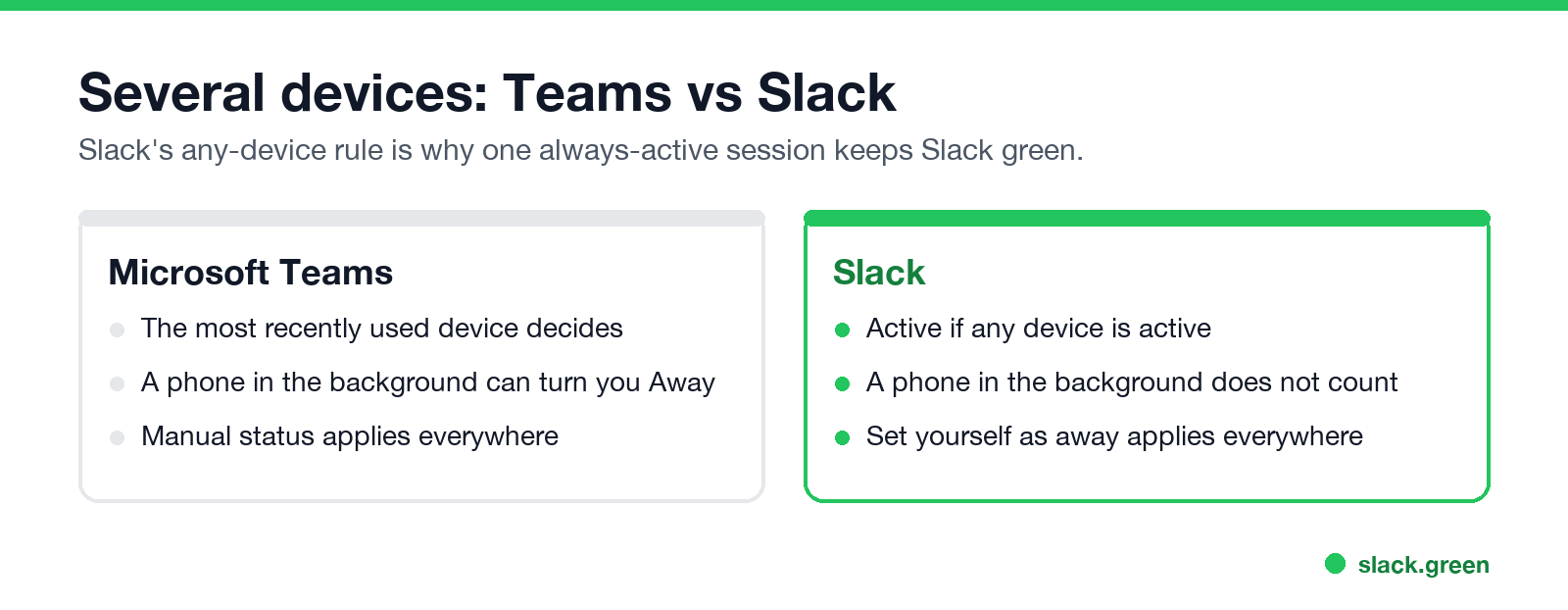
| Microsoft Teams | Slack | |
|---|---|---|
| Rule | The device you used most recently decides | Active if any device is active |
| Phone in the background | Away, and can override an idle computer | Does not count as active |
| Checking your phone, then putting it down | Can turn you Away | No effect while the computer is active |
| Manual status | Applies to every device | Set yourself as away applies to every device |
Because Slack uses "any device", a device that is always active keeps you green in Slack. That is what Slack Green does: it holds one active Slack session on a server during the hours you set, so your dot stays green with your laptop closed and your phone in your pocket.
FAQ
Which device sets my Teams status? The one you used most recently. A status you set by hand shows on every device.
Why does Teams show me Away after I check my phone? The phone became your most recent device, and the phone app reports Away when it goes to the background. Touch your computer and you turn green.
Why do I show Away instead of Offline at night? Teams on your phone reports Away while it is in the background, for up to 24 hours. Sign out on the phone or choose Appear offline.
What happens if I am logged in to Teams on two computers? The computer with the latest input sets your status. An idle second computer reports Away, and a sleeping one reports Offline.
Do I get Teams notifications on all devices? Yes, by default. On the phone, turn on Block notifications When active on other devices to stop duplicates.
Does Teams on my phone keep me green? Only with the app open on screen. In the background it reports Away.
Stop Jiggling Your Mouse.
Join hundreds of remote workers who never worry about their Slack status. Set it up once, stay green forever.
Related Articles
Can My Employer See My Browsing If I Use a VPN? It Depends Whose
A personal VPN hides the sites you visit from the office network, but not from monitoring software, a managed browser or IT on a work laptop. The company VPN shows your employer every site it carries. What each setup hides.
Zoom Do Not Disturb: How to Turn It On, Schedule It, and What It Blocks
To turn on Do not disturb in Zoom, click your profile picture, point at your status and choose Do not disturb, then a time from 20 minutes to 24 hours, or Custom for a daily schedule. It blocks pop-up notifications for Zoom Team Chat and Zoom Phone calls. Busy, by contrast, mutes nothing. How the two differ, and how to keep a Zoom meeting free of pop-ups.
Auto Clicker vs Mouse Jiggler: Which Keeps You Active, and the Risks
A mouse jiggler moves the pointer; an auto clicker clicks wherever the pointer sits. Both keep Teams and the screen awake, but an auto clicker can click the wrong thing, and fixed-interval clicks are exactly what monitoring tools flag.