
Does Teams Show Edited Messages? Yes, With an Edited Label
Teams marks an edited message with an Edited label that everyone in the chat sees. Nobody is notified again and nobody in the chat can open the old text, but a notification or a missed-activity email may already hold it. Edit steps, read receipts, and the admin settings.
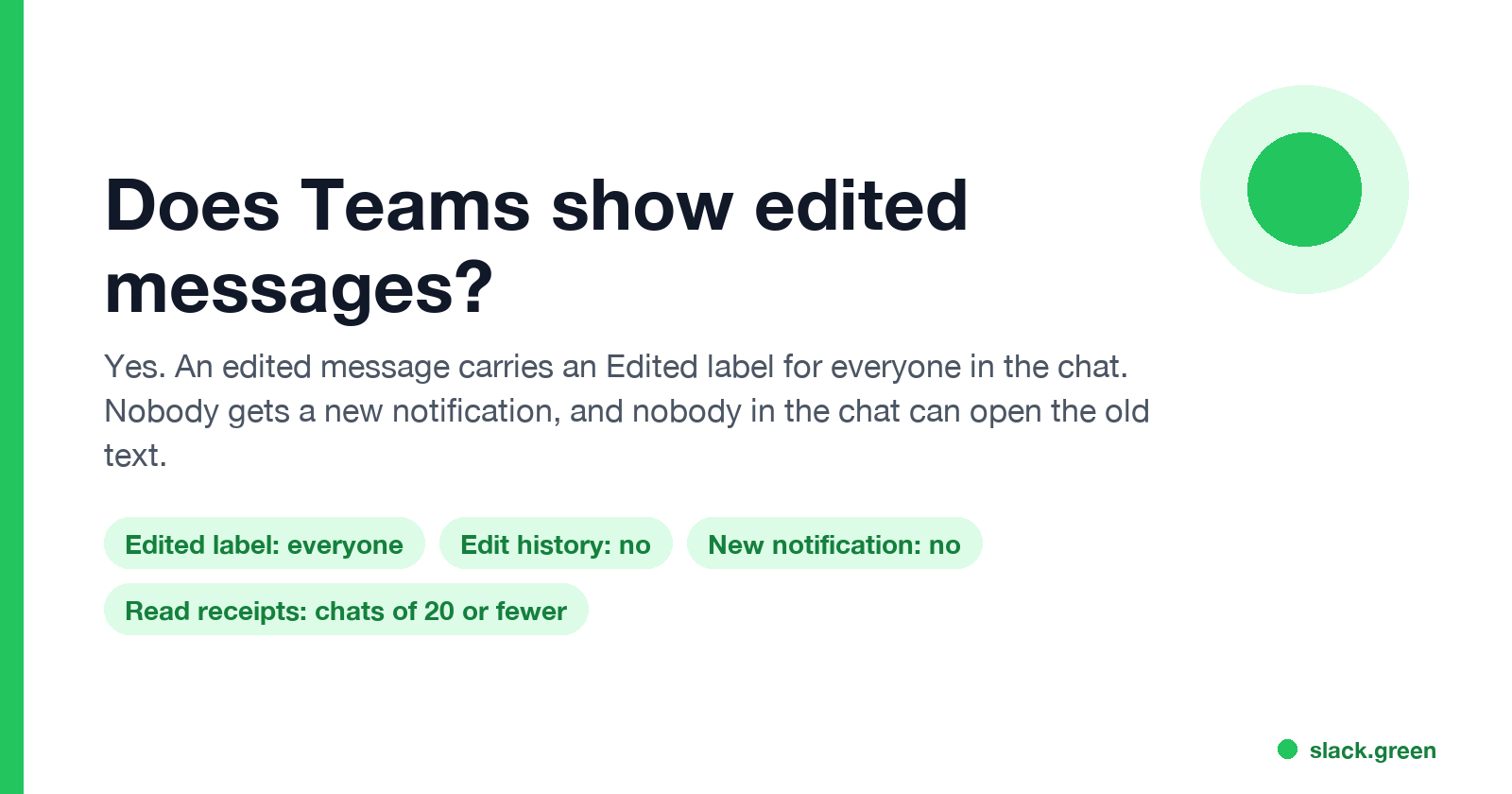
Yes. When you edit a message in Microsoft Teams, everyone in the chat or channel sees the new text with an Edited label next to it. Teams does not send a new notification for the edit, and people in the chat cannot open the earlier version: Teams has no edit history for users. The original can survive in two places. A banner or phone notification may already have shown it, and a missed-activity email keeps the text as it was sent. Under a retention policy, compliance admins can also find every earlier version.
Teams also shows when you read and type, and when you are active. Your status goes Away after about 5 minutes with no input on the computer. In Slack, Slack Green keeps your status green during the hours you set.
What others see when you edit or delete a Teams message
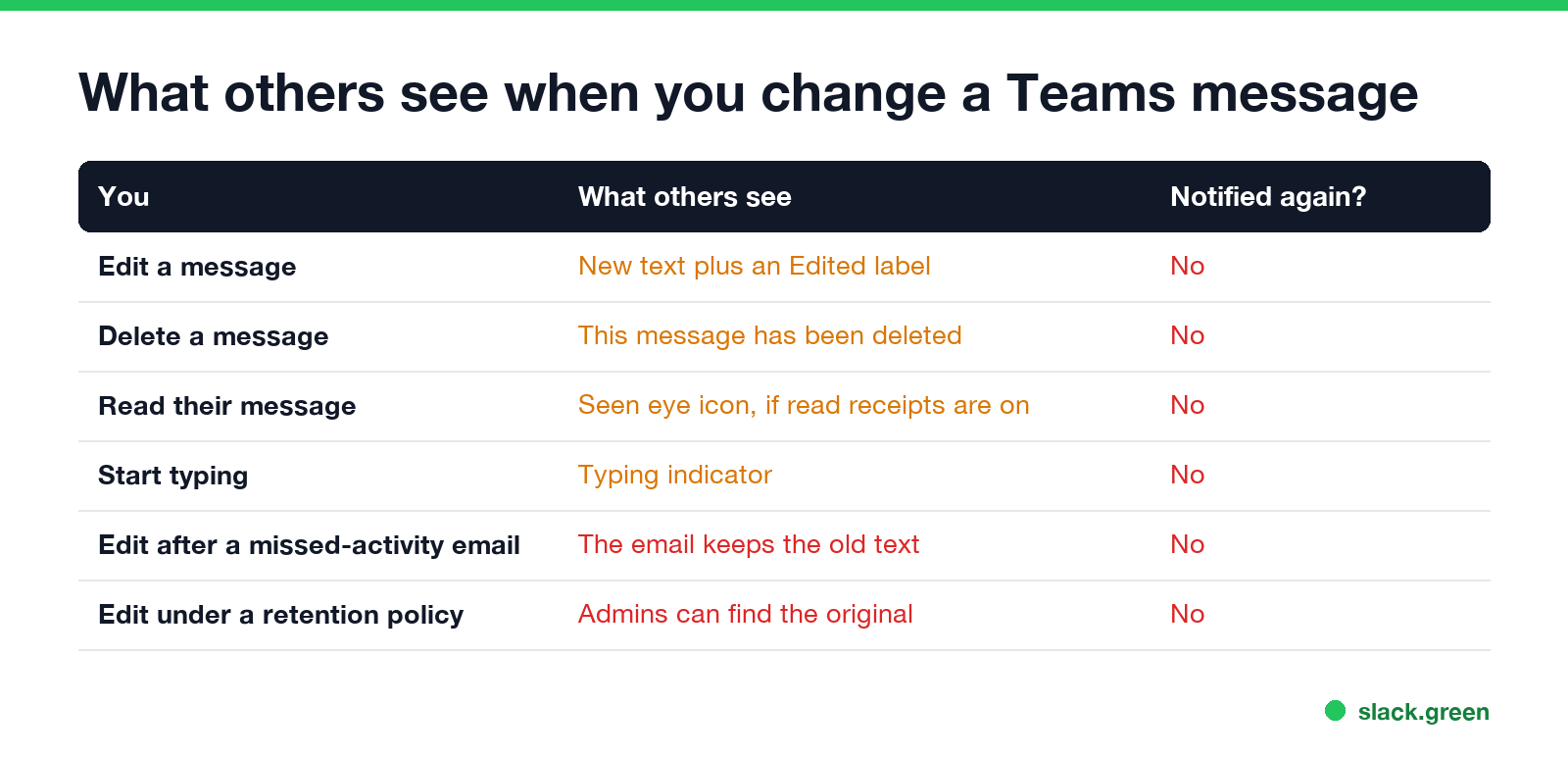
| You | What others see | Notified again? |
|---|---|---|
| Edit a message | The new text and an Edited label | No |
| Delete a message | "This message has been deleted" | No |
| Read their message | A Seen eye icon, if read receipts are on | No |
| Start typing | A typing indicator | No |
The Edited label appears in 1:1 chats, group chats and channel posts, on desktop, web and mobile. It does not say what changed or when. If someone already saw your message in a desktop banner, on their phone lock screen or in a missed-activity email, they saw the original text, and editing does not change what they read.
Does Teams show edit history?
Not to people in the chat. Teams has no "view edits" option, so a coworker sees only the latest text. Your company is a different case. Microsoft's retention documentation says that when a user edits a chat or channel message during the retention period, "the original message is copied" to a hidden folder, where eDiscovery can search it. What admins can pull up is in can my employer see deleted Teams messages.
How to edit a message in Teams
Never appear "away" on Slack again
Cloud-based. No downloads. Works 24/7 even when your laptop is off.
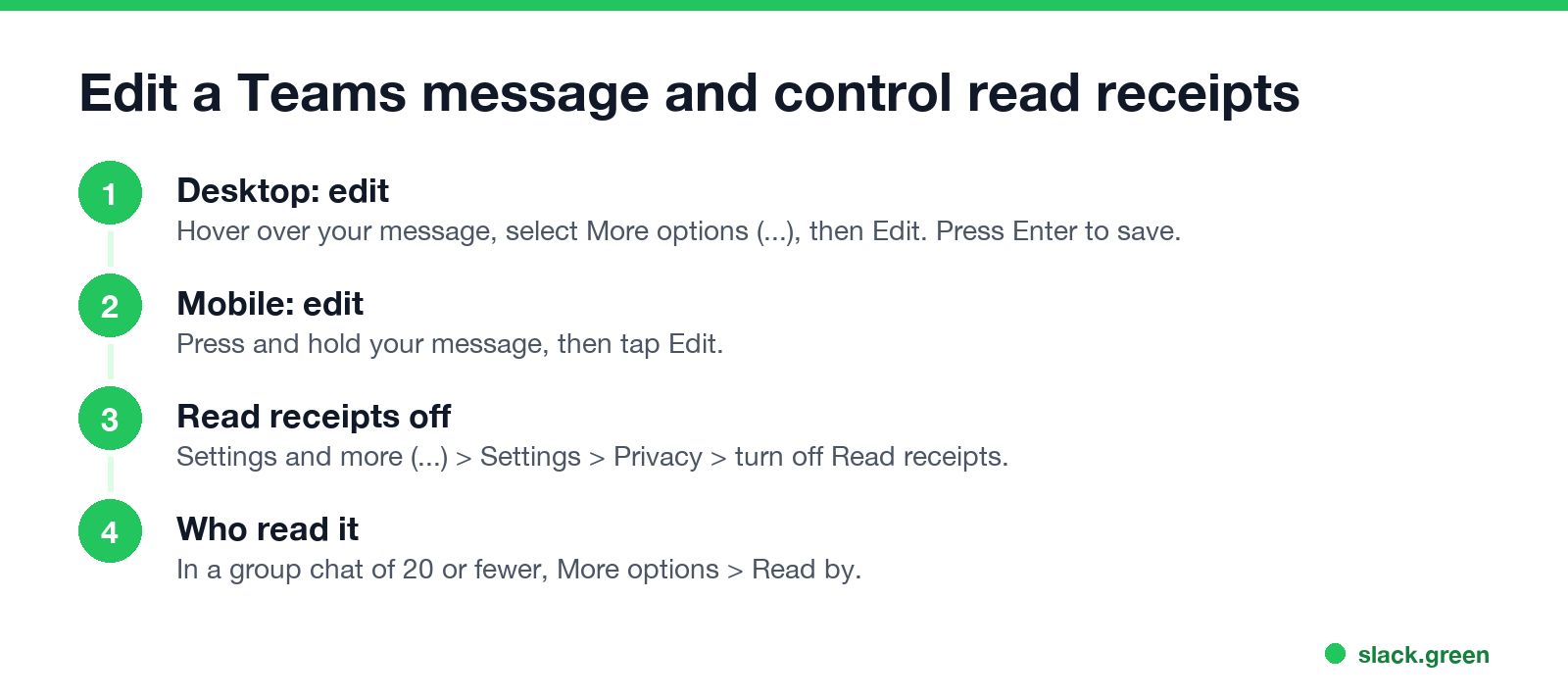
- Desktop or web: hover over your message, select More options (...), then Edit. Change the text and press Enter.
- Mobile: press and hold your message, then tap Edit.
- To delete: More options, then Delete. The deleted-message line shows you an Undo link.
If Edit is missing, your organization turned it off in the messaging policy. You can only edit your own messages.
Does Teams show read receipts?
Yes, in 1:1 chats and in group chats of 20 people or fewer. A check mark means the message was sent, and an eye icon means it was seen. In a group chat, select More options > Read by on your message to see who read it. Channel posts have no read receipts.
To turn yours off, go to Settings and more (...) > Settings > Privacy and switch off Read receipts. That works both ways: others stop seeing when you read their messages, and you stop seeing when they read yours. If the switch is missing, your admin set read receipts on or off for everyone.
Slack has no read receipts at all; the comparison is in does Slack have read receipts. The typing indicator in Teams is covered in does Teams show when you are typing.
Admin settings for editing and read receipts
Admins control both in the Teams admin center under Messaging > Messaging policies, or in PowerShell with the Teams module:
# stop users from editing and deleting sent messages
Set-CsTeamsMessagingPolicy -Identity Global -AllowUserEditMessage $false -AllowUserDeleteMessage $false

# read receipts: UserPreference (each user decides), Everyone (always on) or None (off)
Set-CsTeamsMessagingPolicy -Identity Global -ReadReceiptsEnabledType UserPreference
A policy change can take a few hours to reach every user. Firms that must keep records often turn editing off, so the message people see is always the one that was sent.
Teams vs Slack on edited messages
Never appear "away" on Slack again
Cloud-based. No downloads. Works 24/7 even when your laptop is off.
Both show a label: Teams says Edited, Slack says (edited). Neither lets other members see the old version. Slack sends no read receipts, while Teams does in small chats. The Slack side of what gets logged is in does Slack notify when you leave a channel.
FAQ
Does Teams show when you edit a message? Yes. An Edited label appears next to the message for everyone in the chat or channel.
Does Teams notify people when you edit a message? No. Editing sends no new notification. A notification already sent keeps the original text.
Can others see what I changed in a Teams message? No. People in the chat see only the new text. Compliance admins can find the original under a retention policy.
Does Teams show read receipts in group chats? Yes, in group chats of 20 people or fewer. Use More options > Read by to see who read it.
Can I edit a Teams message without it saying Edited? No. Every edit adds the label. Delete and resend if the label matters, and the chat shows a deleted-message line instead.
Stop Jiggling Your Mouse.
Join hundreds of remote workers who never worry about their Slack status. Set it up once, stay green forever.
Related Articles
How to Send a Slack Message From GitHub Actions
Add slackapi/slack-github-action@v4.0.0 as a step, give it a bot token or an incoming webhook URL from repository secrets, and write the message as YAML. Working workflows for failure alerts, threads and message updates, plus a curl version with no third-party action.
Slack Audit Logs: What They Record, Who Sees Them, and the API
Slack audit logs record actions across an Enterprise organization, such as sign-ins with IP address, file downloads, channel joins and app installs, not message text. Where admins view and export them, what the 785 action types cover, and how to pull them with the Audit Logs API.
LinkedIn Active Status: What the Green Dot Means and How to Hide It
On LinkedIn, a solid green dot on someone's photo means they are active on LinkedIn now. A hollow green circle means they are not, but the mobile app will notify them at once. Turn yours off under Settings & Privacy, Visibility, Manage active status; with No one, you also stop seeing other people's status.