
Phone Jiggler: Why a Phone Wiggler Won't Keep Teams Green
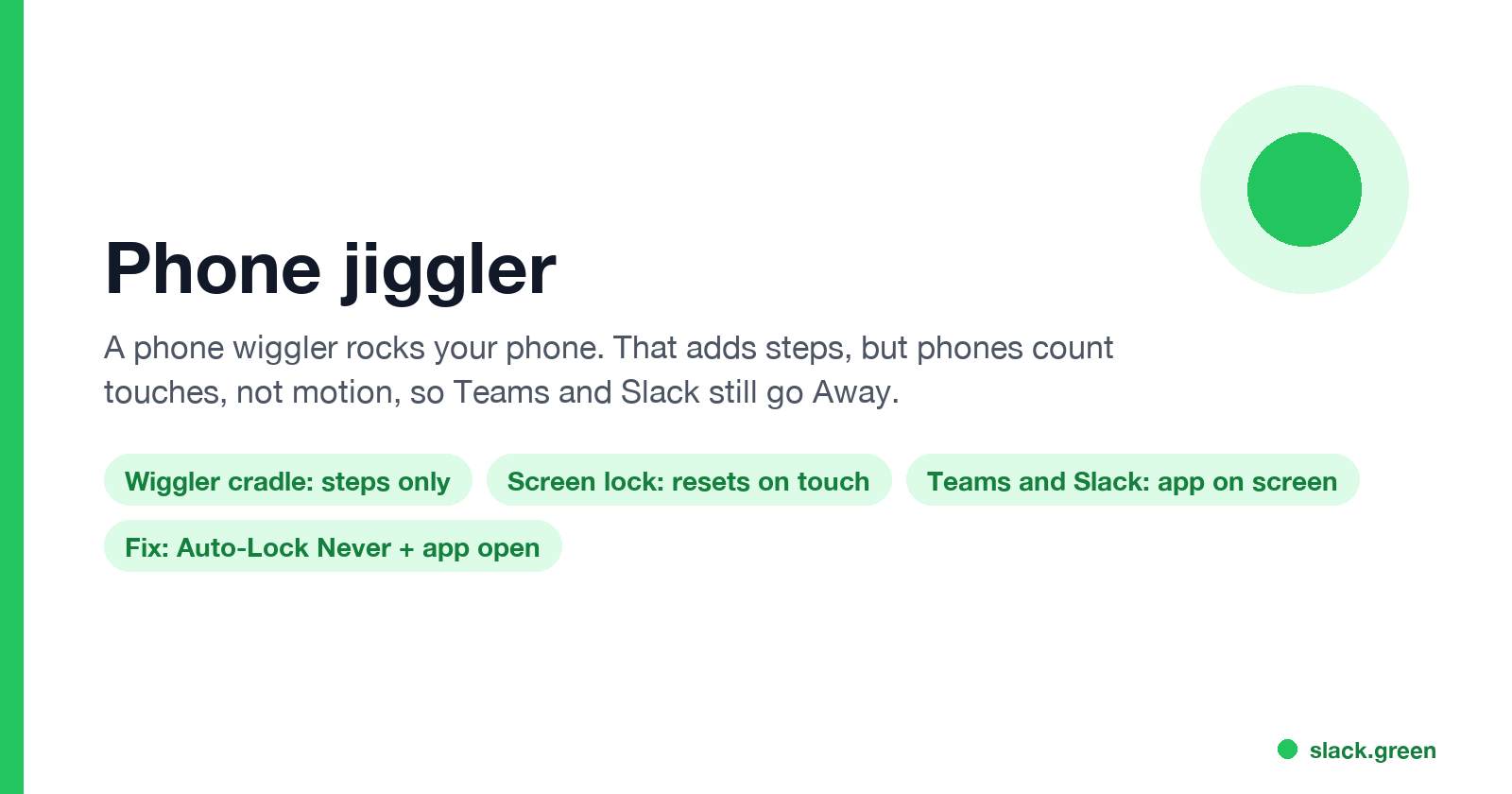
A phone jiggler rocks your phone back and forth. That adds steps in a pedometer app, but it does not keep the screen awake or Teams and Slack green, because phones count touches, not motion. Here is what each kind of phone jiggler does and what works instead.
Reading on your phone?
Run the idle test on your computer
Slack sets you away on your computer, so this free test runs there. Send yourself this page and press Start at your desk.
A phone jiggler is a small USB-powered cradle that rocks your phone back and forth, sold as a "phone wiggler" or "phone swing device". It was built for step counters: the motion makes a pedometer or a game like Pokémon GO count steps. It does not keep Microsoft Teams or Slack active on a phone. Both apps show you as active only while the app is open on an unlocked screen, and the phone's auto-lock timer resets on touches, not on motion. Shaking a locked phone moves a locked phone. To stay green in Slack with the phone locked, Slack Green keeps your Slack presence active from a server, free for 7 days with no card.
What keeps a phone active is simpler: set Auto-Lock to Never and keep the work app on screen.
What a phone jiggler does and does not do
"Phone jiggler" covers three different gadgets. Only one of them touches the screen.
| Gadget | What it does | Screen stays on? | Teams or Slack active on the phone? |
|---|---|---|---|
| Phone swing or wiggler cradle | Rocks the phone on a motor arm | No | No |
| Screen tapper (auto clicker for phones) | Taps the screen with a conductive tip | Yes | Only with the app on screen, and the taps can press buttons |
| Mouse jiggler app on the phone | Turns the phone into a Bluetooth mouse for your computer | Not the point | Teams and Slack desktop on the computer, yes |
The cradle is the one sold under "phone jiggler" on Amazon and AliExpress. The listings name egg hatching and step counting as the use. Motion goes to the accelerometer, which pedometer apps read. It never reaches the parts of the phone that decide whether you are active.
Why motion does not keep Teams or Slack active on a phone
Two rules decide your status on a phone, and motion affects neither.
- The screen locks after the Auto-Lock time (iPhone) or Screen timeout (Android) without a touch. Rocking the phone does not reset that timer.
- Teams and Slack report you as active only while their app is in the foreground. Microsoft's admin docs say your mobile presence "becomes Away whenever the Teams app is in the background". Slack's help center says you are set to away when you "navigate away or close the app" on a mobile device.
- Open Settings > Display & Brightness > Auto-Lock and pick Never.
- Open Teams or Slack and leave it on screen.
- To stop the phone from leaving the app, turn on Guided Access in Settings > Accessibility > Guided Access, then triple-click the side button inside the app.
- Turn off Low Power Mode, which forces Auto-Lock back to 30 seconds, and keep the phone on a charger. A screen that never turns off drains the battery in a few hours.
- Open Settings > Display > Screen timeout and pick the longest time. Many phones stop at 10 or 30 minutes.
- For no timeout at all, turn on Developer options and then Stay awake, which keeps the screen on while the phone charges.
- Open Teams or Slack. To keep it in front, use App pinning (Settings > Security, the exact menu name varies by brand).
So a phone on a wiggler with the screen locked shows Away in Teams and Slack, however much it moves. A phone lying still with the screen on and Teams open shows Available. The details for each app are in does Teams stay green on mobile and keep Slack active on mobile.
Keep a phone active without a jiggler
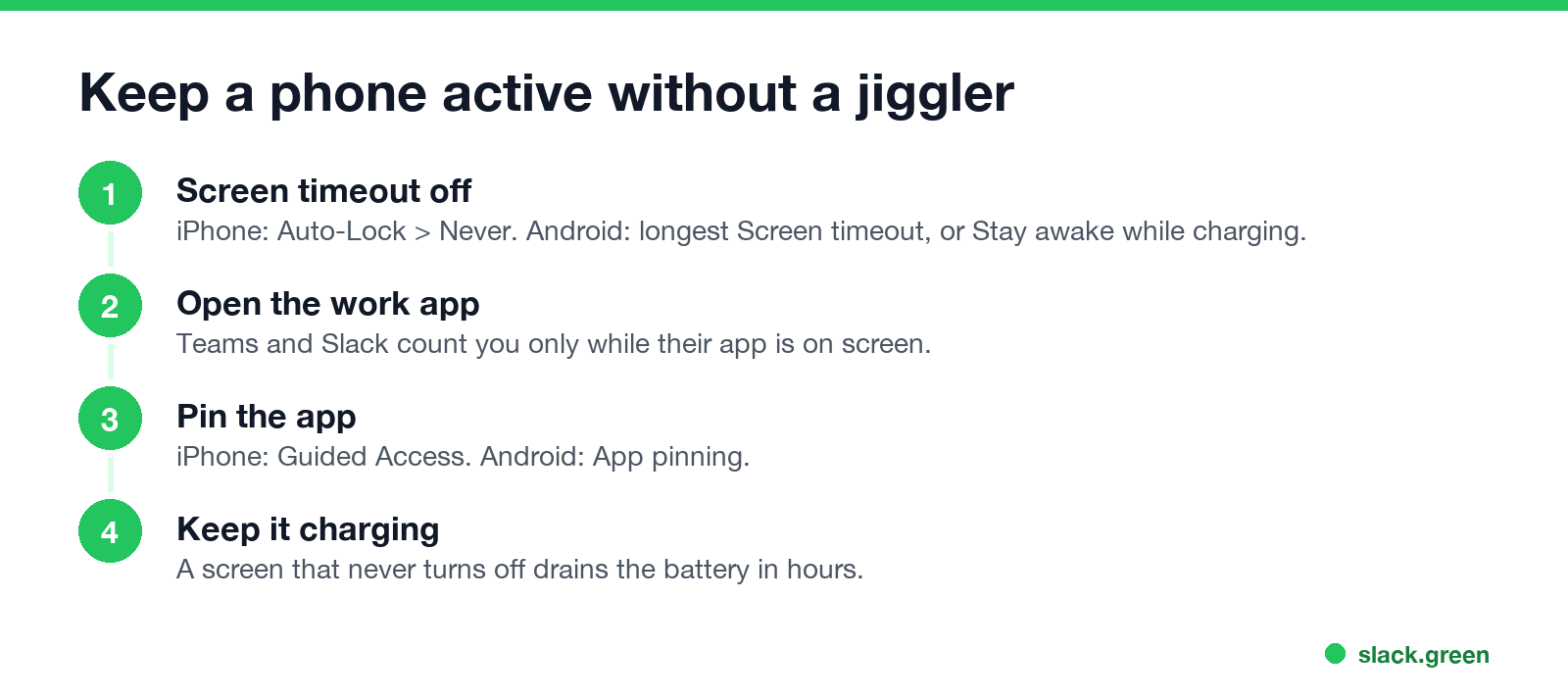
Everything a phone jiggler promises for work apps comes from settings you already have.
On an iPhone:
On Android:
That keeps the app in the foreground, which is the only state both apps count. It also means the phone sits unlocked on your desk, so do not leave it in public.
Is a screen tapper a better phone jiggler?
A screen tapper, also sold as a physical auto clicker for phones, clips over the screen and taps a spot at a set interval. It keeps the screen awake because a tap is a real touch.
It has two problems for work apps. First, if you set Auto-Lock to Never you do not need it. Second, every tap presses whatever sits under the tip. In Teams or Slack a tap can open a chat, start a call or react to a message when the layout moves. If you use one, point it at an empty area that nothing can change.
Can you use your phone as a mouse jiggler for your computer?
Yes. Apps such as Move Mouse on Google Play pair with your computer over Bluetooth as a mouse and move the cursor now and then. The computer sees a Bluetooth mouse, not a program, so nothing is installed on it.
That keeps the computer awake and Teams on the computer Available, because Teams counts input anywhere on the machine. The Slack desktop app also counts input anywhere on the computer (Slack desktop 4.52.178 code, checked 7 Oct 2026), so a Bluetooth mouse moving over another app keeps it green. A new Bluetooth device also appears in the computer's device list, where IT can see it. The same trade-offs for USB and software jigglers are in the best mouse jiggler and can a mouse jiggler be detected.
Phone jiggler for Slack
A phone jiggler cannot keep Slack active on the phone. The cradle moves a phone Slack cannot see, and the tapper works only with Slack open on an unlocked screen. The Bluetooth trick is different: it moves the computer's pointer, so it keeps the Slack desktop app active while the computer is awake and unlocked.
Slack shows you as active while any of your devices is active, so a phone with Slack on screen keeps you green even when the laptop is closed. That still needs the phone unlocked and on your desk all day.
Phone jiggler questions
Does a phone jiggler keep Teams active? No. Teams on a phone goes Away as soon as the app leaves the screen or the phone locks, and motion does not stop either.
Does a phone wiggler stop the screen from locking? No. Auto-Lock and Screen timeout count touches. Set them to Never or the longest value instead.
What is a phone jiggler for? Counting steps. Pedometer apps and step-based games read motion from the accelerometer, and the cradle supplies it.
Is there an iPhone jiggler app? No App Store app can keep another app active in the background, because iOS suspends background apps. Guided Access with Auto-Lock set to Never is the built-in way.
Related Articles
Keyboard Jiggler: Free F15 Scripts for Windows, Mac and Linux
A keyboard jiggler presses an unused key such as F15 every minute so the computer never counts you as idle. You can buy a USB device or run a free script. It keeps Windows awake, Teams green and the Slack desktop app active while the PC is unlocked.
Auto Clicker vs Mouse Jiggler: Which Keeps You Active, and the Risks
A mouse jiggler moves the pointer; an auto clicker clicks wherever the pointer sits. Both keep Teams and the screen awake, but an auto clicker can click the wrong thing, and fixed-interval clicks are exactly what monitoring tools flag.
Mouse Jiggler for Linux: Free xdotool and ydotool Scripts
The free Linux mouse jiggler is a short loop: xdotool on X11 or ydotool on Wayland moves the pointer 1 pixel and back every minute. If you only need the screen to stay on, an inhibitor is cleaner. The Slack desktop app counts the movement anywhere on screen.