
Phone Jiggler: Why a Phone Wiggler Won't Keep Teams Green
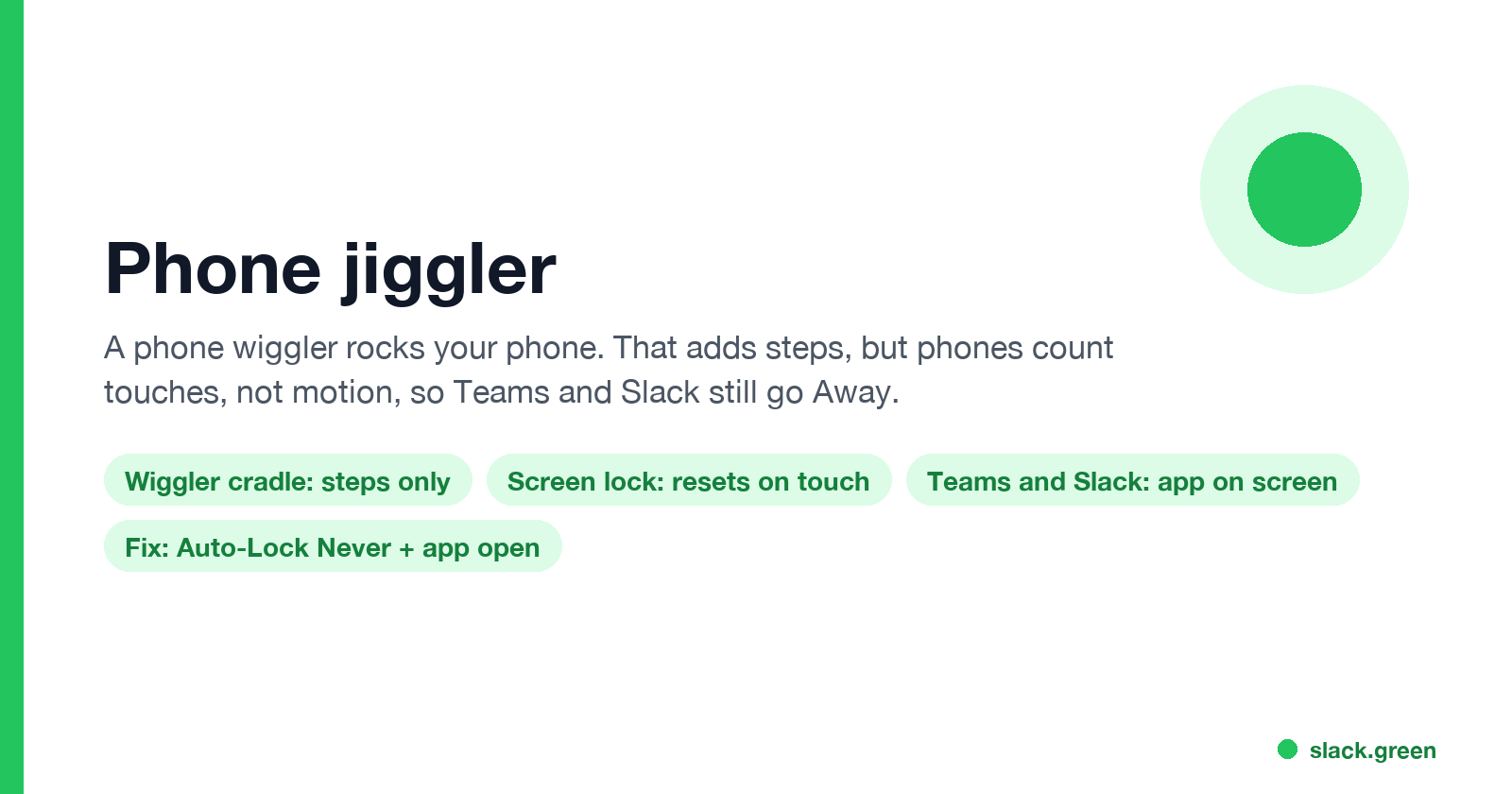
A phone jiggler rocks your phone back and forth. That adds steps in a pedometer app, but it does not keep the screen awake or Teams and Slack green, because phones count touches, not motion. Here is what each kind of phone jiggler does and what works instead.
A phone jiggler is a small USB-powered cradle that rocks your phone back and forth, sold as a "phone wiggler" or "phone swing device". It was built for step counters: the motion makes a pedometer or a game like Pokémon GO count steps. It does not keep Microsoft Teams or Slack green on a phone. Both apps show you as active only while the app is open on an unlocked screen, and the phone's auto-lock timer resets on touches, not on motion. Shaking a locked phone moves a locked phone.
What keeps a phone active is simpler: set Auto-Lock to Never and keep the work app on screen. If the goal is your Slack dot, Slack Green keeps your Slack status active from our servers during the hours you set, with the phone in your pocket and nothing installed on it.
What a phone jiggler does and does not do
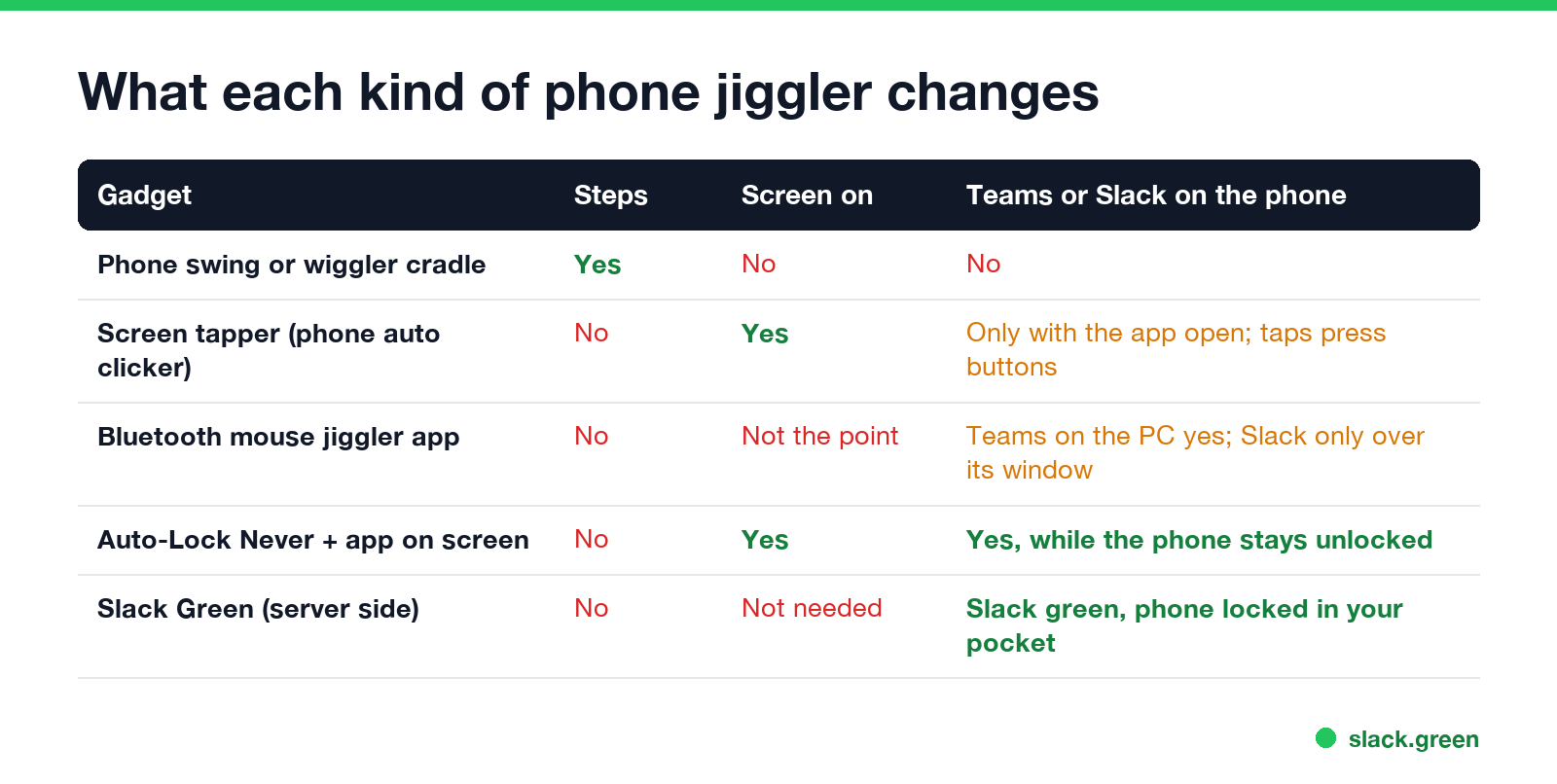
"Phone jiggler" covers three different gadgets. Only one of them touches the screen.
| Gadget | What it does | Screen stays on? | Teams or Slack green on the phone? |
|---|---|---|---|
| Phone swing or wiggler cradle | Rocks the phone on a motor arm | No | No |
| Screen tapper (auto clicker for phones) | Taps the screen with a conductive tip | Yes | Only with the app on screen, and the taps can press buttons |
| Mouse jiggler app on the phone | Turns the phone into a Bluetooth mouse for your computer | Not the point | Teams on the computer yes, Slack only over its window |
The cradle is the one sold under "phone jiggler" on Amazon and AliExpress. The listings name egg hatching and step counting as the use. Motion goes to the accelerometer, which pedometer apps read. It never reaches the parts of the phone that decide whether you are active.
Why motion does not keep Teams or Slack active on a phone
Two rules decide your status on a phone, and motion affects neither.
- The screen locks after the Auto-Lock time (iPhone) or Screen timeout (Android) without a touch. Rocking the phone does not reset that timer.
- Teams and Slack report you as active only while their app is in the foreground. Microsoft's admin docs say your mobile presence "becomes Away whenever the Teams app is in the background". Slack's help center says you are set to away when you "navigate away or close the app" on a mobile device.
So a phone on a wiggler with the screen locked shows Away in Teams and Slack, however much it moves. A phone lying still with the screen on and Teams open shows Available. The details for each app are in does Teams stay green on mobile and keep Slack active on mobile.
Keep a phone active without a jiggler
Never appear "away" on Slack again
Cloud-based. No downloads. Works 24/7 even when your laptop is off.
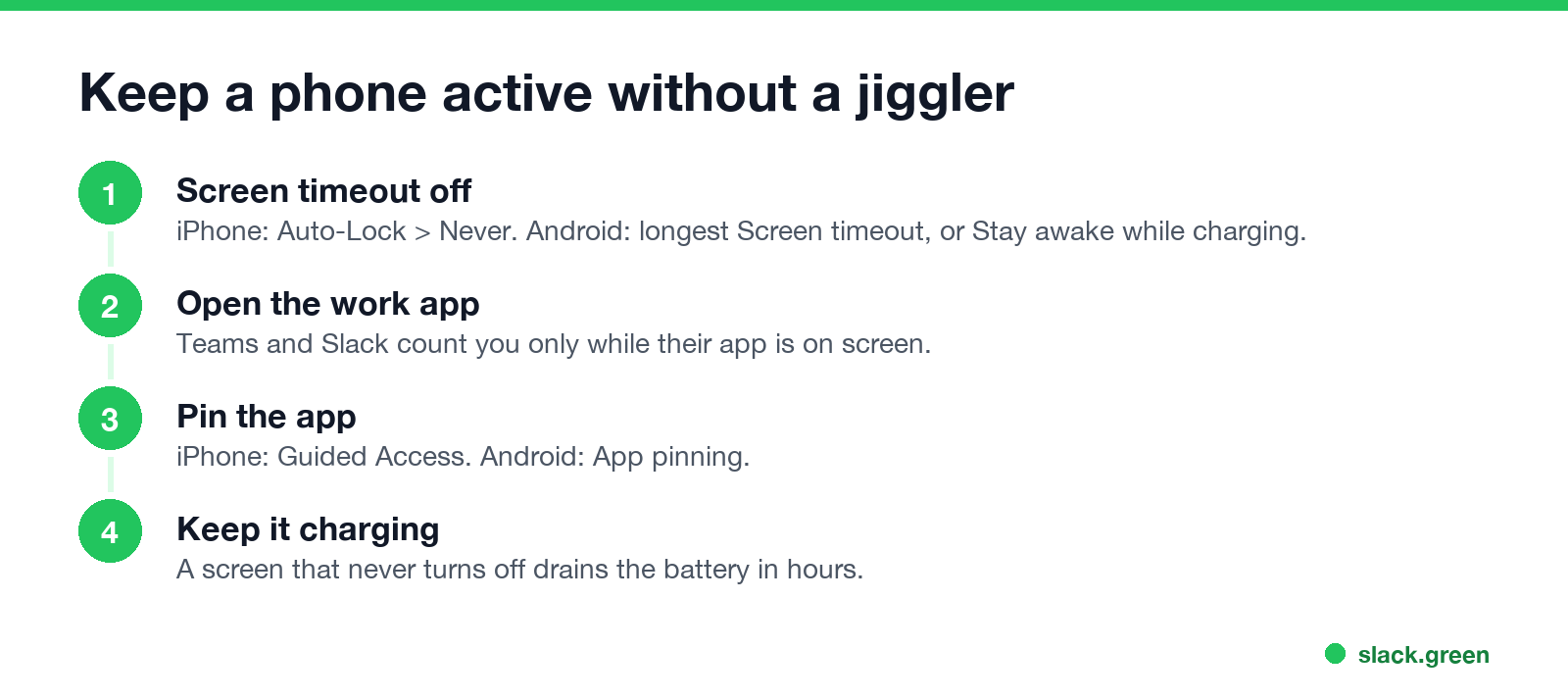
Everything a phone jiggler promises for work apps comes from settings you already have.
On an iPhone:
On Android:
That keeps the app in the foreground, which is the only state both apps count. It also means the phone sits unlocked on your desk, so do not leave it in public.
Is a screen tapper a better phone jiggler?
A screen tapper, also sold as a physical auto clicker for phones, clips over the screen and taps a spot at a set interval. It keeps the screen awake because a tap is a real touch.
It has two problems for work apps. First, if you set Auto-Lock to Never you do not need it. Second, every tap presses whatever sits under the tip. In Teams or Slack a tap can open a chat, start a call or react to a message when the layout moves. If you use one, point it at an empty area that nothing can change.
Can you use your phone as a mouse jiggler for your computer?
Yes. Apps such as Move Mouse on Google Play pair with your computer over Bluetooth as a mouse and move the cursor now and then. The computer sees a Bluetooth mouse, not a program, so nothing is installed on it.
That keeps the computer awake and Teams on the computer Available, because Teams counts input anywhere on the machine. Slack is different. It counts only input inside the Slack window, so a Bluetooth mouse moving over another app leaves your Slack dot grey after 10 minutes. A new Bluetooth device also appears in the computer's device list, where IT can see it. The same trade-offs for USB and software jigglers are in the best mouse jiggler and can a mouse jiggler be detected.
Phone jiggler for Slack
Never appear "away" on Slack again
Cloud-based. No downloads. Works 24/7 even when your laptop is off.
A phone jiggler cannot keep Slack green. The cradle moves a phone Slack cannot see, the tapper works only with Slack open on an unlocked screen, and the Bluetooth trick works for Slack only while the pointer is over the Slack window.
Slack shows you as active while any of your devices is active, so a phone with Slack on screen keeps you green even when the laptop is closed. That still needs the phone unlocked and on your desk all day. Slack Green sets your Slack presence to active from a server on the schedule you choose, so the phone can stay locked in your pocket. How that differs from a jiggler is in Slack Green vs a mouse jiggler.
Phone jiggler questions
Does a phone jiggler keep Teams active? No. Teams on a phone goes Away as soon as the app leaves the screen or the phone locks, and motion does not stop either.
Does a phone wiggler stop the screen from locking? No. Auto-Lock and Screen timeout count touches. Set them to Never or the longest value instead.
What is a phone jiggler for? Counting steps. Pedometer apps and step-based games read motion from the accelerometer, and the cradle supplies it.
Is there an iPhone jiggler app? No App Store app can keep another app active in the background, because iOS suspends background apps. Guided Access with Auto-Lock set to Never is the built-in way.
Stop Jiggling Your Mouse.
Join hundreds of remote workers who never worry about their Slack status. Set it up once, stay green forever.
Related Articles
KeepingYouAwake vs Amphetamine: Which Mac Keep-Awake App to Use
KeepingYouAwake is a free, open-source menu bar switch that runs Apple's caffeinate for you. Amphetamine is a free App Store app with triggers, schedules and a closed-lid mode. Pick KeepingYouAwake for one click and Homebrew, Amphetamine for automation. Neither keeps Slack or Teams active.
Computer Locks After 15 Minutes? How to Tell If Group Policy Set It
A work laptop that locks after exactly 15 minutes, with screen settings greyed out, is almost always following a policy from IT: the Windows machine inactivity limit, a forced screen saver, or an Intune device lock. Security baselines and PCI DSS ask for 15 minutes. How to see which policy it is, and what you can and cannot change.
How to Keep a Citrix Session Active: Find Which Timeout Logs You Out
A Citrix session can end from four different timers: Windows locking inside the virtual desktop, the Citrix session idle timer, the Citrix Gateway session time-out, and the StoreFront web page timeout. Only input from your own device into the Citrix window resets them. How to tell which one hit you and what keeps each one quiet.