
Slack Lists: How to Make One, the Free To-Do List, and Privacy
A Slack list is a task table with assignees, due dates, a board view and a thread on each item. Create one from Files, +, List. We tried it on the Free plan: the option is marked PRO and opens a premium-plan dialog, so here are the free alternatives too.
A Slack list is a table of tasks inside Slack: each row is an item with an assignee, a due date and its own comment thread, and you can switch the table to a kanban board. To create one on desktop, click Files in the sidebar, click the + button and choose List. Lists need a paid plan. On the Free plan the List option carries a PRO badge, and clicking it opens a "Select a premium plan to get lists" dialog instead of a list. On any plan, the free to-do list is the To-dos tab, and a list stays private to the people and channels you share it with.
We checked this in our own Free workspace on 3 October 2026. The steps for building a list below come from Slack's help center article "Use lists in Slack", because a Free workspace cannot open the list editor.
What the Free plan shows when you try to make a list
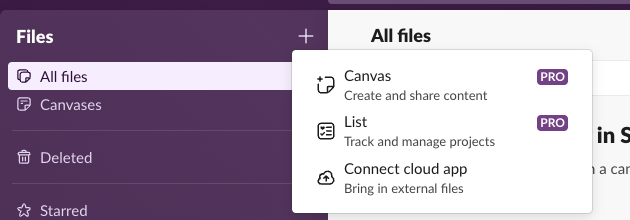
In a Free workspace, the Files tab has All files, Canvases, Deleted and Starred, and no Lists section. The + menu still offers a list, with a PRO badge:
Clicking List opened this dialog. It offered a 30-day trial of Pro at $7.25 USD per person per month after the trial, or Business+ at $15:
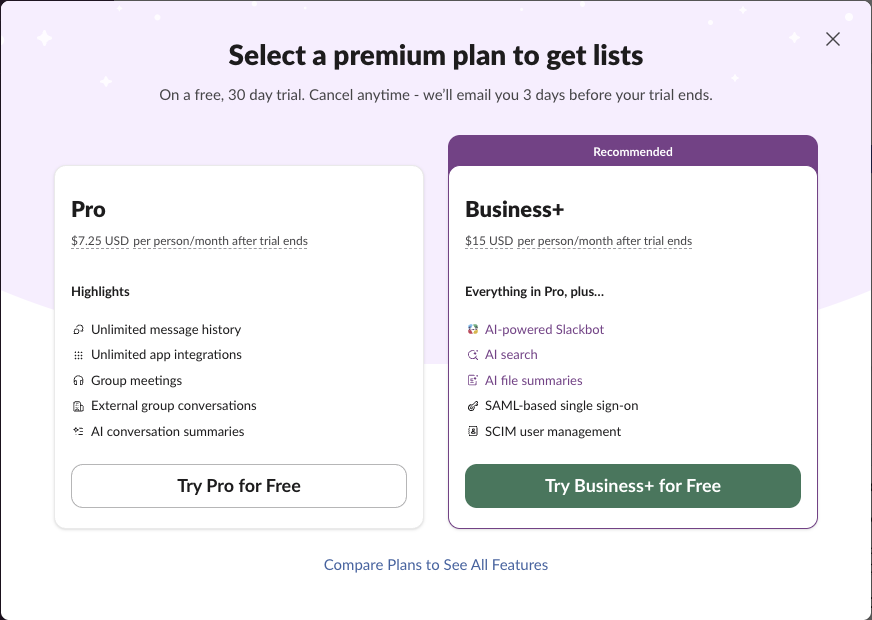
So on Free there is no list to fill in, and no way to add a message to one.
A free to-do list: the To-dos tab
If you searched for a Slack to-do list, the free one is the To-dos tab in the left rail, which Slack added in place of the Later tab by October 2026. On our Free workspace on 8 October 2026 it held two kinds of item. A message became a to-do when we chose Add a reminder from its three-dot menu, and a /remind me reminder joined the list when it came due. Each item shows where it came from and when it is due, and Mark complete moves it to a Completed section. The empty tab says "Add a to-do from any message, or write your own", with an Add To-do button.
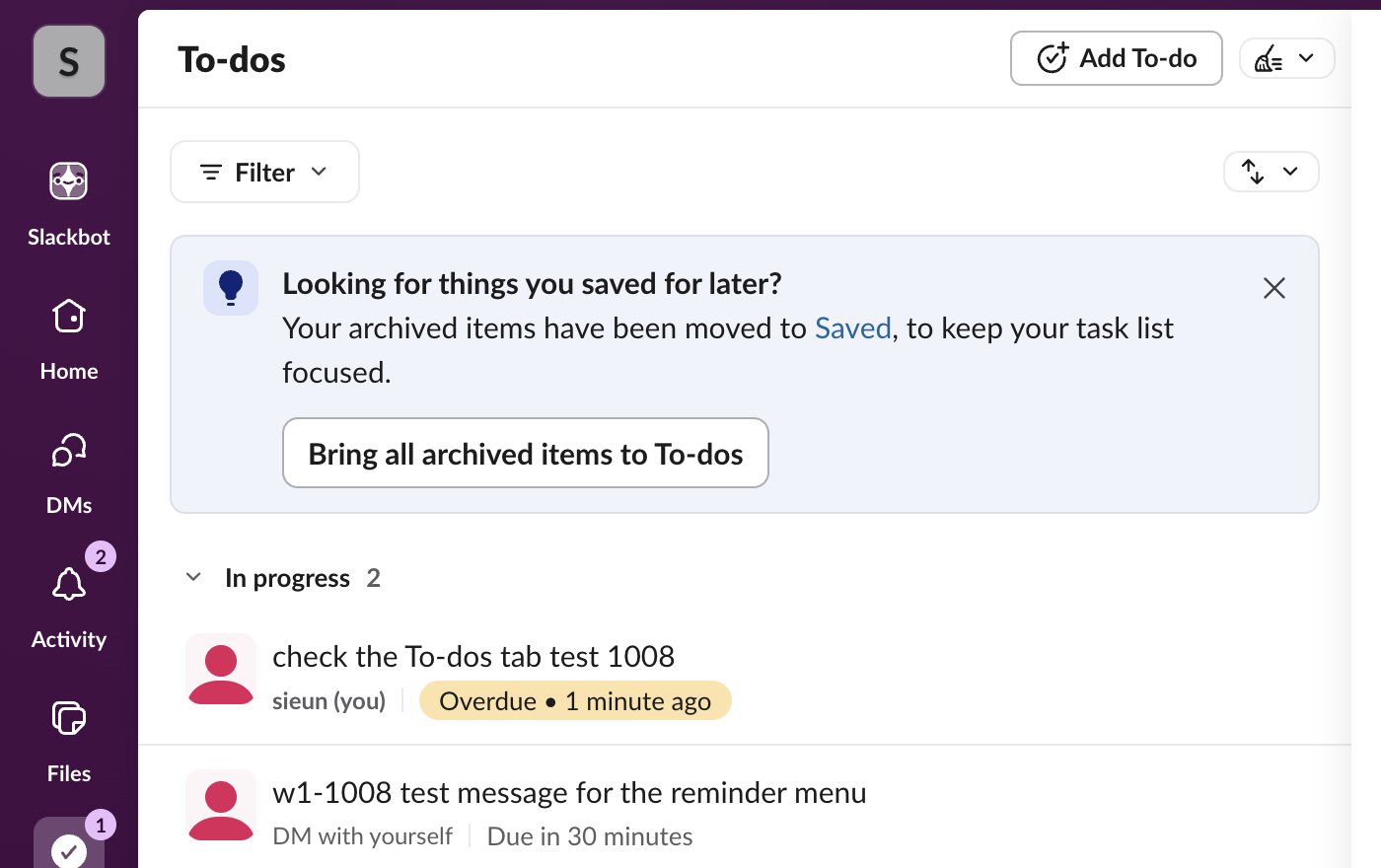
It is a personal list: no assignees, fields or board view. How message reminders behave is in Slack remind me about this message. For a team checklist, a /remind per task also works on Free; examples are in Slack /remind command examples. Whether Pro is worth it for lists and the rest is covered in is Slack Pro worth it.
How Slack lists work
| Part | What it is |
|---|---|
| Items | Each row: a task or deliverable |
| Subtasks | Smaller tasks under an item, with their own due date and assignee |
| Fields | Columns. Completion, Name, Assignee and Due Date by default; add text, drop-down, checkbox, people and more |
| Views | A saved filter, sort and layout that anyone with access can switch to |
| Layouts | Table (rows and columns) or Board (cards grouped by a field) |
| Threads | A comment thread on each item that stays with it wherever the list is shared |
On Pro and Business+ a list holds up to 1,000 items and subtasks, and 5,000 on Enterprise Grid. When a list reaches the limit, Slack archives the oldest items. If a paid workspace drops to Free, its lists become read-only. If you are choosing between a list and a canvas, see Slack canvas vs lists.
Never appear "away" on Slack again
Cloud-based. No downloads. Works 24/7 even when your laptop is off.
Create a list and set it up
- Click Files in the sidebar, then the + button, then List. On mobile, tap More, then Lists, then the plus icon.
- To start from a template instead, open Lists, click See all next to Templates and click Use Template. To start from a spreadsheet, click New, then Import a CSV.
- Click a field in the top row and choose Edit field to rename it or change its type. Click the plus icon at the end of the row to add a field such as Status or Priority.
- Click Untitled item to add a row. For a subtask, hover over an item, click Open item, then Add Subtask.
- Open the list and click the filters icon.
- Under Layout, select Board.
- Group by a field, usually Status, and drag cards between columns.
- Click Save as new view to keep it. The list creator can make a view the default for everyone.
To turn a message into a task, hover over it, click the three dots, choose Add to list and pick a list. To collect requests, click Workflows in the top-right corner of a list and build a form that adds items.
Turn a list into a kanban board
Are Slack lists private?
Yes, until you share them. A new list is visible only to the people and channels you add with Share, each with Can edit or Can view. On desktop you can change Only invited people can access to let anyone in your organization view or edit it, which also makes the list show up in search. People in a People field get a notification in Activity when the list is shared with them, and assignees see their tasks under Assigned to you.
FAQ
Can I try Slack lists for free?
Only through the 30-day Pro or Business+ trial that the dialog above offers. When the trial ends and the workspace goes back to Free, the lists stay but become read-only.
Can an app create Slack lists?
Yes, on paid plans, through the Web API's slackLists methods. We could not use them from a regular browser session: slackLists.create returned not_allowed_token_type, so it needs an app token.
Stop Jiggling Your Mouse.
Join hundreds of remote workers who never worry about their Slack status. Set it up once, stay green forever.
Related Articles
Slack Tips and Tricks: 25 Shortcuts and Settings That Save Time
The Slack tips that save the most time: Cmd/Ctrl+K to jump anywhere, Shift+Esc to clear unreads, the Up arrow to edit, Saved and To-dos, schedule send, /remind, search modifiers, custom sections and status that clears itself. 25 tips for beginners and power users, grouped by task.
How to Resolve or Close a Slack Thread (and Who Can Lock One)
Slack has no Resolve or Close button for threads. We checked every thread menu as a member, found the admin-only lock in Slack's code, and tested the workarounds that do work: a checkmark, a to-do you mark complete, and muting replies.
Slack Canvas Table of Contents: The Built-in Outline and Section Links
Every Slack canvas already has a table of contents: hover the short lines at the left edge and a list of all headings opens. For a contents list inside the canvas, copy a link to each heading and paste them as a list. We tested both on October 28, 2026.