
Slack Tips and Tricks: 25 Shortcuts and Settings That Save Time
The Slack tips that save the most time: Cmd/Ctrl+K to jump anywhere, Shift+Esc to clear unreads, the Up arrow to edit, the Later tab, schedule send, /remind, search modifiers, custom sections and status that clears itself. 25 tips for beginners and power users, grouped by task.
The Slack tips that save the most time are keyboard and command habits: Cmd+K or Ctrl+K to jump to any conversation, Shift+Esc to mark everything as read, the Up arrow to edit your last message, A to save a message to the Later tab, schedule send for messages outside someone's hours, /remind for anything you would forget, and search modifiers such as from: and in:. Below are 25 tips grouped by task, each with the exact keys or steps, and links to the full guides.
One thing no shortcut fixes: Slack turns your dot grey 10 minutes after your last input in the Slack window, even while you work in other apps. Slack Green keeps it green during the working hours you set, from the cloud.
The 10 Slack tips to learn first
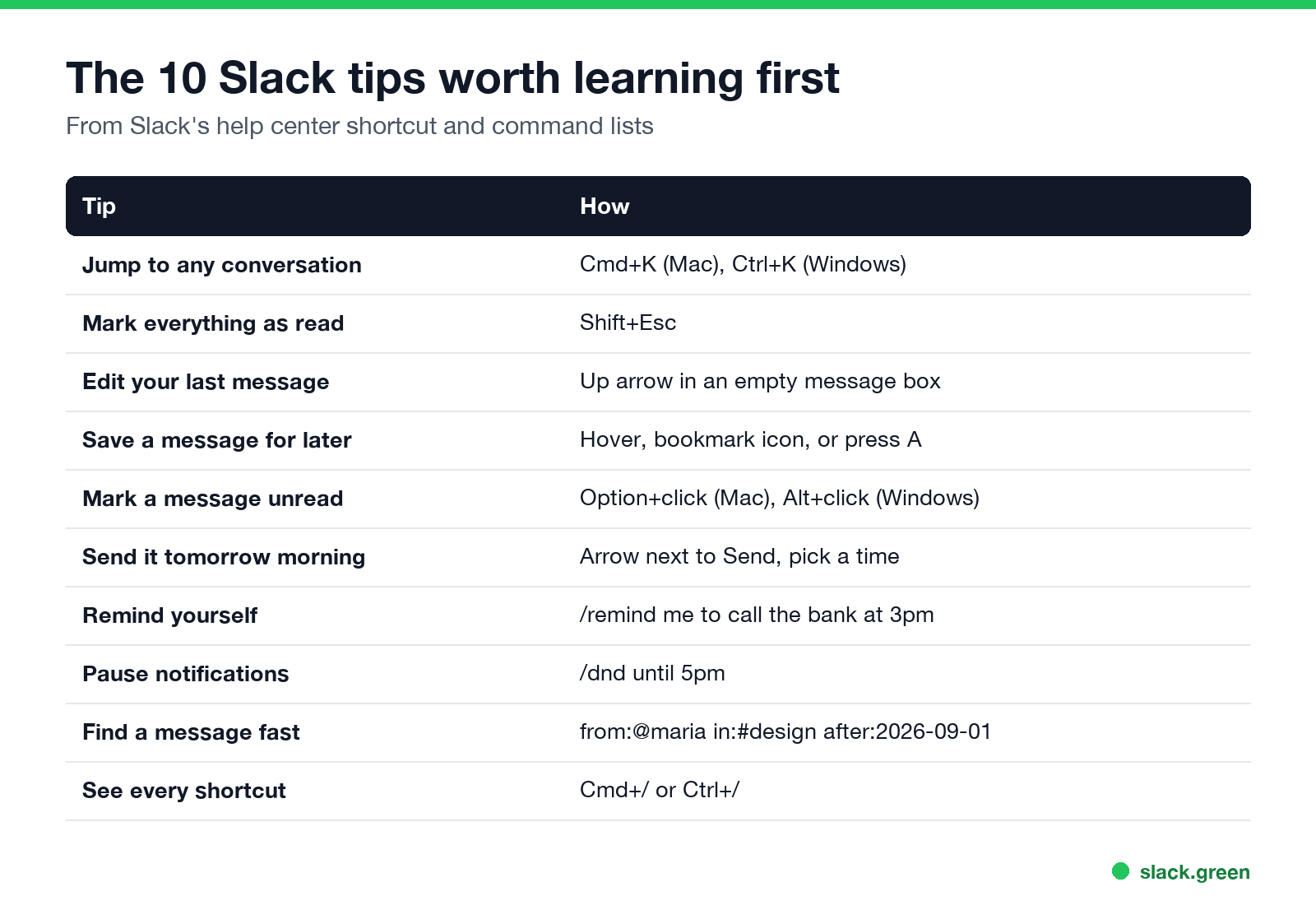
| Tip | How |
|---|---|
| 1. Jump to any conversation | Cmd+K (Mac) or Ctrl+K (Windows, Linux) |
| 2. Mark everything as read | Shift+Esc |
| 3. Edit your last message | Up arrow in an empty message box |
| 4. Save a message for later | Hover and click the bookmark icon, or press A |
| 5. Mark a message unread | Option+click (Mac) or Alt+click (Windows) |
| 6. Send it at a better time | Arrow next to Send, pick a time |
| 7. Remind yourself or a channel | /remind me to call the bank at 3pm |
| 8. Pause notifications | /dnd until 5pm |
| 9. Find a message fast | budget from:@sara in:#finance after:2026-09-01 |
| 10. See every shortcut | Cmd+/ or Ctrl+/ |
The full list is in Slack keyboard shortcuts.
Slack tips for catching up
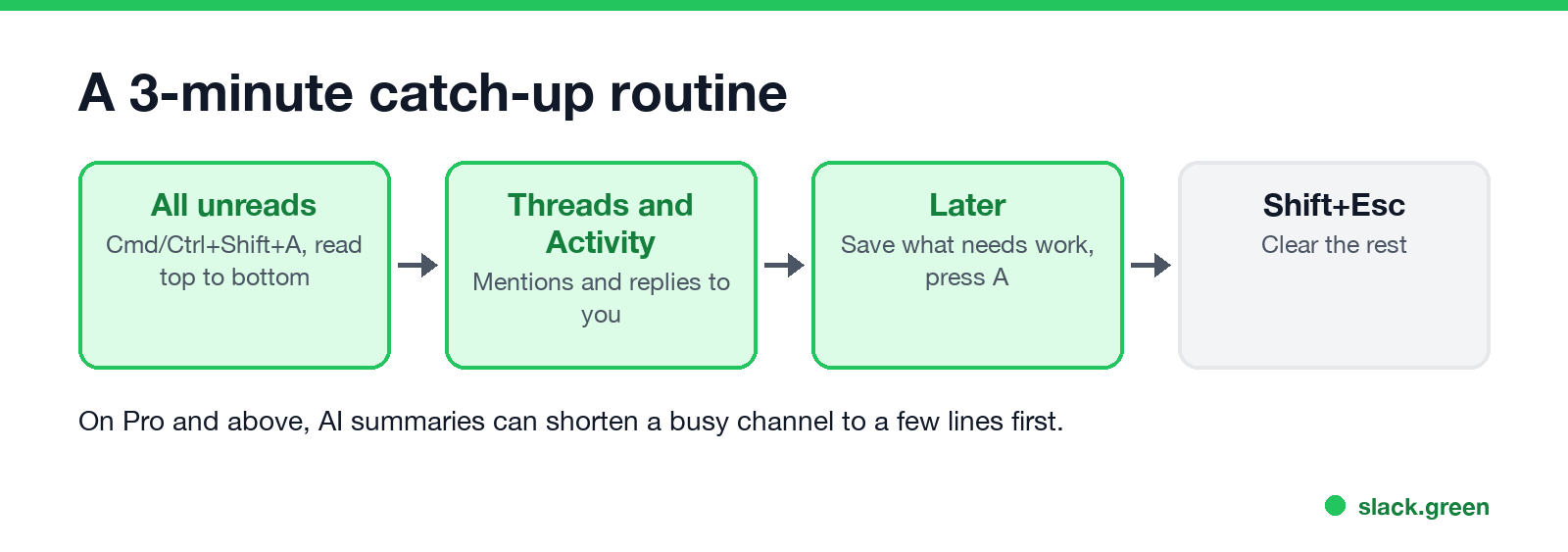
- Read All unreads, not channel by channel. Cmd/Ctrl+Shift+A opens every unread message in one list.
- Move through unreads with the keyboard. Option+Shift+Down (Mac) or Alt+Shift+Down (Windows) jumps to the next unread conversation.
- Put work in Later instead of leaving it unread. Press A on a message, then add a reminder from the Later tab. Search saved items with
is:saved. See Slack saved for later. - Summarize a busy channel. On Pro and above, the three dots menu in a channel has Summarize channel. What each plan includes is in is Slack AI worth it.
- Clear badges that will not go away. If Shift+Esc leaves a badge, see Slack keeps showing unread messages.
Slack tips for writing messages
Never appear "away" on Slack again
Cloud-based. No downloads. Works 24/7 even when your laptop is off.
@here pings only people who are active now, @channel pings everyone in the channel. See @here vs @channel vs @everyone.Slack tips for search
from:, in:, with:, before:, after:, during:, has:pin and is:thread work together in one search. Put phrases in quotes and a dash before a word to exclude it. Every modifier is in Slack search operators.Slack tips for focus and status
Slack tips for organizing the sidebar
Never appear "away" on Slack again
Cloud-based. No downloads. Works 24/7 even when your laptop is off.
/mute so they stop showing as unread. The full list of built-in commands is in Slack slash commands. Steps for creating, sharing and fixing sections are in Slack sidebar sections. To track tasks inside Slack, see the Slack lists tutorial.Slack hidden features most people miss
/collapse and /expand hide or show every image and video preview in a conversation./msg @name text sends a DM without leaving the channel you are in.FAQ
What are the best Slack tips for beginners?
Learn Cmd/Ctrl+K to jump between conversations, Shift+Esc to clear unreads, the Later tab for things to do, and /remind for anything with a deadline.
What are Slack power user tips?
Use the keyboard for message actions (E, T, R, A, M), combine search modifiers, schedule messages, and build recurring posts with Workflow Builder.
Can I customize Slack keyboard shortcuts?
No. Slack's help center says custom keyboard shortcuts are not currently supported.
How do I keep Slack from showing me as away while I work in other apps?
Slack only counts input in its own window. See how to keep Slack active.
Stop Jiggling Your Mouse.
Join hundreds of remote workers who never worry about their Slack status. Set it up once, stay green forever.
Related Articles
Slack Lists Tutorial: Create, Organize and Share a List
Slack lists are tables of tasks inside Slack, with fields, assignees, due dates, a board view and a comment thread on every item. How to create a list from scratch or a template, set up fields, turn it into a kanban board, add messages to it, share it, and what the plan limits are.
Slack Jira Integration: Setup, /jira Commands and Notifications
Install the Jira Cloud for Slack app, type /jira connect in a channel to send a Jira space's updates there, /jira notify for personal notifications as DMs, and create work items from any message with More actions. Every /jira command, Jira automation to Slack, and fixes when previews or notifications stop.
How to Create a Slack Workspace, on Desktop or Phone
Go to slack.com/get-started, enter your email, type the confirmation code, and click Create a Workspace. It is free to start, you become the Primary Owner, and it takes about five minutes. Steps for desktop, iPhone and Android, and what to set up next.