
Slack Lists Tutorial: Create, Organize and Share a List
Slack lists are tables of tasks inside Slack, with fields, assignees, due dates, a board view and a comment thread on every item. How to create a list from scratch or a template, set up fields, turn it into a kanban board, add messages to it, share it, and what the plan limits are.
To create a Slack list on desktop, click Files in the sidebar, click the plus button and choose List, or open Lists and pick a template. Every new list starts with four fields: Completion, Name, Assignee and Due Date. Add a row for each task, add fields such as Status or Priority, and switch to a Board layout for a kanban view. Lists are private until you share them, and you choose whether each person or channel can view or edit. To choose between a list and a canvas for a job, see Slack canvas vs lists. Lists need a paid plan; on Pro and Business+ a list holds up to 1,000 items and subtasks.
Assigning tasks in a list tells people what to do. It does not tell them whether you are around: Slack turns your dot grey 10 minutes after your last input in the Slack window. Slack Green keeps it green during the working hours you set, from the cloud.
How Slack lists work
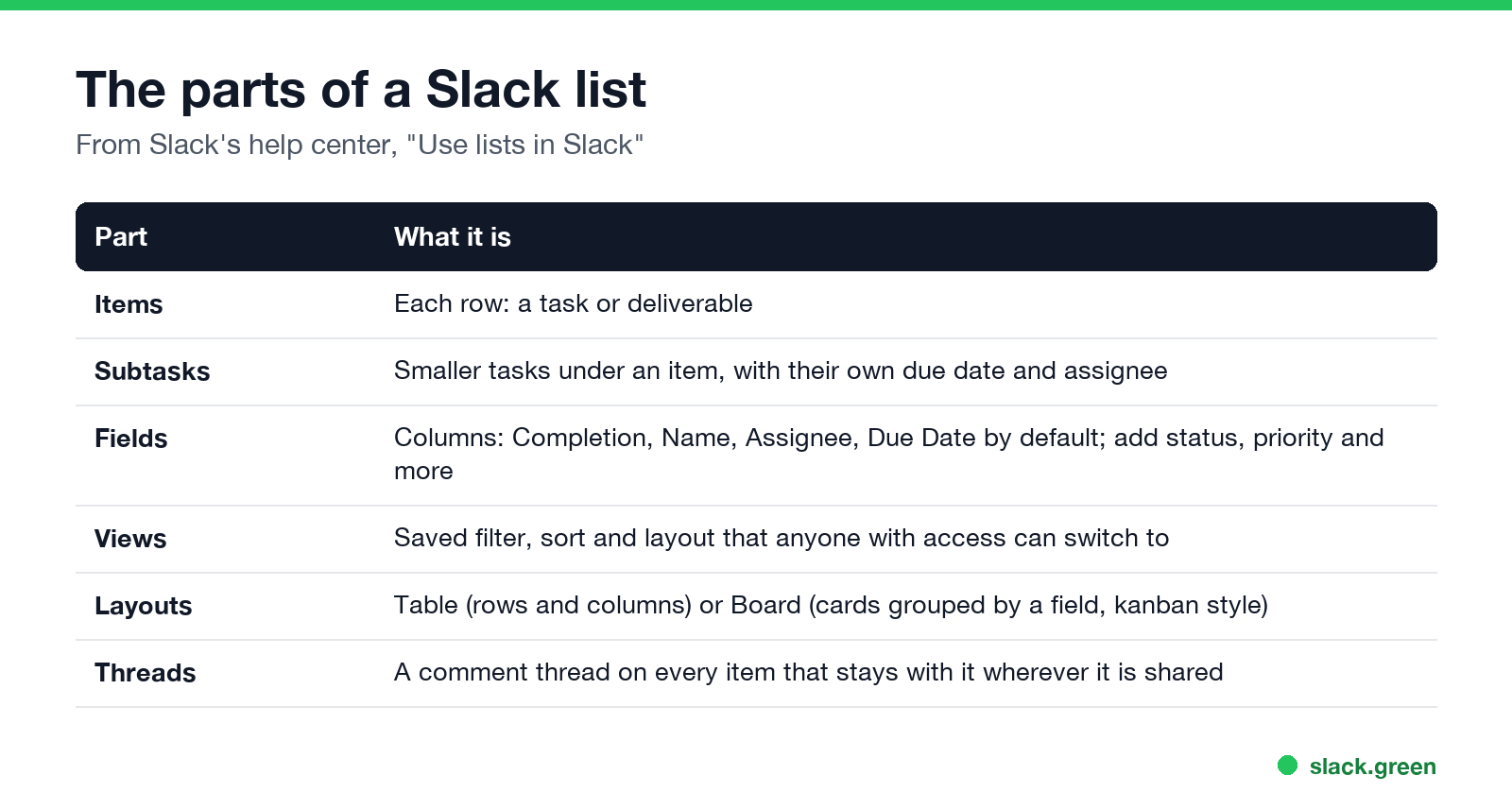
| Part | What it is |
|---|---|
| Items | Each row: a task or deliverable |
| Subtasks | Smaller tasks under an item, with their own due date and assignee |
| Fields | Columns. Completion, Name, Assignee and Due Date by default; add text, drop-down, checkbox, people and more |
| Views | A saved filter, sort and layout that anyone with access can switch to |
| Layouts | Table (rows and columns) or Board (cards grouped by a field) |
| Threads | A comment thread on each item that stays with it wherever the list is shared |
This comes from Slack's help center article "Use lists in Slack", checked on 23 September. If you are deciding between a list and a canvas, see Slack canvas vs lists.
How to create a list in Slack
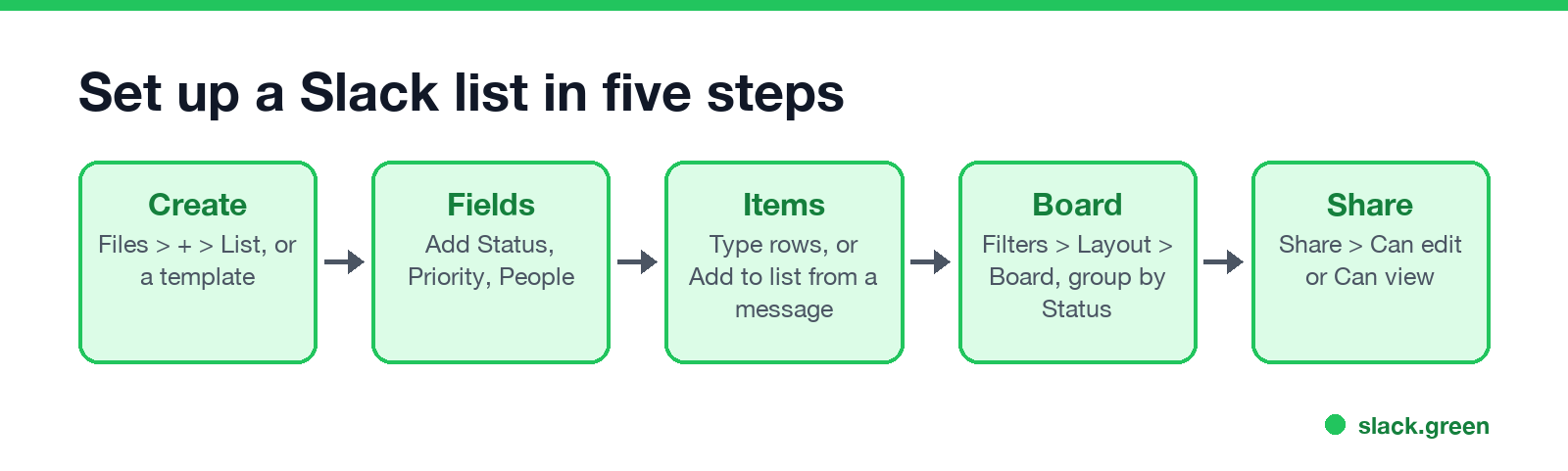
From scratch, on desktop
- On the Home tab, click Files in the sidebar.
- Click the plus button in the top right and select List.
- Tap More at the bottom of the screen, then Lists.
- Tap the plus icon, give the list a name and emoji, and tap Done.
From scratch, on mobile
From a CSV: on desktop, click New, then Import a CSV. To export later, open the list, click the three dots and choose Download CSV.
Slack lists templates
Nunca más aparezcas como "ausente" en Slack
Basado en la nube. Sin descargas. Funciona 24/7 incluso con tu laptop apagada.
On desktop, click Files, then Lists, then See all next to Templates, choose one and click Use Template. Templates come with fields and views already set up, so a project tracker or request queue works in a minute. Lists are also part of most channel templates, the pre-built bundles Slack offers for purposes such as managing a project.
Set up fields and add items
Turn a message into a task: hover over any message, click the three dots, choose Add to list, and pick a list. The item opens so you can fill in the fields. On mobile, long press the message and tap Add to List.
Collect requests with a form: click Workflows in the top-right corner of a list to create a form people fill in to add items. Recurring posts built the same way are covered in schedule a recurring message in Slack.
Slack lists kanban: the board layout
To keep it, click Save as new view. Views appear under All items, and the list creator can set one as the default for everyone. People can set their own personal default, and you need edit access to save views on a list you did not create.
Track a project with a Slack list
Nunca más aparezcas como "ausente" en Slack
Basado en la nube. Sin descargas. Funciona 24/7 incluso con tu laptop apagada.
A list works as a light project tracker for one team: tasks with owners and due dates, a board by status, and each task's discussion in its thread. Assignees see their tasks under Assigned to you on the Lists page, and people added to a People field get a notification in Activity when the list is shared with them. View version history in the three dots menu shows every past version of the list, with changes highlighted.
For when a canvas fits better, see Slack canvas vs lists. For larger projects across teams, a dedicated tool is usually better, and Slack connects to it; see Slack Jira integration.
Share a Slack list and set access
A new list is visible only to the people and channels you share it with. To share it, click Share, add people or channels, and choose Can edit or Can view. To let anyone find it in search, change Only invited people can access to Anyone in [organization] can view or can edit; that setting is on desktop only. You can add other people as list owners.
Are Slack lists free?
No. Lists are a paid-plan feature on Pro, Business+ and Enterprise. If a workspace moves to the free plan, its lists become read-only and no one can create new ones; see Slack free plan limits. On Pro and Business+ a list can have up to 1,000 items and subtasks, and 5,000 on Enterprise Grid. When a list reaches the limit, Slack archives the oldest items automatically.
FAQ
Nunca más aparezcas como "ausente" en Slack
Basado en la nube. Sin descargas. Funciona 24/7 incluso con tu laptop apagada.
How do I get to Slack lists?
On desktop, click Files in the sidebar, then Lists. On mobile, tap More, then Lists.
Are Slack lists visible to everyone?
No. Only people and channels you share a list with can see it, unless you set general access for your organization.
Can Slack lists do kanban boards?
Yes. Filters icon, Layout, Board, then group by a field such as Status.
How many items can a Slack list have?
1,000 items and subtasks on Pro and Business+, and 5,000 on Enterprise Grid.
Can I use the Lists API in Slack?
Yes. Slack's developer docs describe list methods in the Web API, so apps can create and update lists.
Deja de Mover el Ratón.
Cientos de trabajadores remotos ya no se preocupan por su estado de Slack. Configúralo una vez, mantente verde para siempre.
Related Articles
Slack Jira Integration: Setup, /jira Commands and Notifications
Install the Jira Cloud for Slack app, type /jira connect in a channel to send a Jira space's updates there, /jira notify for personal notifications as DMs, and create work items from any message with More actions. Every /jira command, Jira automation to Slack, and fixes when previews or notifications stop.
How to Create a Slack Workspace, on Desktop or Phone
Go to slack.com/get-started, enter your email, type the confirmation code, and click Create a Workspace. It is free to start, you become the Primary Owner, and it takes about five minutes. Steps for desktop, iPhone and Android, and what to set up next.
Slack Sidebar Sections: Create, Sort, Share and Fix Them
Slack sidebar sections are custom groups of channels, DMs and apps in your sidebar. Only you see them, and they need a paid plan. How to create one on desktop and mobile, move many channels at once, sort and filter each section, share a section with your team, and get disappeared sections back.