
Zoom Slack Integration: How to Sync Your Zoom Status With Slack
To integrate Zoom with Slack, install the Zoom app from the Slack Marketplace: /zoom starts a meeting, and /zoom config, Settings, Enable Zoom Sync presence to Slack status sets your Slack status when you join a Zoom meeting or Zoom Phone call. Our 4 Nov 2026 test shows a status set by an app does not change the green dot.
To integrate Zoom with Slack, install the Zoom app for Slack from the Slack Marketplace or the Zoom App Marketplace. Then /zoom starts a meeting from any channel, and the app's presence sync can set your Slack status when you join a Zoom meeting or a Zoom Phone call. To turn the sync on, type /zoom config in Slack, click Settings, and under Meeting settings turn on Enable Zoom Sync presence to Slack status, then click Save and approve the permissions. Leaving the call clears the status. Zoom's support article describes it as syncing "your Zoom meeting and phone presence to your Slack status". Your company may need a Zoom admin to approve the app and a Slack admin to approve its profile permissions.
The sync changes your status line, the emoji and text next to your name. It does not change the green or grey presence dot, as our test below shows. The dot follows input: the Slack desktop app counts keyboard and mouse input anywhere on the computer, so it stays green while you type in Zoom and turns grey after 10 minutes in which you only listen.
Turn on Zoom presence sync, step by step
1. Install the Zoom app for Slack. Sign in at the Zoom App Marketplace, search for Slack, click Add, and allow the permissions. Choose Zoom for Yourself to install it for your account only. Zoom for All Members installs it for the whole Slack workspace and needs Zoom admin rights. If the app is not pre-approved on your Zoom account, ask your Zoom admin.
2. Open the settings in Slack. In the Slack sidebar, under Apps, select Zoom. Type /zoom config and click Settings. A new window opens.
3. Turn on the sync. Under Meeting settings, click Enable Zoom Sync presence to Slack status, then Save.
4. Approve the permissions. Slack asks you to grant the app access to your user profile, which is where your status lives. Zoom notes that if your Slack admin has not approved these permissions, Slack sends the admin a request every time a user tries to turn the feature on. If nothing happens, that request is waiting.
To test it, start a Zoom meeting and look at your name in Slack. To turn it off, open the same settings and clear the option.
What the sync changes, and what it does not
| Changes with Zoom sync? | Details | |
|---|---|---|
| Status emoji and text | Yes | Set when you join a Zoom meeting or Zoom Phone call, cleared after |
| Presence dot (green or grey) | No | Follows your keyboard and mouse input |
| Notifications | No | Pause them yourself, or use a calendar app that sets Do Not Disturb |
| Huddles | No | Slack shows its own huddle status when you are in one |
So a coworker who hovers your name sees you are in a Zoom meeting, and still sees a grey dot once you go 10 minutes without touching the keyboard or mouse. How the two parts of your Slack status differ is in Slack active status explained.
We tested it: a status set by an app leaves the dot alone
The Zoom sync writes your status through Slack's profile permission, the users.profile.set call. On 4 November 2026 we made the same call for a member of our test Slack workspace, with an expiry 2 minutes out, and read users.getPresence before and after:
07:08:58Z users.getPresence   presence=active  last_activity=1793776130
07:08:58Z users.profile.set   status_text="In a Zoom meeting" status_emoji=:video_camera: status_expiration=+120 s -> ok
07:09:03Z users.getPresence   presence=active  last_activity=1793776130
07:11:05Z users.profile.get   status_text="" status_emoji="" (cleared at the expiry)
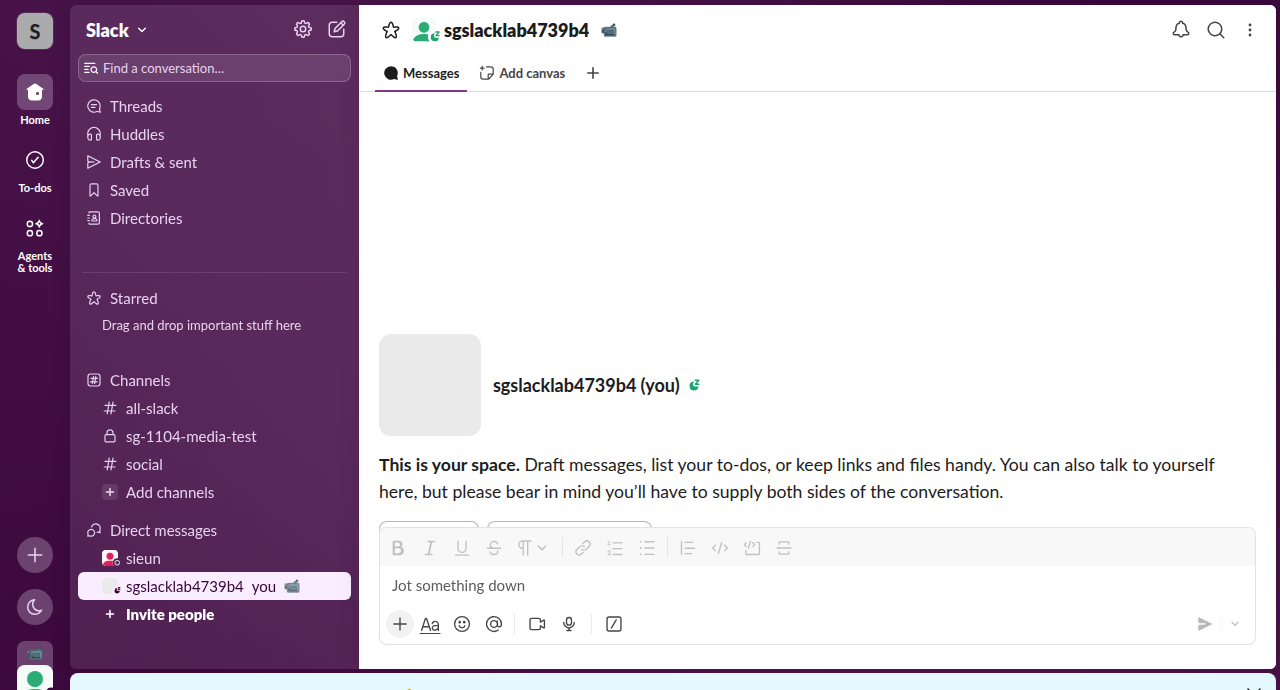
The status showed at once, next to the name in the sidebar and in the conversation header, while the presence and its last_activity time did not move. Setting a status is not activity, so a status from Zoom never keeps the dot green.
Start a Zoom meeting from Slack
The Zoom app's Slack Marketplace listing (read 4 November 2026) names three ways to start one: type /zoom in a channel or DM to start an instant meeting and post its join link, use the app's message shortcuts to start or join from a message, or add the New Zoom meeting template in Workflow Builder, which needs a paid Slack plan. The app also posts meeting details and join links in channels, and with Zoom AI Companion on it can send a summary after the meeting.
Never appear "away" on Slack again
Cloud-based. No downloads. Works 24/7 even when your laptop is off.
Other ways to show Zoom meetings in Slack
- • Slack's calendar apps. The Google Calendar and Outlook Calendar apps for Slack set your status to "In a meeting" from your calendar, for any meeting, Zoom or not. They miss calls that are not on your calendar. Setup is in sync Slack status with Google Calendar and Slack Outlook calendar integration.
- • Reclaim.ai Status Sync. With Reclaim's Slack and Zoom integrations installed, Reclaim updates your Slack status when you join a Zoom meeting and clears it when you leave.
- • Zoom To Slack Status Updater. A third-party app in the Slack Marketplace. Its listing says it updates your status "when you enter and leave a call using the Zoom app" and that Zoom in a web browser is not supported.
- • Your own small app. Zoom sends a webhook event, "User's presence status has been updated", to an app you create in the Zoom Marketplace. A short script can then call Slack's
users.profile.setwith your user token. The open-source zoom-slack-status-updater on GitHub is one example.
The Slack side of such a script is one API call. Slack's documentation shows the profile fields:
curl -X POST https://slack.com/api/users.profile.set \
  -H "Authorization: Bearer $SLACK_USER_TOKEN" \
  -H "Content-Type: application/json; charset=utf-8" \
  -d '{"profile": {"status_text": "In a Zoom meeting", "status_emoji": ":video_camera:", "status_expiration": 0}}'
Send empty strings for status_text and status_emoji to clear it after the call. The token needs the users.profile:write scope.
If the sync does not work
Do the reverse: Zoom status from Slack?
Zoom has no setting that reads your Slack status. Your Zoom presence follows Zoom's own rules, such as going Away after its idle limit, 15 minutes by default. How that works and how to keep it green is in how to keep Zoom status active, and the icons are in Zoom status icons meaning.
FAQ
Can Slack show when I am in a Zoom meeting? Yes. Turn on Enable Zoom Sync presence to Slack status in the Zoom app for Slack (/zoom config), or use a calendar app that sets "In a meeting".
Does the Zoom app change my Slack status automatically? Only after you turn on presence sync in /zoom config and approve the permissions. It is off by default.
Why does Slack show me as away during Zoom calls? The Slack desktop app counts keyboard and mouse input anywhere on the computer (Slack desktop 4.52.178 code, checked 7 Oct 2026). After 10 minutes in Zoom without touching the keyboard or mouse, the dot turns grey, whatever your status says.
Do I need admin approval? Often. The Zoom app may need your Zoom admin's approval, and its profile permissions may need your Slack admin's approval.
Does Zoom sync set Do Not Disturb in Slack? The Zoom app's sync updates your status. To mute notifications during calls, pause them in Slack or use a calendar app that does.
Stop Jiggling Your Mouse.
Join hundreds of remote workers who never worry about their Slack status. Set it up once, stay green forever.
Related Articles
How to Show Spotify in Your Slack Status (3 Ways, One Free Script)
Slack has no built-in Spotify status. The Spotify status apps in the Slack Marketplace on October 4, 2026, a free Mac script, and the 100-character limit we tested.
Slack Outlook Calendar Integration: Setup, Status Sync and Fixes
The Outlook Calendar app for Slack connects a Microsoft 365 calendar to Slack: event reminders, join buttons, invitations you can answer in Slack, and Status Sync, which sets In a meeting, Working remotely or Out of Office from your calendar. How to set it up, why the status sometimes does not update, and what to do on on-premise Exchange.
Slack Emoji for OOO, PTO and Days Off
Use 🌴 :palm_tree: for OOO, ✈️ :airplane: for travel and 🗓️ for planned PTO. Slack has no :ooo: emoji, so download six free OOO, PTO and BACK MON emoji, tested in a real Slack status.