
How to Sync Your Zoom Status With Slack
The Zoom app for Slack can set your Slack status when you join a Zoom meeting or a Zoom Phone call: type /zoom config in Slack, open Settings, and turn on Enable Zoom Sync presence to Slack status. Steps, admin approvals, the calendar and third-party alternatives, and why none of them keeps your Slack dot green.
To sync your Zoom status with Slack, install the Zoom app for Slack, type /zoom config in Slack, click Settings, and under Meeting settings turn on Enable Zoom Sync presence to Slack status, then click Save and approve the permissions. From then on, joining a Zoom meeting or a Zoom Phone call updates your Slack status, and leaving clears it. Zoom's support article describes it as syncing "your Zoom meeting and phone presence to your Slack status". Your company may need a Zoom admin to approve the app and a Slack admin to approve its profile permissions.
The sync changes your status line, the emoji and text next to your name. It does not change the green or grey presence dot. During a long Zoom call you are typing in Zoom, not in Slack, so Slack turns your dot grey after 10 minutes. Slack Green keeps the dot green during the hours you set, from the cloud, calls included.
Turn on Zoom presence sync, step by step
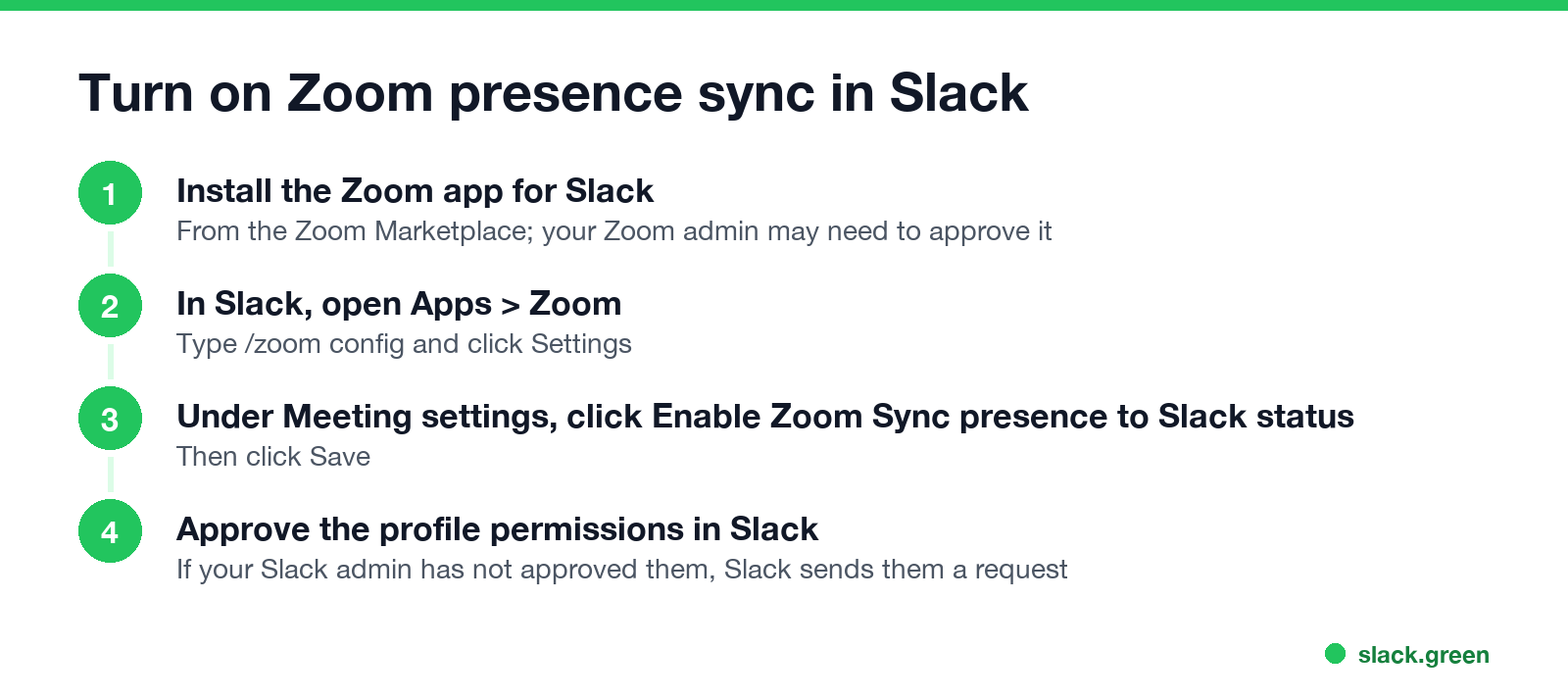
1. Install the Zoom app for Slack. Sign in at the Zoom App Marketplace, search for Slack, click Add, and allow the permissions. Choose Zoom for Yourself to install it for your account only. Zoom for All Members installs it for the whole Slack workspace and needs Zoom admin rights. If the app is not pre-approved on your Zoom account, ask your Zoom admin.
2. Open the settings in Slack. In the Slack sidebar, under Apps, select Zoom. Type /zoom config and click Settings. A new window opens.
3. Turn on the sync. Under Meeting settings, click Enable Zoom Sync presence to Slack status, then Save.
4. Approve the permissions. Slack asks you to grant the app access to your user profile, which is where your status lives. Zoom notes that if your Slack admin has not approved these permissions, Slack sends the admin a request every time a user tries to turn the feature on. If nothing happens, that request is waiting.
To test it, start a Zoom meeting and look at your name in Slack. To turn it off, open the same settings and clear the option.
What the sync changes, and what it does not
| Changes with Zoom sync? | Details | |
|---|---|---|
| Status emoji and text | Yes | Set when you join a Zoom meeting or Zoom Phone call, cleared after |
| Presence dot (green or grey) | No | Follows your input in the Slack window |
| Notifications | No | Pause them yourself, or use a calendar app that sets Do Not Disturb |
| Huddles | No | Slack shows its own huddle status when you are in one |
So a coworker who hovers your name sees you are in a Zoom meeting, and still sees a grey dot after 10 minutes. How the two parts of your Slack status differ is in Slack active status explained.
Other ways to show Zoom meetings in Slack
Never appear "away" on Slack again
Cloud-based. No downloads. Works 24/7 even when your laptop is off.
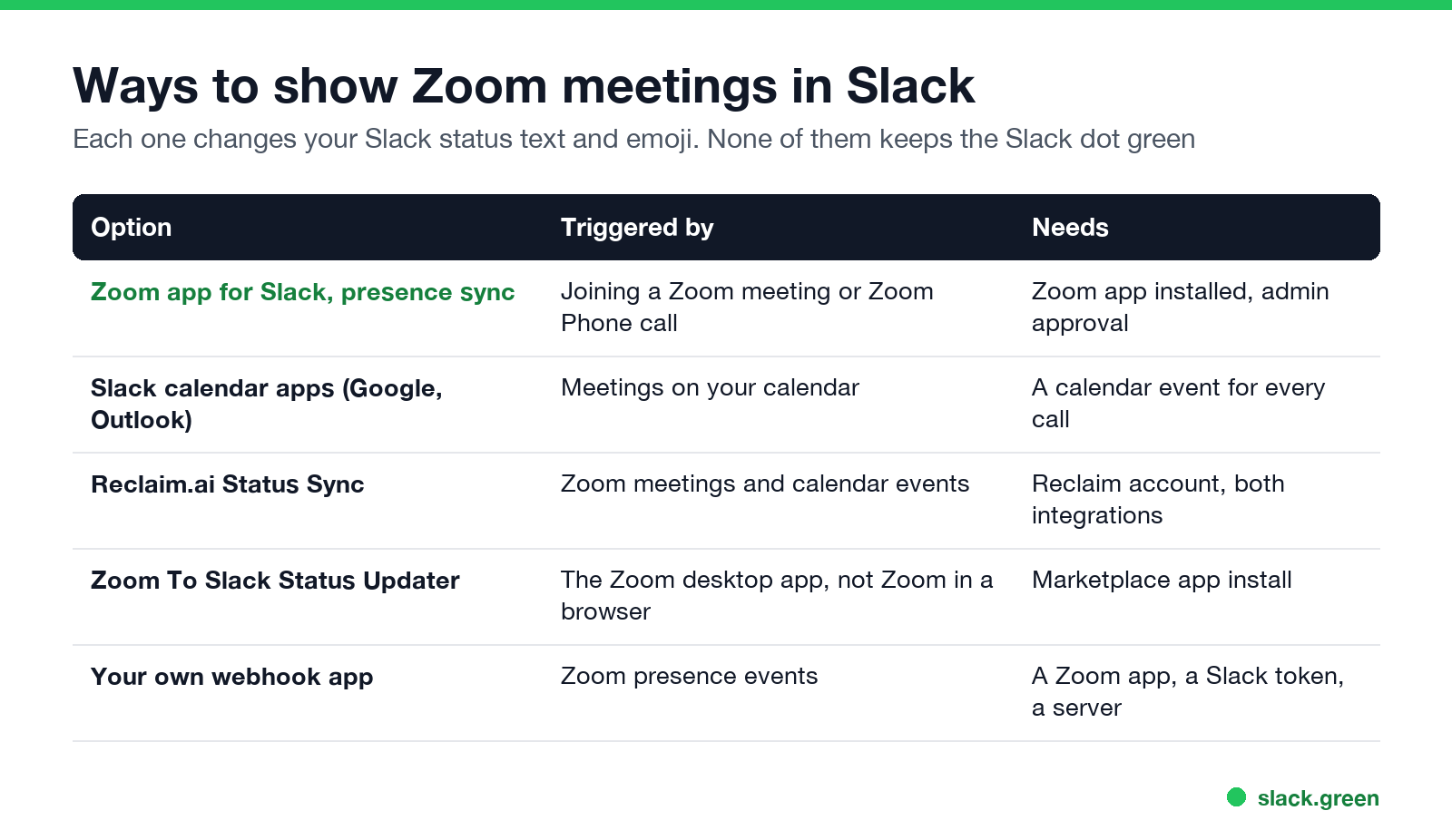
- • Slack's calendar apps. The Google Calendar and Outlook Calendar apps for Slack set your status to "In a meeting" from your calendar, for any meeting, Zoom or not. They miss calls that are not on your calendar. Setup is in sync Slack status with Google Calendar and Slack Outlook calendar integration.
- • Reclaim.ai Status Sync. With Reclaim's Slack and Zoom integrations installed, Reclaim updates your Slack status when you join a Zoom meeting and clears it when you leave.
- • Zoom To Slack Status Updater. A third-party app in the Slack Marketplace. Its listing says it updates your status "when you enter and leave a call using the Zoom app" and that Zoom in a web browser is not supported.
- • Your own small app. Zoom sends a webhook event, "User's presence status has been updated", to an app you create in the Zoom Marketplace. A short script can then call Slack's
users.profile.setwith your user token. The open-source zoom-slack-status-updater on GitHub is one example.
The Slack side of such a script is one API call. Slack's documentation shows the profile fields:
curl -X POST https://slack.com/api/users.profile.set \
  -H "Authorization: Bearer $SLACK_USER_TOKEN" \
  -H "Content-Type: application/json; charset=utf-8" \
  -d '{"profile": {"status_text": "In a Zoom meeting", "status_emoji": ":video_camera:", "status_expiration": 0}}'
Send empty strings for status_text and status_emoji to clear it after the call. The token needs the users.profile:write scope.
If the sync does not work
Do the reverse: Zoom status from Slack?
Zoom has no setting that reads your Slack status. Your Zoom presence follows Zoom's own rules, such as going Away after its idle limit, 15 minutes by default. How that works and how to keep it green is in how to keep Zoom status active, and the icons are in Zoom status icons meaning.
FAQ
Never appear "away" on Slack again
Cloud-based. No downloads. Works 24/7 even when your laptop is off.
Can Slack show when I am in a Zoom meeting? Yes. Turn on Enable Zoom Sync presence to Slack status in the Zoom app for Slack (/zoom config), or use a calendar app that sets "In a meeting".
Does the Zoom app change my Slack status automatically? Only after you turn on presence sync in /zoom config and approve the permissions. It is off by default.
Why does Slack show me as away during Zoom calls? Slack counts only input in the Slack window. After 10 minutes in Zoom without touching Slack, the dot turns grey, whatever your status says.
Do I need admin approval? Often. The Zoom app may need your Zoom admin's approval, and its profile permissions may need your Slack admin's approval.
Does Zoom sync set Do Not Disturb in Slack? The Zoom app's sync updates your status. To mute notifications during calls, pause them in Slack or use a calendar app that does.
Stop Jiggling Your Mouse.
Join hundreds of remote workers who never worry about their Slack status. Set it up once, stay green forever.
Related Articles
Can My Employer See What I Watch on YouTube at Work?
On a work laptop or the office network, your employer can see that you used YouTube, when, and for how long. With HTTPS inspection or monitoring software, they can see which videos, because the video address and the browser tab title both name it. On your own phone on mobile data, they see nothing.
Can My Employer See My iMessages on a Work Mac?
Not through device management or the network: Jamf or Intune cannot read Messages, and iMessage is end-to-end encrypted. But if you sign in to Messages on a work Mac, your texts are stored on that Mac, where monitoring screenshots, backups and admin access can reach them. How to check, and how to take iMessage off the Mac without deleting it from your iPhone.
Can My Boss See My Private Outlook Calendar Events?
Usually not the details. When you mark an Outlook event Private, someone who can read your calendar sees only Private appointment, the time and a lock. The exceptions are delegates you gave Can view private items, the people invited to the event, anyone with full access to your mailbox in new Outlook or the web, and compliance admins. How to check who has which access, and what Private does not hide.