
Does Teams Stay Green When Your Computer Is Asleep? No, It Goes Offline
Microsoft Teams shows you Away when your computer is idle or locked, and Offline once it goes to sleep. Closing the lid usually means sleep. What coworkers see in each state, and what keeps you Available when the laptop is closed.
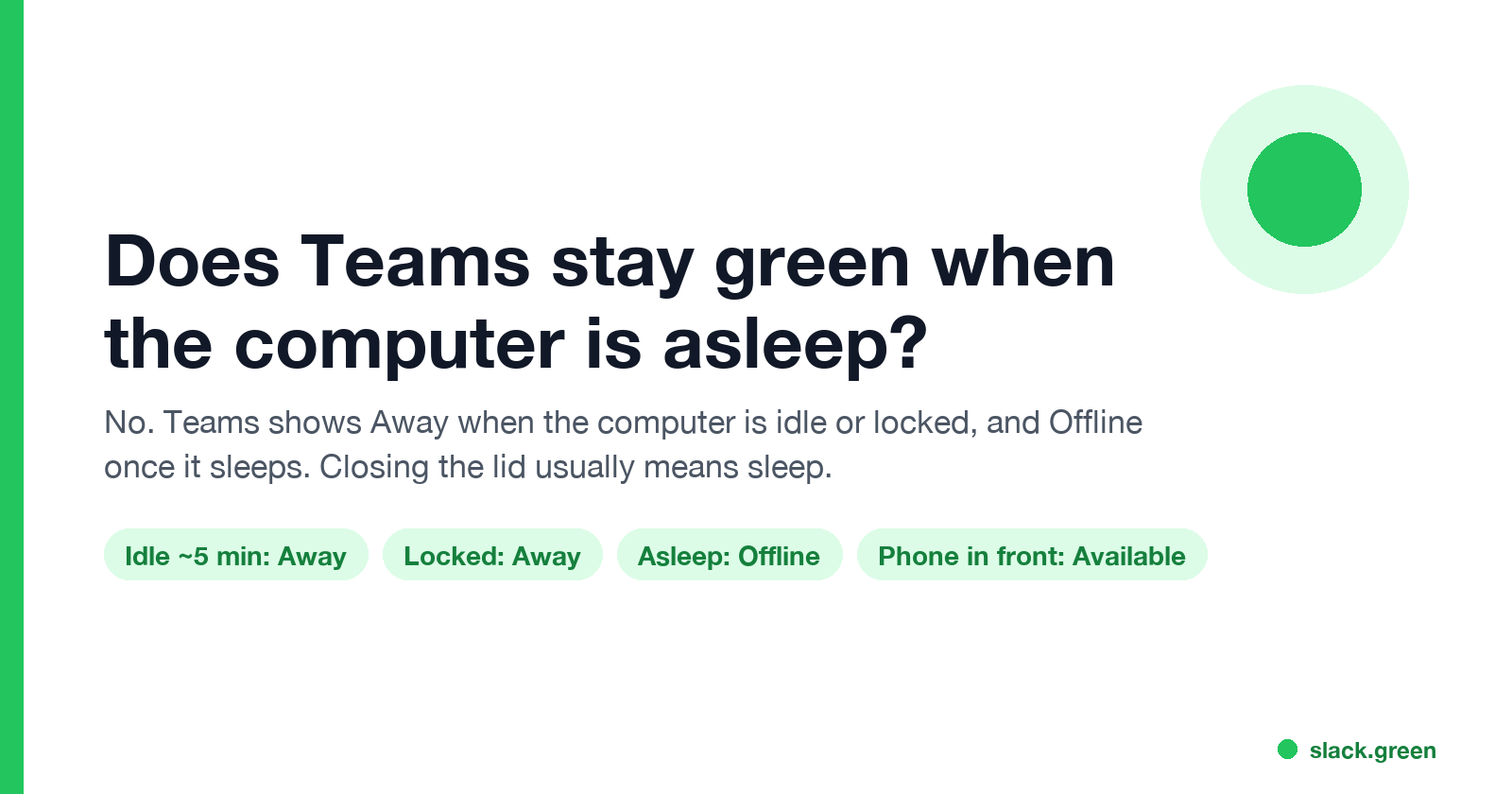
No. Microsoft Teams does not stay green when your computer is asleep. Microsoft's presence documentation says that on a computer your status "becomes Away automatically if they're inactive for a few minutes or if the computer is locked; and it becomes Offline when the computer enters sleep mode." So the dot goes yellow first, and then grey with an x once the laptop sleeps. Closing the lid puts most laptops to sleep, so a closed laptop usually shows you Offline within minutes.
The one exception is a second device. If Teams is open on your phone's screen, Teams can show you Available from the phone while the laptop sleeps. If you also use Slack, Slack Green keeps the Slack dot green from our servers during the hours you set, with the laptop asleep or off.
What Teams shows in each computer state
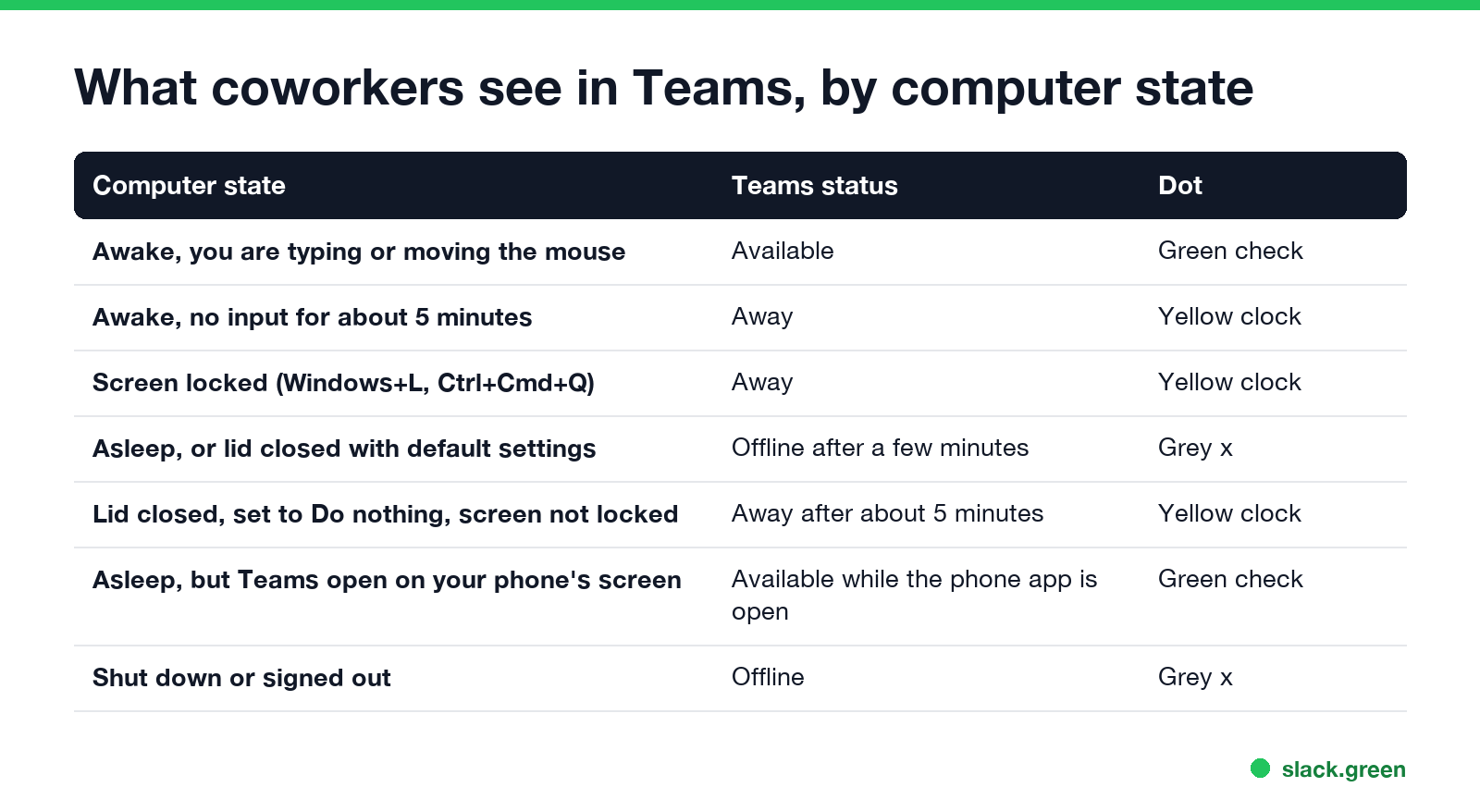
| Computer state | Teams status | Dot |
|---|---|---|
| Awake, you type or move the mouse in any app | Available | Green check |
| Awake, no input for about 5 minutes | Away | Yellow clock |
| Screen locked (Windows+L, or Ctrl+Cmd+Q on a Mac) | Away | Yellow clock |
| Asleep, or lid closed with default settings | Offline after a few minutes | Grey x |
| Lid closed and set to Do nothing, screen not locked | Away after about 5 minutes | Yellow clock |
| Asleep, with Teams open on your phone's screen | Available while the phone app is open | Green check |
| Shut down, or signed out of Teams | Offline | Grey x |
Next to Away and Offline, coworkers also see a "Last seen" time on your profile card, taken from your last activity. How that time is set is in what does Last seen mean on Teams.
Why sleep shows Offline and a lock shows Away
The Teams desktop app reads input across the whole computer. A lock screen stops that input, but the app is still running and connected, so Teams reports Away. Sleep stops the app itself. Its connection to Microsoft drops, and after a few minutes with no connected client Teams reports Offline.
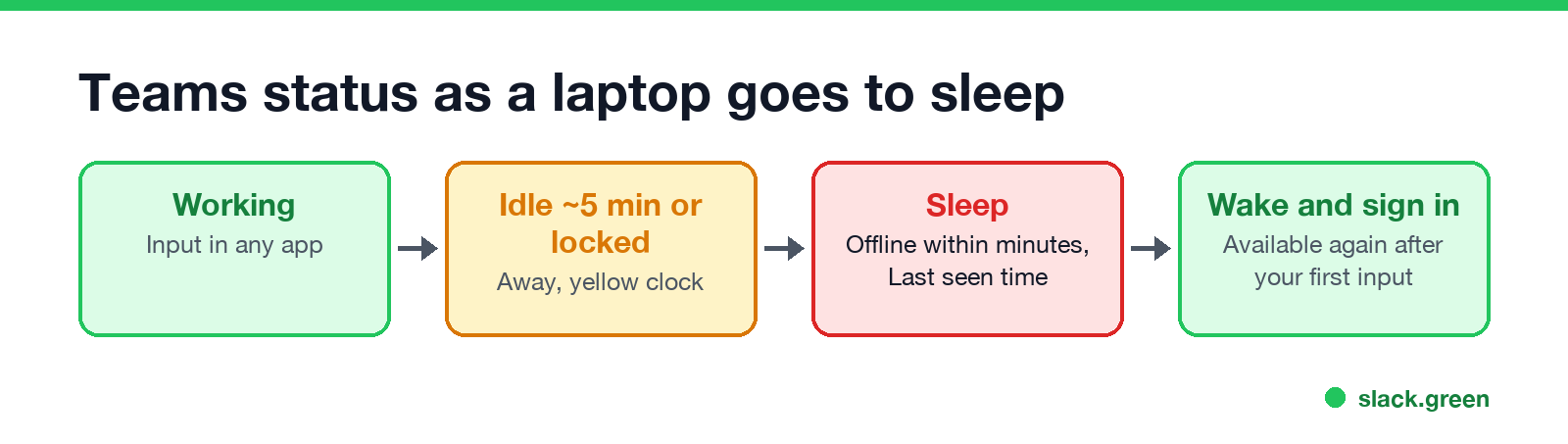
Minimizing Teams does not count as idle; the app still sees your input in other apps, as covered in does Teams show Away when minimized. When the computer wakes, Teams reconnects and sets you Available after your first keypress or mouse move. If the dot stays yellow after that, work through Teams status stuck on Away.
Teams status when the laptop lid is closed
Never appear "away" on Slack again
Cloud-based. No downloads. Works 24/7 even when your laptop is off.
Closing the lid does what your power settings say:
- • Windows default: sleep. Teams goes Offline.
- • Windows set to Do nothing (Control Panel > Power Options > Choose what closing the lid does). The laptop stays awake, but nobody is typing, so Teams goes Away after about 5 minutes, and Windows may still lock the screen.
- • Mac: sleep, unless the Mac is in clamshell mode with power, an external display and a keyboard connected.
To change the Windows lid action for when the laptop is plugged in, from a Command Prompt:
:: lid closed while plugged in: do nothing (0), sleep is 1
powercfg /setacvalueindex SCHEME_CURRENT SUB_BUTTONS LIDACTION 0
powercfg /setactive SCHEME_CURRENT
The full settings for both systems, including the Mac clamshell setup, are in how to keep a laptop awake with the lid closed. A laptop that stays awake with the lid closed still shows Away in Teams, because there is no input.
How to keep Teams Available when the computer would sleep
There is no Teams setting for this. Microsoft's moderators say there is no option to set Teams to always Available. Three things change the result:
caffeinate -di on a Mac. This stops Offline, but not Away.# Mac: block display and idle sleep until you press Ctrl+C
caffeinate -diCompany laptops often lock after a set time by policy, and no app changes that. Everything else that decides the green dot is in how to keep your Teams status Available.
What happens to messages while you show Offline
Messages and calls sent while your computer sleeps still reach you. Chats wait in Teams for when you wake the computer. If Teams is signed in on your phone, you get phone notifications there. Teams can also email you a summary of missed activity, set under Settings > Notifications and activity > Email > Missed activity emails.
FAQ
Never appear "away" on Slack again
Cloud-based. No downloads. Works 24/7 even when your laptop is off.
Does Teams show Offline when my computer is asleep? Yes. Teams shows Offline a few minutes after the computer goes to sleep, and Away before that if you were idle.
Does Teams show Away when my screen is locked? Yes. Locking the computer sets you to Away right away, even though Teams is still running.
What is my Teams status when my laptop is closed? Offline if closing the lid puts it to sleep, which is the default. If the lid is set to Do nothing, Away after about 5 minutes.
Can I stay green in Teams with my computer asleep? Only from another device. Teams open on your phone's screen shows you Available until the app goes to the background.
Does Teams stay green if I turn off the display but not sleep? The display turning off does not change your status by itself. Teams still goes Away after about 5 minutes with no input.
Stop Jiggling Your Mouse.
Join hundreds of remote workers who never worry about their Slack status. Set it up once, stay green forever.
Related Articles
KeepingYouAwake vs Amphetamine: Which Mac Keep-Awake App to Use
KeepingYouAwake is a free, open-source menu bar switch that runs Apple's caffeinate for you. Amphetamine is a free App Store app with triggers, schedules and a closed-lid mode. Pick KeepingYouAwake for one click and Homebrew, Amphetamine for automation. Neither keeps Slack or Teams active.
Computer Locks After 15 Minutes? How to Tell If Group Policy Set It
A work laptop that locks after exactly 15 minutes, with screen settings greyed out, is almost always following a policy from IT: the Windows machine inactivity limit, a forced screen saver, or an Intune device lock. Security baselines and PCI DSS ask for 15 minutes. How to see which policy it is, and what you can and cannot change.
How to Keep a Citrix Session Active: Find Which Timeout Logs You Out
A Citrix session can end from four different timers: Windows locking inside the virtual desktop, the Citrix session idle timer, the Citrix Gateway session time-out, and the StoreFront web page timeout. Only input from your own device into the Citrix window resets them. How to tell which one hit you and what keeps each one quiet.