
How to Keep a Remote Desktop Session Active and Stop Idle Disconnects
Remote Desktop sessions end for four reasons: an idle time limit set by policy, a network device that drops quiet connections, a lock screen on the remote PC, and a minimized window that stops drawing. The setting, registry value and PowerShell line for each.
To keep a Remote Desktop session active, fix the timer that is ending it. On the remote PC, set the Group Policy Set time limit for active but idle Remote Desktop Services sessions to Never (registry value MaxIdleTime = 0), and turn on Configure keep-alive connection interval at 1 minute so firewalls and VPNs do not drop the quiet connection. Then make sure the remote PC itself does not lock, and, if scripts run in the session, stop the client from pausing a minimized window. If you cannot change policy, only input inside the session resets the idle timer.
If the reason you keep a remote PC awake is a chat status, there is a shorter route for Slack: Slack Green keeps your Slack status active from our servers during the hours you set, with no computer running at all.
Why a Remote Desktop session disconnects
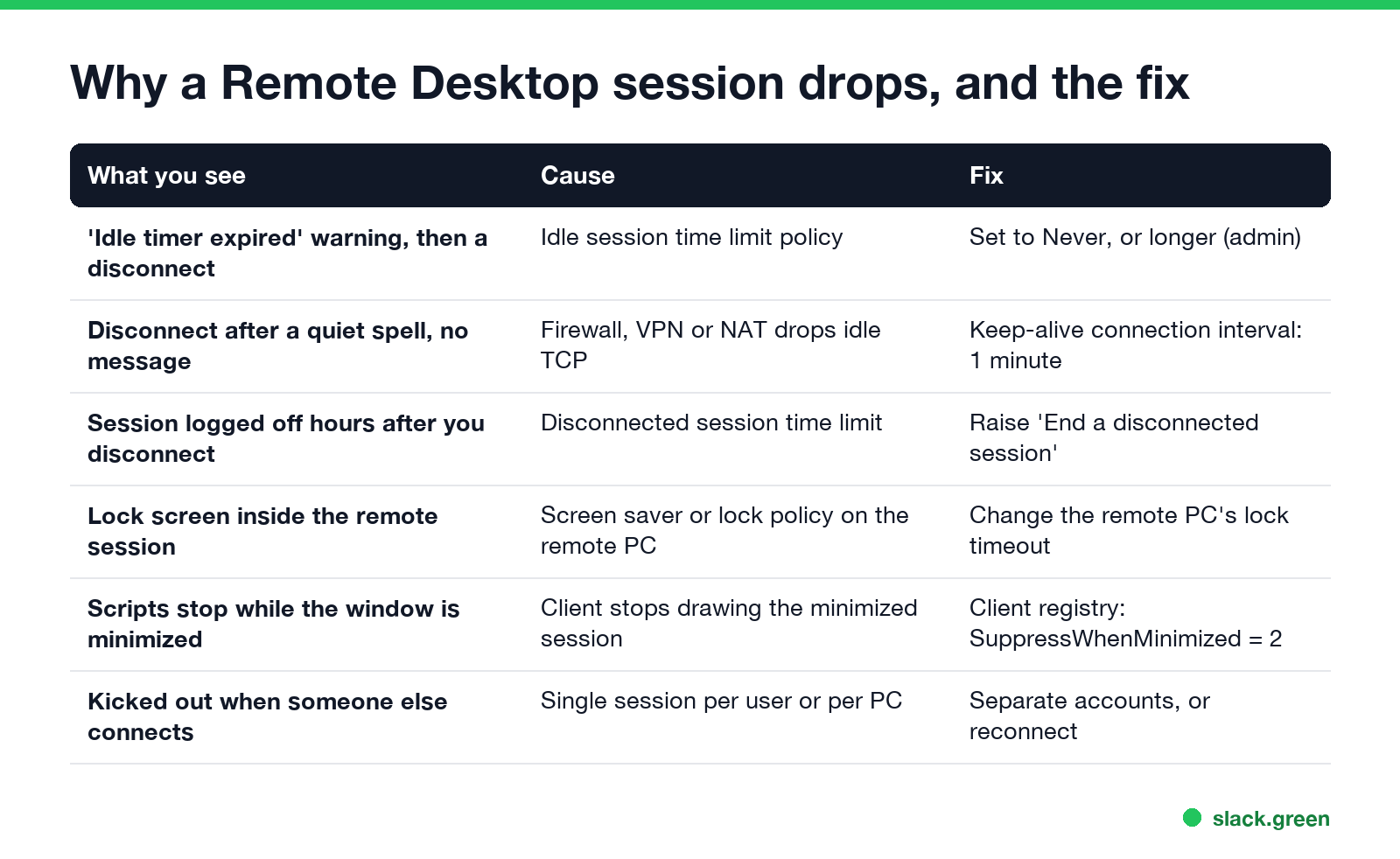
| What you see | Cause | Fix |
|---|---|---|
| "Idle timer expired" warning, then a disconnect | Idle session time limit policy | Set it to Never, or longer (admin) |
| Disconnect after a quiet spell, no message | Firewall, VPN or NAT drops the idle TCP connection | Keep-alive connection interval, 1 minute |
| Session logged off hours after you disconnect | Disconnected session time limit | Raise Set time limit for disconnected sessions |
| Lock screen inside the remote session | Screen saver or lock policy on the remote PC | Change the remote PC's lock timeout |
| Scripts stop while the window is minimized | The client stops drawing a minimized session | RemoteDesktop_SuppressWhenMinimized = 2 |
| Kicked out when someone else signs in | One session per user, or per PC on Windows 10 and 11 | Separate accounts, or reconnect |
The idle limit shows a dialog first: "Session has been idle over its time limit. It will be disconnected in 2 minutes. Press any key now to continue session." If you see that text, the policy is the cause. A drop with no warning is almost always the network.
Check the current limits
Run this in PowerShell on the remote PC. It reads the policy values Group Policy writes. An empty result means no policy is set, and Windows uses its defaults or the per-user limits in the account's Sessions tab.
Get-ItemProperty 'HKLM:\SOFTWARE\Policies\Microsoft\Windows NT\Terminal Services' -ErrorAction SilentlyContinue |
  Select-Object MaxIdleTime, MaxDisconnectionTime, KeepAliveEnable, KeepAliveInterval
MaxIdleTime and MaxDisconnectionTime are in milliseconds: 900000 is 15 minutes, and 0 means no limit. KeepAliveInterval is in minutes. gpresult /h rdp.html shows which Group Policy object set each value.
Fix 1: raise the idle session limit (admin on the remote PC)
Never appear "away" on Slack again
Cloud-based. No downloads. Works 24/7 even when your laptop is off.
In the Group Policy editor (gpedit.msc), open Computer Configuration > Administrative Templates > Windows Components > Remote Desktop Services > Remote Desktop Session Host > Session Time Limits, and set:
- • Set time limit for active but idle Remote Desktop Services sessions: Enabled, Never.
- • Set time limit for disconnected sessions: Enabled, a limit that suits you, such as 1 day, so a dropped session is still there when you reconnect.
The same change from an elevated PowerShell, for a single PC outside domain policy:
# run as administrator on the remote PC; 0 = never end an idle session
$key = 'HKLM:\SOFTWARE\Policies\Microsoft\Windows NT\Terminal Services'
New-Item -Path $key -Force | Out-Null
Set-ItemProperty -Path $key -Name MaxIdleTime -Value 0 -Type DWord
Set-ItemProperty -Path $key -Name MaxDisconnectionTime -Value 86400000 -Type DWord  # 1 day
gpupdate /force
On a domain PC, a domain Group Policy overwrites local values at the next refresh, so ask whoever manages it. On a Remote Desktop Services server, the collection's Session tab in Server Manager has the same End an idle session setting. Company servers set these limits on purpose to free licenses and memory, so do not change them without the admin.
Fix 2: turn on keep-alive for quiet connections
A VPN, firewall or home router can drop a TCP connection that sends nothing for a few minutes. The Remote Desktop keep-alive sends a small packet on a timer so the connection never looks idle to the network. It does not count as user input, so it does not reset the idle session timer in Fix 1.
The policy is Computer Configuration > Administrative Templates > Windows Components > Remote Desktop Services > Remote Desktop Session Host > Connections > Configure keep-alive connection interval: Enabled, 1 minute. As registry values on the remote PC:
$key = 'HKLM:\SOFTWARE\Policies\Microsoft\Windows NT\Terminal Services'
Set-ItemProperty -Path $key -Name KeepAliveEnable -Value 1 -Type DWord
Set-ItemProperty -Path $key -Name KeepAliveInterval -Value 1 -Type DWord
Fix 3: stop the remote PC from locking or sleeping
The session can stay connected while the remote PC shows its own lock screen after its screen saver or lock timeout. Change the lock and sleep settings on the remote PC, as you would at its desk; see how to stop Windows 11 from locking and how to stop your computer from sleeping. A remote PC that sleeps drops the session, so set it to never sleep while plugged in:
powercfg /change standby-timeout-ac 0Fix 4: keep a minimized session running
Never appear "away" on Slack again
Cloud-based. No downloads. Works 24/7 even when your laptop is off.
When you minimize the Remote Desktop window, the client stops drawing the remote screen. Scripts and automation that click or type in the session can then fail. On the computer you connect from, add this value, then reconnect:
reg add "HKCU\Software\Microsoft\Terminal Server Client" /v RemoteDesktop_SuppressWhenMinimized /t REG_DWORD /d 2 /f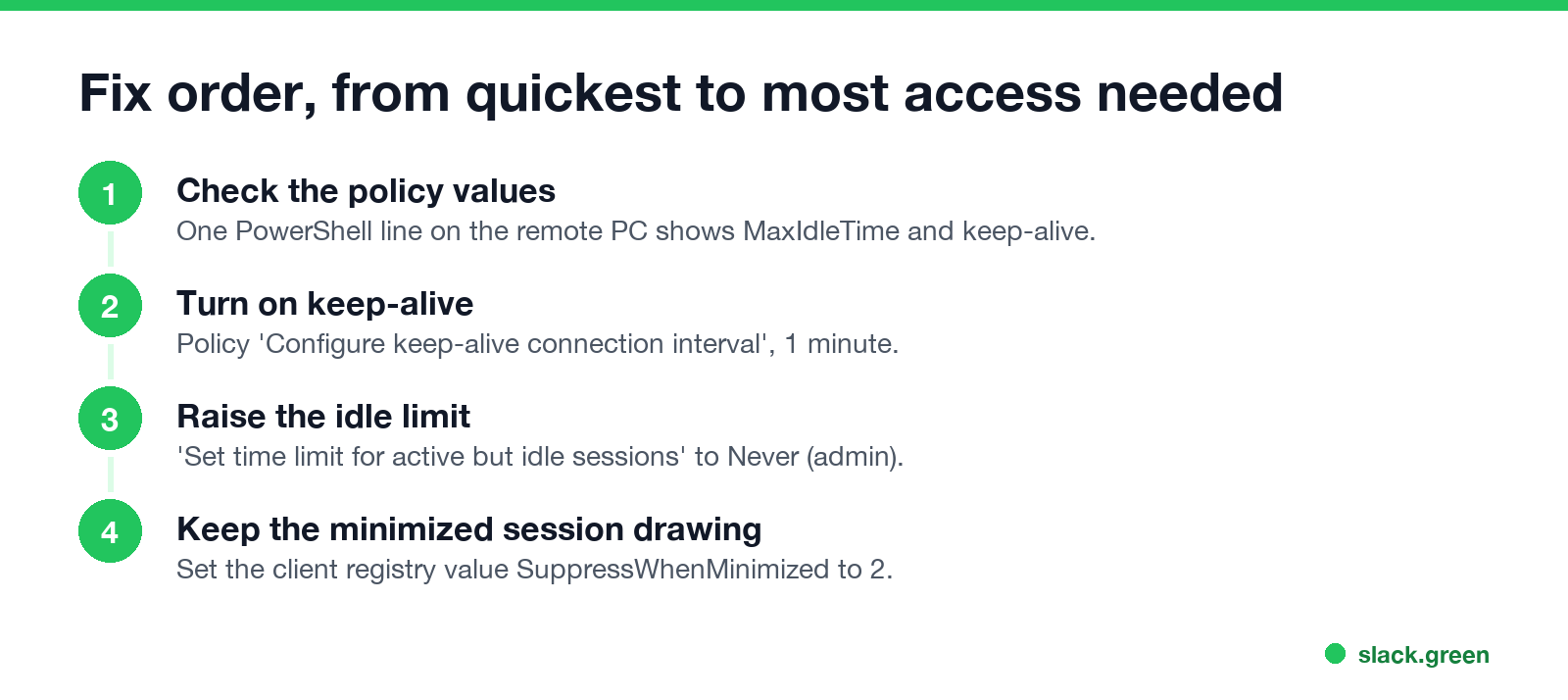
Without admin rights: keep the session busy
If you cannot change policy, only input inside the remote session resets its idle timer. Moving the mouse on your own computer does nothing while the Remote Desktop window is in the background. A key-press loop that runs inside the session works, because the input is created on the remote PC. The F15 PowerShell loop in keep your computer awake with PowerShell is the common one: F15 is on almost no keyboard, so it does not type into your apps. Check your company's policy first, because an idle limit on a company server is usually there on purpose.
FAQ
How do I stop Remote Desktop from disconnecting when idle? Set "Set time limit for active but idle Remote Desktop Services sessions" to Never on the remote PC, and turn on the keep-alive interval at 1 minute.
What is the default RDP idle timeout? Windows sets no idle limit by default. A timeout you hit comes from Group Policy, the account's Sessions tab, an RDS collection setting, or the network.
Does moving my mouse keep a Remote Desktop session active? Only when the pointer moves inside the Remote Desktop window. Input on your own desktop does not reach the session.
Why does my RDP session disconnect after exactly 15 minutes? A policy set the idle limit to 15 minutes. Check MaxIdleTime with the PowerShell line above.
Does the RDP keep-alive stop the idle timeout? No. Keep-alive stops the network from dropping the connection. The idle session limit counts user input only.
Stop Jiggling Your Mouse.
Join hundreds of remote workers who never worry about their Slack status. Set it up once, stay green forever.
Related Articles
KeepingYouAwake vs Amphetamine: Which Mac Keep-Awake App to Use
KeepingYouAwake is a free, open-source menu bar switch that runs Apple's caffeinate for you. Amphetamine is a free App Store app with triggers, schedules and a closed-lid mode. Pick KeepingYouAwake for one click and Homebrew, Amphetamine for automation. Neither keeps Slack or Teams active.
Computer Locks After 15 Minutes? How to Tell If Group Policy Set It
A work laptop that locks after exactly 15 minutes, with screen settings greyed out, is almost always following a policy from IT: the Windows machine inactivity limit, a forced screen saver, or an Intune device lock. Security baselines and PCI DSS ask for 15 minutes. How to see which policy it is, and what you can and cannot change.
How to Keep a Citrix Session Active: Find Which Timeout Logs You Out
A Citrix session can end from four different timers: Windows locking inside the virtual desktop, the Citrix session idle timer, the Citrix Gateway session time-out, and the StoreFront web page timeout. Only input from your own device into the Citrix window resets them. How to tell which one hit you and what keeps each one quiet.