
KeepingYouAwake vs Amphetamine: Which Mac Keep-Awake App to Use
KeepingYouAwake is a free, open-source menu bar switch that runs Apple's caffeinate for you. Amphetamine is a free App Store app with triggers, schedules and a closed-lid mode. Pick KeepingYouAwake for one click and Homebrew, Amphetamine for automation. Neither keeps Slack or Teams active.
Both apps stop a Mac from sleeping, both are free, and both put a cup icon in the menu bar. The difference is how much they do. KeepingYouAwake is a small open-source switch: click the cup and it runs Apple's built-in caffeinate tool until you click again or a timer ends. Amphetamine is a full app from the Mac App Store with triggers, such as "stay awake while this app runs" or "while on this Wi-Fi", schedules, and a closed-lid mode. Pick KeepingYouAwake if you want one click and a Homebrew install. Pick Amphetamine if you want the Mac to decide for you, or need to close the lid.
Neither app keeps Slack or Microsoft Teams active. They block sleep, but they send no keyboard or mouse input, and chat apps set you Away on input, not on sleep. Slack Green keeps your Slack status active from our servers during the hours you set, with the Mac asleep or not.
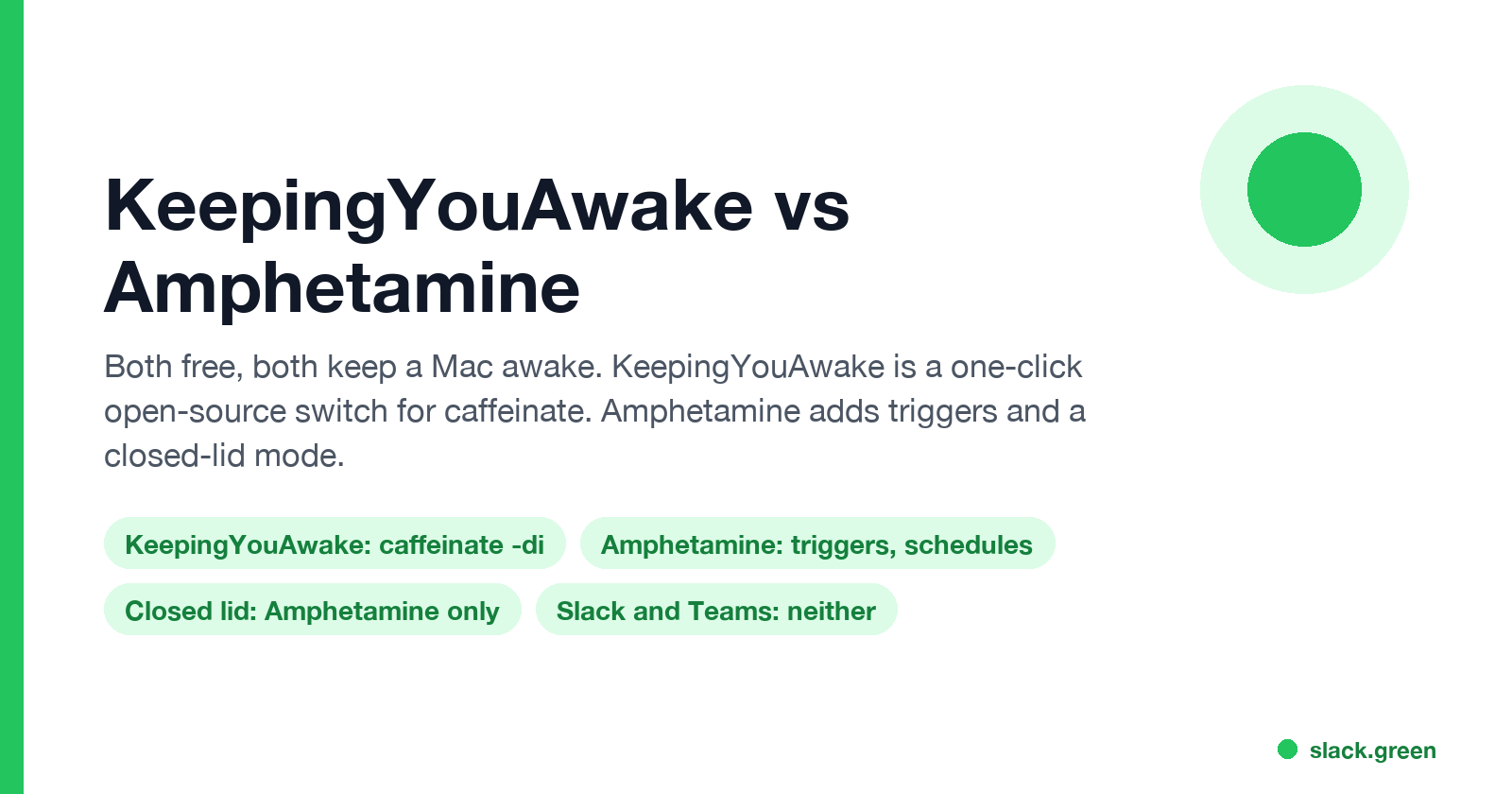
KeepingYouAwake vs Amphetamine at a glance
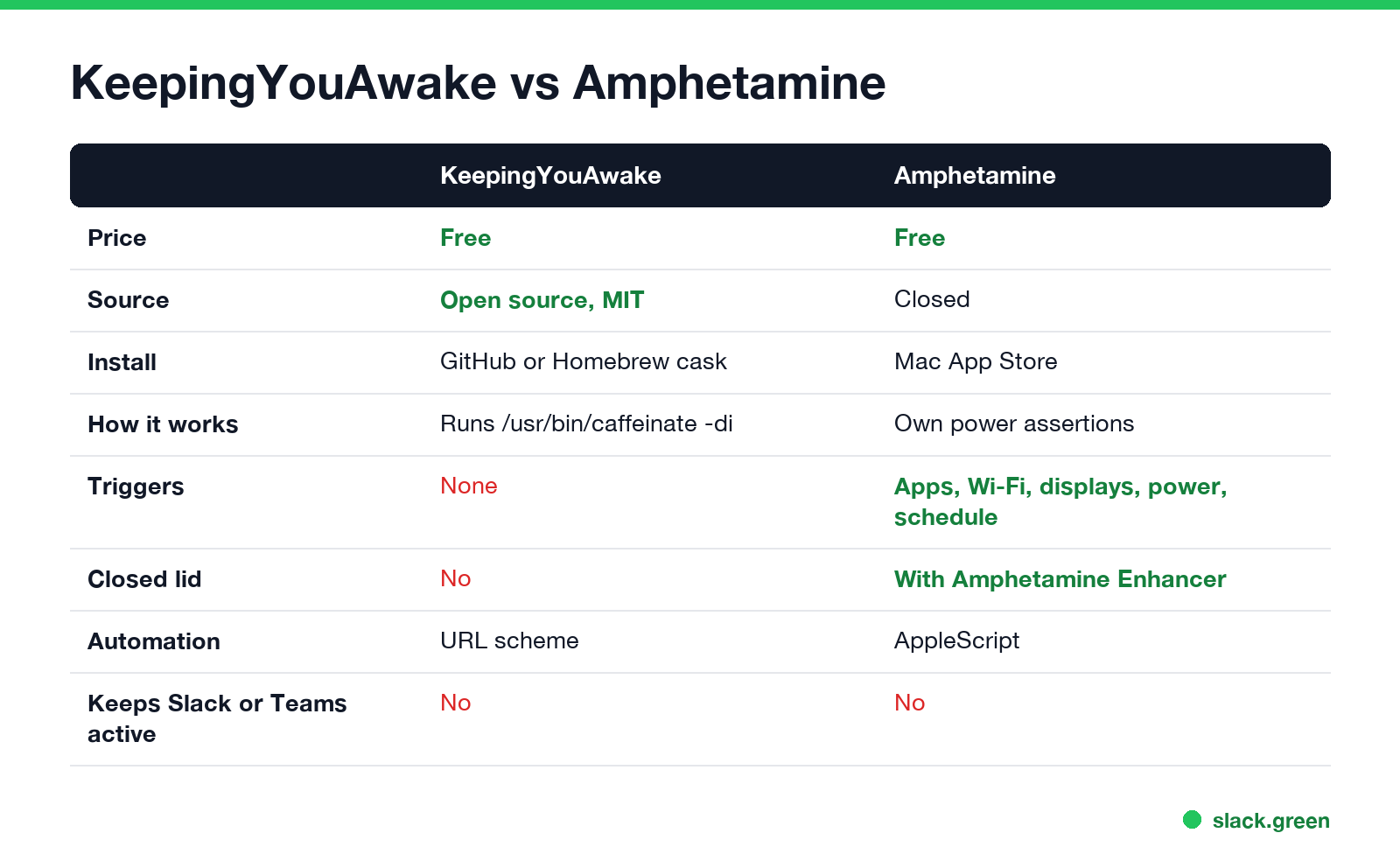
| KeepingYouAwake | Amphetamine | |
|---|---|---|
| Price | Free | Free, no ads or in-app purchases |
| Source | Open source, MIT license | Closed source |
| Developer | Marcel Dierkes | William Gustafson |
| Install | GitHub download or brew install --cask keepingyouawake | Mac App Store |
| How it works | Runs /usr/bin/caffeinate | Its own power assertions |
| Timed sessions | Preset durations | Durations, end times, schedules |
| Automatic triggers | None | Apps, Wi-Fi, displays, power, battery, USB and more |
| Stop on low battery | Yes | Yes |
| Let the display sleep | Yes, an option | Yes, an option |
| Closed lid | No | Yes, with Amphetamine Enhancer |
| Automation | keepingyouawake:/// URL scheme | AppleScript |
Both are in active use. KeepingYouAwake's latest release, 1.6.8 from September 2025, added an icon for macOS 26 Tahoe and runs on macOS 10.13 and newer. Its README says 1.6.8 is the last version for Big Sur and older, so the next release will need a newer macOS.
What KeepingYouAwake does under the hood
KeepingYouAwake does not have its own sleep blocker. Its README calls it "a small wrapper around Apple's caffeinate command line utility", and its source code shows the exact command. When you click the cup, it starts:
/usr/bin/caffeinate -di -t <seconds> -w <app pid>- •
-dstops the display from sleeping, and-istops the Mac from idle sleep. With "Allow display sleep" turned on, it passes-ialone. - •
-tis the timer, left out for an unlimited session. - •
-wties the command to the app, so quitting KeepingYouAwake ends it.
We ran the same caffeinate -di -t 15 on a Mac with macOS 26.5.2 and checked pmset -g assertions. It created two assertions named "caffeinate command-line tool": PreventUserIdleSystemSleep and PreventUserIdleDisplaySleep. That is all KeepingYouAwake does, and it is also why it is hard to break.
You can drive it from Terminal or a script through its URL scheme:
open -g "keepingyouawake:///activate?minutes=90"
open -g "keepingyouawake:///deactivate"
The README is also clear about the lid: on a MacBook it prevents sleep only "with an open lid."
What Amphetamine adds
Never appear "away" on Slack again
Cloud-based. No downloads. Works 24/7 even when your laptop is off.
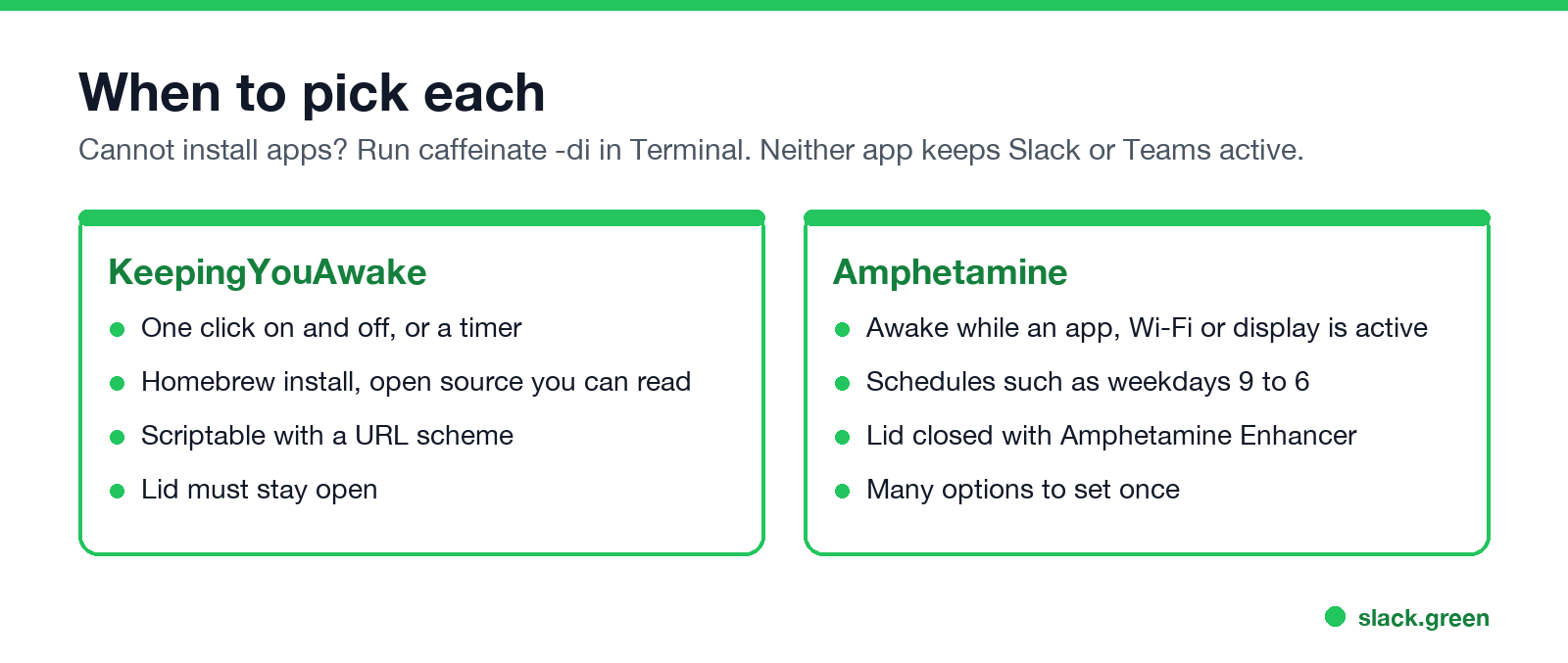
Amphetamine is built around triggers. You set a rule once and the Mac stays awake whenever it applies:
It can also keep a MacBook awake with the lid closed. On recent Macs that needs a free companion app, Amphetamine Enhancer, and it is the most common reason Amphetamine "does not work": the lid mode is on but the Enhancer's helper is missing. The fixes, and the other alternatives, are in Amphetamine alternatives for Mac.
The cost is more settings to learn and an app you cannot inspect. For a one-off "stay awake for this download", many people find it more than they need.
Which one should you use?
caffeinate -di in Terminal, which is what KeepingYouAwake runs anyway. More in caffeinate on Mac.On a managed work Mac, also check what IT allows. A keep-awake app does not bypass a screen lock that a configuration profile sets, and some companies block App Store installs.
Neither app keeps Slack or Teams active
Both apps block sleep. None of them sends input, so apps that watch for activity still count you as idle:
What they do stop is the instant Away you get when the Mac sleeps. To keep Slack green through reading, meetings and breaks, Slack Green sets your presence from our servers on the hours you choose, with no app running on the Mac.
KeepingYouAwake vs Amphetamine questions
Never appear "away" on Slack again
Cloud-based. No downloads. Works 24/7 even when your laptop is off.
Is KeepingYouAwake safe? It runs Apple's own caffeinate tool, and its code is public on GitHub under the MIT license.
Does KeepingYouAwake work with the lid closed? No. Its README says it prevents sleep only on desktop Macs and on MacBooks with the lid open.
Is Amphetamine better than KeepingYouAwake? It does more: triggers, schedules and a closed-lid mode. If you only click on and off, KeepingYouAwake does the same job with less to set up.
Do Mac keep-awake apps keep Teams green? No. They block sleep but send no input, so Teams still goes Away after about 5 idle minutes.
Stop Jiggling Your Mouse.
Join hundreds of remote workers who never worry about their Slack status. Set it up once, stay green forever.
Related Articles
Computer Locks After 15 Minutes? How to Tell If Group Policy Set It
A work laptop that locks after exactly 15 minutes, with screen settings greyed out, is almost always following a policy from IT: the Windows machine inactivity limit, a forced screen saver, or an Intune device lock. Security baselines and PCI DSS ask for 15 minutes. How to see which policy it is, and what you can and cannot change.
How to Keep a Citrix Session Active: Find Which Timeout Logs You Out
A Citrix session can end from four different timers: Windows locking inside the virtual desktop, the Citrix session idle timer, the Citrix Gateway session time-out, and the StoreFront web page timeout. Only input from your own device into the Citrix window resets them. How to tell which one hit you and what keeps each one quiet.
How Long Before Google Chat Shows Away? Idle at 5 Minutes, Away at 10
Google Chat shows you Idle after 5 minutes without activity in Gmail or Chat on a computer, and Away once you have been idle for more than 10 minutes. Losing your connection or a sleeping computer shows Away at once. Neither timer can be changed, by you or by a Workspace admin.