
Discord Status Won't Change? 6 Causes and Fixes
If your Discord status will not change, you are usually clicking the wrong spot: the status list now sits behind the current status line in your profile panel. Other causes are a manual Idle that never ends, an app that missed the update, a custom status timer, and Discord outages. Fixes for desktop, browser and mobile.
If your Discord status won't change, click your avatar in the bottom left, then click the line that shows your current status (Online, Idle, Do Not Disturb or Invisible), and pick the new one from the list that opens. Discord moved the status list into the profile panel, so clicking the avatar alone only opens your profile. If you are stuck on Idle, you probably set Idle by hand: Discord's help center says a manual Idle stays indefinitely, unlike the automatic one. If others still see the old status, reload with Ctrl+R (Cmd+R on a Mac) and check discordstatus.com for an outage.
We build Slack Green, which keeps a Slack status green during your work hours, and we write about how chat apps show presence. What each Discord dot means is in Discord status icons meaning.
Why your Discord status will not change
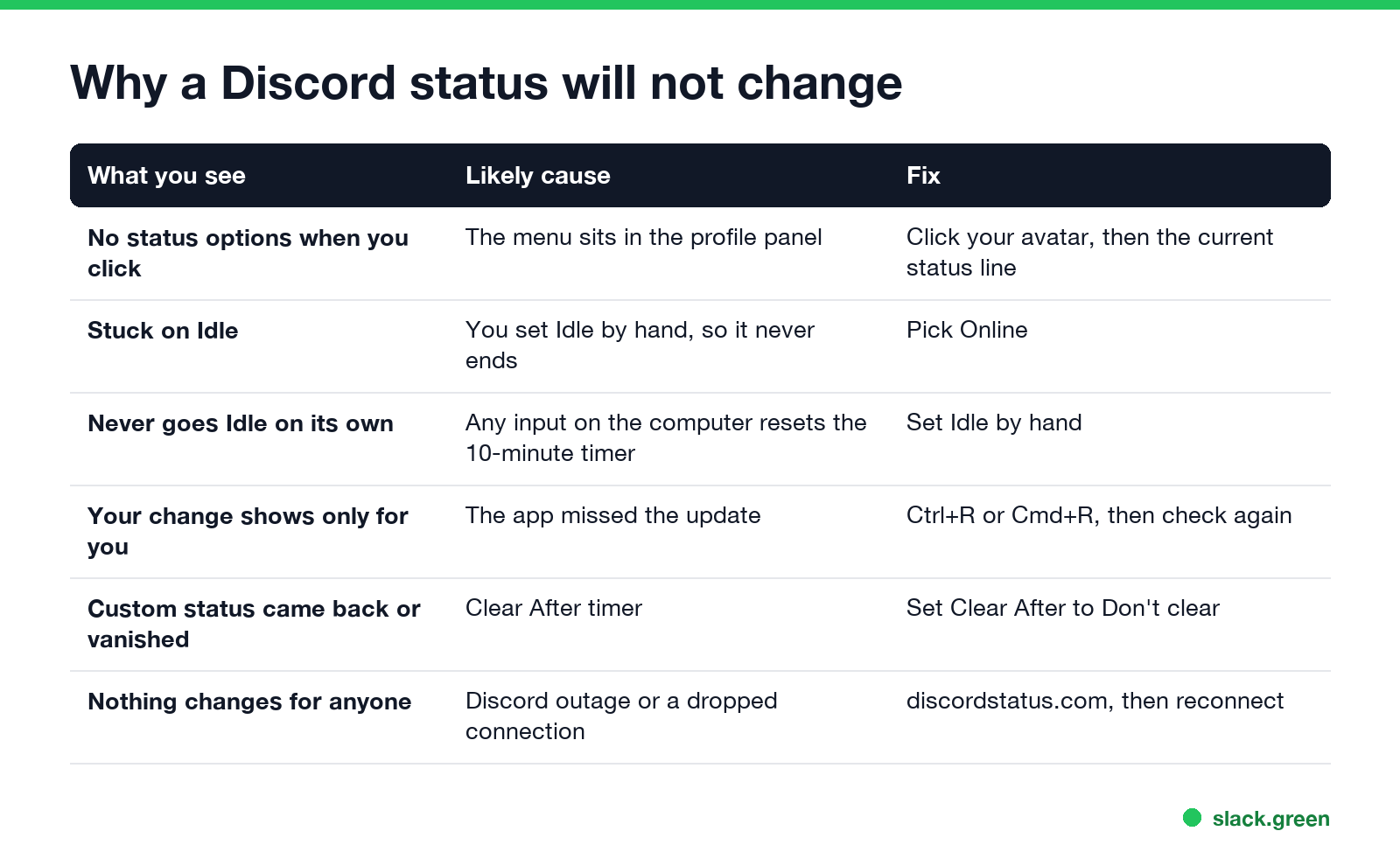
| What you see | Likely cause | Fix |
|---|---|---|
| Clicking your avatar shows no status options | The list sits behind the current status line | Click the status line, then pick |
| Stuck on Idle | You chose Idle by hand, so it does not end | Pick Online |
| You never go Idle on your own | Any input on the computer resets the timer | Set Idle by hand |
| Your change shows for you but not for friends | Their app or yours missed the update | Reload with Ctrl+R or Cmd+R |
| A custom status comes back or disappears | The Clear After timer | Set Clear After to Don't clear |
| Nothing changes for anyone | A Discord outage or a dropped connection | Check discordstatus.com, then reconnect |
Change your Discord status on desktop, browser and mobile
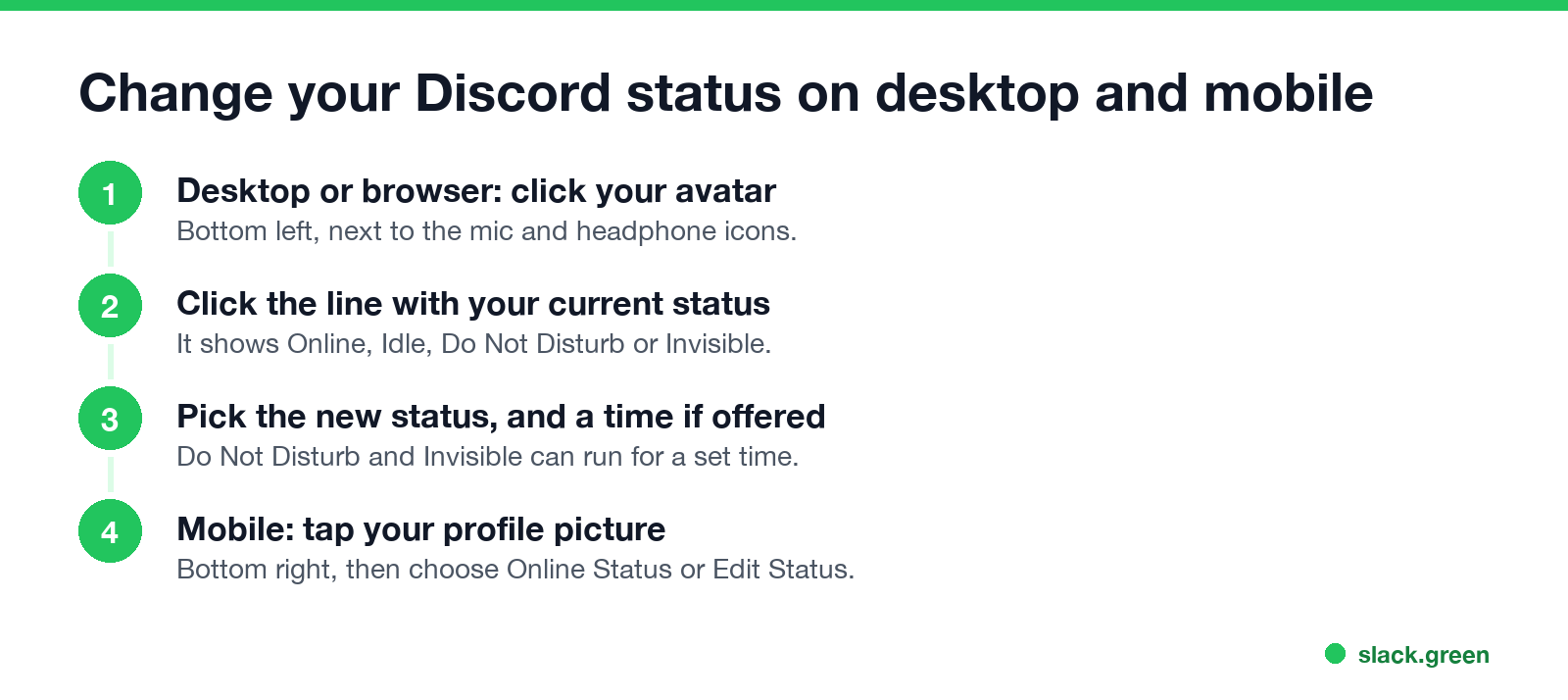
Desktop app and browser:
- Click your avatar in the bottom left, next to the microphone and headphone icons.
- In the panel that opens, click the line that shows your current status.
- Pick Online, Idle, Do Not Disturb or Invisible. Do Not Disturb can run for a set time; see what Do Not Disturb does on Discord.
- Tap your profile picture in the bottom right.
- Tap your current status, or Edit Status, and choose a new one under Online Status.
- • Automatic Idle. The desktop app sets it after about 10 minutes with no keyboard or mouse input on the computer. It ends the moment you use the computer again.
- • Manual Idle. You picked it from the menu. Discord's help article "Changing Online Status" says that unlike the automatic one, a manual Idle stays indefinitely.
- Reload. Press Ctrl+R (Cmd+R on a Mac) in the desktop app, or refresh the browser tab. Ask your friend to do the same; their member list may be the stale one.
- Quit and reopen. On Windows, right-click the Discord icon in the tray and choose Quit Discord, then start it again.
- Check for an outage. discordstatus.com lists incidents with the API and gateway, which carry status changes.
- Update the app. An old client can get out of step with the server.
- Sign out and back in, then set the status again.
Phone:
Discord's status is per account, so a change on your phone also shows on your computer. If the browser tab will not let you pick, try the desktop app. A r/discordapp thread titled "Can't change status on Discord browser" ranks high for this problem, so you are not the only one.
Discord stuck on Idle
Discord has two kinds of Idle, and they behave differently:
So if the yellow moon never goes away, open the status menu and choose Online. On a phone, Discord can show you Idle soon after you leave the app; that case is in does Discord show idle on mobile. What Idle means to other people is in what does idle mean on Discord.
The opposite problem, never going Idle while you are away from Discord, happens because the timer watches the whole computer. If you type in another app or a mouse jiggler moves the pointer, Discord sees input and keeps you Online. Set Idle by hand when you step away.
Discord status not updating for other people
If you are the one who shows online when you think you are offline, see why Discord shows online when offline. If you picked Invisible and want to know what others can still tell, see Discord invisible vs offline.
Custom status keeps coming back or disappears
A custom status is the text and emoji under your name. Discord's help center says it clears after one day by default. When you set it, pick Clear After and choose Don't clear to keep it, or a shorter time to have it end on its own. If an old custom status keeps coming back, it is usually one you saved with a long timer; open it and press the trash icon to clear it.
A custom status can also look missing when you are set to Invisible, or when people open your full profile, where your game or activity shows too. The full table is in how to set a custom status on Discord. For status text ideas, see Discord status copy and paste or the status message generator, which writes short statuses that fit Discord's 128-character limit.
Same problem in Slack
Slack statuses get stuck in similar ways: a status set to clear "Don't clear", a calendar app that keeps setting "In a meeting", or an away dot after 10 minutes without input in the Slack window. The fixes are in Slack status not updating and Slack keeps clearing my status.
FAQ
Why can't I change my status on Discord? The status list is behind the current status line in your profile panel. Click your avatar, then the status line.
Why is my Discord stuck on Idle? You set Idle by hand, and a manual Idle has no end. Choose Online.
How do I make Discord update my status? Reload with Ctrl+R or Cmd+R, or quit Discord from the tray and reopen it. Check discordstatus.com if it still does not change.
Does changing my status on my phone change it on my computer? Yes. Your status belongs to your account, so it is the same on every device.
Related Articles
Webex Status Ideas: 35 Custom Statuses Under 75 Characters
35 Webex status ideas you can paste into Set a status: funny ones, meetings, focus time, lunch, out of office and time zones, each under Webex's 75-character limit. How to set a custom status, save five for reuse, and make it clear on its own.
How to Make an Emoji From a Video (Slack and Discord)
To make an emoji from a video, cut 1 to 2 seconds, crop it to a square, scale it to 128 x 128 and save it as a GIF under 128 KB for Slack or 256 KB for Discord. One tested ffmpeg command, the frame rate and color settings that decide the file size, and a free browser tool that shrinks the GIF for you.
How to Make a Custom Emoji for Discord (From Any Image)
To make a custom Discord emoji, crop an image to a square, keep it under 256 KB, name it with letters, numbers and underscores, and upload it with Add Emoji in the emoji picker or Server Settings, Emoji. How to make one from a photo, a GIF or text for free, add animation, and use it in other servers.