
How to Appear Active on Slack When Work Pulls You Away
Slack shows you active only if it saw input in a Slack window in the last 10 minutes. Meetings, reading and breaks produce none. Four ways to stay green while you work elsewhere.
To appear active on Slack, Slack has to see a click, a keystroke or a scroll in one of your signed-in Slack windows within the last 10 minutes. Typing in other apps does not count, and the "Set yourself as active" menu item resets the dot only once. So a meeting, a long read or a coffee break turns you gray. Below are four ways to stay green while you work elsewhere, from touching Slack between tasks to a server-side schedule.
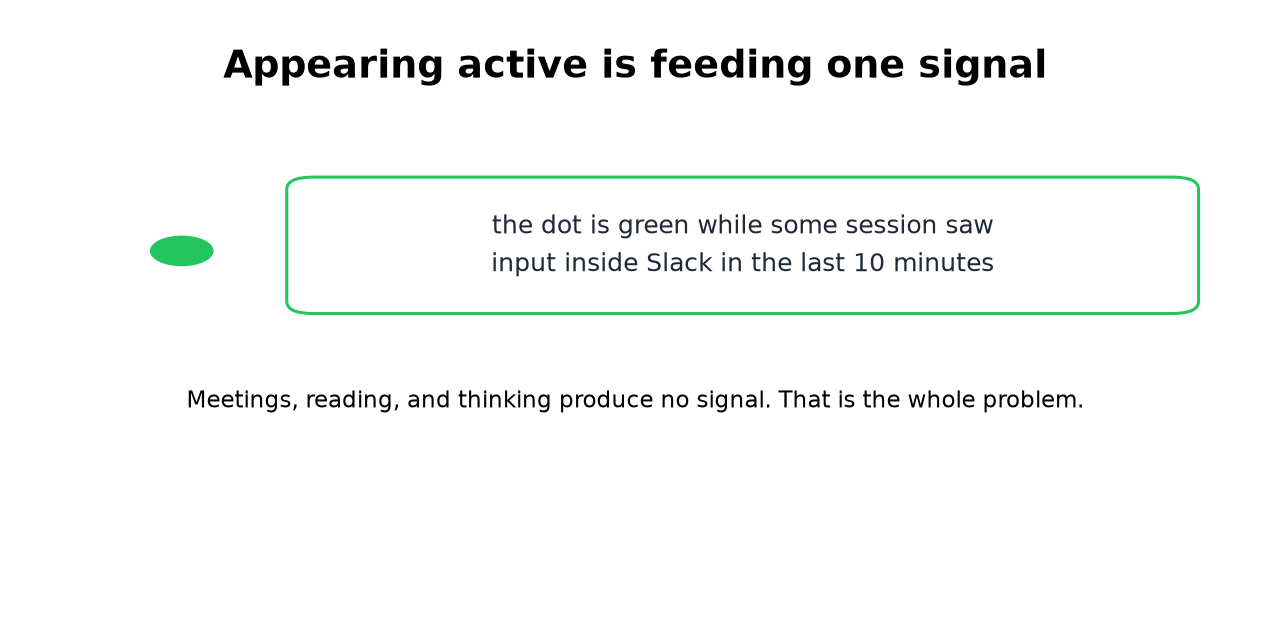
The question is how to keep the signal fed while you do real work elsewhere. The options below run from most effort to least.
Why "set yourself as active" does not hold
The menu toggle resets your status once. The 10-minute countdown keeps running, and you flip back the moment it expires. It was never an always-active switch, and no setting is.
Where the dot betrays you
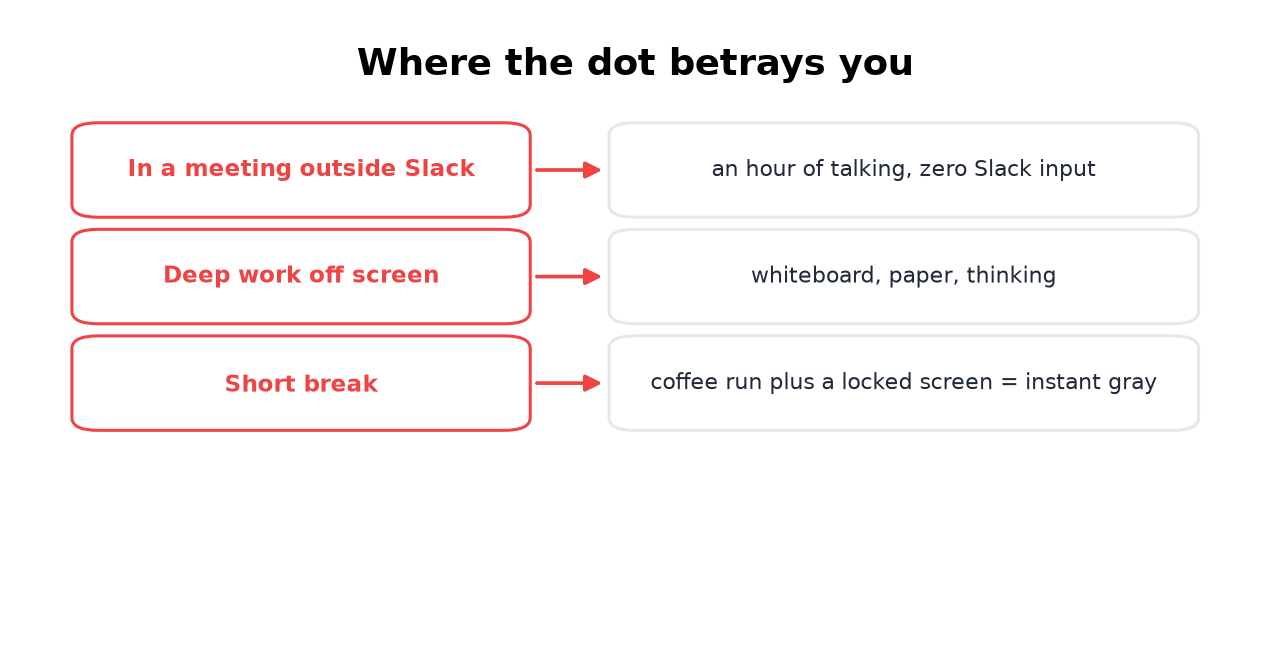
- • Meetings outside Slack. An hour of talking, zero input, gray dot. The people most annoyed by the dot are usually in the most meetings.
- • Deep work off screen. Whiteboards, paper, reading a long document. Slack cannot see any of it.
- • Short breaks. The killer is not the timer but the lock screen: a 2-minute coffee run plus a corporate lock policy equals instant gray. The routine for taking a longer break without leaving a gap is in how to slack off at work.
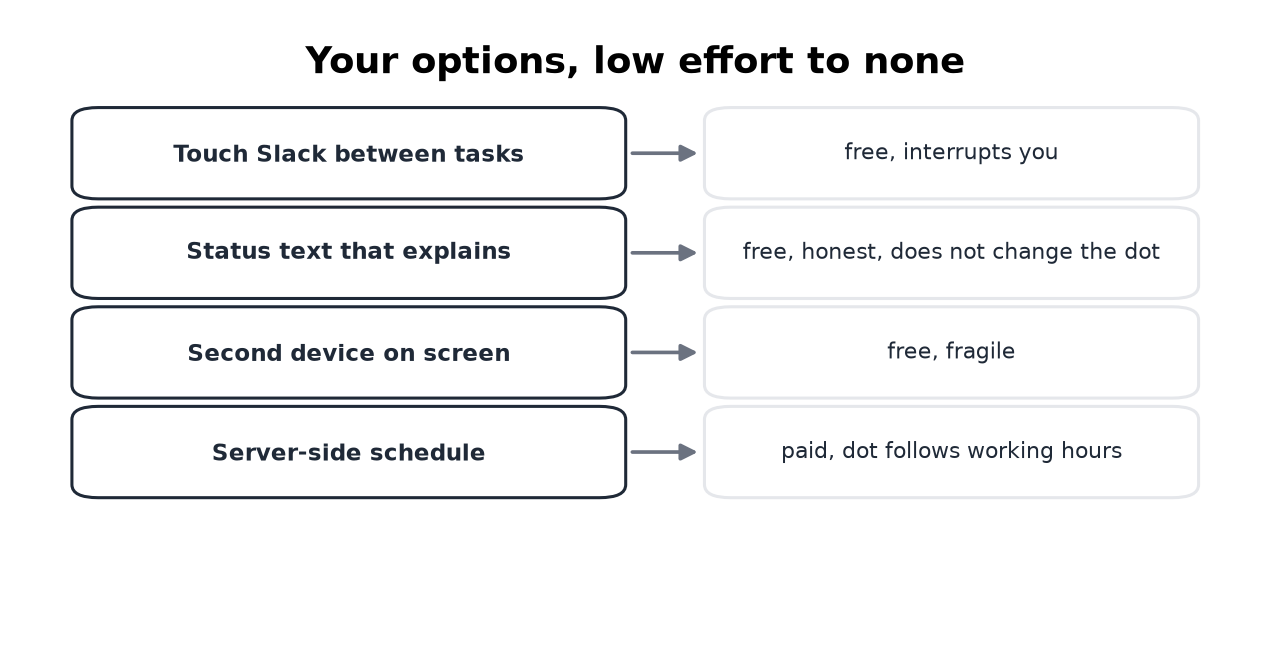
- Touch Slack between tasks. A click resets the window. Free, and it makes the dot your metronome.
- Say what you are doing instead. A status text like "In meetings until 3" does not change the dot, text and dot are separate systems, but it answers the question before anyone asks. This is the direct fix for the meeting problem.
- A second device with Slack on screen. Works while the screen stays on, with the limits covered in keeping Slack active on mobile.
- A server-side schedule. Slack Green holds your
Your options, low effort to none
Never appear "away" on Slack again
Cloud-based. No downloads. Works 24/7 even when your laptop is off.
What not to bother with
Jigglers wiggling over the wrong window, videos left playing, and keep-awake apps all fail the same test: no input inside Slack, no green dot. The jiggler comparison covers the one way a jiggler does work.
Frequently asked questions
How do I appear active on Slack all day? Feed the input window all day: by hand, from a second device, or from a server. There is no setting that does it.
Does appearing active fool my manager? The dot changes, session logs do not. If presence is being audited, the honest status text plus a conversation beats every trick. What monitoring sees is in will I get caught.
Can I appear active on just one workspace? Yes. Presence is per workspace, so a tool signed into one workspace only affects that one.
What is the fastest way right now? Open Slack on your phone and keep the screen on. It holds until the phone locks. For anything past an afternoon, use a schedule.
The short version
Green means fed, gray means silent. Feed the window by hand if you are at the machine, explain yourself with a status text if you are in meetings, and put the dot on a schedule if you want it to stop depending on where your hands are.
Stop Jiggling Your Mouse.
Join hundreds of remote workers who never worry about their Slack status. Set it up once, stay green forever.
Related Articles
Slack Interactivity Payload: Real block_actions JSON and response_url Limits
We clicked a button, a static_select and a datepicker in Slack on 1 October 2026 and logged the block_actions payloads our app received. Then we measured response_url: 5 posts, then used_url; it worked at 29:50 and was dead at 30:10.
Slack unfurl_links and unfurl_media: What Each Flag Does, Tested
We posted a web page, a YouTube video and an image with every combination of unfurl_links and unfurl_media on 1 October 2026, then built a custom preview with link_shared and chat.unfurl. The flags do not split the way the names suggest.
Slack Scheduled Message Didn't Send? 5 Cases We Tested
We scheduled five messages for 4:40 PM on 1 October 2026, then archived, left and deleted their channels and deleted a thread parent before the send time. Two sent, three never did, and Slack gave no notice about the three.