
Slack Workflow Builder Examples: 12 Workflows to Copy, With Triggers and Steps
Twelve Slack Workflow Builder examples with the exact trigger and steps for each: daily standups, channel welcomes, time-off approvals, help desk requests, emoji escalations, keyword routing, incidents, list updates and webhooks from other tools. Plus where Workflow Builder lives, what it costs and how branches work.
Slack Workflow Builder turns a repeated task into a trigger plus a few steps. The most useful examples are a scheduled daily standup, a welcome message when someone joins a channel, a time-off request with manager approval, a help desk form that posts to a triage channel, an emoji reaction that escalates a message, and a webhook that posts alerts from another tool. Each one is below with its trigger and steps, ready to rebuild. To open Workflow Builder on desktop, click Agents & tools in the sidebar (older layouts say Tools or Automations), then Workflows, New, Build Workflow. It is included on paid plans, and by default any member can build a workflow.
What a workflow cannot do is keep you present. Your dot goes grey 10 minutes after your last input in the Slack window, and no workflow step changes that. Slack Green keeps your status active during the working hours you set, from the cloud.
Workflow Builder triggers
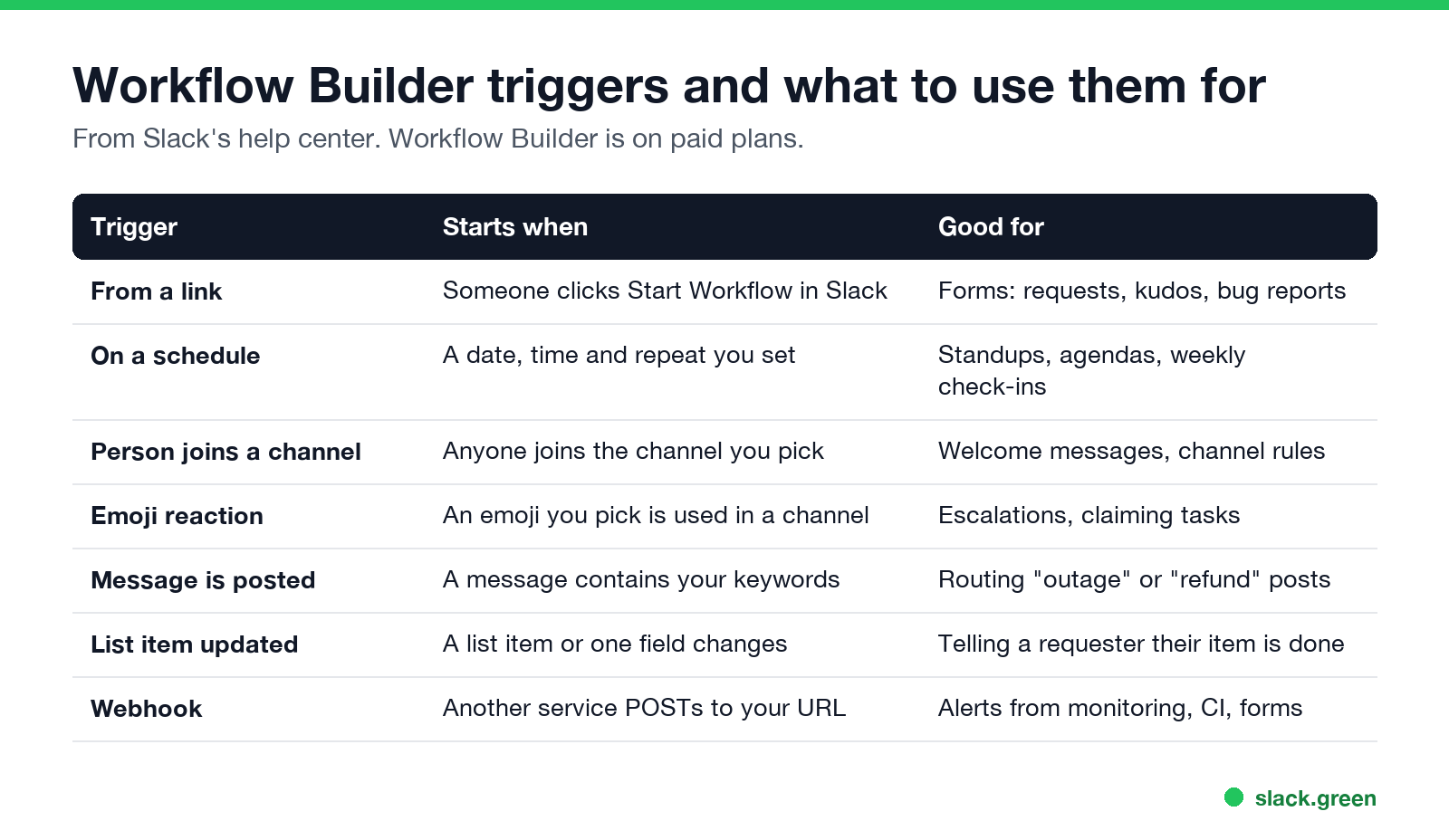
Every workflow starts with one trigger. Slack's create a workflow guide lists these:
| Trigger | Starts when | Good for |
|---|---|---|
| From a link | Someone clicks Start Workflow in Slack | Forms: requests, kudos, bug reports |
| On a schedule | At the date, time and repeat you set | Standups, agendas, weekly check-ins |
| When a person joins a channel | Anyone joins the channel you pick | Welcome messages, channel rules |
| When an emoji reaction is used | Someone uses a chosen emoji in a chosen channel | Escalations, claiming a task |
| When a message is posted | A message contains keywords you set | Routing "outage" or "refund" posts |
| When a list item is updated | A list item, or one field of it, changes | Telling a requester their item is done |
| From a webhook | Another service sends a POST to your URL | Alerts from monitoring, CI, forms |
A link trigger only works inside Slack. Pin the link in the channel, bookmark it, or put it in a canvas.
After the trigger come steps: Slack steps (send a message, collect a form, create a channel, add people), connector steps that act in other services such as Google Sheets or Zoom, and custom steps your developers build. Buttons pause the workflow until someone clicks. Variables carry answers from earlier steps into later ones.
12 Slack Workflow Builder examples
1. Daily standup
- • Trigger: On a schedule, every weekday at 9:30.
- • Steps: Send a message to #standup with a Share update button. The button opens a form with three questions: yesterday, today, blockers. A final step posts the answers to the channel with the person as a variable.
- • Trigger: When a person joins #customer-support.
- • Steps: Send a message to the person who joined, with the channel's purpose, where the runbook lives, and who to ask.
- • Trigger: From a link, pinned in #team.
- • Steps: A form for dates, type and a note. A message to the manager with a Review button that opens a second form with Approve or Deny. A branch on that answer sends the requester one of two replies, and the approved branch also posts to #team-calendar.
- • Trigger: From a link in #it-help.
- • Steps: A form for the category, urgency and details. A message to a private #it-triage channel with a Claim button. After the click, a message tells the requester who has it.
- • Trigger: When the 🚨 reaction is used in #support.
- • Steps: Send a message to #on-call with a link to the original message and the person who reacted.
- • Trigger: When a message containing "refund" is posted in #sales.
- • Steps: Send a message to #finance with the message link.
- • Trigger: From a link, or from an emoji reaction on an alert.
- • Steps: A form for a short title, severity and owner. Create a channel for the incident. Add the owner and responders. Send the details as the first message and ask people to pin it.
- • Trigger: On a schedule, Monday at 10:00.
- • Steps: Send a message asking for agenda items with an Add topic button and a form. Each answer posts to the meeting channel, so the agenda builds itself before the meeting.
- • Trigger: From a link in #product-feedback.
- • Steps: A form for the request and the customer. A Google Sheets connector step adds a row. A message confirms it to the channel.
- • Trigger: From a link in #kudos.
- • Steps: A form with a person picker and a message. Post it to #kudos, mentioning the person as a variable.
- • Trigger: When a list item is updated, on the Status field.
- • Steps: A branch on the new value. If it is Done, send a message to the person in the item's Requester field.
- • Trigger: From a webhook, with text variables such as
service,severityanddescription. - • Steps: Send a message to #alerts that uses the three variables.
People answer in one place and the channel stays readable. For a plain repeating post without a form, a recurring scheduled message is lighter.
2. Welcome message for a channel
This beats a pinned message nobody opens, because it arrives as a direct message at the moment it is useful.
3. Time-off request with approval
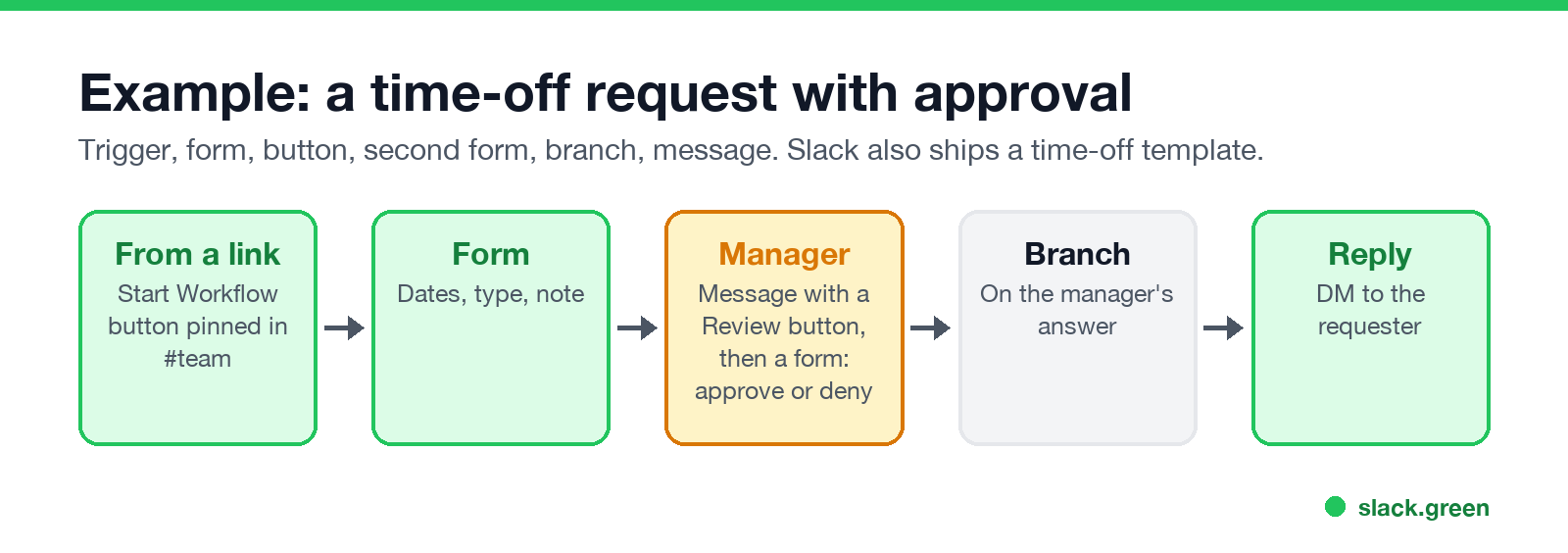
Slack ships a time-off template that starts close to this. Pair it with an out-of-office status on the days themselves.
4. IT or help desk request
5. Emoji escalation
Anyone can escalate with one click, and the on-call channel gets a clean feed.
6. Keyword routing
Keep the keyword list short. A broad keyword fires on every casual mention.
7. Incident channel
8. Weekly meeting agenda
9. Feature requests into a spreadsheet
Connector steps need an account connected to the other service, and your admins may need to approve the connector first.
10. Kudos board
11. Tell the requester when a list item is done
When to track work in a list and when to write it in a canvas is in Slack canvas vs lists.
12. Alerts from another tool through a webhook
Slack generates the request URL when you publish. It starts with https://hooks.slack.com/triggers/. Test it with a POST whose JSON keys match your variables:
curl -X POST "https://hooks.slack.com/triggers/T000/000/xxxx" \
  -H "Content-Type: application/json" \
  -d '{"service": "api", "severity": "high", "description": "Error rate over 5%"}'
Three limits from Slack's webhook workflow article: up to 20 variables, no nested JSON, and one request per second. If a variable you defined is missing from the request, the workflow fails. Anyone with the URL can start the workflow, so keep it out of public repositories. To connect Jira without a webhook, the Jira Cloud app has its own commands; see Slack Jira integration.
Conditional logic: branches
Never appear "away" on Slack again
Cloud-based. No downloads. Works 24/7 even when your laptop is off.
A branch sends the workflow down different paths depending on a value, such as a form answer or a list field. Use one where you would otherwise build two nearly identical workflows: approved or denied, hardware or software request, high or low severity. Add it from the step list in Workflow Builder; Slack's help center covers it under adding conditional branches.
Is Slack Workflow Builder free?
No. Slack's help center lists Workflow Builder as available on paid plans. On a paid plan, every member can build workflows and members and guests can use them by default. Admins can limit who builds, which connector steps are allowed, and who can create webhook workflows. If you cannot see the option, ask an owner or admin.
Workflow templates vs building from scratch
In Workflow Builder, New offers templates next to Build Workflow. A template fills in the trigger and steps and you edit the details before publishing. Start from a template when one is close, such as the time-off request, and build from scratch for anything with your own form fields or branches.
For a one-line automation, a workflow may be more than you need. /remind handles simple repeating nudges (examples here), and every other built-in command is in Slack slash commands.
FAQ
Never appear "away" on Slack again
Cloud-based. No downloads. Works 24/7 even when your laptop is off.
Where is Workflow Builder in Slack?
On desktop, click Agents & tools in the sidebar, then Workflows. If you do not see it, look for Tools, which may sit under More.
Can a workflow run on a schedule?
Yes. Choose On a schedule as the trigger and set the date, time and how often it repeats.
Can Workflow Builder use if/then logic?
Yes, through branches that route on a value from an earlier step.
Can people outside my company use my workflow?
In Slack Connect channels, if you allow connected external organizations in the workflow's settings.
Can a workflow set my Slack status or keep me active?
Status and presence are separate. Presence follows your input in Slack, and no workflow step makes you active. To set a status from code, see set Slack status with the API.
Stop Jiggling Your Mouse.
Join hundreds of remote workers who never worry about their Slack status. Set it up once, stay green forever.
Related Articles
Slack Lists Tutorial: Create, Organize and Share a List
Slack lists are tables of tasks inside Slack, with fields, assignees, due dates, a board view and a comment thread on every item. How to create a list from scratch or a template, set up fields, turn it into a kanban board, add messages to it, share it, and what the plan limits are.
Slack Jira Integration: Setup, /jira Commands and Notifications
Install the Jira Cloud for Slack app, type /jira connect in a channel to send a Jira space's updates there, /jira notify for personal notifications as DMs, and create work items from any message with More actions. Every /jira command, Jira automation to Slack, and fixes when previews or notifications stop.
How to Create a Slack Workspace, on Desktop or Phone
Go to slack.com/get-started, enter your email, type the confirmation code, and click Create a Workspace. It is free to start, you become the Primary Owner, and it takes about five minutes. Steps for desktop, iPhone and Android, and what to set up next.