
Slack Notification Schedule: What It Pauses, Tested Minute by Minute
Slack's notification schedule now lives under Preferences > Availability > Working hours. We moved it in a test workspace and logged what notified, when, and what stayed paused.
Slack's notification schedule is the Working hours setting under Preferences > Availability. You pick Every day, Weekdays or Custom and a time range. Outside that range Slack pauses all notifications and puts a small z on your status dot. It has no off switch. The widest range Slack offers is 23 and a half hours. On 5 October 2026 we moved the schedule in our test workspace, sent direct messages and @mentions from a bot every few minutes, and recorded which ones produced a notification.
Where the setting is now
Older guides call it the notification schedule and place it under the Notifications tab. In the current web app it is the first block on the Availability tab:
- Click your profile picture in the sidebar and choose Preferences.
- Open Availability.
- Under Working hours, set Allow notifications and the two times.
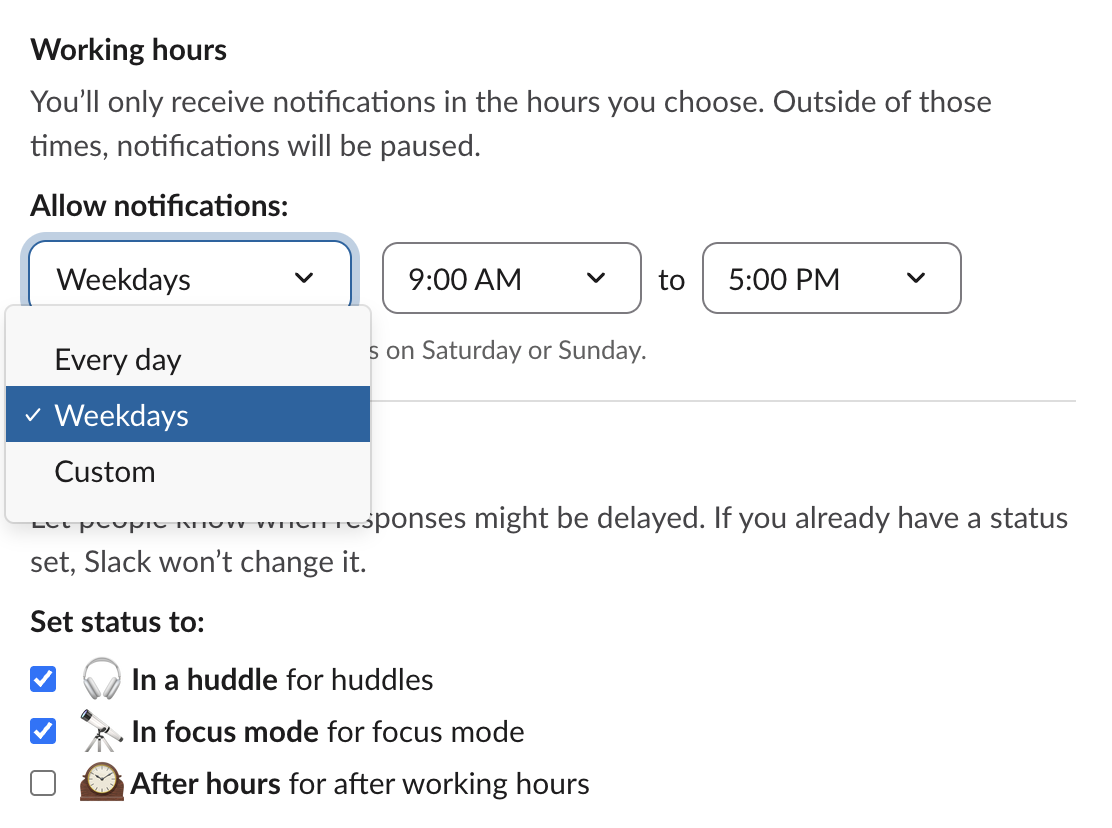
The three choices behave like this:
| Choice | What you set | What Slack paused |
|---|---|---|
| Every day | One start and end time | Outside those hours, 7 days a week |
| Weekdays | One start and end time | Outside those hours, and all of Saturday and Sunday ("You won't receive notifications on Saturday or Sunday") |
| Custom | A start and end time per day | Each day by its own hours |
When we switched to Custom, every day showed 8:00 AM to 10:00 PM, not our 9 to 5. Slack keeps the per-day hours separately from the Every day and Weekdays hours, so check each row after switching.
You cannot turn the schedule off
There is no Off choice. The time menus step in 30 minutes, and the end-time list stops 30 minutes before the start time: with a 9:00 AM start, the last end time was 8:30 AM. So the most you can get is Every day, 9:00 AM to 8:30 AM, which leaves a 30-minute pause each morning. Pick that window at an hour when you are asleep.
We also tried the settings API that the Slack web app itself uses. Setting dnd_enabled to false returned ok, but reading it back still gave true, and Slack's dnd.info still reported the 5 PM pause. Setting the start and end to the same time was ignored the same way.
To end a pause that is running now, use Resume notifications in the profile menu (below). That skips only the current pause; the next one still starts on time.
Never appear "away" on Slack again
Cloud-based. No downloads. Works 24/7 even when your laptop is off.
What happened during a scheduled pause
We set the schedule so a pause started at 10:17 AM, then had a bot send a DM and an @mention in a channel, and read the notifications the open Slack web tab produced.
| Time (KST) | Tab state | DM and @mention notified? |
|---|---|---|
| 10:14 | Before the pause | Yes, both |
| 10:17, 10:18 | Pause started, tab open since before we edited the hours | Yes, both |
| 10:18 | Same tab after a reload: status read "Active, notifications snoozed" | No, neither |
| 10:19 | After Resume notifications | Yes |
| 10:30 to 10:32 | Second pause, tab loaded 3 minutes before it started | No at 10:30, yes again at 10:32 |
Three things to take from it:
During the pause, the profile menu showed this:
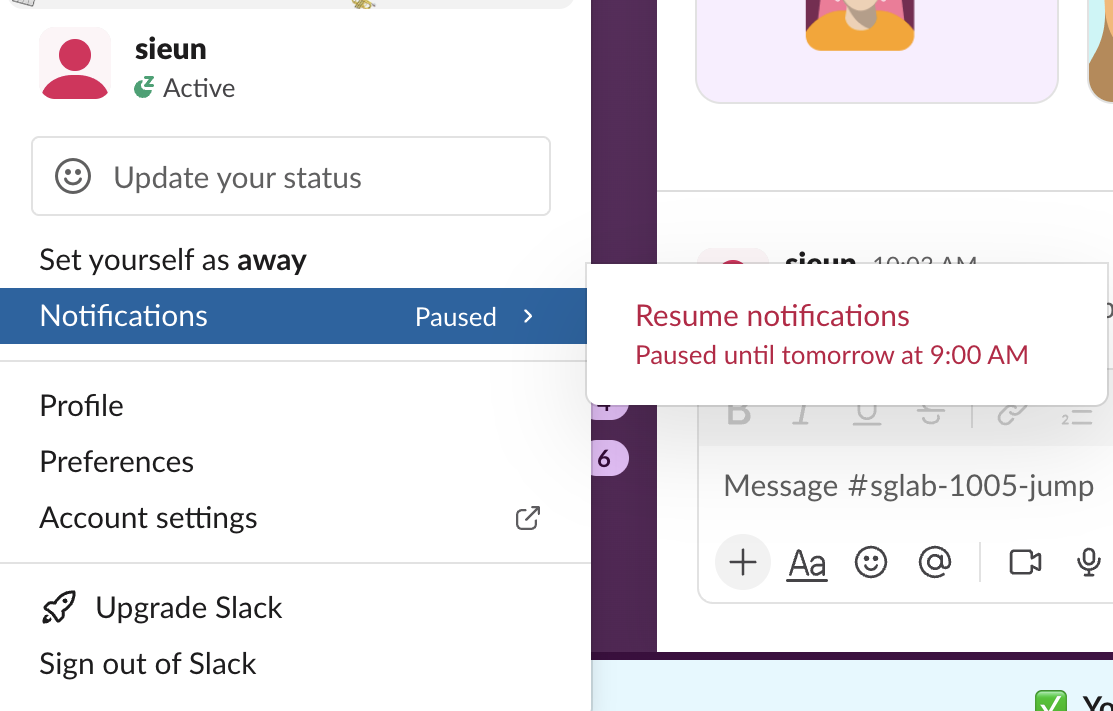
"Paused until tomorrow at 9:00 AM" is the start of the next allowed window. After we clicked Resume notifications, dnd.info moved the next pause to 10:17 AM the following day, so the schedule itself was untouched.
Paused notifications vs Do Not Disturb vs focus mode
The schedule is one of several things that show the same z. When no pause is running, the same Notifications submenu offers a manual pause (30 minutes, 1 hour, 2 hours, Until tomorrow, Until next week, Custom), which older guides call Do Not Disturb. Both are covered in Slack Do Not Disturb. If your notifications stop and you did not set either, why Slack pauses my notifications goes through the other causes, including focus mode and a status with Pause notifications ticked.
The Availability tab also has an After hours automatic status, unticked by default, which sets a status outside your working hours. Examples are in Slack after-hours status.
FAQ
Does the schedule make me look away or offline?
No. During our pause the status dot read "Active, notifications snoozed". Presence and the schedule are separate; how Slack decides when you are away covers presence.
Will I get the notifications I missed when the pause ends?
Not in our test. Messages from the pause stayed unread with their badges, and no notification fired for them at the end.
Why do I still get notifications outside my working hours?
In our test, an open Slack tab kept notifying after we changed the hours, until we reloaded it. Reload Slack after any change. If it continues, check that the hours are on the right day choice: Custom keeps its own hours per day.
Stop Jiggling Your Mouse.
Join hundreds of remote workers who never worry about their Slack status. Set it up once, stay green forever.
Related Articles
Slack Jump to Date: Where the Menu Is and What Each Option Does
Slack's Jump to date menu hides in the date divider above messages. We tested it in a 500-message channel and an older channel: which options appear, how far back the calendar goes, and how to do it by API.
Slack API Unread Messages: last_read, unread_count and conversations.mark, Tested
Slack's Web API has no single unread-messages call. We tested what conversations.info returns for channels and DMs, counted unreads from last_read, and moved the sidebar badge with conversations.mark.
Slack Themes: Custom Theme Strings That Import, Tested
Slack's custom theme now takes 4 colors. We pasted old 8-color strings, Slack's own Share output and our own themes into Import, and logged which ones Slack accepted.