
Zoom Status Message Examples: 45 Notes for Work, Time Off and Fun
45 Zoom status messages you can copy, grouped by focus time, meetings, time zones, out of office, remote work and funny ones, with the Clear After setting that fits each. Plus how to set a status message in Zoom Workplace and how it differs from your presence dot.
A good Zoom status message says what you are doing, when you will reply, and who to ask instead. "Heads down until 2pm. Urgent? Call me." does all three in eight words. Below are 45 examples you can copy, grouped by situation, each with the Clear After setting that fits, so the note does not outlive the reason for it. You set one by clicking your profile picture in the Zoom Workplace app and choosing Set Status Message.
A status message is text. Your presence dot is separate: Zoom sets you Away when you stop using the computer. The dot colors are in Zoom status icons meaning. For Slack, Slack Green keeps your status green during the hours you set, whatever your note says.
Where a Zoom status message shows
Zoom's help center says your status message is "visible to all your contacts and appears in your profile card and at the top of the chat compose box when someone sends you a message on Chat." It syncs across your desktop and mobile apps. That second spot is the useful one: people read your note right before they message you, so it works as a short auto-reply.
Focus time and deep work
| Status message | Clear After |
|---|---|
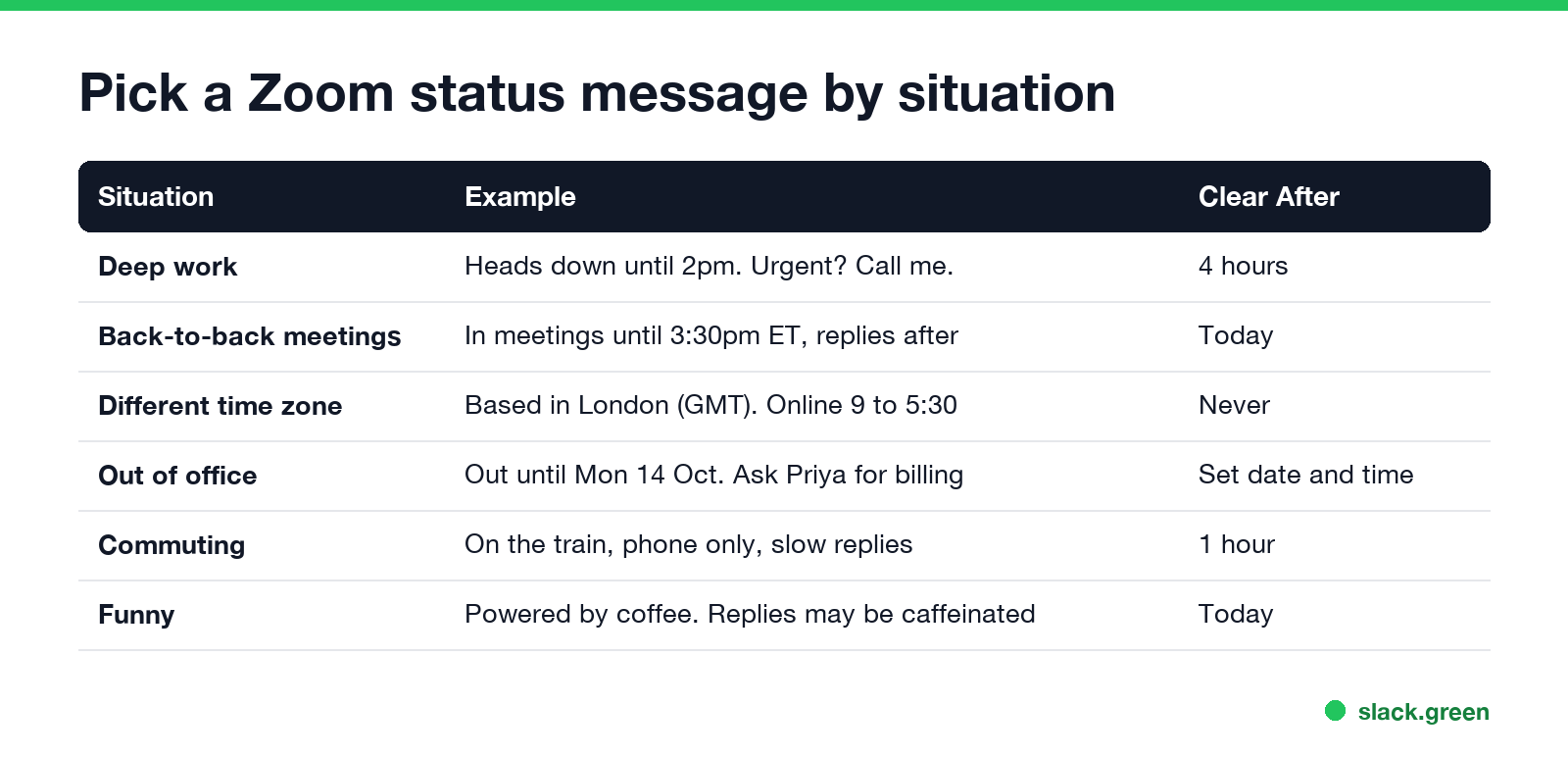
| Heads down until 2pm. Urgent? Call me. | 4 hours |
| Focus block, notifications off until 11:00 | 1 hour |
| Writing the Q4 report. Replies at 4pm | Today |
| Deep work mornings, free after 1pm | Never |
| In the zone. DM if it can't wait, email if it can | 4 hours |
| Coding until lunch, will check chat at 12:30 | 4 hours |
| Offline for a training course until 3pm | Today |
Meetings and calls
Never appear "away" on Slack again
Cloud-based. No downloads. Works 24/7 even when your laptop is off.
| Status message | Clear After |
|---|---|
| In meetings until 3:30pm ET, replies after | Today |
| Back-to-back calls today. Slow to reply | Today |
| Presenting at 10, free from 11 | 1 hour |
| On a customer call, back in 30 | 1 hour |
| Interviewing all afternoon | Today |
| Workshop day. Checking chat at breaks | Today |
A Zoom meeting already switches your dot to In a meeting, so write the note only when people need the end time. Zoom's own Do Not Disturb, which silences alerts, is in Zoom do not disturb.
Time zones and working hours
| Status message | Clear After |
|---|---|
| Based in London (GMT). Online 9 to 5:30 | Never |
| Pacific time. Mornings are best | Never |
| Working 7am to 3pm ET | Never |
| In Singapore this week, 12 hours ahead of NY | This Week |
| Part-time: Mon to Thu | Never |
| Off at 4 on Fridays | Never |
| Async by default, I reply within a day | Never |
Out of office
Use Set date and time in Clear After so the note ends the day you are back.
| Status message | Clear After |
|---|---|
| Out until Mon 14 Oct. Ask Priya for billing | Set date and time |
| On leave, back 2 Dec. Urgent: support@company.com | Set date and time |
| Sick today, back tomorrow | Today |
| Half day, back online at 1pm | Today |
| Travelling to the offsite, limited signal | Today |
| Conference all week, checking chat at night | This Week |
| Parental leave until March. Team inbox: ops@ | Set date and time |
Remote and hybrid work
Never appear "away" on Slack again
Cloud-based. No downloads. Works 24/7 even when your laptop is off.
| Status message | Clear After |
|---|---|
| Working from home today, camera optional | Today |
| In the office, 3rd floor, come say hi | Today |
| On the train, phone only, slow replies | 1 hour |
| Picking up the kids, back at 4 | 1 hour |
| Lunch, back in 30 | 1 hour |
| Doctor's appointment, back at 11 | 4 hours |
| Bad Wi-Fi today. If I drop, I'll dial in | Today |
Funny Zoom status messages
Funny notes work best when they still say something useful. Keep them for teams that know you.
| Status message | Clear After |
|---|---|
| Powered by coffee. Replies may be caffeinated | Today |
| Currently muted. In real life too | 1 hour |
| You're on mute. So am I, for an hour | 1 hour |
| In a meeting that could have been an email | 1 hour |
| Camera off, pajamas on | Today |
| Buffering... back soon | 1 hour |
| Out of office, into the woods | Set date and time |
| My cat is in charge of replies right now | 1 hour |
| Please hold. Your message is important to me | 1 hour |
| Brain at 2%, charging over lunch | 1 hour |
| I'm not ignoring you, I'm prioritizing | Today |
More ideas in the same style are in funny Slack status ideas and funny Teams status messages; most work in Zoom unchanged.
How to set a status message in Zoom
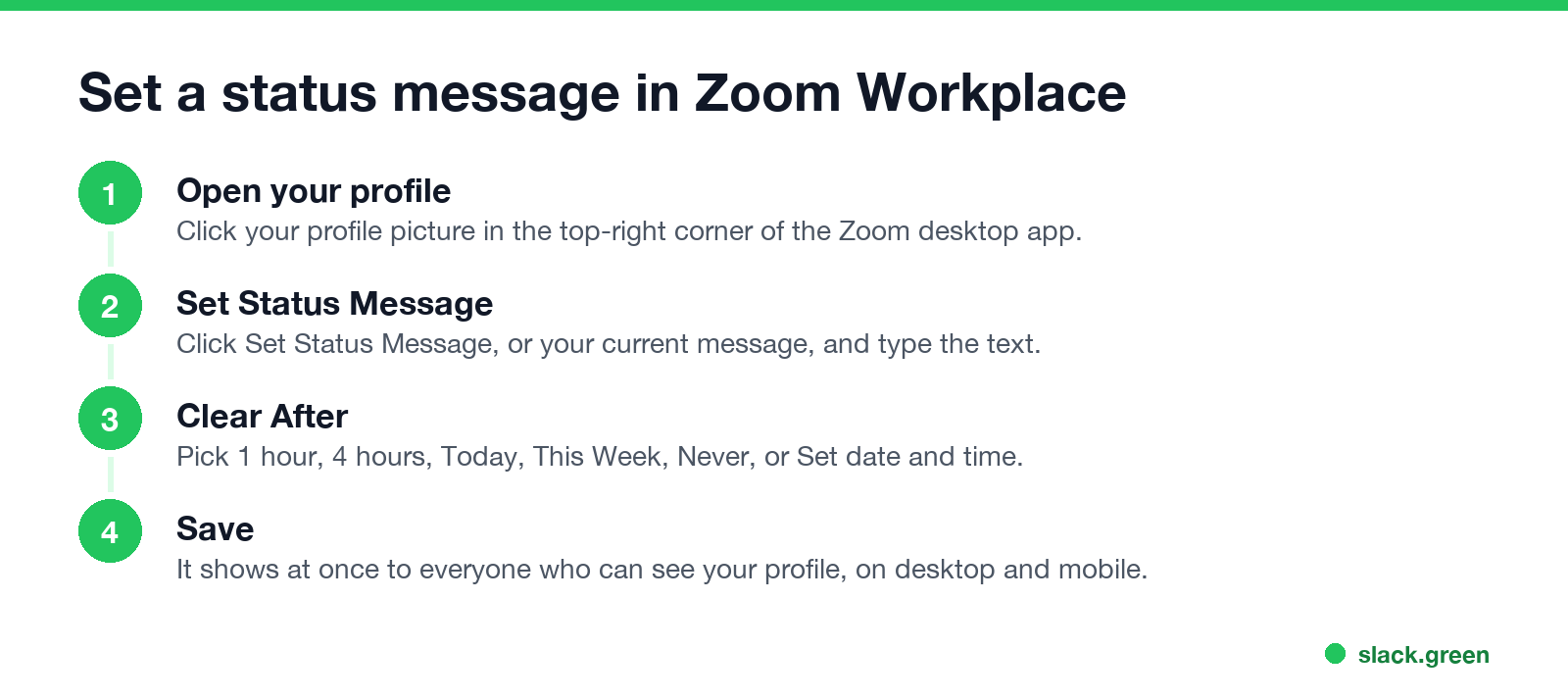
On Windows, macOS or Linux:
- Sign in to the Zoom Workplace desktop app.
- Click your profile picture in the top-right corner, then Set Status Message (or your current message).
- Type the text.
- In Clear After, choose 1 hour, 4 hours, Today, This Week, Never, or Set date and time.
- Click Save. The message shows at once to everyone who can see your profile.
The mobile app has the same option in your profile, and a note set on one device shows on all of them. To remove a note, click your current message and choose Clear Status Message.
Tips for a status message people read
Never appear "away" on Slack again
Cloud-based. No downloads. Works 24/7 even when your laptop is off.
The same rules apply in Slack, where the status sits next to your name in every message; examples are in Slack status examples.
FAQ
What should my Zoom status message say? What you are doing, when you will reply, and who to ask instead. For example: "In meetings until 3:30pm ET, replies after".
How do I set a status message in Zoom? Click your profile picture, choose Set Status Message, type the text, pick Clear After, and click Save.
Where do people see my Zoom status message? On your profile card and at the top of the chat box when they message you. It syncs to mobile.
Can a Zoom status message clear itself? Yes. Clear After offers 1 hour, 4 hours, Today, This Week, Never, or a date and time you set.
Is the status message the same as Away or Busy in Zoom? No. The message is your own text. Available, Busy, Away and Do Not Disturb are the presence dot.
Stop Jiggling Your Mouse.
Join hundreds of remote workers who never worry about their Slack status. Set it up once, stay green forever.
Related Articles
How to Send a Slack Message From GitHub Actions
Add slackapi/slack-github-action@v4.0.0 as a step, give it a bot token or an incoming webhook URL from repository secrets, and write the message as YAML. Working workflows for failure alerts, threads and message updates, plus a curl version with no third-party action.
Slack Audit Logs: What They Record, Who Sees Them, and the API
Slack audit logs record actions across an Enterprise organization, such as sign-ins with IP address, file downloads, channel joins and app installs, not message text. Where admins view and export them, what the 785 action types cover, and how to pull them with the Audit Logs API.
LinkedIn Active Status: What the Green Dot Means and How to Hide It
On LinkedIn, a solid green dot on someone's photo means they are active on LinkedIn now. A hollow green circle means they are not, but the mobile app will notify them at once. Turn yours off under Settings & Privacy, Visibility, Manage active status; with No one, you also stop seeing other people's status.