
Caffeine GNOME Extension: Keep Ubuntu and Fedora Awake
Caffeine is a GNOME Shell extension that adds a coffee-cup toggle to Quick Settings. While it is on, GNOME does not blank the screen, lock or suspend. It has a 15, 30 or 60 minute timer, turns on by itself for fullscreen apps, and can follow chosen apps. How to install it on Ubuntu and Fedora, every setting and its default, command-line control, and what to use without an extension.
Caffeine is a GNOME Shell extension that keeps a Linux desktop awake. It adds a Caffeine toggle to GNOME's Quick Settings menu; while it is on, GNOME does not blank the screen, lock it or suspend the computer, and a coffee-cup icon shows in the top bar. You can turn it on until you switch it off, or for 15, 30 or 60 minutes. By default it also switches on by itself while a fullscreen app, such as a video or a presentation, is running. On Ubuntu, install it with the Extension Manager app; on Fedora, install the gnome-shell-extension-caffeine package.
The extension is by eonpatapon, listed as extension 517 on extensions.gnome.org, and its current version supports GNOME 45 to 50 (older branches cover GNOME back to 3.4). The settings and defaults below come from its source code on GitHub, read on 27 September.
A note on what Caffeine does not do: it keeps the computer awake, not your chat apps active. Slack counts only input in its own window, so an awake Linux desktop still shows you away in Slack after 10 minutes. Slack Green keeps your Slack status green from a server during the hours you set, and works the same on Linux as anywhere else.
How to install Caffeine
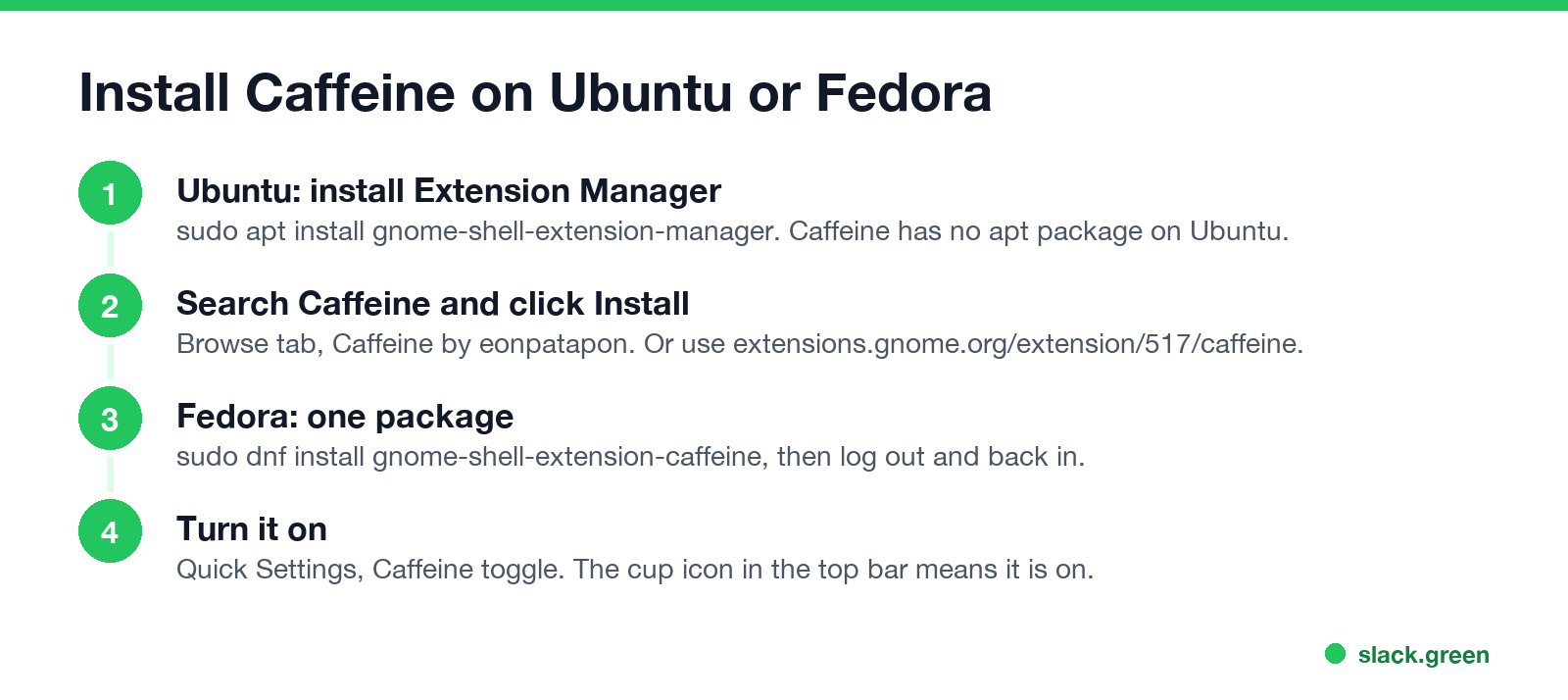
Ubuntu (22.04 and newer). Caffeine is not in Ubuntu's apt archive, so install it through Extension Manager:
- Install Extension Manager:
sudo apt install gnome-shell-extension-manager, or from the App Center. - Open Extension Manager, go to Browse, search for Caffeine, and click Install on the one by eonpatapon.
- Open Quick Settings (top-right corner) and click Caffeine.
You can also install it from extensions.gnome.org/extension/517/caffeine in a browser with the GNOME Shell integration add-on.
Fedora. Fedora ships it as a package (version 60 on Fedora 44 and 45 at the time of writing):
# Ubuntu 22.04 and newer
sudo apt install gnome-shell-extension-manager

# Fedora
sudo dnf install gnome-shell-extension-caffeine
gnome-extensions enable caffeine@patapon.info
Log out and back in if the toggle does not appear.
Ubuntu's older "caffeine" package. sudo apt install caffeine installs a different program, caffeine-indicator, an app-indicator that prevents the desktop from becoming idle in full-screen mode. It is older and built for X11 sessions; on current GNOME the extension is the better choice.
Caffeine settings and their defaults
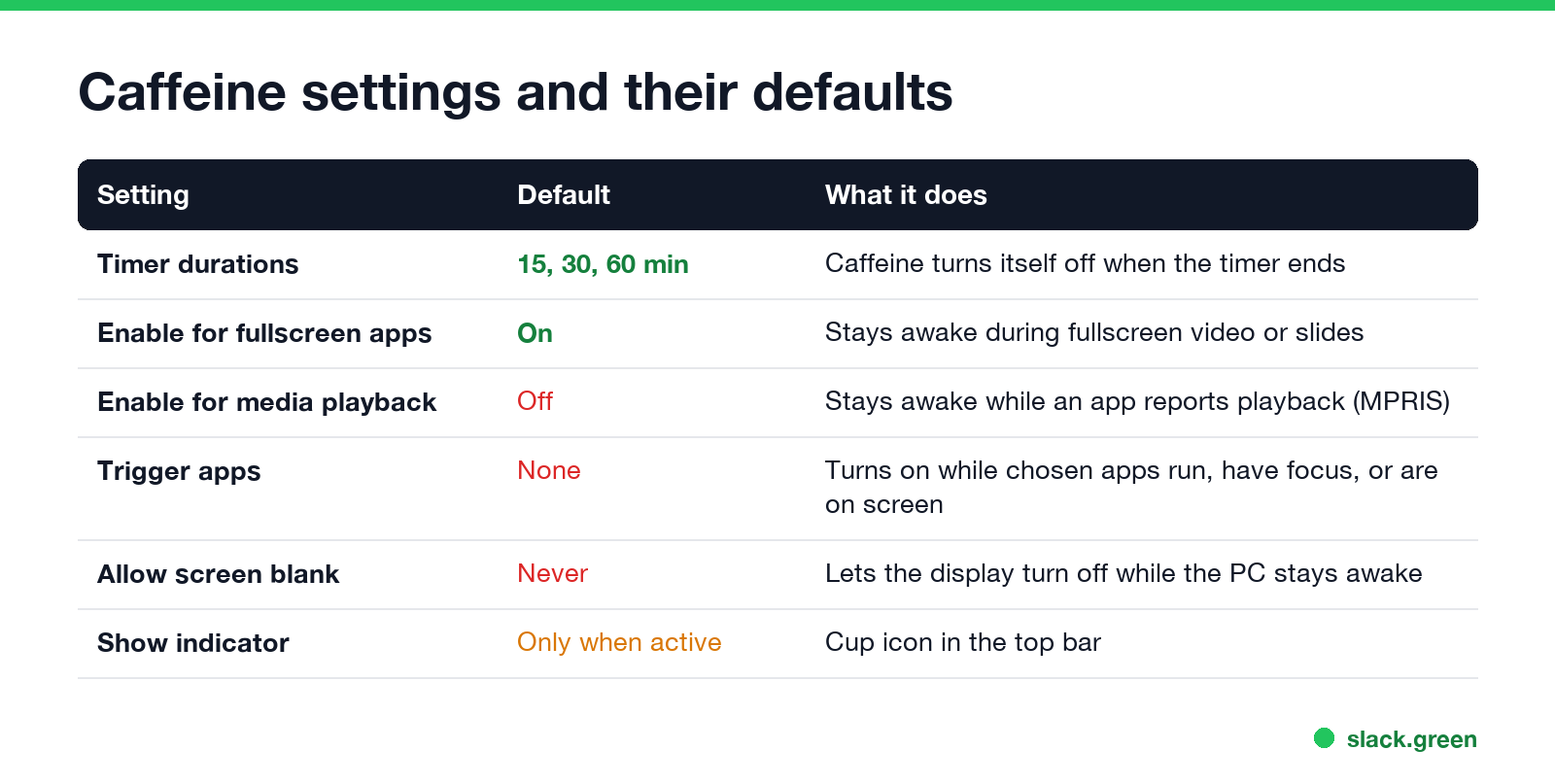
Open the settings from Extension Manager (the gear next to Caffeine) or with gnome-extensions prefs caffeine@patapon.info.
| Setting | Default | What it does |
|---|---|---|
| Timer durations | 15, 30 and 60 minutes | Choose one from the toggle's menu, and Caffeine switches off when it ends. You can set custom durations |
| Enable when a fullscreen application is running | On | Keeps the desktop awake during fullscreen video, games and slides |
| Enable when an application is playing media | Off | Keeps it awake while an app reports playback through MPRIS, such as a music player |
| Trigger apps | None | Turns Caffeine on while chosen apps are running, focused, or on the active workspace |
| Allow screen blank | Never | Lets the display turn off while the computer stays awake |
| Night Light control | Never | Can pause Night Light while Caffeine is on |
| Show indicator | Only when active | The cup icon in the top bar. Set it to Always to toggle Caffeine by scrolling on the icon |
| Restore state | Off | Remembers whether Caffeine was on after you log out |
| Toggle shortcut | None | A keyboard shortcut to switch Caffeine on and off |
Control Caffeine from the command line
Never appear "away" on Slack again
Cloud-based. No downloads. Works 24/7 even when your laptop is off.
The extension reads a cli-toggle key, so scripts can turn it on and off. For a per-user install from extensions.gnome.org, point gsettings at the extension's schema folder, as its README shows:
# turn Caffeine on or off from a script (installed per user from extensions.gnome.org)
gsettings --schemadir ~/.local/share/gnome-shell/extensions/caffeine@patapon.info/schemas/ \
  set org.gnome.shell.extensions.caffeine cli-toggle true

# check the current state
gsettings --schemadir ~/.local/share/gnome-shell/extensions/caffeine@patapon.info/schemas/ \
  get org.gnome.shell.extensions.caffeine cli-toggle
If Caffeine came from a distribution package, such as on Fedora, the schema is installed system-wide and you can drop the --schemadir part.
Keep GNOME awake without an extension
For a single long task, GNOME's own gnome-session-inhibit does the job without installing anything. It holds an inhibitor only while the command runs:
# keep GNOME from going idle or suspending while one command runs
gnome-session-inhibit --inhibit idle:suspend --reason "Long download" sleep 3600
Replace sleep 3600 with the command you are waiting on, such as a download or a build, and GNOME stays awake until it finishes. To change the timers permanently instead, use Settings > Power for automatic suspend and screen blank, or gsettings; every lock and blank setting is in how to stop Ubuntu from locking the screen.
Caffeine vs a mouse jiggler on Linux
Caffeine blocks idle and sleep by asking GNOME to wait, which is the method GNOME provides for video players. A mouse jiggler sends fake input instead, which moves your cursor and counts as activity for any app that watches input. If the goal is a screen that stays on, Caffeine is enough. If an app needs to see input, a jiggler is what people use; the xdotool and ydotool scripts are in mouse jiggler for Linux. For Slack on Linux specifically, see keep Slack active on Linux.
The same idea on other systems: Caffeine app for Windows and Caffeine app for Mac.
FAQ
Never appear "away" on Slack again
Cloud-based. No downloads. Works 24/7 even when your laptop is off.
Is there a Caffeine app for Ubuntu? Yes. The GNOME Shell extension Caffeine, installed with Extension Manager, is the current option. The apt package named caffeine is an older indicator app.
Does Caffeine work on Wayland? Yes. It is a GNOME Shell extension, and it works in both Wayland and X11 GNOME sessions.
Does Caffeine stop the screen from locking? Yes. While it is on, GNOME does not go idle, so the screen does not blank or lock and the computer does not suspend.
Does Caffeine keep Slack or Teams active on Linux? No. It stops sleep, not the chat apps' own idle timers.
Stop Jiggling Your Mouse.
Join hundreds of remote workers who never worry about their Slack status. Set it up once, stay green forever.
Related Articles
Can My Employer See What I Watch on YouTube at Work?
On a work laptop or the office network, your employer can see that you used YouTube, when, and for how long. With HTTPS inspection or monitoring software, they can see which videos, because the video address and the browser tab title both name it. On your own phone on mobile data, they see nothing.
Can My Employer See My iMessages on a Work Mac?
Not through device management or the network: Jamf or Intune cannot read Messages, and iMessage is end-to-end encrypted. But if you sign in to Messages on a work Mac, your texts are stored on that Mac, where monitoring screenshots, backups and admin access can reach them. How to check, and how to take iMessage off the Mac without deleting it from your iPhone.
Can My Boss See My Private Outlook Calendar Events?
Usually not the details. When you mark an Outlook event Private, someone who can read your calendar sees only Private appointment, the time and a lock. The exceptions are delegates you gave Can view private items, the people invited to the event, anyone with full access to your mailbox in new Outlook or the web, and compliance admins. How to check who has which access, and what Private does not hide.