
Can ActivTrak Detect a Mouse Jiggler? Yes, in Three Ways
ActivTrak detects mouse jigglers three ways: known jiggler apps running on the computer, uniform input patterns from software or USB devices, and 45 minutes on one screen. Flagged time drops out of reports even when no alarm is on.
Yes, ActivTrak can detect a mouse jiggler, and it says so in its own help center. Its Potential False Activity guide describes three checks: it recognizes known jiggler apps running on the computer, it spots uniform input patterns from software or USB jigglers, and it flags anyone who stays on one screen for more than 45 minutes. When it sees a repetitive pattern, ActivTrak takes that time out of the activity reports at once. The guide says this happens "whether or not the alarm is turned on."
So a jiggler does not make ActivTrak count you as working. It more often produces a record that you used one. Most people reach for a jiggler to keep a chat status green, not to fool ActivTrak. For Slack there is a way that puts nothing on the computer: Slack Green keeps your Slack presence active from a server during the hours you set. It does not create input, so ActivTrak still records only what you really do on the computer.
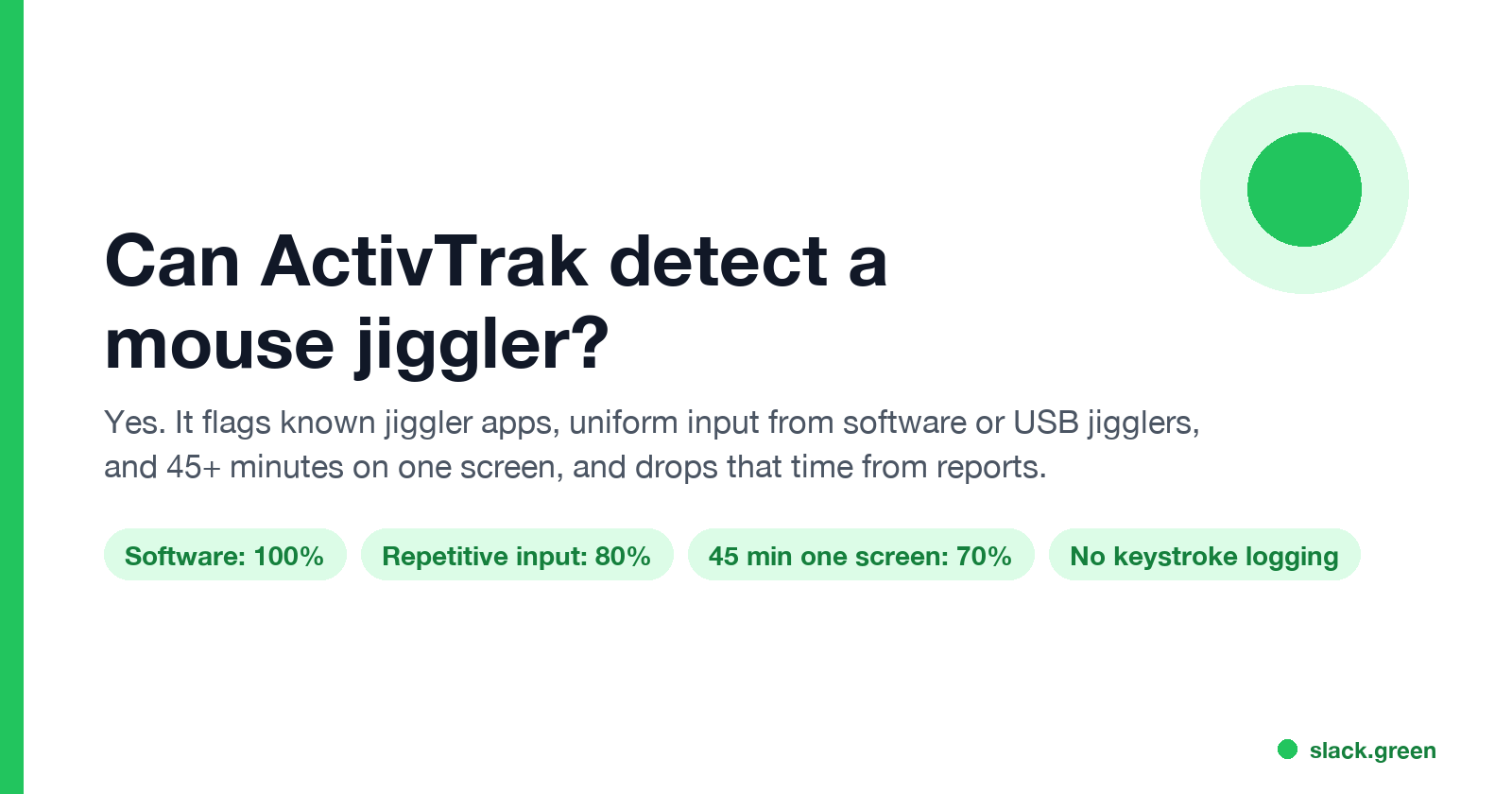
The three ways ActivTrak detects a mouse jiggler
ActivTrak calls this Potential False Activity, or PFA. Each check has its own alarm, and ActivTrak gives each one a confidence level for a single event.
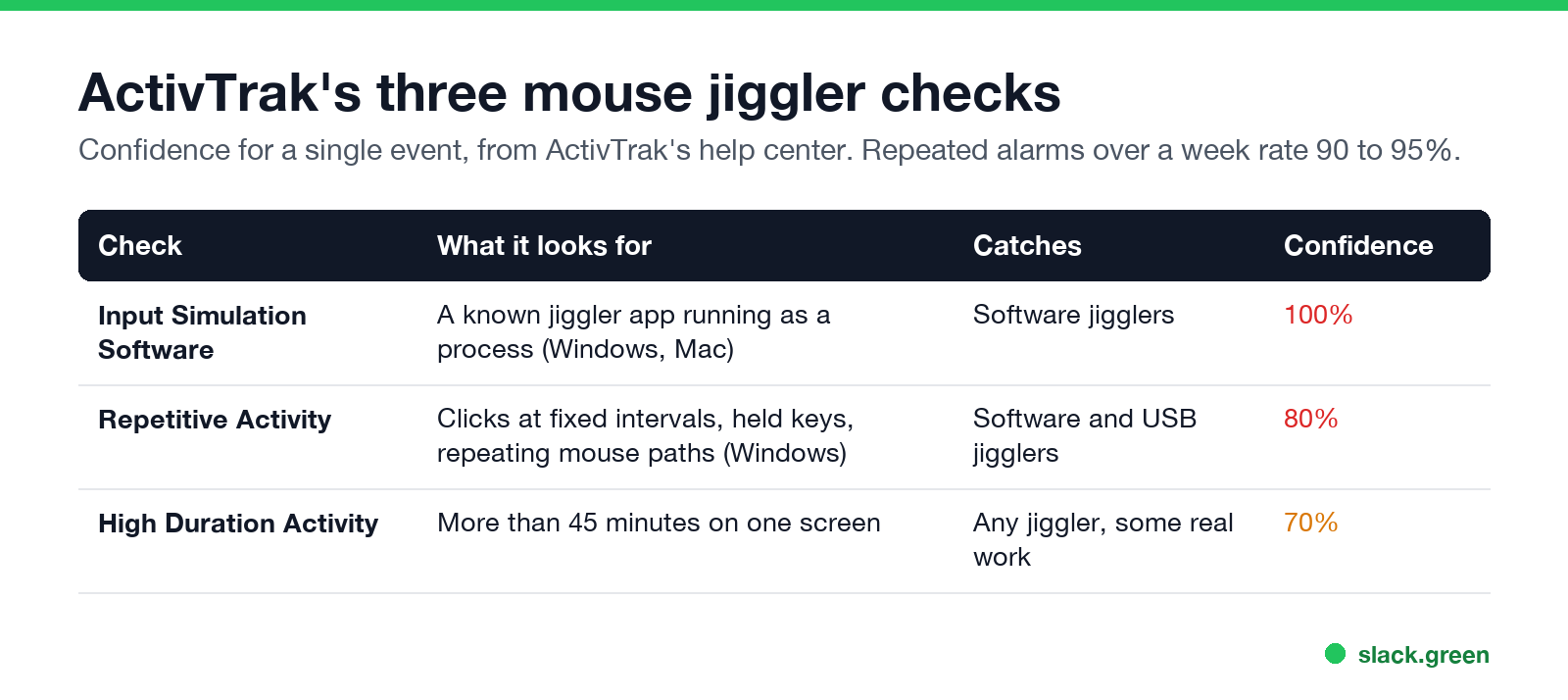
| Check | What it looks for | Catches | Platforms | Confidence ActivTrak gives one event |
|---|---|---|---|---|
| Input Simulation Software | A known jiggler app running as a process | Software jigglers such as Move Mouse | Windows and Mac, agent 8.2.16 and newer | 100% |
| Repetitive Activity | Uniform input: clicks at fixed intervals, held keys, repeating mouse paths | Software and hardware jigglers | Windows only | 80% |
| High Duration Activity | More than 45 minutes on one screen without switching or going passive | Any jiggler, and some real work | All | 70% |
Input Simulation Software. ActivTrak keeps what it calls a "continuously growing, crowd-sourced database of known mouse-jiggling software." If one of those apps is running, the Activity Log gets a line such as "Input Simulation Software Detected - artificial input apps running in the background: Move Mouse.exe". The app only has to be running. ActivTrak notes it does not confirm the app was moving the mouse at that moment.
Repetitive Activity. This check looks at the input itself: "keys being held down, clicks occurring at regular intervals, or mouse movements that repeat in a consistent pattern." A USB jiggler that moves the pointer the same way every 30 seconds looks like that, even though no app is installed. The guide says it "catches both software- and hardware-based patterns."
High Duration Activity. ActivTrak's data says real people rarely stay on one screen for long. It sets the default at 45 minutes, based on "more than 9,500 customers." A jiggler parked on one window hits this, because a jiggler never switches windows.
When alarms repeat, ActivTrak rates the evidence higher. More than two Repetitive Activity alarms a day over a week rates 90%, and both Repetitive and High Duration together rate 95%.
What happens after ActivTrak flags you
The three alarms are off by default. An admin turns them on under Notifications, Compliance Alarms, Alarm Configuration. The reclassification of repetitive input is not an alarm, though. It runs on every account.
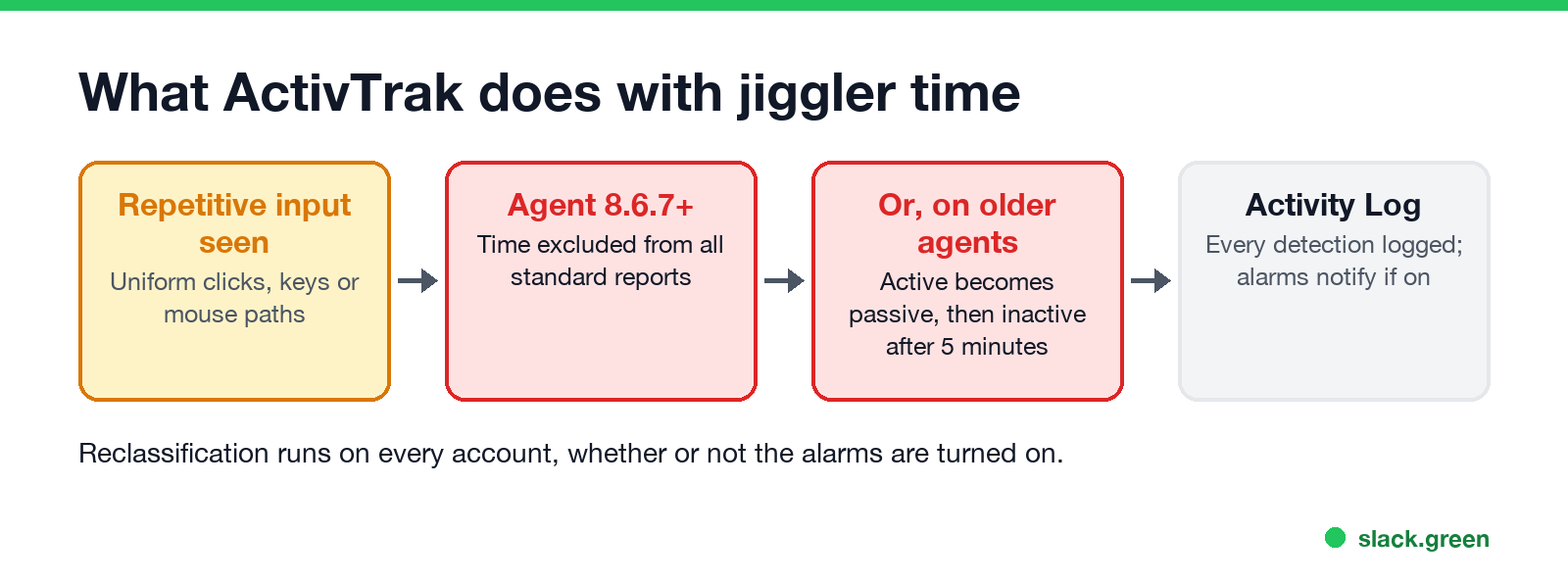
- • Agent 8.6.7 and newer. The time of the repetitive activity is "excluded from all standard reports" and shows as white gaps on the day's timeline.
- • Older agents. The activity switches from active to passive, and after the 5-minute timeout it becomes inactive, again white gaps.
- • The Activity Log records every detection. An admin can search the Description field for "artificial input" to see every flagged event in the last 30 days.
- • Screenshots, if the company pays for them, can be set to fire with these alarms and keep taking pictures every 10 seconds or more while you stay on the same window.
ActivTrak's advice to employers after a confirmed software detection is to notify HR and IT, block the tool, and have a manager raise it under the company's technology policy. Whether that can cost you your job is covered in are mouse jigglers legal.
"Repetitive activity detected" and "potential false activity" meaning
Never appear "away" on Slack again
Cloud-based. No downloads. Works 24/7 even when your laptop is off.
Potential false activity is ActivTrak's name for any input that may not come from a person. Repetitive activity detected is the message for the second check above: ActivTrak saw input that repeats too evenly and stopped counting that time as active.
A false alarm is possible. ActivTrak itself published a known issue in which Windows agents 8.6.7 and 9.0 raised more Repetitive Activity alarms than they should, including back-to-back entries for one session. Long video calls, remote desktop sessions and holding a key in a game or a spreadsheet can also look uniform. If you are flagged for something you did not do, ask what the Activity Log and screenshots show; ActivTrak tells admins to check at least five incidents before acting on patterns.
What ActivTrak tracks, and what it does not
ActivTrak's page What Data Does ActivTrak Collect lists every field. It defines activity as "mouse movement, mouse clicks and keyboard presses from the currently active window."
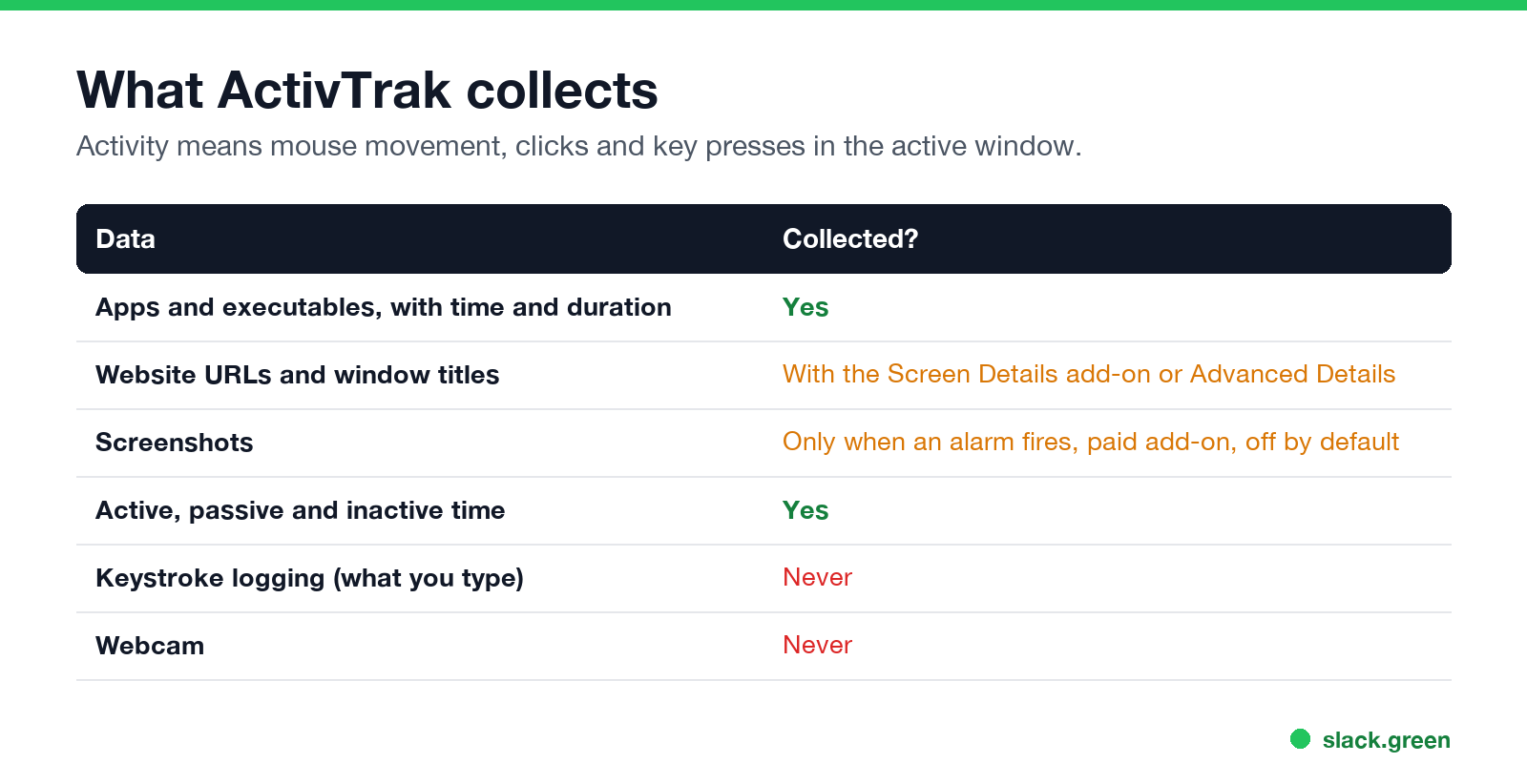
| Data | Collected? |
|---|---|
| Apps and executables you use, with time and duration | Yes |
| Full website URLs | With the Screen Details add-on or Advanced Details |
| Window title bars | With the Screen Details add-on or Advanced Details |
| Screenshots | Only when an alarm fires, with the Screen Details add-on; off by default |
| Active, passive and inactive time | Yes |
| Computer name, user name, public and private IP | Yes |
| Calendar event titles and attendees | If Outlook or Google Calendar is connected |
| Keystroke logging (what you type) | No |
| Webcam | No |
| What is plugged into the computer | No, according to ActivTrak |
Does ActivTrak track keystrokes? It counts that you pressed keys, because that makes you active. It does not record which keys. ActivTrak lists keystroke logging and webcam monitoring under "Data never collected."
ActivTrak screenshots. Screenshots need the paid Screen Details add-on, are off by default, and are always triggered by an alarm. A multiple-screenshot alarm takes one every 10 seconds or more until you switch windows, go passive, or reach 100 shots for that activity.
How ActivTrak compares with other tools is in how do employers monitor remote workers, and how to find out whether it is on your computer is in how to tell if you are being monitored at work.
Can any mouse jiggler get past ActivTrak?
Some, some of the time, but none is safe to count on. ActivTrak says that "some sophisticated hardware might occasionally slip past detection," and it does not see USB devices directly. A mechanical platform or a USB jiggler with random timing avoids the first check and may avoid the second. None of them avoids the third: a jiggler never changes windows, so after 45 minutes on the same screen the High Duration alarm flags it, if the company turned that alarm on. If screenshots are on too, they show a screen that does not change.
Jiggler apps that call themselves undetectable still run as a process, so the software check still has something to find. The wider picture, including what IT sees on a managed laptop apart from ActivTrak, is in can a mouse jiggler be detected.
If what you want is a green dot in Slack
Never appear "away" on Slack again
Cloud-based. No downloads. Works 24/7 even when your laptop is off.
A jiggler is often the wrong tool for Slack too. Slack counts only input inside its own window, so a jiggler moving the pointer anywhere else still lets your Slack dot go grey after 10 minutes. Teams is different; see does a mouse jiggler work for Teams.
Slack Green sets your Slack presence to active from a server on the hours you choose. Nothing is installed, nothing moves the mouse, and ActivTrak's input checks have nothing to flag, because Slack Green creates no input on your computer. ActivTrak still records your real activity as it always does. What your employer can see about Slack Green itself is in will I get caught using Slack Green.
FAQ
Can ActivTrak detect a mouse jiggler? Yes. It recognizes known jiggler apps, flags uniform input from software or USB jigglers on Windows, and alarms after 45 minutes on one screen.
Can ActivTrak detect a USB mouse jiggler? Often. It does not see the USB device, but the Repetitive Activity check reads the input pattern on Windows, and the High Duration check works on every platform.
What does "repetitive activity detected" mean in ActivTrak? ActivTrak saw input that repeated too evenly to come from a person and stopped counting that time as active.
Does ActivTrak record keystrokes? No. It counts key presses as activity but does not log what you type.
Does ActivTrak take screenshots? Only if your company bought the Screen Details add-on and set up an alarm that takes them. They are off by default.
Do the jiggler alarms have to be turned on to affect my time? No. The alarms only send notifications. Repetitive input is reclassified on every account.
Stop Jiggling Your Mouse.
Join hundreds of remote workers who never worry about their Slack status. Set it up once, stay green forever.
Related Articles
Can My Employer See My Browsing If I Use a VPN? It Depends Whose
A personal VPN hides the sites you visit from the office network, but not from monitoring software, a managed browser or IT on a work laptop. The company VPN shows your employer every site it carries. What each setup hides.
Teams Status on Multiple Devices: The Last Device You Used Wins
Signed in to Teams on a computer and a phone? Your status comes from the device you used most recently. That is why a quick look at your phone can turn you Away, and why a phone in your pocket shows Away instead of Offline at night.
Zoom Do Not Disturb: How to Turn It On, Schedule It, and What It Blocks
To turn on Do not disturb in Zoom, click your profile picture, point at your status and choose Do not disturb, then a time from 20 minutes to 24 hours, or Custom for a daily schedule. It blocks pop-up notifications for Zoom Team Chat and Zoom Phone calls. Busy, by contrast, mutes nothing. How the two differ, and how to keep a Zoom meeting free of pop-ups.