
How to Appear Offline on Zoom (There Is No Invisible Status)
Zoom has no Appear offline or Invisible status. Your contacts see Offline only when you are not signed in to any Zoom app, so the way to appear offline is to quit the desktop app and sign out of the mobile app. The steps for each device, what to use when you need to stay signed in, and what your admin can hide.
Zoom has no Appear offline or Invisible status. In Zoom's own status list, Offline means "Contact is not signed-in to the Zoom desktop or mobile app", and there is no menu item that sets it while you stay signed in. To appear offline on Zoom, quit the Zoom desktop app completely and sign out of the Zoom mobile app. If you need to keep receiving chats, the closest options are Do not disturb, which blocks pop-ups for up to 24 hours, and Out of office.
The manual statuses Zoom offers are Available, Busy, Do not disturb, Away and Out of office. This list comes from Zoom's support article "Setting your presence status", updated 24 March 2026 and checked on 27 September.
Presence is what we work on. We build Slack Green, which keeps your Slack status green during the hours you set. Slack also lacks an invisible mode; see can you appear offline on Slack. Teams has one, covered in how to appear offline on Teams.
How to appear offline on Zoom, step by step
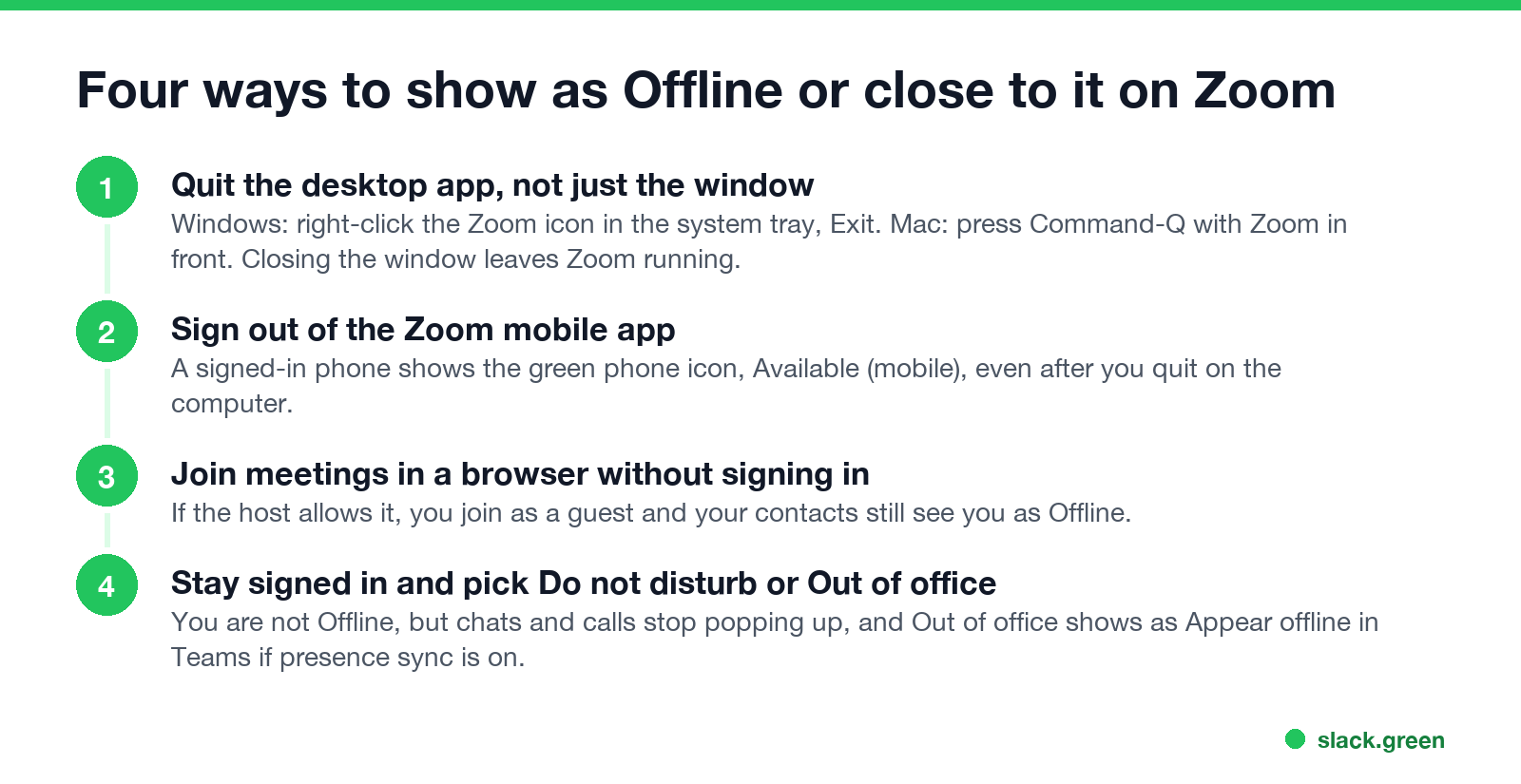
1. Quit the Zoom desktop app, not just its window. Closing the window leaves Zoom running in the background, and you stay Available.
- • Windows: right-click the Zoom icon in the system tray (bottom-right, next to the clock; click the ^ arrow if you do not see it) and choose Exit.
- • Mac: click the Zoom window and press Command-Q, or right-click the Zoom icon in the Dock and choose Quit.
- • Linux: choose Exit from the Zoom tray icon, if your desktop shows one, or close the app from its menu.
- • Join from a browser as a guest. Open the meeting link, choose Join from your browser, and enter a name without signing in. Your presence stays Offline, because the guest session is not tied to your account.
- • Join by phone. Dial in with the numbers in the invite.
2. Sign out of the Zoom mobile app. A phone that is signed in keeps you visible. Zoom shows the contact as "Available (mobile)" with a green phone icon, which means signed in to the mobile app only. Swiping the app away is not enough. Open the app, go to your profile page (tap your profile picture), and tap Sign out at the bottom.
3. Sign out of the Zoom Web App if you use Zoom in a browser at app.zoom.us. The Web App shows presence like the desktop app.
Once no Zoom app is signed in, your contacts see the hollow grey Offline circle. It stays that way until you sign in again.
Join meetings while you appear offline
You can still attend meetings without going online:
Some meetings require attendees to sign in ("only authenticated users can join"). In those, you have to sign in, and your status changes to In a Zoom meeting while you are in it.
When you need to stay signed in: the closest statuses
Never appear "away" on Slack again
Cloud-based. No downloads. Works 24/7 even when your laptop is off.
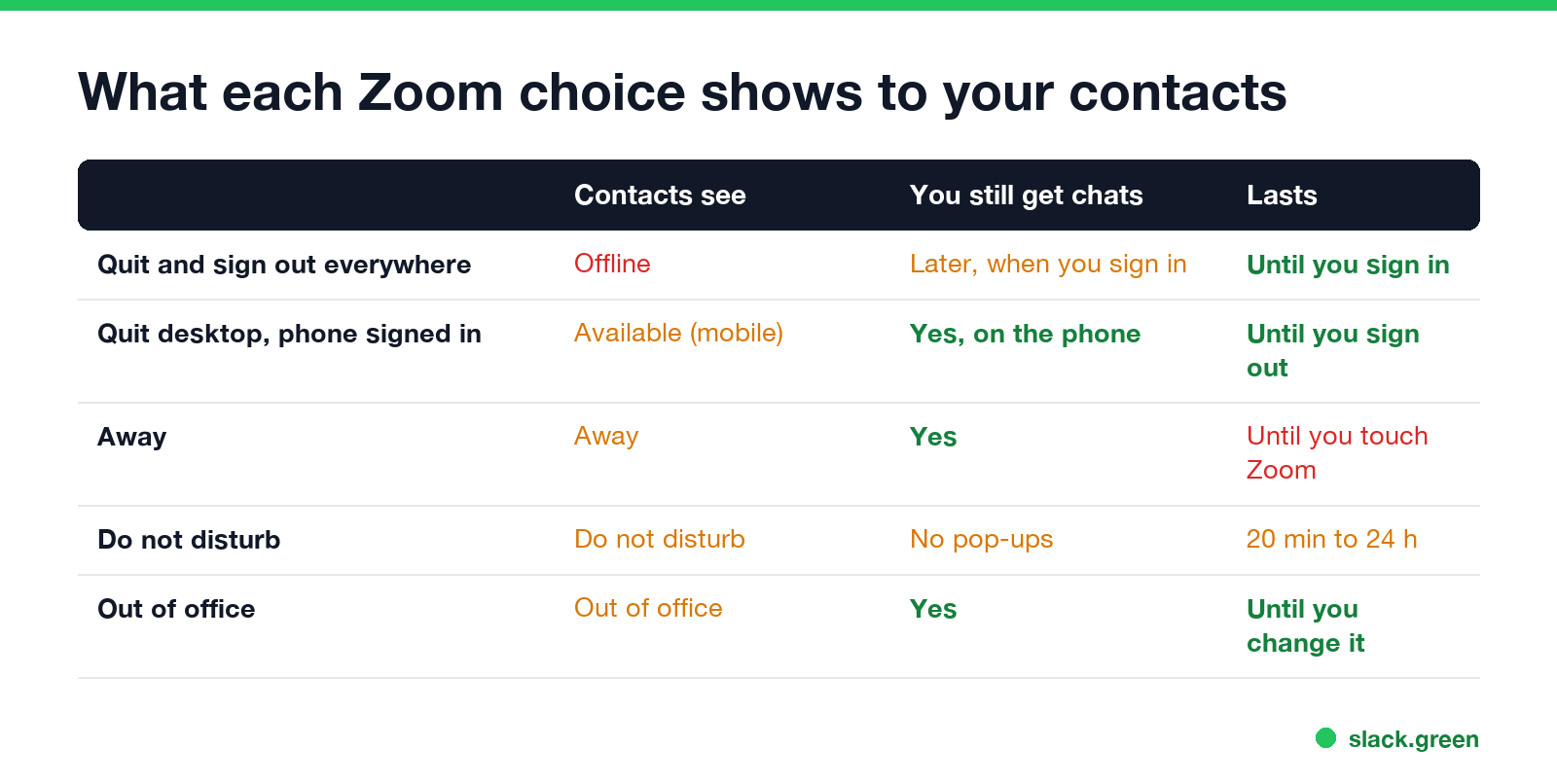
| Status | What contacts see | Chats and calls | How long it lasts |
|---|---|---|---|
| Quit and signed out everywhere | Offline | Delivered when you sign in again | Until you sign in |
| Desktop quit, phone signed in | Available (mobile) | Arrive on the phone | Until you sign out |
| Away | Away | Arrive as normal | Until you use Zoom again |
| Do not disturb | Do not disturb | Arrive, but no pop-ups | 20 minutes to 24 hours, or a schedule |
| Out of office | Out of office | Arrive as normal | Until you change it |
Away is the weakest option. Zoom says it "clears automatically when becoming active on desktop or mobile", so the next click in Zoom brings you back to Available. How to set away on Zoom has the steps and the auto-away timer.
Do not disturb is the most useful one if the goal is to stop interruptions. It blocks pop-up notifications for chat and Zoom Phone calls, and you can set a daily schedule under Custom. Details in Zoom do not disturb.
Out of office has no automatic end and tells people not to expect an answer.
If you also use Microsoft Teams
If your company connects Zoom and Teams presence, Zoom's sync maps Out of office in Zoom to "Appears offline, Off work" in Teams. So Out of office in Zoom makes you look offline in Teams while your Zoom contacts see Out of office. Zoom's article "Configuring Zoom and Microsoft presence synchronization" lists the mappings. Setting Appear offline in Teams does not make you Offline in Zoom; the sync maps only Teams' Out of office and Off work states to Zoom's Out of office.
What your admin can hide
A Zoom account admin can stop presence from showing to external contacts, meaning people outside your company's Zoom account. Zoom notes that you will not see a presence status for external contacts if "their account admin has disabled presence status from displaying to external contacts". This is an account-wide setting. You cannot turn it on for yourself, and it does not hide you from coworkers on the same account.
Your admin also sees your sign-ins and meeting activity whatever your status shows. What they can see is covered in does Zoom track your activity.
FAQ
Never appear "away" on Slack again
Cloud-based. No downloads. Works 24/7 even when your laptop is off.
Does Zoom have an invisible mode? No. Zoom has no Invisible or Appear offline status in the desktop, mobile or web app.
Does closing Zoom make me appear offline? Only if you quit the app and are not signed in on your phone. Closing the window leaves Zoom running, and a signed-in phone shows you as Available (mobile).
Can I appear offline to one person on Zoom? No. Zoom has no per-contact visibility setting. Blocking a contact stops their chats and calls; Zoom does not say it changes what status they see.
How do I appear away on Zoom? Click your profile picture and choose Away. It clears the next time you use Zoom.
Stop Jiggling Your Mouse.
Join hundreds of remote workers who never worry about their Slack status. Set it up once, stay green forever.
Related Articles
Can My Employer See What I Watch on YouTube at Work?
On a work laptop or the office network, your employer can see that you used YouTube, when, and for how long. With HTTPS inspection or monitoring software, they can see which videos, because the video address and the browser tab title both name it. On your own phone on mobile data, they see nothing.
Can My Employer See My iMessages on a Work Mac?
Not through device management or the network: Jamf or Intune cannot read Messages, and iMessage is end-to-end encrypted. But if you sign in to Messages on a work Mac, your texts are stored on that Mac, where monitoring screenshots, backups and admin access can reach them. How to check, and how to take iMessage off the Mac without deleting it from your iPhone.
Can My Boss See My Private Outlook Calendar Events?
Usually not the details. When you mark an Outlook event Private, someone who can read your calendar sees only Private appointment, the time and a lock. The exceptions are delegates you gave Can view private items, the people invited to the event, anyone with full access to your mailbox in new Outlook or the web, and compliance admins. How to check who has which access, and what Private does not hide.