
How to Keep Webex Status Active (and Why It Says Active Minutes Ago)
Webex App on Windows or Mac shows you Available while you use your computer and switches to 'Active X minutes ago' when you stop. On a phone, only sending or reading messages counts. How to keep Webex active, what a keep-awake tool and a custom status do, and why your status may stick on inactive.
To keep your Webex status active, keep the Webex App running and signed in on your Windows or Mac computer, and keep using the computer. Cisco's help page See people's availability states the rule: while you use your computer, Webex shows you as Available, and when you are away from it, Webex shows when you were last active, as "Active X minutes ago" with a clock icon. On iPhone, iPad and Android the rule is narrower: you show Available only when you send or read messages. So a phone in your pocket will not keep you active, and a computer that sleeps or locks will not either. To stop that, keep the computer awake with a tool such as PowerToys Awake or caffeinate, and set a custom status so people know you are working.
A note on what we make: Slack Green keeps a Slack status active on a schedule, from the cloud. It does not connect to Webex. If your team uses both, the Slack side is covered; the Webex side needs the steps below.
How Webex decides you are active
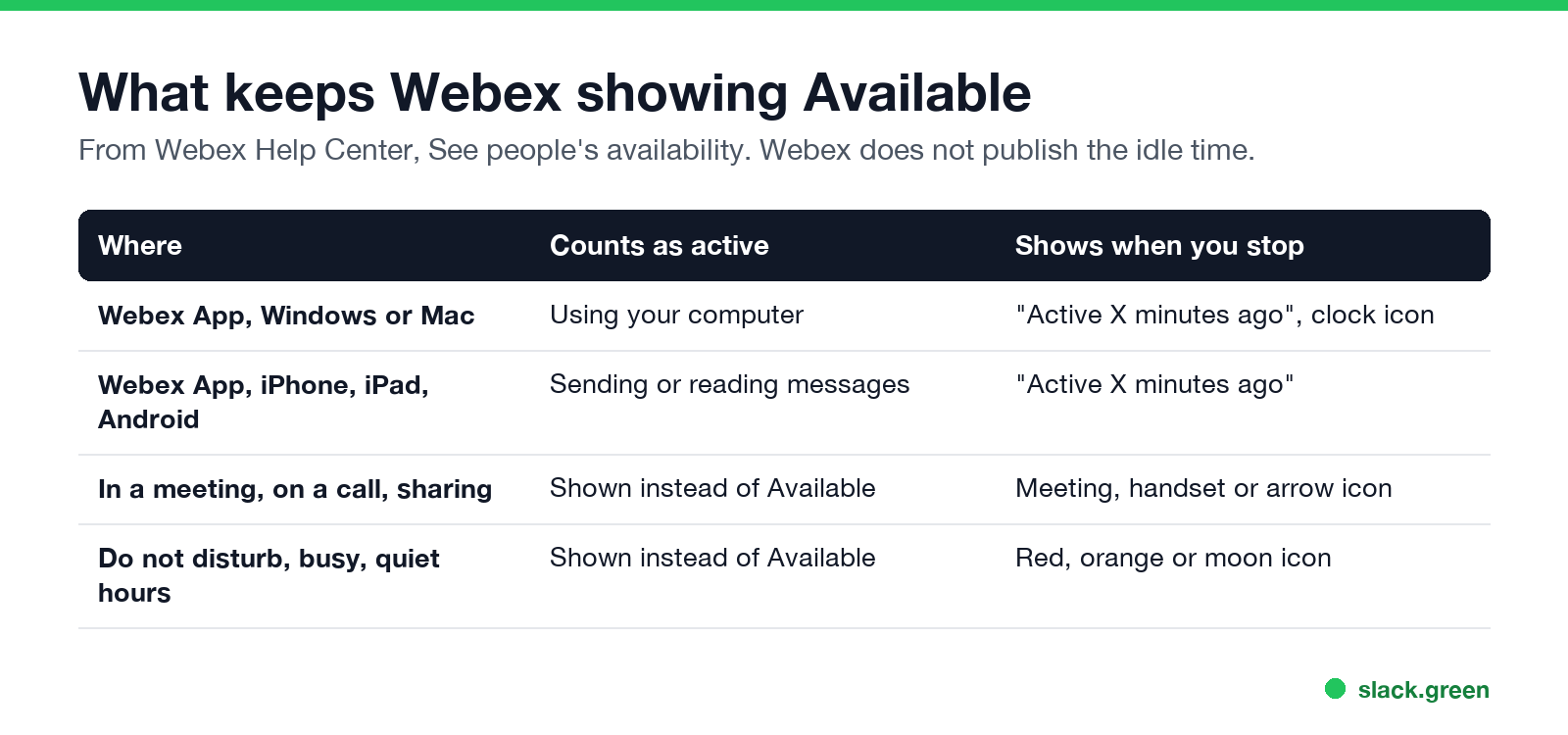
| Where | Counts as active | What shows when you stop |
|---|---|---|
| Webex App on Windows or Mac | Using your computer | "Active X minutes ago", clock icon |
| Webex App on iPhone, iPad or Android | Sending or reading messages | "Active X minutes ago" |
| In a meeting, on a call, sharing your screen | Shown instead of Available | Camera, handset or arrow icon |
| Do not disturb, busy, quiet hours, out of office | Shown instead of Available | Red, orange, moon or airplane icon |
Webex shows these in an order of precedence: a meeting beats Available, for example. Cisco does not publish how many idle minutes it takes to go from Available to "Active X minutes ago". People can see your availability only inside your own organization.
How to keep Webex active on your computer
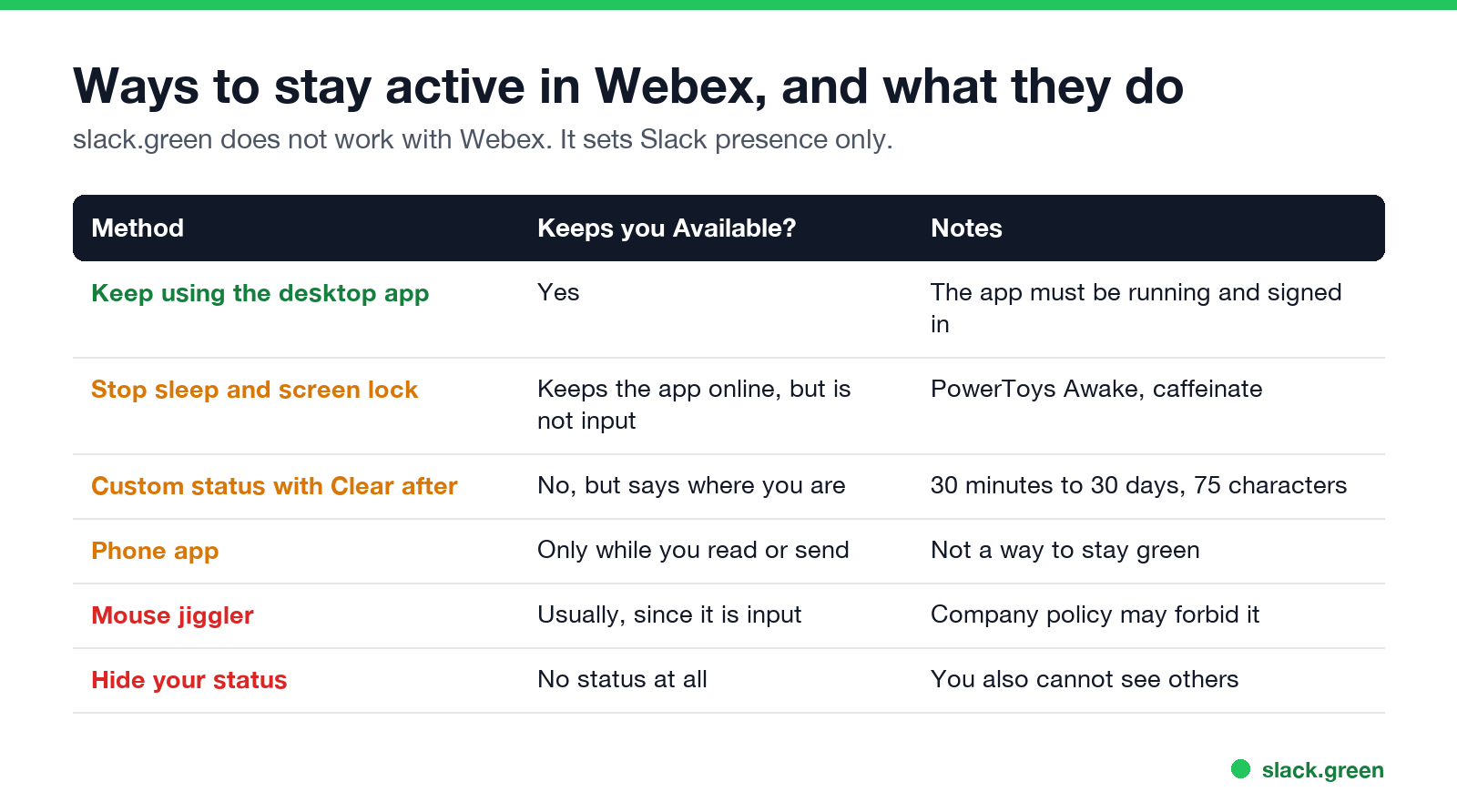
- Keep the desktop app open and signed in. Closing the window may leave it running; quitting it from the tray or menu bar stops it.
- Stop the computer from sleeping and locking. A sleeping computer cannot report that you are using it. On Windows, PowerToys Awake keeps the PC awake. On a Mac, run the command below. If you cannot install anything, see keep your computer awake without admin rights.
- Set a status that explains the gap. When you read a long document or sit in a room meeting, a custom status such as "Heads-down on the Q3 report, reply within 30 min" tells people you are working even while the clock icon shows.
# Mac: keep the display and system awake until you press Ctrl+C
caffeinate -d
Keeping the computer awake is not the same as using it. Tools like caffeinate and PowerToys Awake stop sleep, but they do not type or move the mouse, so Webex can still show "Active X minutes ago" after its idle time. The same limit applies to a keep-awake Chrome extension.
Some people use a mouse jiggler, which creates input and so usually counts as using the computer. Check your company's policy first; we cover the risks in can a mouse jiggler be detected.
How to keep Webex active on your phone
Slack पर फिर कभी "away" न दिखें
क्लाउड-आधारित। कोई डाउनलोड नहीं। लैपटॉप बंद होने पर भी 24/7 काम करता है।
You cannot, in the sense of a status that stays green by itself. On mobile, Webex shows you Available only when you send or read messages, and "Active X minutes ago" otherwise. Opening the app and reading a space updates it. For times you are reachable only by phone, a custom status is the honest signal.
Set a custom status in Webex
From Cisco's Set a custom status page:
You can keep up to five statuses in the list for quick use. A custom status does not change the Available or "Active X minutes ago" state; it sits next to it.
Webex status showing inactive while you are working
If Webex shows the clock icon while you are at the computer:
Webex vs Slack vs Teams: what counts as active
Slack पर फिर कभी "away" न दिखें
क्लाउड-आधारित। कोई डाउनलोड नहीं। लैपटॉप बंद होने पर भी 24/7 काम करता है।
| App | Counts as active on desktop | Idle before it shows you away |
|---|---|---|
| Webex | Using your computer | Not published |
| Microsoft Teams | Input anywhere on the computer | A few minutes |
| Slack | Input in the Slack window only | 10 minutes |
Slack is the strictest of the three, because work in any other app does not count. The rules for the others are in how long before Teams shows away and how long Slack stays active. If you use Teams and Slack together, see keep Teams and Slack active.
FAQ
How do I make Webex always show available?
Keep the desktop app running and keep the computer awake and in use. Webex has no setting that pins you to Available.
What does "Active 5 minutes ago" mean in Webex?
That person has not used their computer, or on mobile has not read or sent a message, for five minutes.
Can I appear offline in Webex?
You can stop sharing your status in Settings, General, or hide it from specific people in Settings, Privacy. You then cannot see other people's status either, if you turn it off for everyone.
Does Webex on my phone keep me active when my computer is off?
Only while you read or send messages in the app.
Does slack.green work with Webex?
No. It sets your Slack presence only.
माउस हिलाना बंद करें।
सैकड़ों रिमोट वर्कर्स अब Slack स्टेटस की चिंता नहीं करते। एक बार सेटअप करें, हमेशा के लिए हरे रहें।
Related Articles
Slack Lists Tutorial: Create, Organize and Share a List
Slack lists are tables of tasks inside Slack, with fields, assignees, due dates, a board view and a comment thread on every item. How to create a list from scratch or a template, set up fields, turn it into a kanban board, add messages to it, share it, and what the plan limits are.
Slack Jira Integration: Setup, /jira Commands and Notifications
Install the Jira Cloud for Slack app, type /jira connect in a channel to send a Jira space's updates there, /jira notify for personal notifications as DMs, and create work items from any message with More actions. Every /jira command, Jira automation to Slack, and fixes when previews or notifications stop.
How to Create a Slack Workspace, on Desktop or Phone
Go to slack.com/get-started, enter your email, type the confirmation code, and click Create a Workspace. It is free to start, you become the Primary Owner, and it takes about five minutes. Steps for desktop, iPhone and Android, and what to set up next.