
How to Keep Slack Active on a Chromebook
A Chromebook runs Slack two ways, a browser tab or the Android app, and they follow different presence rules. The ChromeOS power settings that stop the instant away, the Memory Saver trap, what works on managed school and work devices, and what does not.
There is no Slack desktop app for ChromeOS, so a Chromebook runs Slack one of two ways: a browser tab at app.slack.com, or the Android app from the Play Store. They follow different presence rules. A browser tab cannot see the rest of the system; our test tab on 7 October 2026 stayed active for 30 minutes with no input. Around that timer, ChromeOS adds its own ways to cut the dot early: display sleep, lid close, and Chrome's Memory Saver quietly discarding the tab. This page covers the Chromebook specifics, what works on managed school and work devices, and where the on-device options end. Slack Green, the server-side tool we make, keeps your dot green while the Chromebook sleeps or sits closed, free for 7 days with no card. The full method comparison lives in how to keep Slack active.
Tab or Android app: different rules
The browser tab has its own rules. The tab does not need to be focused to stay connected; our untouched test tab on a Mac stayed active for 30 minutes, so we do not state a timer for tabs.
The Android app follows the phone rules: it reports you active only while its window is visible on screen. Minimize it and the dot starts dying in seconds, the same behavior as on a phone, covered in keep Slack active on mobile. On a Chromebook the app window can stay visible next to your work, which makes it a weak version of the split-screen trick from the Android page.
For staying green, use the tab. It gets the 10-minute grace period; the app gets none.
The ChromeOS settings that cut you off early
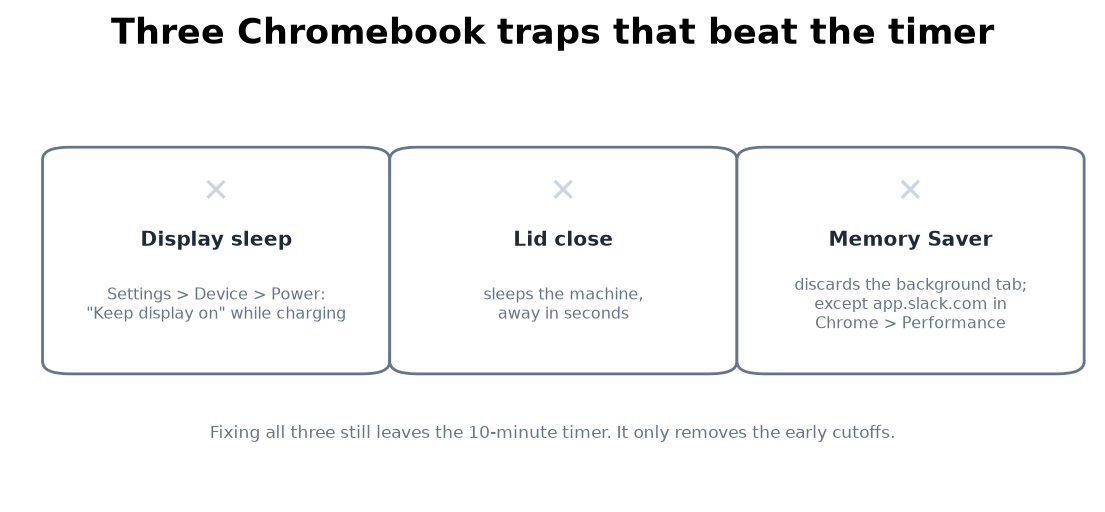
Three things flip a Chromebook to away before the timer even runs:
- Display sleep. Settings, Device, Power: set "When idle" to "Keep display on" while charging, or at least stretch the timing. A slept or locked Chromebook reports nothing.
- The lid. Closing it sleeps the machine and drops the dot in seconds. There is no clamshell mode on most Chromebooks without an external display setup.
- Memory Saver. Chrome discards background tabs to save RAM, and a discarded Slack tab is a disconnected Slack. Chrome Settings, Performance: add app.slack.com to "Always keep these sites active". This is the trap people miss, because the tab looks open while it has actually been unloaded.
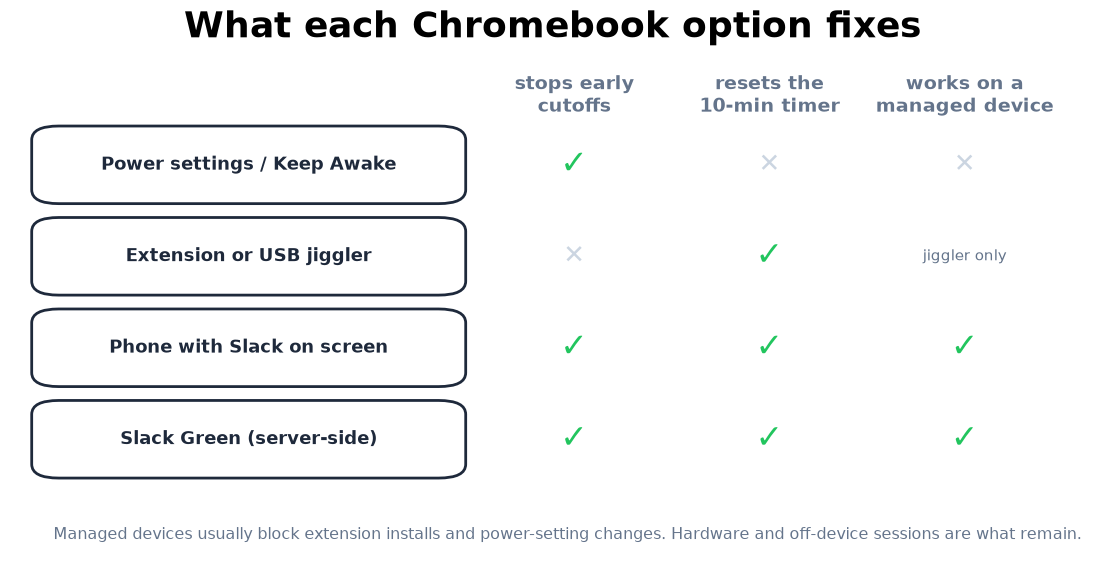
- • Touch the tab between tasks. Free, sends Slack fresh activity, dies during long meetings.
- • A browser extension. The extension category is first-class on a Chromebook, since everything already lives in Chrome. The trade-offs are in staying active without touching your mouse: the machine must stay on, unlocked, and undiscarded.
- • A USB jiggler. Works on ChromeOS like any HID mouse; whether a Slack tab counts it is not something we have measured.
- • A second device. A phone with the app on screen holds the dot regardless of what the Chromebook does.
- • Server-side presence. A server-side tool keeps your session active on its side on your schedule, so the dot stays green while the Chromebook sleeps, sits closed, or goes back to the IT cart. It is paid, and the security notes explain the session-token trade every tool in this class carries.
Google's own Keep Awake extension toggles display sleep from the toolbar if you prefer a switch over settings. All of this only stops the early cutoffs; it creates no activity in the tab.
Every Chromebook fix stops once the lid closes or the screen sleeps, because Slack then sets you away within seconds. A server-side tool keeps your Slack dot green with no input, even with the laptop closed or the phone locked.
What keeps the tab active on a Chromebook
The managed-Chromebook case
School and work Chromebooks are usually enrolled in an admin console that locks the power settings, blocks extension installs, and sometimes pins the whole session. On those devices the realistic list shrinks to three: touching Slack yourself, a USB jiggler (hardware is invisible to admin policy, though the moving cursor is not), and presence that never touches the device, which is the server-side category. A server-side tool works the same on a locked-down Chromebook as on any other machine, because it does not run there. If USB devices are allowed, a USB jiggler is the one jiggler that works on ChromeOS; see mouse jiggler for Chromebook.
Chromebook questions people search
Is there a Slack app for Chromebook? No desktop app. You get the web app in a tab, which is the full Slack, or the Android app from the Play Store, which is the phone version. For presence, the tab is better: it carries the 10-minute timer, the Android app reports only while visible.
How do I install Slack on a Chromebook? Open app.slack.com in Chrome and sign in; pin the tab or install it as a shortcut from Chrome's menu. The Play Store route works too, with phone-app presence rules.
Why does Slack show me away on my Chromebook while the tab is open? Most often the display slept, the lid closed, or Memory Saver discarded the tab. The fixes for all three are above; the general diagnosis walkthrough is in Slack keeps showing away while working.
Does closing the Chromebook lid log me out? It sleeps the machine, which drops your presence in seconds. Signing back in restores the session; only a second device or a server-side session stays green through it.
Can I keep Slack active on a school or work Chromebook? Extensions and power settings are usually blocked by the admin. A server-side session works from anywhere and touches nothing the admin manages.
The short version
Run Slack in a tab, not the Android app, which goes away as soon as it leaves the screen. Stop the early cutoffs: display set to stay on, lid open, app.slack.com excepted from Memory Saver. Then keep activity coming by hand, with an extension or USB jiggler, from a phone, or from a server-side tool, which is also the only route that survives a managed device and a closed lid. Every method compared: how to keep Slack active. A keep awake Chrome extension stops the screen sleeping but adds no input.
Related Articles
How to Keep Slack Active in the Browser
Slack in a browser tab follows the same 10-minute timer as the desktop app, with two extra ways to die: tab discarding and the browser closing. What counts as input in a tab, the Memory Saver and sleeping-tabs exceptions, and when the tab beats the app.
How to Appear Active on Slack, and Show You Are in a Meeting
The Slack desktop app shows you active while there was keyboard or mouse input on the computer, and away after about 10 minutes without it. Our presence test with tabs and Set yourself as active, and how to show that you are in a meeting instead.
How to Keep Slack Active on Linux
On Linux the away flip comes from two places: Slack's 10-minute idle timer and your desktop's idle-blank-suspend chain. The GNOME and KDE settings that stop sleep-away, what systemd-inhibit and Caffeine cannot do, and the xdotool route with its Wayland limit.