
How to Appear Active on Slack, and Show You Are in a Meeting
The Slack desktop app shows you active while there was keyboard or mouse input on the computer, and away after about 10 minutes without it. Our presence test with tabs and Set yourself as active, and how to show that you are in a meeting instead.
To appear active on Slack, keep Slack open and use your computer: the desktop app shows you active while there was keyboard or mouse input in any app recently, and sets you away after about 10 minutes without it (Slack desktop 4.52.178 code, checked 7 Oct 2026). Typing in other apps counts too. If you are in a meeting, a status that says so answers the question better than a green dot, and Slack can set "In a meeting" for you from your calendar. To stay green while you are away from the computer, Slack Green keeps your dot green from a server on the hours you pick, even with the laptop closed, free for 14 days with no card.
What we measured
We tested presence in our own workspace on 4 October 2026 (Slack web app, Free plan), reading our state from Slack's users.getPresence API every few seconds:
| What we did | Presence Slack reported |
|---|---|
| No Slack window open | away, 0 connections |
| Opened Slack in a browser tab, no clicks | active within 5 seconds, 1 connection |
| Opened a second tab | active, 2 connections |
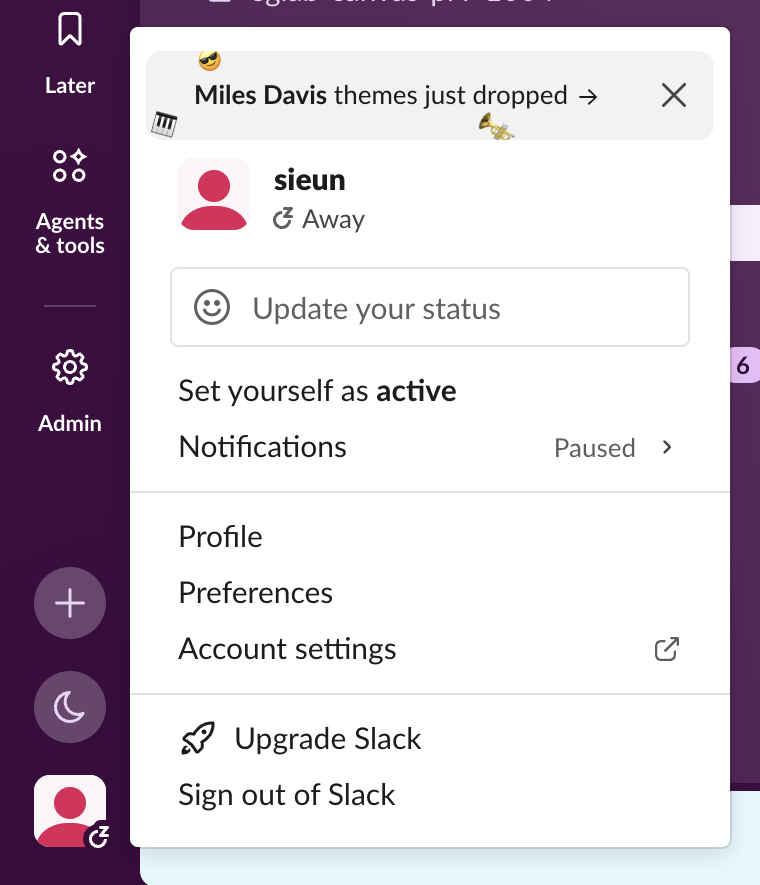
| Chose Set yourself as away | away, manual_away: true, still 2 connections |
| Clicked and moved the mouse in the other tab | still away |
| Chose Set yourself as active | active again |
Two things follow. Opening Slack counts as activity by itself, so the first minutes after you open it you are green without doing anything. And a manual away beats everything, including input, until you undo it; Set yourself as active only removes that manual away. It does not keep you active later: the normal idle rule applies again from that moment. How Slack decides is in how Slack decides when you're away, and the multi-tab test in full is in why Slack shows me active when I'm not.
Try it
Close the laptop. Which one keeps you green?
Slack on your laptop
Active
Slack Green
Active
Free for 14 days, no card needed.
Stay green with the laptop closedHow to show that you are in a meeting
Most people who ask how to look active are in a meeting, and the grey dot looks like absence. A status fixes that, because the status text shows next to your name whatever the dot does.
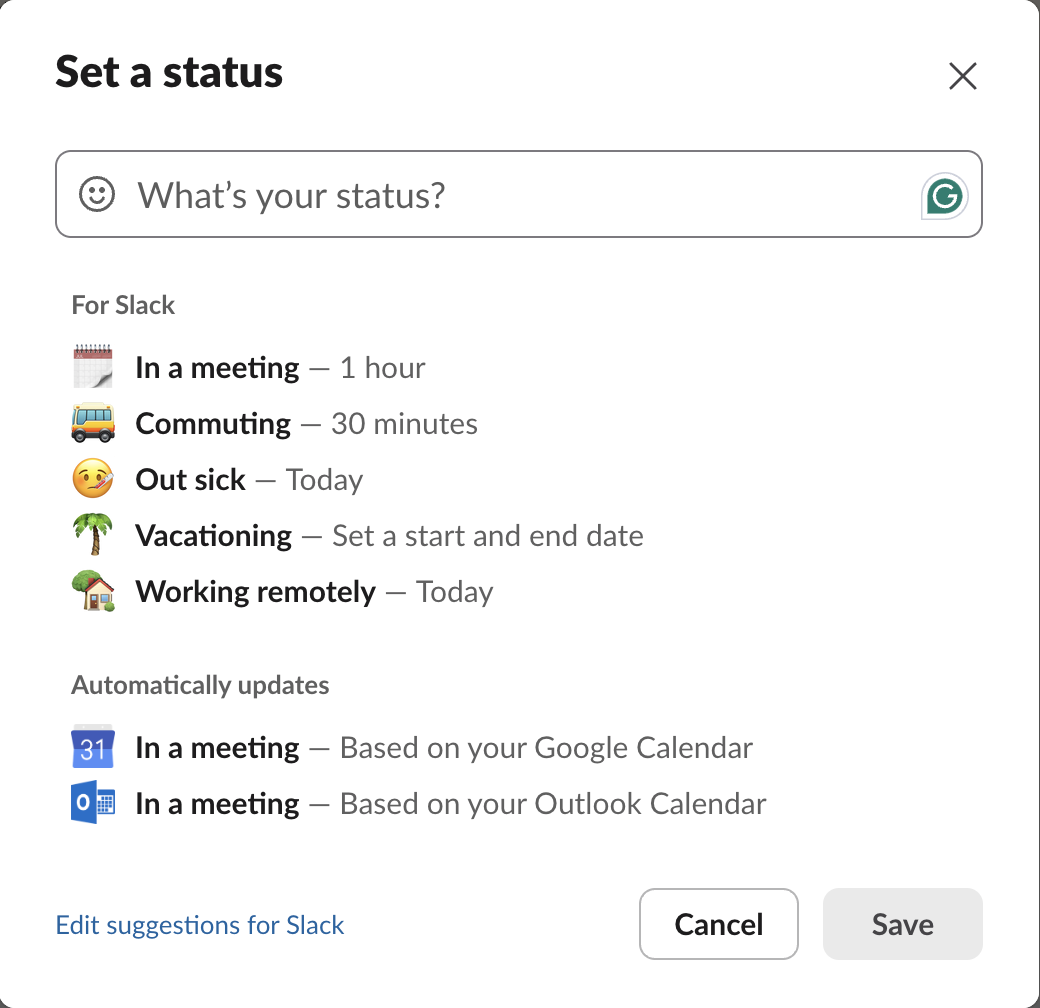
In our workspace's Set a status dialog (click your profile picture, then Update your status):
- • In a meeting — 1 hour is the first built-in suggestion. Click it and it clears itself after an hour.
- • Automatically updates offers In a meeting — Based on your Google Calendar and — Based on your Outlook Calendar. Connecting a calendar app makes Slack set "In a meeting" during your events and clear it afterwards. Setup is in sync Slack status with Google Calendar.
What coworkers see of that status, and how much of the text fits, is in Slack status etiquette.
Stop Jiggling Your Mouse.
Join hundreds of remote workers who never worry about their Slack status. Set it up once, stay green forever.
When the dot turns grey while you work
Ways to keep the dot green on purpose, from a second device to a scheduled server-side presence tool, are compared in how to keep Slack active. Keep-awake apps do not help on their own, because they produce no input; a mouse jiggler does, while the computer is awake and unlocked. See mouse jigglers compared with presence tools.
FAQ
Is there a setting to always appear active on Slack? No. Set yourself as active only removes a manual away. After that, Slack's idle rule applies again.
Can I appear active on just one workspace? Yes. Presence is per workspace, because each workspace is a separate account with its own connections.
Does keeping Slack open keep me active? Opening it does, at first: our new tab showed active within 5 seconds. After that Slack needs input in its window, or it sets you away after about 10 minutes.
Related Articles
How to Star a Channel in Slack (and Why Starred Items Seem to Vanish)
Click the star next to the channel name, or right-click a DM and pick Star conversation. We starred a channel and a DM, collapsed the Starred section, and checked what the Free plan allows.
Slack Mark as Read Settings: All 3 Options Tested on 30 Messages
Preferences > Mark as read decides where a channel opens and whether opening it clears the unread. We posted 30 messages and opened the channel under each option, then tried Esc and Shift+Esc.
How to Turn Off Reaction Notifications in Slack (and Why There Is No Switch)
Slack's notification settings no longer have a reactions switch. We had a bot react to our messages, then hid the reactions with the Activity filter and the Mentions tab, and tried the old hidden setting.