
How to Keep Slack Active on an iPhone
Slack on an iPhone reports you active only while the app is open and the screen is on. The iOS settings that keep it that way: Auto-Lock, Guided Access, the Low Power Mode trap, and the old-iPhone kiosk recipe, plus what no setting can do.
Slack on an iPhone reports you active under exactly one condition: the app is open, in the foreground, with the screen on. There is no timer to outlast. Lock the phone, switch apps, or let the screen sleep and your green dot drops within seconds. How mobile presence works, and why it is harsher than the desktop's 10-minute timer, is covered in keep Slack active on mobile; this page is the iPhone-specific part: the iOS settings that hold that one condition in place, the traps that silently break it, and where the approach ends. Past that line the options are a desktop session or a server-side tool such as Slack Green, which we make: it keeps your dot green with the phone locked, free for 7 days with no card, and it is compared below.
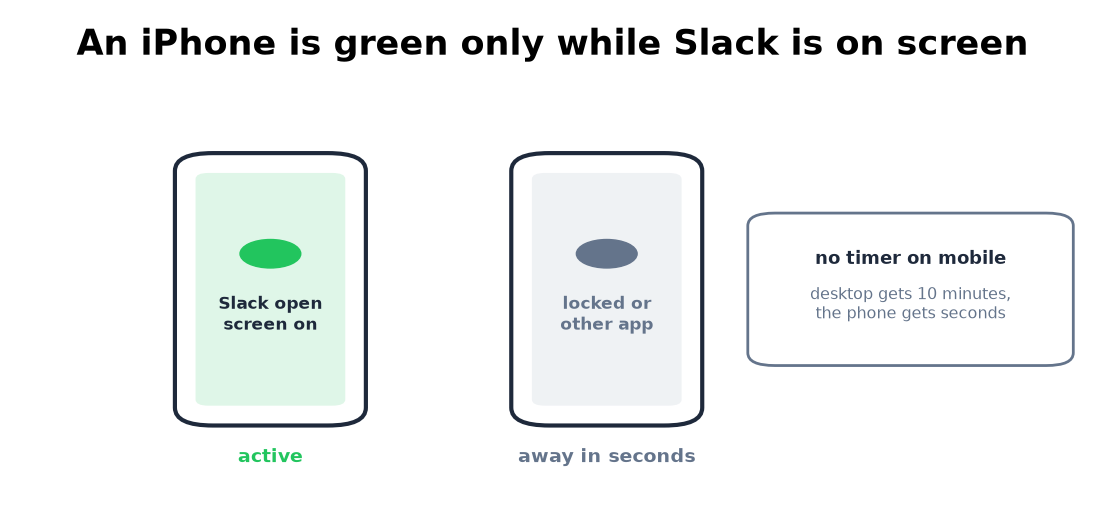
The three iOS settings that matter
Auto-Lock, set to Never. Settings, Display & Brightness, Auto-Lock. Most iPhones lock after a minute or less out of the box, and a locked iPhone is an away iPhone. With the phone on a charger, Never is safe to leave on.
Guided Access, to pin Slack on screen. Settings, Accessibility, Guided Access, turn it on. Open Slack, triple-click the side button, and the phone is locked into Slack: no accidental swipe to another app, no notification tap pulling you away. Guided Access carries its own Display Auto-Lock setting, so check it is not re-locking the screen underneath you.
Every iPhone fix stops once the screen locks or you switch apps, because Slack then sets you away within seconds. A server-side tool keeps your Slack dot green with no input, even with the laptop closed or the phone locked.
Low Power Mode, off. This is the trap. Low Power Mode forces Auto-Lock to 30 seconds and ignores your Never. It turns on by itself at 20% battery, which is why the setup dies in the afternoon if the phone is not charging.
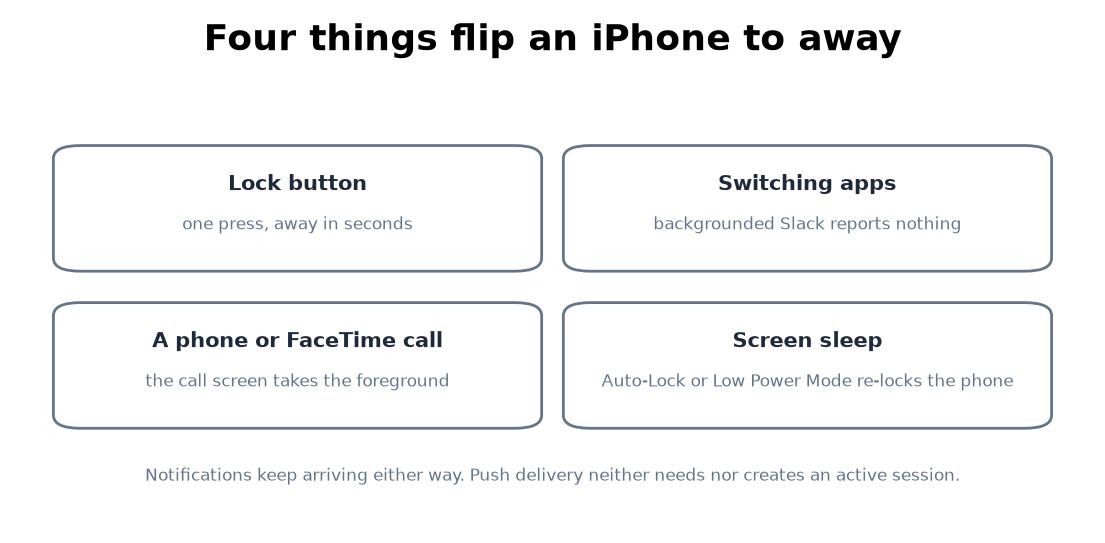
What still flips you to away
Even with all three settings right:
- • The lock button. One press and you are away in seconds.
- • Switching apps. Slack in the app switcher is backgrounded, and backgrounded means gone. Maps for one minute costs you the dot.
- • A phone or FaceTime call. The call screen takes the foreground; Slack backgrounds; the dot drops while you talk.
- • The always-on display. On iPhones that have it, the dimmed lock screen is still a locked phone. It looks on; Slack is backgrounded.
- • Notifications. They arrive by push whether you are green or gray. They neither need nor create an active session, which is why the dot dies in your pocket while the phone keeps buzzing.
The old-iPhone kiosk
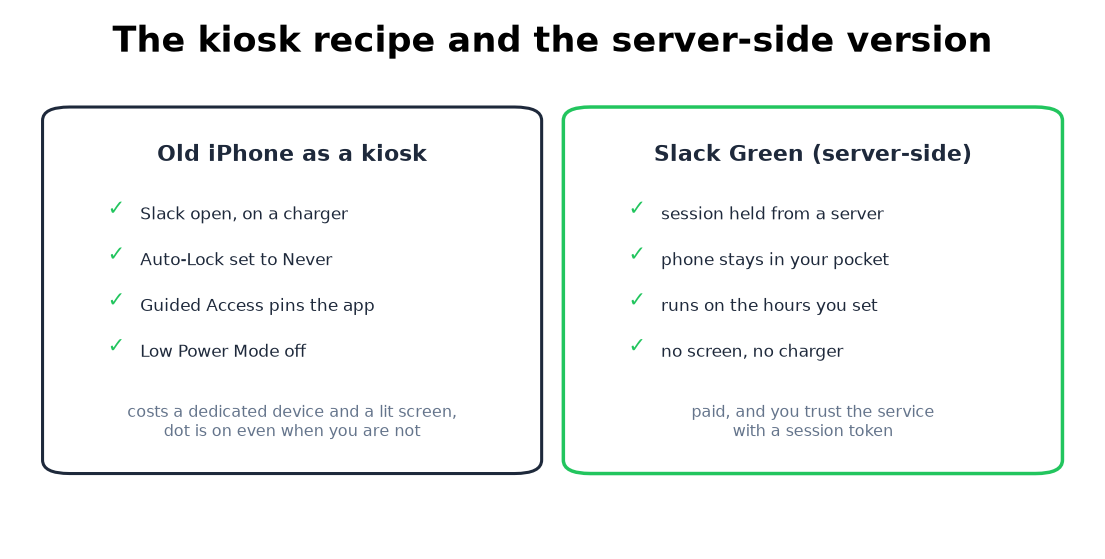
The workable version of iPhone-only presence is a phone you are not using: an old iPhone on a charger, Slack open, Auto-Lock Never, Guided Access on. It reports you active all day because it does nothing else. The costs are a device that cannot be your daily phone, a screen that stays lit, and a dot that is on when you are not, with no schedule. The same recipe and its Android twin are in keep Slack active on mobile.
If the kiosk sounds like a workaround, that is because it is one. A server-side tool is the same idea without the phone: it holds your Slack session active on its side on hours you choose, with no phone set aside and no screen lit. The trade is that it is paid and you trust the service with a session token, spelled out in will I get caught.
iPhone questions people search
Why does Slack show me away on iPhone when the app is open? The screen slept or the phone locked. Check Auto-Lock and Low Power Mode; either one re-locks the screen out from under an open app.
Do notifications keep Slack active on iPhone? No. Push notifications arrive to an away phone. Only the app being on screen makes you green.
Can I stay green while using other apps on my iPhone? No. iPhones show one app at a time, and only the foreground app counts. A second device or a server-side session are the ways around it, compared in how to keep Slack active.
Does Background App Refresh help? No. It refreshes content, not presence. The dot needs the app on screen.
Is there a Slack setting for this on iPhone? No. The app has no keep-active option on any platform, and the mobile app has no timer to extend. The rules are in how long does Slack stay active.
If the problem is alerts rather than presence, the iPhone checks in order are in Slack notifications not working on iPhone.
The short version
An iPhone keeps your Slack dot green only while Slack is on a lit screen. Auto-Lock Never, Guided Access, charger, Low Power Mode off holds that state, at the cost of a dedicated screen. Everything else on the phone, from notifications to Background App Refresh, changes nothing about the dot. For presence that survives a pocket, a call, or a closed laptop, use a desktop session with the desktop methods or hold it from a server-side tool.
Related Articles
How to Keep Slack Active in the Browser
Slack in a browser tab follows the same 10-minute timer as the desktop app, with two extra ways to die: tab discarding and the browser closing. What counts as input in a tab, the Memory Saver and sleeping-tabs exceptions, and when the tab beats the app.
How to Keep Slack Active on a Chromebook
A Chromebook runs Slack two ways, a browser tab or the Android app, and they follow different presence rules. The ChromeOS power settings that stop the instant away, the Memory Saver trap, what works on managed school and work devices, and what does not.
How to Appear Active on Slack, and Show You Are in a Meeting
The Slack desktop app shows you active while there was keyboard or mouse input on the computer, and away after about 10 minutes without it. Our presence test with tabs and Set yourself as active, and how to show that you are in a meeting instead.