
Can You Change Slack's Away Time? No, but Here Is What Works
Slack sets you away after 10 minutes without input on desktop, and no setting changes that, for members, admins, or the API. What you can control instead, and the options that keep you active longer.
No, you cannot change Slack's away time. Slack sets you to away after 10 minutes without input on desktop, and as soon as you leave the app on your phone. There is no setting for this in Preferences, no option in the admin settings on any plan, and no API call that lengthens it. You can only set yourself away by hand, or keep feeding the timer so it never runs out.
Slack's help center describes the rule in one line: you are set to away "after 10 minutes of desktop inactivity, or if you navigate away or close the app on your mobile device". Inactivity means no clicks, keys, or scrolling inside the Slack window. Work in other apps does not count.
We build Slack Green, a cloud service that keeps your Slack presence active during the working hours you set. It works because it feeds that same timer from a server, not because it changes it. This page lists what you can and cannot change, and what to do if 10 minutes is too short for how you work.
How the away timer works
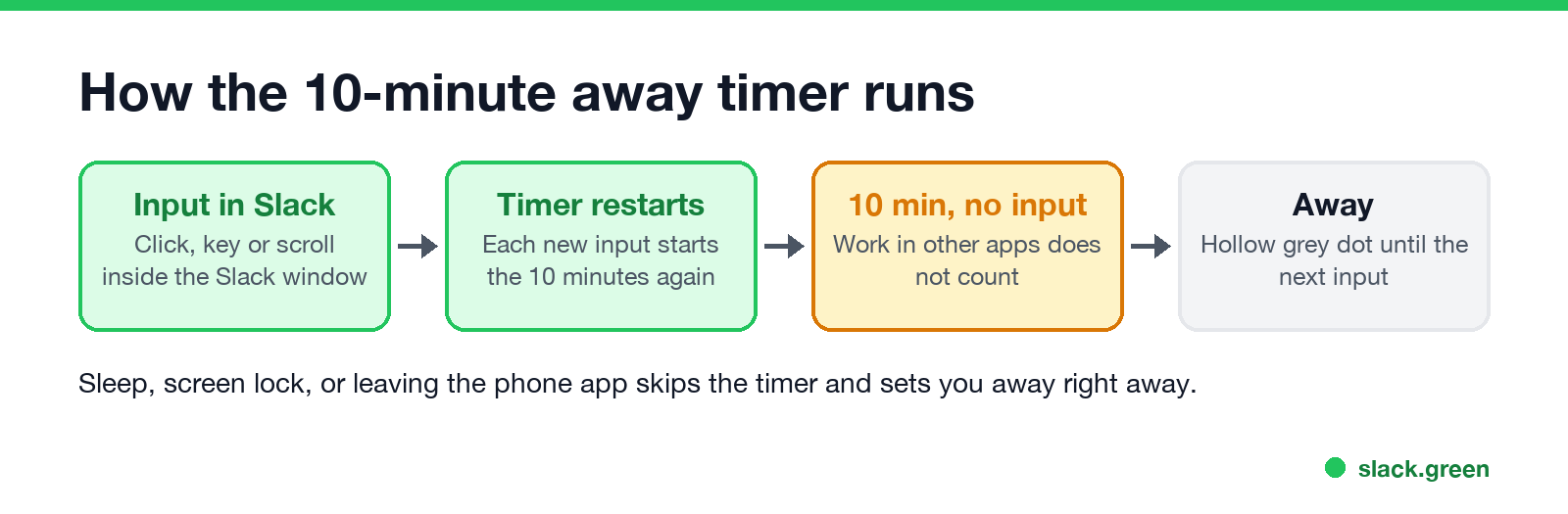
- • Every click, keystroke, or scroll inside Slack starts the 10 minutes again.
- • After 10 minutes with no input in Slack, your dot turns into a hollow grey circle. That is Slack's away state, explained in Slack away status meaning.
- • If your computer sleeps or locks, Slack sets you away right away. The timer does not get to run.
- • On the phone there is no timer. You are active while the app is on screen, and away when you switch apps or lock the phone.
The full per-device numbers are in how long does Slack stay active.
What you can and cannot change
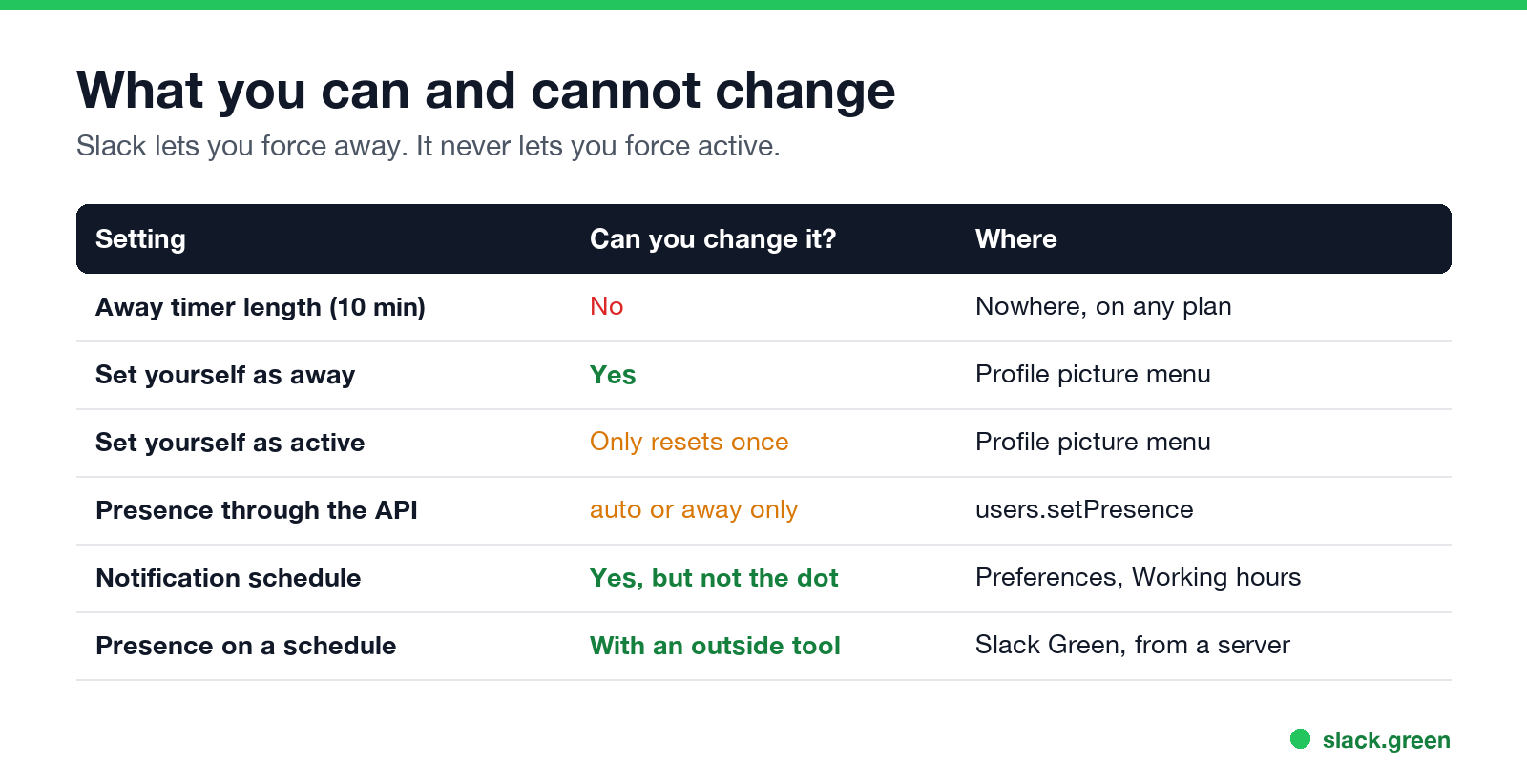
| Setting | Can you change it? | Where |
|---|---|---|
| Away timer length (10 minutes) | No | Nowhere, on any plan |
| Set yourself as away | Yes | Profile picture menu |
| Set yourself as active | Only once. The timer keeps running | Profile picture menu |
| Presence through the API | Only auto or away | users.setPresence |
| Notification schedule | Yes, but it does not touch the dot | Preferences, Working hours |
| Presence on a schedule | Yes, with an outside tool | A server-side tool such as Slack Green |
Can an admin change it? No. Workspace and Org Owners have no away-timeout setting on Free, Pro, Business+, or Enterprise. If your IT team says they "set" your idle time, they mean screen-lock rules on your laptop, which set you away sooner.
Can the API change it? No. Slack's users.setPresence method accepts two values: auto, which lets Slack decide from your activity, and away. There is no value for "always active" and no timeout parameter.
Can I turn off auto away? No. The one switch Slack gives you goes the other way: Set yourself as away keeps you grey until you switch it back. There is no switch that keeps you green.
Options when 10 minutes is too short
لا تظهر أبداً كـ "غائب" على Slack
يعمل على السحابة. بدون تنزيلات. يعمل 24/7 حتى عندما يكون الكمبيوتر مغلقاً.
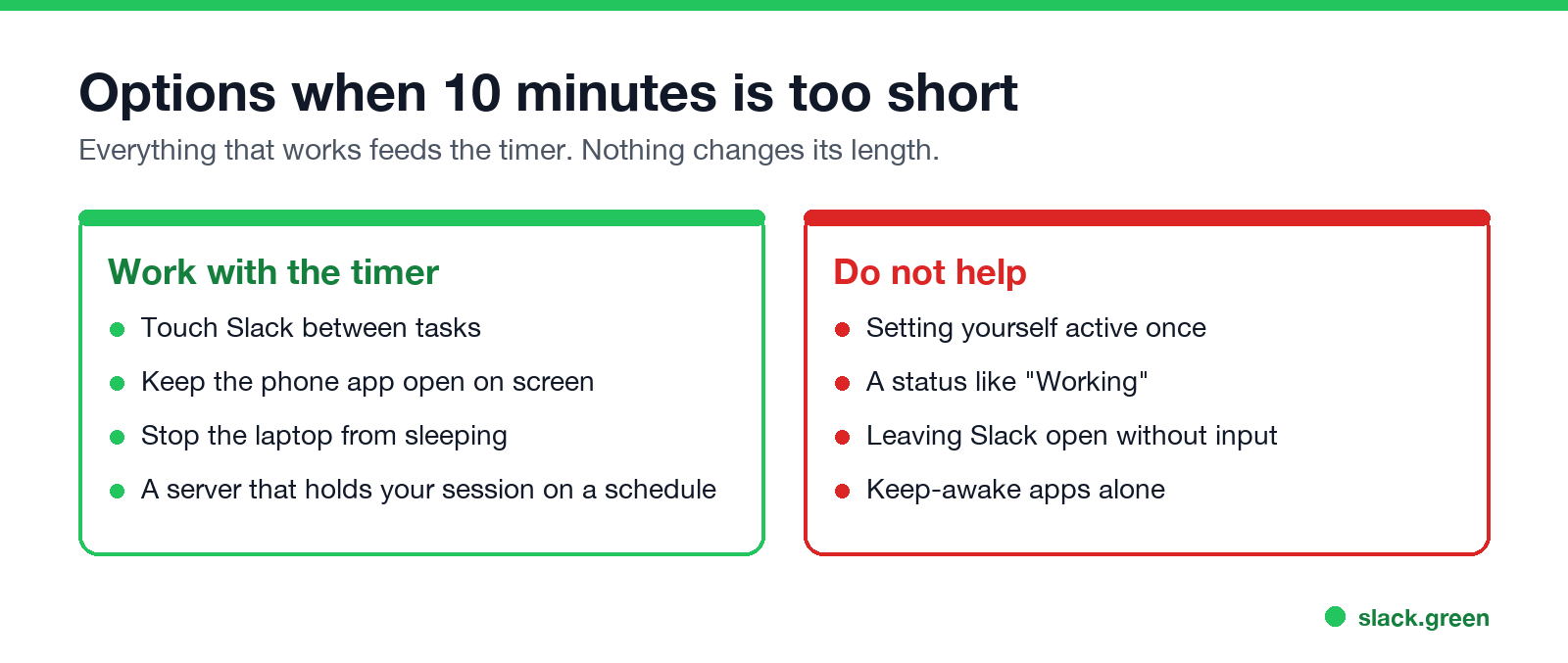
Every option that works gives Slack input before the 10 minutes run out. None of them change the timer.
These do not help:
All the methods, with costs and trade-offs, are in how to stop Slack from showing away and how to keep Slack active.
Why Slack does not offer a setting
Slack does not say why. The dot is meant to tell coworkers who is at Slack right now, so a timer each person could stretch to hours would make it mean less. Slack's help center gives the same 10 minutes for every plan.
If your team reads the dot as proof of work, the timer will keep causing friction. A written response-time norm solves that better than any setting. Our guide on why Slack goes idle so quickly covers the reasons the flip feels faster than 10 minutes.
FAQ
Can you change how long before Slack shows you as away?
No. The desktop timer is 10 minutes for everyone, and no member, admin, or API setting changes it.
How long until Slack shows me as away?
10 minutes without input in the Slack window on desktop or in the browser. On a phone, as soon as the app leaves the screen. Right away if your computer sleeps or locks.
Can I stop Slack from setting me away automatically?
Not with a Slack setting. You can keep giving Slack input, keep the phone app open, or use a tool that holds your session active on a schedule.
Can I change the away time on iPhone or Android?
No. Mobile has no timer to change. Slack sets you away when you leave the app.
Does Slack report inactivity to my manager?
No. Slack sends no report when you go away. Coworkers and admins see the same grey dot, and there is no last-seen time. Admins on paid plans can see access logs and activity counts, covered in can Slack admins see DMs.
How do I change my Slack status to vacation?
Set a status such as "Vacationing" with an end date, from your profile picture. That changes your status text, not the away timer. The steps are in how to change your status on Slack.
توقف عن تحريك الماوس.
مئات العاملين عن بعد لم يعودوا قلقين بشأن حالة Slack. قم بالإعداد مرة واحدة، ابقَ أخضر للأبد.
Related Articles
Slack Lists Tutorial: Create, Organize and Share a List
Slack lists are tables of tasks inside Slack, with fields, assignees, due dates, a board view and a comment thread on every item. How to create a list from scratch or a template, set up fields, turn it into a kanban board, add messages to it, share it, and what the plan limits are.
Slack Jira Integration: Setup, /jira Commands and Notifications
Install the Jira Cloud for Slack app, type /jira connect in a channel to send a Jira space's updates there, /jira notify for personal notifications as DMs, and create work items from any message with More actions. Every /jira command, Jira automation to Slack, and fixes when previews or notifications stop.
How to Create a Slack Workspace, on Desktop or Phone
Go to slack.com/get-started, enter your email, type the confirmation code, and click Create a Workspace. It is free to start, you become the Primary Owner, and it takes about five minutes. Steps for desktop, iPhone and Android, and what to set up next.