
Can You See Slack Status History? No, Here Is What Exists
No. Slack shows your active or away dot and your custom status only as they are right now, and keeps no history of either that coworkers or admins can open. Admins on paid plans see a last active date and sign-in logs. How to keep your own status log with the Slack API, from today on.
Reading on your phone?
Run the idle test on your computer
Slack sets you away on your computer, so this free test runs there. Send yourself this page and press Start at your desk.
No. Slack does not keep a status history that anyone can open. The dot next to a name shows only whether that person is active or away right now, and the custom status shows only what they set now and when it clears. There is no timeline of when you were green, and no list of your past statuses for coworkers or admins to scroll through. Slack's audit logs, on Enterprise plans, do not record active status either. If you want your own dot to stay green through the day, Slack Green keeps it green from a server on the hours you pick, even with the laptop closed, free for 7 days with no card.
What does exist is narrower. On paid plans, owners and admins can see the date each member was last active, split by desktop, iPhone and Android, and a log of sign-ins with IP address and device. You can see your own recent statuses in the status menu. And anyone with API access can start logging presence from today, but not before.
The "last seen" side of this question is in does Slack show last seen.
What history Slack keeps, and who can see it
| Record | Who can see it | What it shows |
|---|---|---|
| Active or away dot | Nobody, as history | Only the state right now |
| Custom status (text and emoji) | Nobody, as history | The current status and when it clears |
| Your recent statuses | Only you | A short list at the top of the status menu, for one-click reuse |
| Member analytics | Owners and admins, paid plans | Date last active, by desktop, iOS and Android |
| Access logs | Owners and admins, paid plans | Sign-in dates, IP address, device and app |
| Audit logs | Audit log admins, Enterprise plans | Sign-ins, file downloads, app installs, settings; not status or presence |
So an admin can answer "when did this person last use Slack" to the day, and "which devices signed in this month". They cannot answer "was she green at 3 p.m. on Tuesday" or "what did his status say last week". The details of each admin view are in Slack audit logs and in the member analytics section of does Slack show last seen.
How to see when someone was last active on Slack
Without admin rights, you have two clues:
- Their last message. Search
from:@namein Slack. The newest result shows the last time they posted in a channel you can see. - The dot right now. Hover over their name. Green means Slack counts them active now; a hollow dot means away, either from no keyboard or mouse input on their computer for about 10 minutes or because they set themselves away.
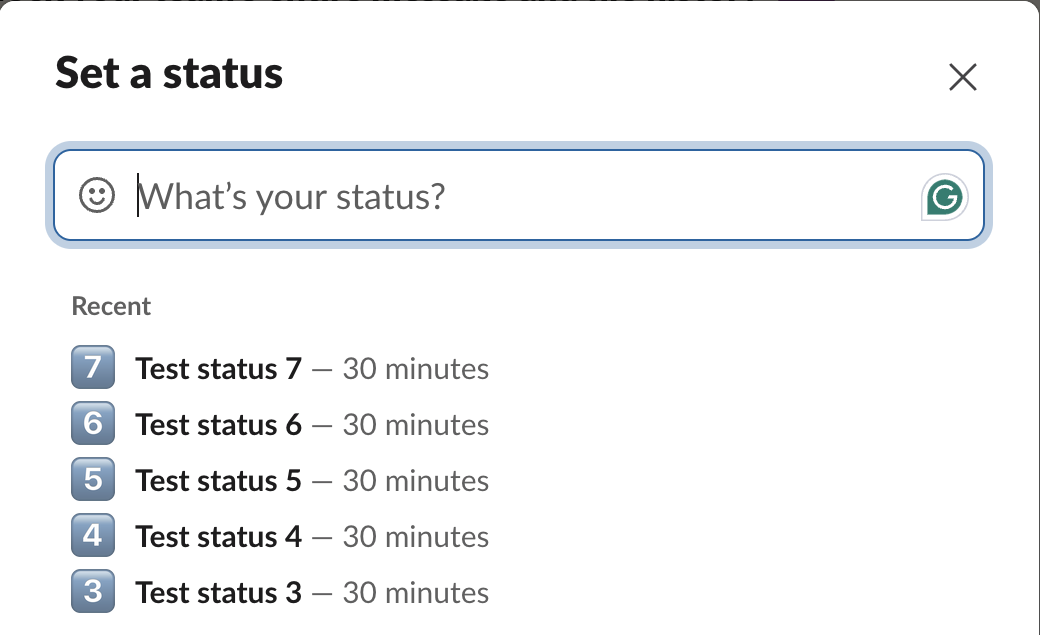
- • Recent shows 5. The newest is on top, and each keeps its Clear after ("30 minutes").
- • Slack stores more than it shows. When we deleted the 5 visible ones, "Test status 2" and "Test status 1" moved up into the list. So the account held at least 7, shown 5 at a time.
- • Only you see it. The list is in your own status dialog; there is no way to open someone else's.
- • It has no dates. Recent tells you which statuses you used, not when. Delete a row by hovering over it and clicking the x.
Neither tells you when they went away. Slack also does not alert you when someone comes online; the workarounds are in get notified when someone comes online in Slack.
Coworkers only see your dot as it is right now, and Slack turns it away 10 minutes after your last keyboard or mouse input. A server-side tool keeps your Slack dot green with no input, even with the laptop closed or the phone locked.
See your own status history
Slack keeps no full history of your own statuses either, only the Recent list in Update your status. We measured it on 4 October 2026 in our test workspace: we set 7 statuses in a row ("Test status 1" to "Test status 7", each with Clear after 30 minutes) and opened the dialog.
Scheduled statuses you have not reached yet sit under Scheduled in the same dialog. If you want a dated record, for time sheets or to check how often Slack set you away, log it yourself.
Build your own Slack presence log
Slack's Web API has users.getPresence, which returns active or away, and users.profile.get, which returns the current status text, emoji and expiry. A script that asks every few minutes and writes a line to a file is a status history from the moment it starts. This one logs your own account with a user token that has the users:read and users.profile:read scopes:
import csv, os, time
from datetime import datetime, timezone
from slack_sdk import WebClient

client = WebClient(token=os.environ["SLACK_USER_TOKEN"])
me = client.auth_test()["user_id"]

while True:
    presence = client.users_getPresence(user=me)["presence"]   # "active" or "away"
    profile = client.users_profile_get(user=me)["profile"]
    with open("slack_status_log.csv", "a", newline="") as f:
        csv.writer(f).writerow([
            datetime.now(timezone.utc).isoformat(timespec="seconds"),
            presence,
            profile.get("status_text", ""),
            profile.get("status_emoji", ""),
        ])
    time.sleep(300)  # every 5 minutes
We ran the same two calls, users.getPresence and users.profile.get, against our own account every 10 seconds while changing the status (from a signed-in browser session rather than this Python script). Each change showed up on the next line:
2026-10-04T01:20:57Z,active,Test status 1,:one:
2026-10-04T01:21:08Z,active,Test status 2,:two:
2026-10-04T01:21:18Z,active,Test status 3,:three:
2026-10-04T01:21:28Z,active,Test status 4,:four:
users.profile.get also returns status_expiration, a Unix time, if you want to log when the status will clear. Five minutes between calls is well inside Slack's rate limits for both methods. For changes as they happen instead of polling, Slack sends presence_change events over a socket connection; the setup, scopes and limits are in Slack presence API.
Logging your own account is your business. Logging coworkers' presence is technically possible for any member with a token, and it is the kind of tracking many workplaces forbid; check your company's policy first.
Slack vs Teams status history
Microsoft Teams is similar: no status timeline for coworkers, but a "Last seen" time next to Away or Offline, and admin reports with more detail. See can you see Teams status history.
FAQ
Can my boss see my Slack status history? No. Your boss sees your dot and status as they are now. An admin on a paid plan can see the date you were last active and your sign-ins.
Can Slack admins see when I was online? They see the last active date and sign-in logs, not the hours your dot was green.
Does Slack record when you change your status? Not in any log that admins or coworkers can view. Only the current status is stored on your profile.
Can I see who viewed my Slack status? No. Slack does not record who looked at your profile or status.
Related Articles
Slack: Get Notified When Someone Comes Online (No Built-In Alert)
Slack has no alert for when a coworker becomes active. No preference, Workflow Builder trigger or profile button does it. You can watch their green dot, send a message they will see when they return, or run a short script that checks users.getPresence every minute and DMs you.
Automatic Slack Status Updates: 3 Triggers We Built and Timed on a Mac
Slack's own automatic statuses cover huddles, focus mode and working hours. For anything else you need users.profile.set and a trigger. We built a schedule, a file and an app-launch trigger on macOS and timed each one.
Slack Active on Multiple Devices: Which One Sets Your Status?
When you use Slack on a phone and a computer at once, one active device keeps you green, and a manual away set on any device makes you away on all of them. We measured connection_count per browser tab and a manual away across four connections.