
How to React to a Message in Slack: Click, Shortcut or +:emoji:
Hover over a Slack message and click Add reaction, or tap and hold it on your phone. To react to the latest message without the mouse, press Cmd+Shift+\ or send +:emoji:. Six ways to react, custom emoji reactions, removing a reaction and the API call.
To react to a message in Slack, hover over it, click the Add reaction icon (a smiley face with a plus sign) and pick an emoji. On iPhone or Android, tap and hold the message and choose an emoji. Two faster ways react to the most recent message in the conversation: press Cmd+Shift+\ on a Mac or Ctrl+Shift+\ on Windows, or type +:eyes: (or any emoji code with a plus in front) in the message box and press Enter. Click your own reaction a second time to remove it.
We tested the +:emoji: trick on 28 September in a Slack DM. Sending +:eyes: added a 👀 reaction to the message above and posted nothing. The keyboard shortcut and the steps below come from Slack's help center.
Reactions count as activity only while you are in Slack. After about 10 minutes without input in the Slack window, your dot still turns to away. Slack Green keeps it green from a server during the hours you set.
How to react to a Slack message on desktop
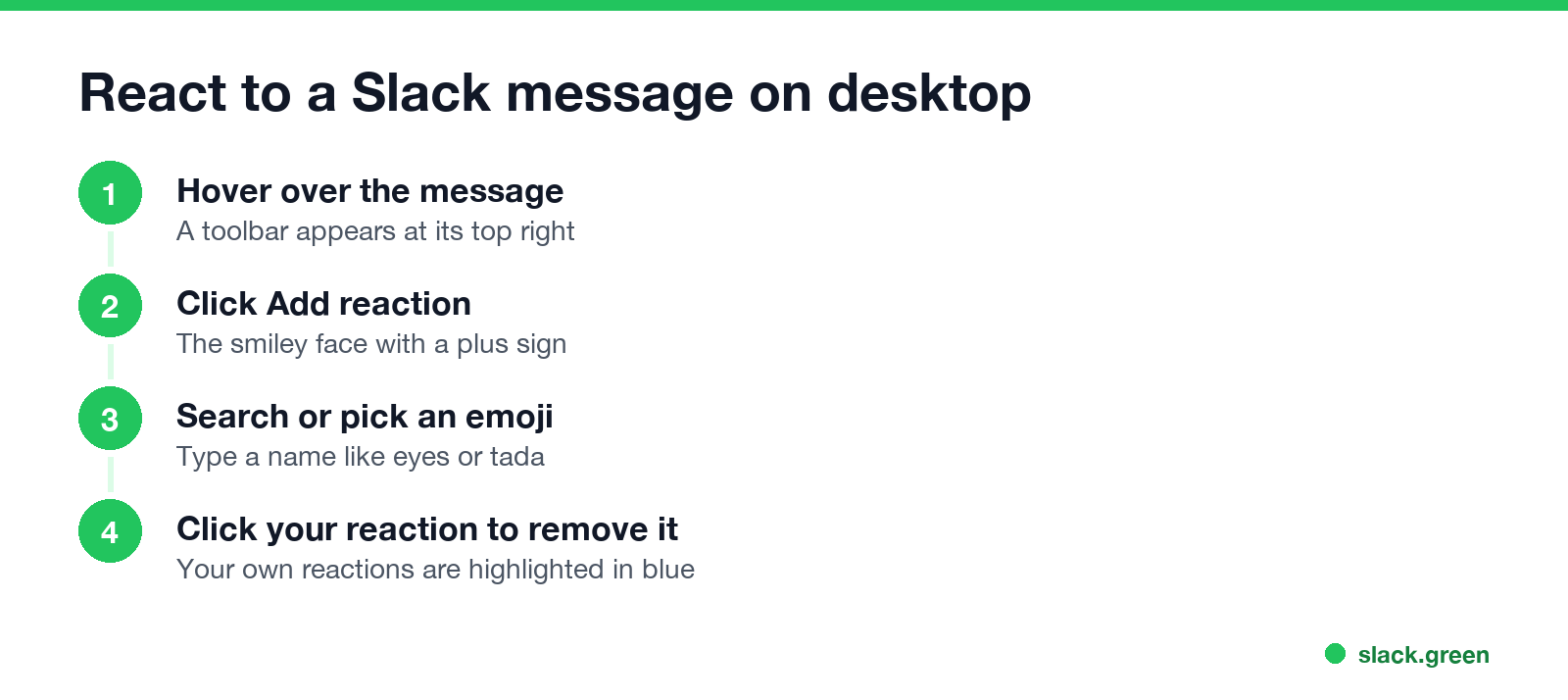
- Hover over the message you want to react to. A small toolbar appears at its top right.
- Click Add reaction, the smiley face with a plus sign.
- Pick an emoji, or type a word such as
tadaoreyesin the search box. - The reaction appears under the message with a count. Your own reactions are highlighted in blue; click one again to remove it.
- • One-click reactions are the three emoji Slack shows when you hover. Owners and admins set the defaults for the workspace in Tools & settings, Customize, Emoji. You can change yours in Preferences, Messages & media, Emoji: turn Show one-click reactions on messages on or off, and choose My most frequently used emoji or Custom.
- • The shortcut depends on your keyboard layout. Slack's shortcut list shows other keys in place of the backslash on other layouts, such as # or _. See Slack keyboard shortcuts for the full list.
- •
+:emoji:works with any standard or custom emoji code, so+:white_check_mark:marks the last message as done. The codes are in our Slack emoji codes list. - • The R key works after you move focus onto a message. It sits with the other one-key message actions: E to edit, T to open a thread, P to pin.
To see who reacted, hover over a reaction. To add the same reaction someone else already added, click it; the count goes up by one.
Six ways to add a reaction in Slack
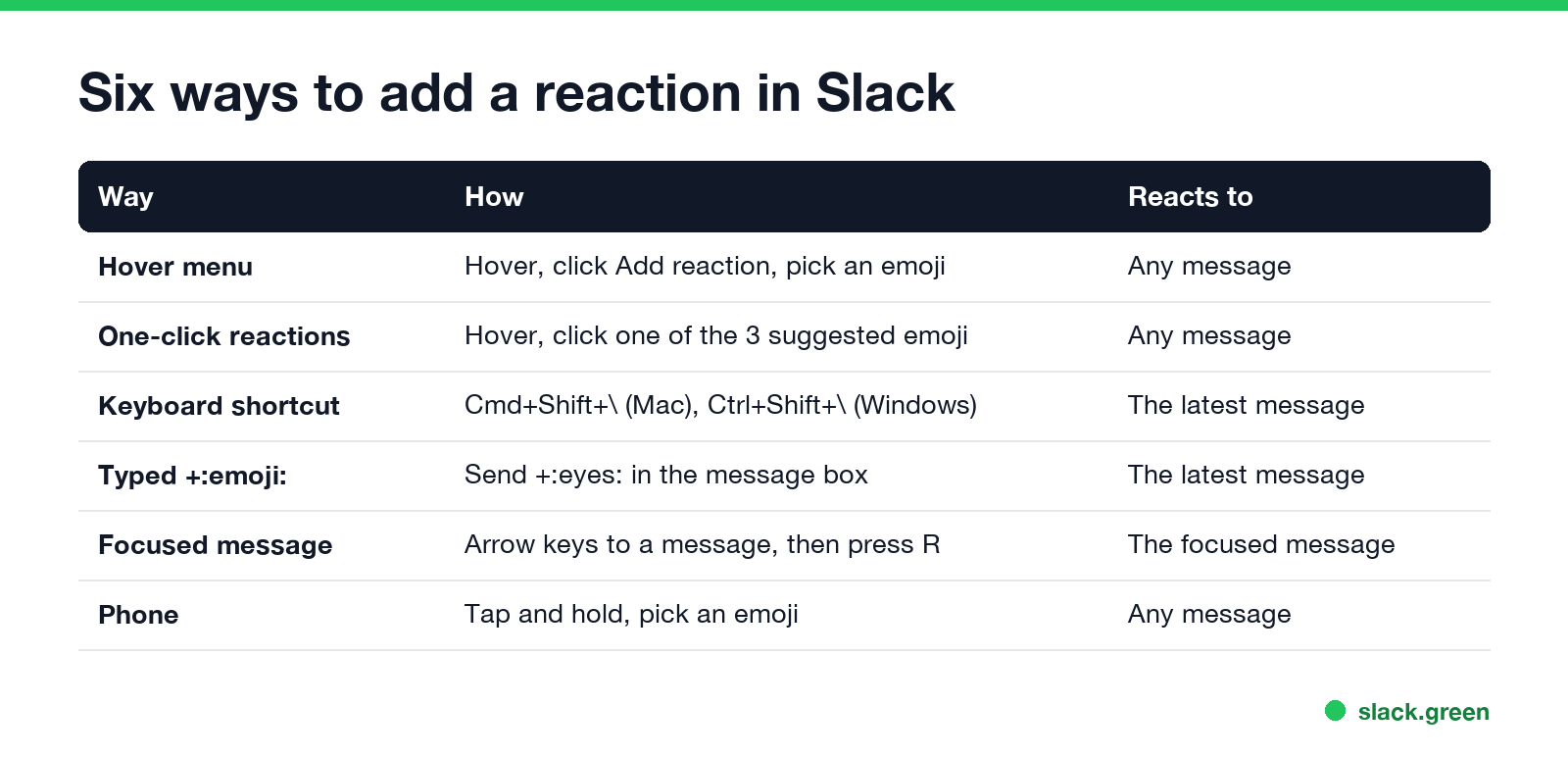
| Way | How | Reacts to |
|---|---|---|
| Hover menu | Hover, click Add reaction, pick an emoji | Any message |
| One-click reactions | Hover, click one of the 3 suggested emoji | Any message |
| Keyboard shortcut | Cmd+Shift+\ (Mac) or Ctrl+Shift+\ (Windows, Linux) | The latest message |
Typed +:emoji: | Send +:thumbsup: or +:eyes: in the message box | The latest message |
| Focused message | Move to a message with the arrow keys, press R | The focused message |
| Phone | Tap and hold the message, pick an emoji | Any message |
Details for each:
How to react on iPhone and Android
Never appear "away" on Slack again
Cloud-based. No downloads. Works 24/7 even when your laptop is off.
Slack's iOS note is worth knowing: the phone keyboard's emoji button inserts Apple emoji into a message, but Slack's own and custom emoji come from typing their code or from the reaction menu.
React with a custom emoji
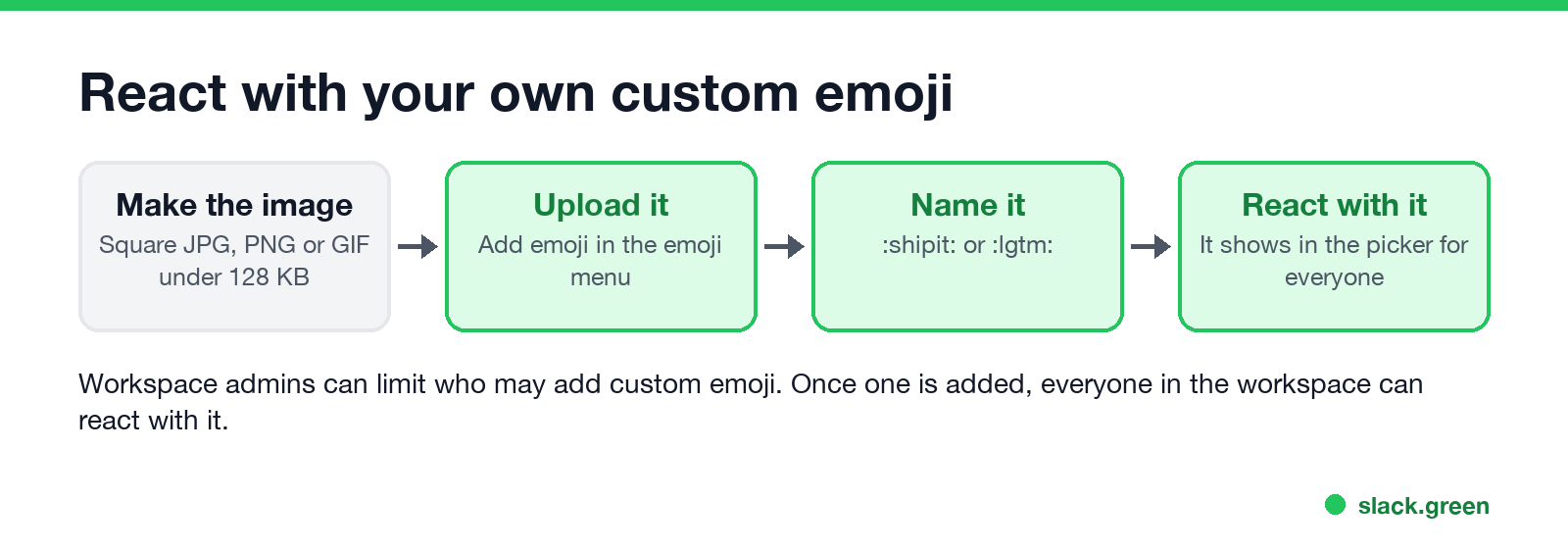
Any custom emoji your workspace has added shows up in the reaction menu for everyone. Search it by name, or send +:its-name:. To add your own:
:lgtm: or :shipit:, then react with it.For ideas, see 40 Slack emoji ideas for work. What the common reactions mean inside a team is in what does the eyes emoji mean in Slack, and ready-made thank-you reactions are in Slack emoji for thank you.
Reply to a specific message instead
A reaction is a one-emoji answer. When you need words, pick one of these:
> before the text you are answering. See how to quote a message in Slack.Add a reaction with the Slack API
Never appear "away" on Slack again
Cloud-based. No downloads. Works 24/7 even when your laptop is off.
Bots and scripts add reactions with the reactions.add method. It needs the reactions:write scope, the channel ID, the message timestamp (ts) and the emoji name without colons:
curl -X POST https://slack.com/api/reactions.add \
  -H "Authorization: Bearer $SLACK_BOT_TOKEN" \
  -H "Content-Type: application/json" \
  -d '{"channel": "C0123456789", "timestamp": "1727488800.123456", "name": "white_check_mark"}'
The same call from Python with the official slack_sdk package:
import os
from slack_sdk import WebClient

client = WebClient(token=os.environ["SLACK_BOT_TOKEN"])
client.reactions_add(channel="C0123456789", timestamp="1727488800.123456", name="thumbsup::skin-tone-3")
A success returns {"ok": true}. Skin tones go after the name, like thumbsup::skin-tone-3 (2 to 6). Common errors from Slack's docs: already_reacted when that emoji is already there from you, too_many_emoji when the message has hit the limit for different emoji, and too_many_reactions when you have hit your own limit on that message. To turn a message ts into a readable time, or to build a date that shows in each reader's time zone, use our Slack timestamp tool.
FAQ
How do I react to a message in Slack?
Hover over it, click Add reaction and pick an emoji. On a phone, tap and hold the message.
What is the Slack shortcut to add a reaction?
Cmd+Shift+\ on a Mac, Ctrl+Shift+\ on Windows and Linux. It opens the reaction menu for the most recent message. With a message focused, press R.
How do I react to the last message without the mouse?
Type +:emoji:, for example +:thumbsup:, and press Enter. Slack adds the reaction and sends no message.
How do I remove a reaction in Slack?
Click or tap your reaction under the message. Yours are highlighted in blue.
Can I react with a custom emoji?
Yes. Any custom emoji added to your workspace is in the reaction menu. Make one with our Slack emoji maker.
Can people see who reacted to a message?
Yes. Hover over a reaction on desktop, or tap and hold it on a phone, to see the names.
Stop Jiggling Your Mouse.
Join hundreds of remote workers who never worry about their Slack status. Set it up once, stay green forever.
Related Articles
Slack Emoji for Approved, Perfect and Sounds Good
The Slack emoji for approved is ✅ :white_check_mark:. For perfect, use 💯 :100: or 🤌 :pinched_fingers:; for sounds good or sure, 👍 :+1: or 👌 :ok_hand:. Every code checked in Slack, what each one means to readers, custom LGTM and SGTM emoji, and a pinned legend for approval channels.
Tips for Working Across Time Zones: 10 Habits That Work
Working across time zones works when the team writes things down, keeps a short overlap window for live talk, says the zone with every time, and lets tools deliver messages in each person's working hours. Ten habits, a follow-the-sun handoff note, the Slack settings that help, and a script that shows your team's local times.
Slack Emoji for OOO, PTO and Days Off
The usual Slack emoji for OOO is 🌴 :palm_tree:, with ✈️ :airplane: for travel and 🗓️ :spiral_calendar_pad: for planned PTO. Enterprise's built-in Out of office status uses ⛔. Codes for vacation, upcoming PTO, sick days, holidays and outages, custom :ooo: and :pto: emoji, and statuses to copy.