
Teams Busy Light: Status Lights That Follow Your Teams Status
A Teams status light is a USB or Bluetooth busy light that copies your Microsoft Teams presence: green when Available, red in a call or on Do not disturb. Luxafor, Kuando and Embrava sell them; PresenceLight and a short Graph API script do it free with a smart bulb. The light shows your status; it cannot change it.
A Teams status light, often sold as a Teams busy light, is a small light on your desk or door that copies your Microsoft Teams presence. It turns green when you are Available, red when you are in a call, in a meeting or on Do not disturb, and yellow or off when you are Away. Teams paints its own badges in exactly those colors: we read them from Microsoft's Fluent UI code, and the RGB values are in the table below. The common lights are the Luxafor Flag (EUR 27.20 to 28.80 on Luxafor's site on 2026-09-25), the Kuando Busylight UC ("under $50" per its maker) and the Embrava Blynclight. Each plugs in over USB, and its desktop app signs in to your Microsoft account and follows your status. For free, the open-source PresenceLight app or a short script against the Microsoft Graph presence API can drive a Philips Hue, LIFX or WLED light.
A status light only shows what Teams already decided. If Teams sets you Away after about 5 minutes without input, the light changes to the Away color too. Slack keeps its own status, and it goes grey after 10 minutes without input on the computer. Lights that also follow Slack, like Luxafor and Embrava, show that Slack status as well.
How a Teams status light works
- Teams sets your presence from your activity, your Outlook calendar and your calls. Outlook and the people card read the same presence; see Microsoft Teams status icons meaning.
- The vendor app reads it. You install the light's app and sign in with your work account. Luxafor's own FAQ describes it this way: open the Microsoft Teams tab in the app, sign in, and "your Flag then follows your Teams status". Apps that use Microsoft Graph ask for the Presence.Read permission.
- The light changes color, usually within a few seconds of a status change. The app must keep running; if it is closed, the light stops following.
Some companies block third-party apps from reading Microsoft 365 data. If the sign-in shows "Need admin approval", ask IT, or use a light your company already approved.
Teams status lights compared
| Light | Connection | How it follows Teams | Price |
|---|---|---|---|
| Luxafor Flag | USB-A or USB-C, magnet mount | Luxafor app on Windows or macOS | EUR 27.20 to 28.80 on luxafor.com |
| Kuando Busylight UC Alpha or Omega | USB, built-in speaker and ringer | Busylight UC software | "Under $50" per busylight.com |
| Embrava Blynclight | USB | Embrava Connect, which Embrava calls a Microsoft-certified Teams integration | Not listed on embrava.com |
| Headset busy light (for example Jabra Evolve2) | Built into the headset | Lights red during calls | Part of the headset |
| Smart bulbs with PresenceLight | Wi-Fi: Philips Hue, LIFX, Yeelight, WiZ, WLED | Free, open-source, Graph presence API | Free app plus a bulb |
| Your own script | Any light with an API | Your own Graph app, see below | Free |
Luxafor, Kuando and Embrava also follow Zoom and Slack. The Kuando Busylight doubles as a ringer for incoming calls. A light outside a door ("on air" style) is the same device on a longer cable, or a Wi-Fi bulb driven by PresenceLight.
What each light color means
Teams does not use a generic green and red. Its presence badge comes from Microsoft's Fluent UI library, where each status maps to a color token. We ran a short Node script against @fluentui/react-badge 9.5.7 (the PresenceBadge styles) and @fluentui/tokens (the Teams light and dark themes) on 3 November 2026 to read the exact values:
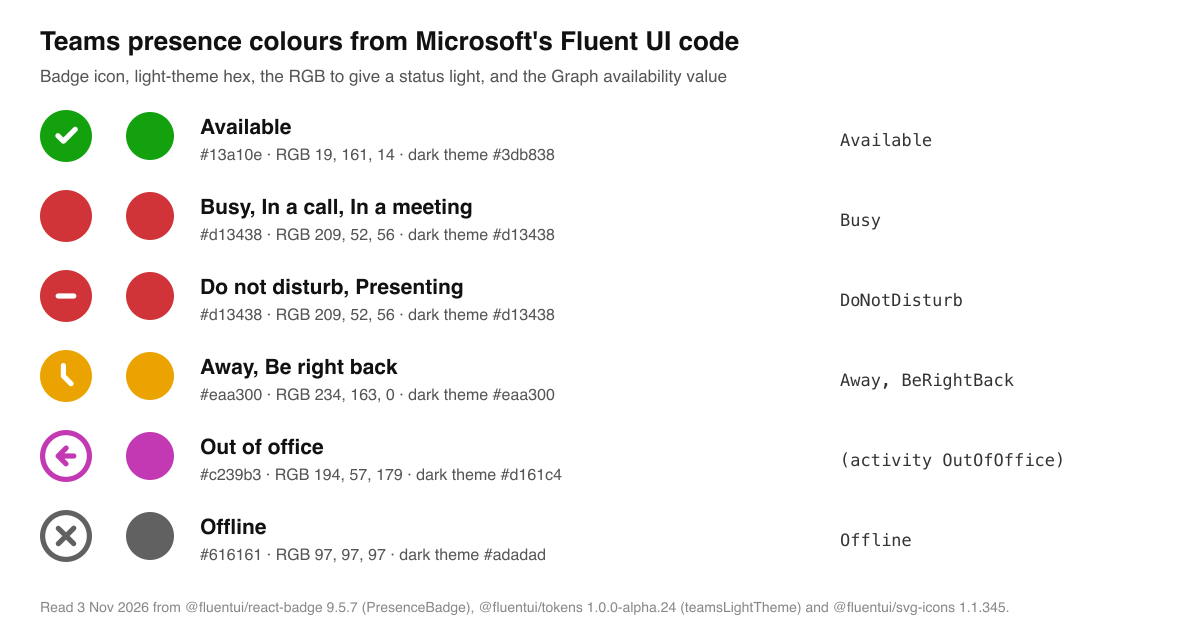
| Teams status | Graph availability value | Teams badge color | RGB for your light |
|---|---|---|---|
| Available | Available, AvailableIdle | Green #13a10e | 19, 161, 14 |
| Busy, In a meeting, In a call | Busy, BusyIdle | Red #d13438 | 209, 52, 56 |
| Do not disturb, Presenting, Focusing | DoNotDisturb | Red #d13438, with a white bar | 209, 52, 56 |
| Be right back | BeRightBack | Yellow #eaa300 | 234, 163, 0 |
| Away | Away | Yellow #eaa300, or off | 234, 163, 0 |
| Out of office | activity OutOfOffice | Purple #c239b3 | 194, 57, 179 |
| Offline | Offline | Grey #616161, or off | off |
The script printed this, one line per badge style:
status                                 token                              light    dark     RGB (light)
Available                              colorPaletteLightGreenForeground3  #13a10e  #3db838  19, 161, 14
Busy, In a call, In a meeting          colorPaletteRedBackground3         #d13438  #d13438  209, 52, 56
Do not disturb, Presenting, Focusing   colorPaletteRedBackground3         #d13438  #d13438  209, 52, 56
Away, Be right back                    colorPaletteMarigoldBackground3    #eaa300  #eaa300  234, 163, 0
Out of office                          colorPaletteBerryForeground3       #c239b3  #d161c4  194, 57, 179
Offline                                colorNeutralForeground3            #616161  #adadad  97, 97, 97
Busy and Do not disturb share one red; Teams tells them apart by the icon, a plain dot against a dot with a white bar. A single-color light cannot show that difference, so if you need it, give Do not disturb a blinking pattern in the vendor app. The same file maps Be right back to the Away badge, which is why both are yellow.
Most apps let you change the colors. Busy and In a meeting both return Busy from Graph; the difference is in the activity field, explained in Teams Busy vs In a meeting. The yellow clock that goes with Away is in what does the yellow clock mean in Outlook.
Build a free Teams status light with the Graph API
Microsoft Graph returns your presence at GET https://graph.microsoft.com/v1.0/me/presence, with an availability value from the table above and an activity value such as InACall or Presenting. The script below signs you in once with a device code, then reads your presence every 30 seconds and picks a color. You need an app registration in Microsoft Entra ID with the delegated Presence.Read permission and public client flows turned on, which some companies let only IT create.
# teams_light.py: read your Teams presence every 30 s and pick a light color
# pip install msal requests
import time
import msal
import requests

CLIENT_ID = "00000000-0000-0000-0000-000000000000"  # your Entra ID app (public client)
SCOPES = ["Presence.Read"]
COLORS = {  # Teams' own badge colors, from Fluent UI (RGB)
    "Available": (19, 161, 14), "AvailableIdle": (19, 161, 14),
    "Busy": (209, 52, 56), "BusyIdle": (209, 52, 56), "DoNotDisturb": (209, 52, 56),
    "BeRightBack": (234, 163, 0), "Away": (234, 163, 0),
}

app = msal.PublicClientApplication(
    CLIENT_ID, authority="https://login.microsoftonline.com/organizations")
flow = app.initiate_device_flow(scopes=SCOPES)
print(flow["message"])  # open the link and type the code once
app.acquire_token_by_device_flow(flow)

while True:
    token = app.acquire_token_silent(SCOPES, account=app.get_accounts()[0])
    presence = requests.get(
        "https://graph.microsoft.com/v1.0/me/presence",
        headers={"Authorization": "Bearer " + token["access_token"]},
        timeout=30,
    ).json()
    color = COLORS.get(presence["availability"])  # None means off
    print(presence["availability"], presence["activity"], "->", color)
    # send `color` to your light here: a Hue or WLED HTTP call, a serial write, ...
    time.sleep(30)
Replace the print line with a call to your light. A Philips Hue bulb takes an HTTP PUT on its bridge, a WLED strip takes a JSON POST, and a USB light with a serial port takes a write. PresenceLight does all of this without code on Windows. Its README notes that its web and container versions stopped working after changes at Microsoft, so on Linux or a Raspberry Pi you need your own app registration, as in the script. For Slack, the same idea works with the Slack API; see the Slack presence API.
A status light does not keep you green
A light copies your status in both directions. If you read a long document without touching the mouse, Teams marks you Away after about 5 minutes and the light follows. If you lock the computer, Away is immediate. To stay Available while you work, the options are in how to keep Teams status available, and if you are Away while typing, see Teams status stuck on Away. The timings are in how long before Teams shows you as Away.
For Slack, a light that follows Slack shows green only while Slack thinks you are active: 10 minutes after your last keyboard or mouse input on the computer, it goes away.
FAQ
What is a Teams status light?
A USB, Bluetooth or Wi-Fi light that shows your Microsoft Teams presence as a color, so people near your desk or door can see if you are free.
Does Microsoft make a Teams status light?
No. Luxafor, Kuando (Plenom), Embrava and headset makers sell them, and Embrava's Blynclight uses a Teams integration it calls Microsoft-certified.
Can a busy light set my Teams status?
No. The light shows the status Teams sets. It cannot stop Teams from setting you Away when you are idle.
Does a Teams status light work on Mac?
The Luxafor app supports Teams on Windows and macOS. Check each vendor for Linux; PresenceLight's desktop app is Windows only.
Do I need admin rights?
Not usually for the app, but reading presence needs your company to allow the app to sign in with your Microsoft account.
Related Articles
Teams Status on Multiple Devices: The Last Device You Used Wins
Signed in to Teams on a computer and a phone? Your status comes from the device you used most recently. That is why a quick look at your phone can turn you Away, and why a phone in your pocket shows Away instead of Offline at night.
What Does Inactive Mean on Teams? It Is the Automatic Away
Inactive on Microsoft Teams means Teams set you to Away by itself: about 5 minutes with no input on the computer, a locked screen, or the phone app in the background. How it differs from Appear away, Be right back and Offline.
How Long Before Teams Goes Yellow (Away)? About 5 Minutes
Microsoft Teams sets you to Away after a few minutes without keyboard or mouse input on your computer, about 5 minutes in practice, at once when you lock the computer, and when the phone app goes to the background. Sleep shows Offline. Every Teams timer, and how it differs from Slack.