
Teams Status Light: Busy Lights That Follow Your Teams Status
A Teams status light is a USB or Bluetooth busy light that copies your Microsoft Teams presence: green when Available, red in a call or on Do not disturb. Luxafor, Kuando and Embrava sell them; PresenceLight and a short Graph API script do it free with a smart bulb. The light shows your status; it cannot change it.
A Teams status light is a small light on your desk or door that copies your Microsoft Teams presence. It turns green when you are Available, red when you are in a call, in a meeting or on Do not disturb, and yellow or off when you are Away. The common ones are the Luxafor Flag (EUR 27.20 to 28.80 on Luxafor's site on 2026-09-25), the Kuando Busylight UC ("under $50" per its maker) and the Embrava Blynclight. Each plugs in over USB, and its desktop app signs in to your Microsoft account and follows your status. For free, the open-source PresenceLight app or a short script against the Microsoft Graph presence API can drive a Philips Hue, LIFX or WLED light.
A status light only shows what Teams already decided. If Teams sets you Away after about 5 minutes without input, the light changes to the Away color too. Slack keeps its own status, and it goes grey after 10 minutes without input in the Slack window. Slack Green keeps your Slack status active during the hours you set, from the cloud, and lights that also follow Slack, like Luxafor and Embrava, then show it green.
How a Teams status light works
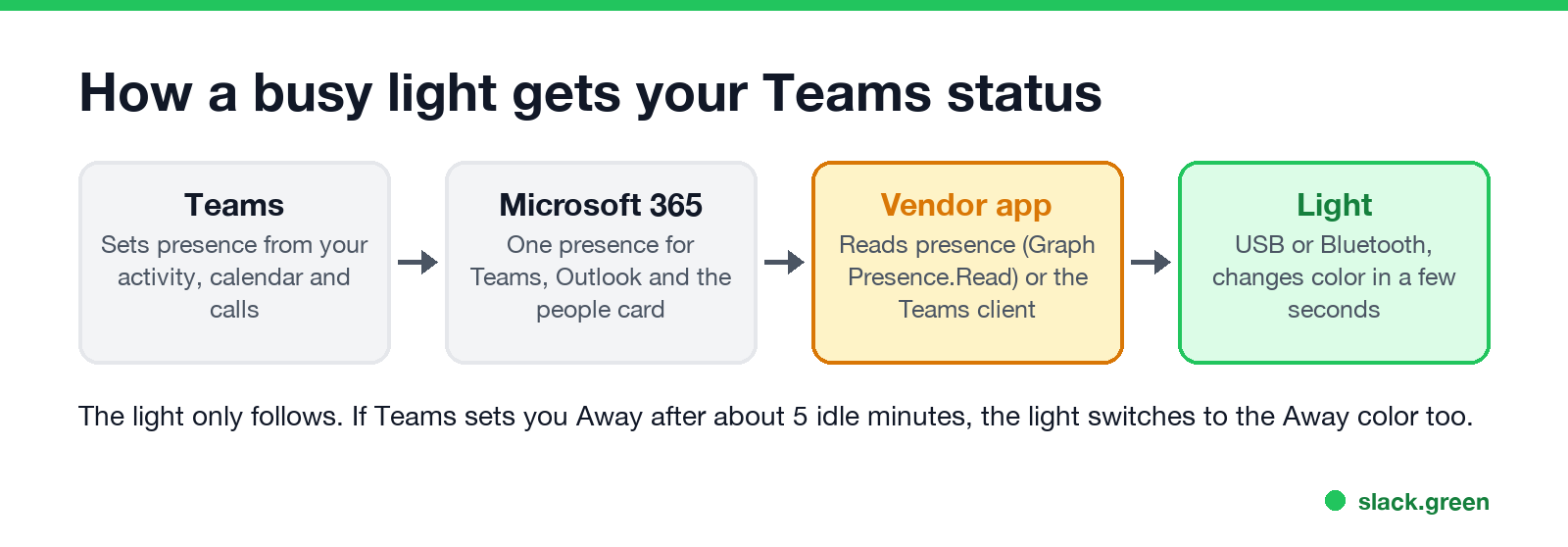
- Teams sets your presence from your activity, your Outlook calendar and your calls. Outlook and the people card read the same presence; see Microsoft Teams status icons meaning.
- The vendor app reads it. You install the light's app and sign in with your work account. Luxafor's own FAQ describes it this way: open the Microsoft Teams tab in the app, sign in, and "your Flag then follows your Teams status". Apps that use Microsoft Graph ask for the Presence.Read permission.
- The light changes color, usually within a few seconds of a status change. The app must keep running; if it is closed, the light stops following.
Some companies block third-party apps from reading Microsoft 365 data. If the sign-in shows "Need admin approval", ask IT, or use a light your company already approved.
Teams status lights compared
| Light | Connection | How it follows Teams | Price |
|---|---|---|---|
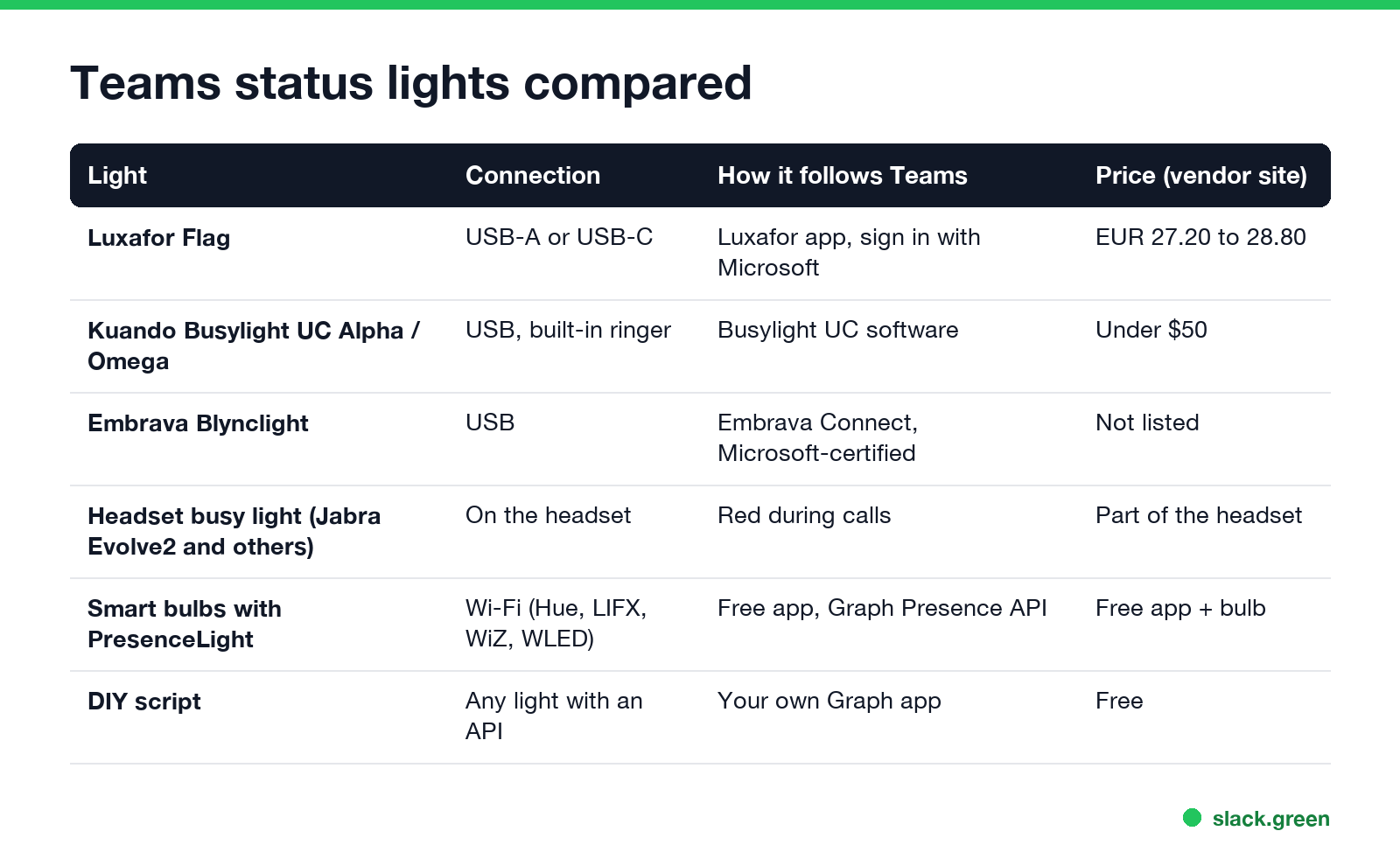
| Luxafor Flag | USB-A or USB-C, magnet mount | Luxafor app on Windows or macOS | EUR 27.20 to 28.80 on luxafor.com |
| Kuando Busylight UC Alpha or Omega | USB, built-in speaker and ringer | Busylight UC software | "Under $50" per busylight.com |
| Embrava Blynclight | USB | Embrava Connect, which Embrava calls a Microsoft-certified Teams integration | Not listed on embrava.com |
| Headset busy light (for example Jabra Evolve2) | Built into the headset | Lights red during calls | Part of the headset |
| Smart bulbs with PresenceLight | Wi-Fi: Philips Hue, LIFX, Yeelight, WiZ, WLED | Free, open-source, Graph presence API | Free app plus a bulb |
| Your own script | Any light with an API | Your own Graph app, see below | Free |
Luxafor, Kuando and Embrava also follow Zoom and Slack. The Kuando Busylight doubles as a ringer for incoming calls. A light outside a door ("on air" style) is the same device on a longer cable, or a Wi-Fi bulb driven by PresenceLight.
What each light color means
Never appear "away" on Slack again
Cloud-based. No downloads. Works 24/7 even when your laptop is off.
| Teams status | Graph availability value | Usual light color |
|---|---|---|
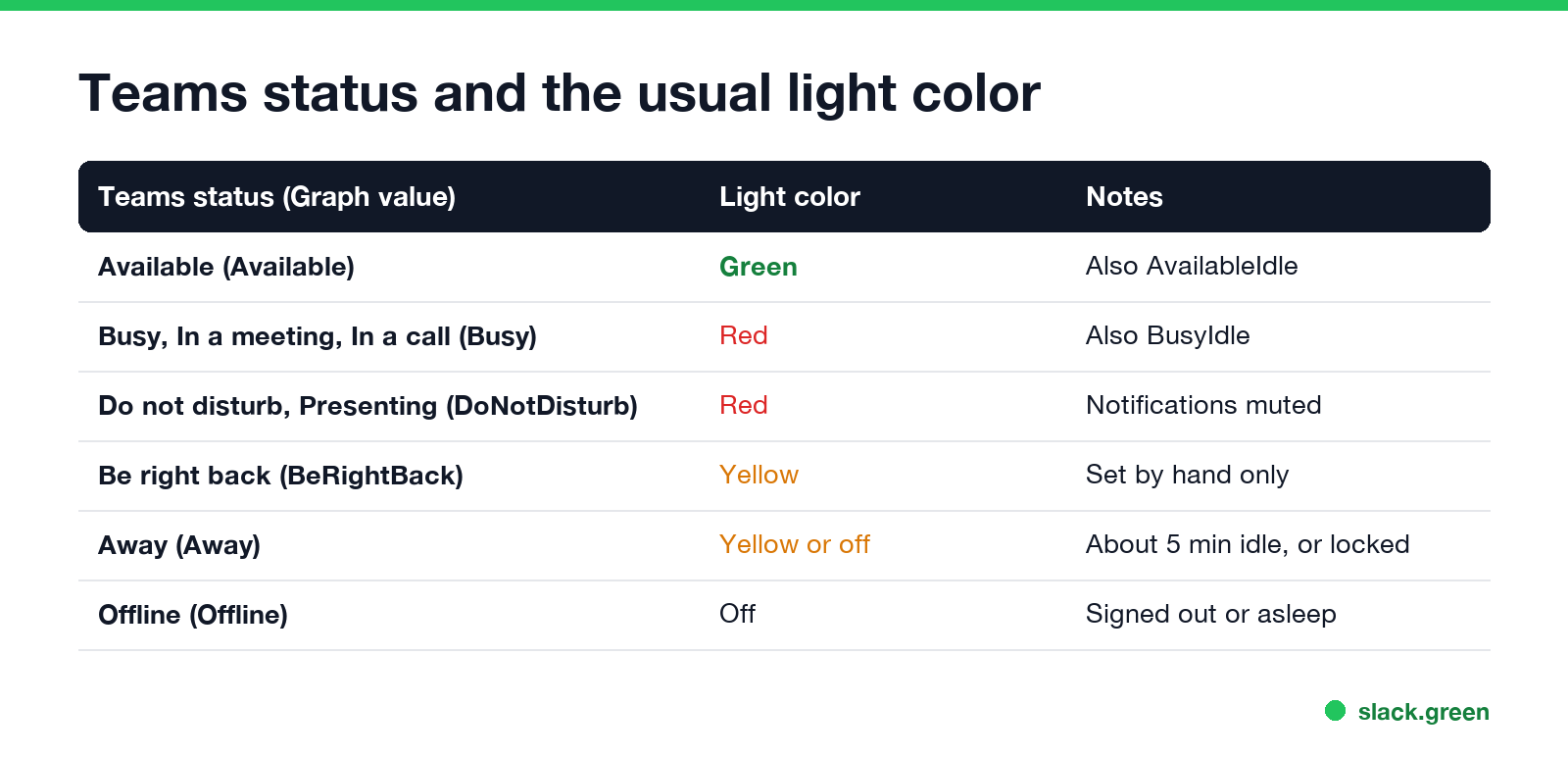
| Available | Available, AvailableIdle | Green |
| Busy, In a meeting, In a call | Busy, BusyIdle | Red |
| Do not disturb, Presenting, Focusing | DoNotDisturb | Red |
| Be right back | BeRightBack | Yellow |
| Away | Away | Yellow, or off |
| Offline | Offline | Off |
Most apps let you change the colors. Busy and In a meeting both return Busy from Graph; the difference is in the activity field, explained in Teams Busy vs In a meeting. The yellow clock that goes with Away is in what does the yellow clock mean in Outlook.
Build a free Teams status light with the Graph API
Microsoft Graph returns your presence at GET https://graph.microsoft.com/v1.0/me/presence, with an availability value from the table above and an activity value such as InACall or Presenting. The script below signs you in once with a device code, then reads your presence every 30 seconds and picks a color. You need an app registration in Microsoft Entra ID with the delegated Presence.Read permission and public client flows turned on, which some companies let only IT create.
# teams_light.py: read your Teams presence every 30 s and pick a light color
# pip install msal requests
import time
import msal
import requests

CLIENT_ID = "00000000-0000-0000-0000-000000000000"  # your Entra ID app (public client)
SCOPES = ["Presence.Read"]
COLORS = {
    "Available": "green", "AvailableIdle": "green",
    "Busy": "red", "BusyIdle": "red", "DoNotDisturb": "red",
    "BeRightBack": "yellow", "Away": "yellow",
}

app = msal.PublicClientApplication(
    CLIENT_ID, authority="https://login.microsoftonline.com/organizations")
flow = app.initiate_device_flow(scopes=SCOPES)
print(flow["message"])  # open the link and type the code once
app.acquire_token_by_device_flow(flow)

while True:
    token = app.acquire_token_silent(SCOPES, account=app.get_accounts()[0])
    presence = requests.get(
        "https://graph.microsoft.com/v1.0/me/presence",
        headers={"Authorization": "Bearer " + token["access_token"]},
        timeout=30,
    ).json()
    color = COLORS.get(presence["availability"], "off")
    print(presence["availability"], presence["activity"], "->", color)
    # send `color` to your light here: a Hue or WLED HTTP call, a serial write, ...
    time.sleep(30)
Replace the print line with a call to your light. A Philips Hue bulb takes an HTTP PUT on its bridge, a WLED strip takes a JSON POST, and a USB light with a serial port takes a write. PresenceLight does all of this without code on Windows. Its README notes that its web and container versions stopped working after changes at Microsoft, so on Linux or a Raspberry Pi you need your own app registration, as in the script. For Slack, the same idea works with the Slack API; see the Slack presence API.
A status light does not keep you green
A light copies your status in both directions. If you read a long document without touching the mouse, Teams marks you Away after about 5 minutes and the light follows. If you lock the computer, Away is immediate. To stay Available while you work, the options are in how to keep Teams status available, and if you are Away while typing, see Teams status stuck on Away. The timings are in how long before Teams shows you as Away.
For Slack, a light that follows Slack shows green only while Slack thinks you are active: 10 minutes after your last input in the Slack window, it goes away. Slack Green keeps your Slack status active from our servers during the hours you set, with nothing installed on the computer.
FAQ
Never appear "away" on Slack again
Cloud-based. No downloads. Works 24/7 even when your laptop is off.
What is a Teams status light?
A USB, Bluetooth or Wi-Fi light that shows your Microsoft Teams presence as a color, so people near your desk or door can see if you are free.
Does Microsoft make a Teams status light?
No. Luxafor, Kuando (Plenom), Embrava and headset makers sell them, and Embrava's Blynclight uses a Teams integration it calls Microsoft-certified.
Can a busy light set my Teams status?
No. The light shows the status Teams sets. It cannot stop Teams from setting you Away when you are idle.
Does a Teams status light work on Mac?
The Luxafor app supports Teams on Windows and macOS. Check each vendor for Linux; PresenceLight's desktop app is Windows only.
Do I need admin rights?
Not usually for the app, but reading presence needs your company to allow the app to sign in with your Microsoft account.
Stop Jiggling Your Mouse.
Join hundreds of remote workers who never worry about their Slack status. Set it up once, stay green forever.
Related Articles
How to Send a Slack Message From GitHub Actions
Add slackapi/slack-github-action@v4.0.0 as a step, give it a bot token or an incoming webhook URL from repository secrets, and write the message as YAML. Working workflows for failure alerts, threads and message updates, plus a curl version with no third-party action.
Slack Audit Logs: What They Record, Who Sees Them, and the API
Slack audit logs record actions across an Enterprise organization, such as sign-ins with IP address, file downloads, channel joins and app installs, not message text. Where admins view and export them, what the 785 action types cover, and how to pull them with the Audit Logs API.
LinkedIn Active Status: What the Green Dot Means and How to Hide It
On LinkedIn, a solid green dot on someone's photo means they are active on LinkedIn now. A hollow green circle means they are not, but the mobile app will notify them at once. Turn yours off under Settings & Privacy, Visibility, Manage active status; with No one, you also stop seeing other people's status.