
Can Hubstaff Detect a Mouse Jiggler? What It Tracks and Flags
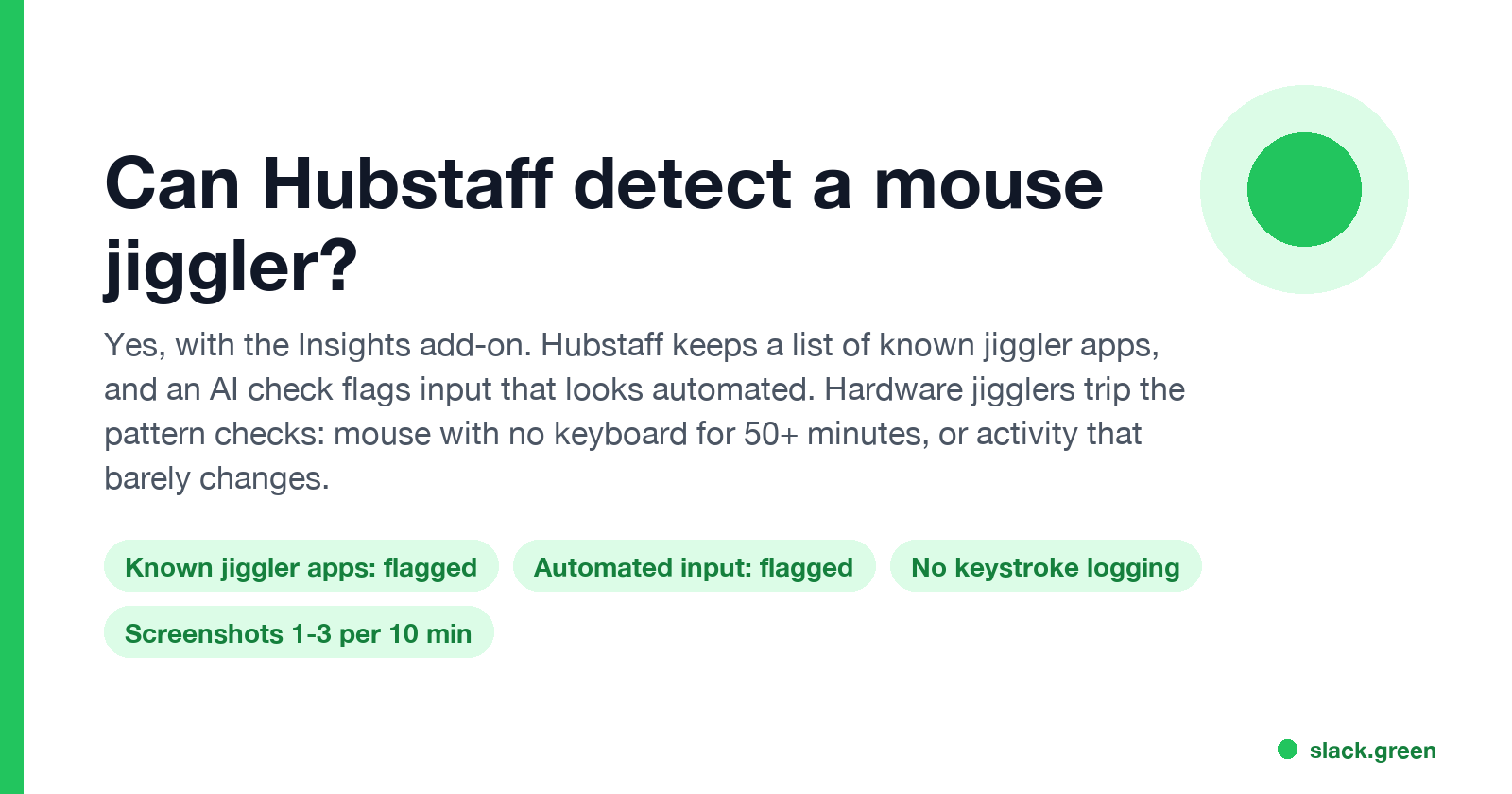
Yes. With Hubstaff Insights, Hubstaff flags known mouse jiggler apps by name and uses an AI check to flag input that looks automated. Hardware jigglers trip pattern checks such as mouse use with no keyboard for 50 minutes. What Hubstaff records, what it does not, and what managers see.
Yes, Hubstaff can detect a mouse jiggler if your company uses Hubstaff Insights, which is included on the Team and Enterprise plans and is a paid add-on on others. Hubstaff keeps a list of apps "known to simulate keyboard and/or mouse activity" and logs them by name when they run during tracked time. An AI check also flags input whose pattern "matches the patterns produced by tools that simulate work, such as mouse jigglers and auto-clickers". A USB jiggler is not an app, but it still trips the pattern checks, such as mouse movement with almost no keyboard use for more than 50 minutes. Managers see the flags the next day.
We build Slack Green, which keeps your Slack status active from a server during the hours you set. It runs nothing on your computer and does not create activity in Hubstaff or any other time tracker. We wrote this page because people ask us whether the tools that fake mouse input are safe to use at work, and Hubstaff documents its checks in more detail than most.
How Hubstaff detects a mouse jiggler
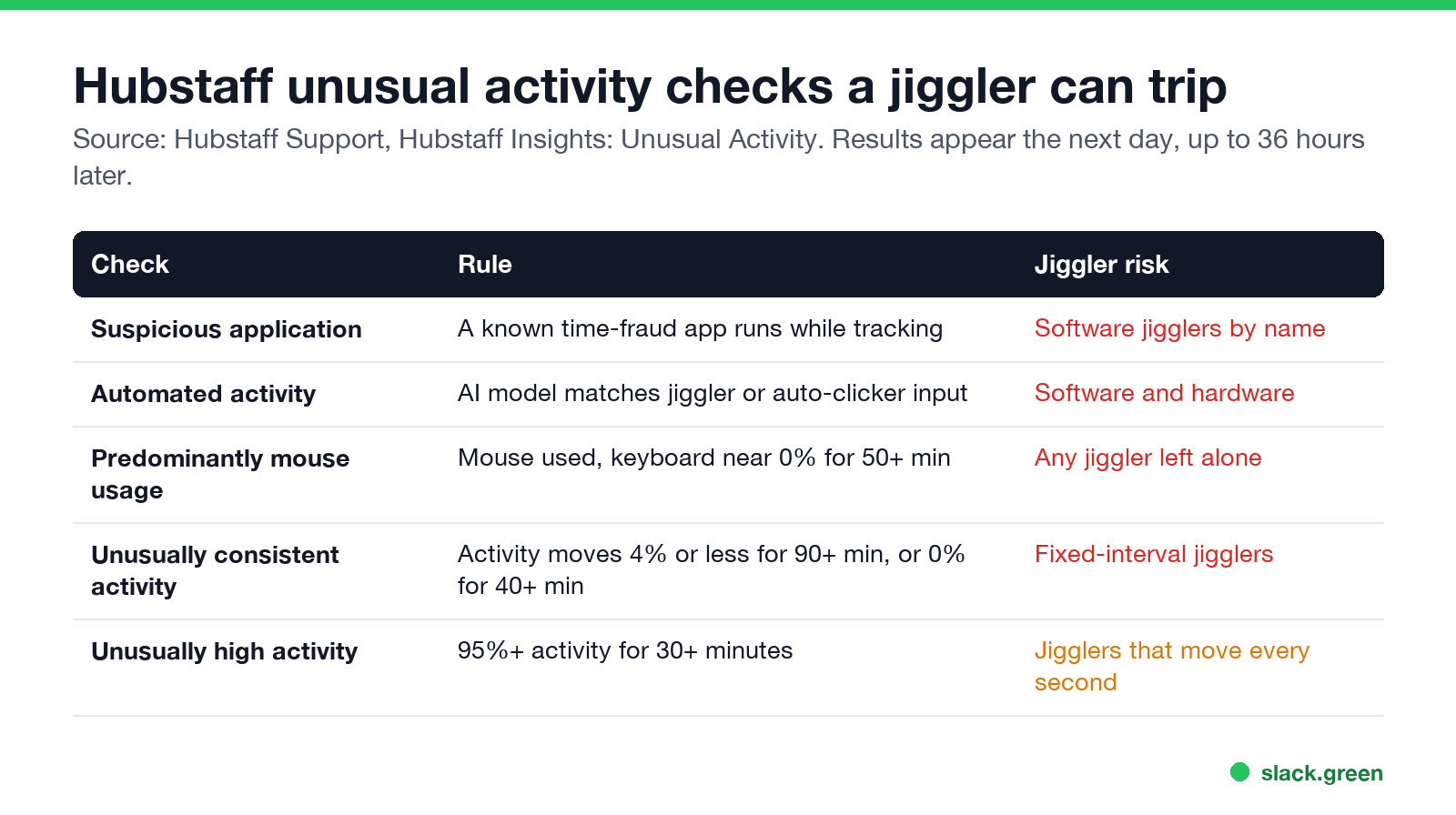
Hubstaff's support article "Hubstaff Insights: Unusual Activity" lists the checks. Five of them matter for a jiggler:
| Check | Rule, from Hubstaff Support | What it catches |
|---|---|---|
| Suspicious application detection | A known time-fraud app runs on the device during tracked time | Software jigglers and auto-clickers, by name |
| Automated activity | An AI model compares your input with known human and automated input | Simulated input, software or hardware |
| Predominantly mouse usage | The mouse is used while the keyboard stays near 0% for over 50 minutes | Any jiggler left running while you are away |
| Unusually consistent activity | Activity changes by 4% or less for 90+ minutes, or by 0% for 40+ minutes | Jigglers that move on a fixed timer |
| Unusually high activity | Activity stays at 95% or higher for 30+ minutes | Jigglers that move every second |
A few details from the same article:
- • Unusual activity is calculated "the next day, up to 36 hours from the specific date". Nothing pops up on your screen when it flags you.
- • Owners and managers see a widget in Hubstaff and get an email.
- • Each flag gets a label, Highly unusual or Unusual, and is kept with the date, time and duration.
- • Hubstaff says automated activity "is flagged every time simulated input is detected" and calls that signal "strong and worth investigating".
Hubstaff also says a flag "does not always mean it is malicious or even wrong". A designer who uses only the mouse for an hour can trip the mouse check. A jiggler is different, because it produces the same pattern for hours.
Can Hubstaff detect a hardware mouse jiggler?
A USB jiggler shows up to the computer as an ordinary mouse, so the suspicious application check does not see it. The pattern checks still apply. A jiggler moves the mouse and never types, so an hour away from the desk looks like "predominantly mouse usage". Most jigglers move on a fixed timer, so your activity rate stays flat, which is the "unusually consistent activity" pattern. The AI check looks at the shape of the input itself, so it does not matter which device sent it.
Screenshots add a second problem. Hubstaff takes 1 to 3 screenshots in every 10-minute block. A screenshot of the same screen, with the cursor in a slightly different place, next to a steady activity bar, is easy for a manager to read. Detection methods for other tools are in can a mouse jiggler be detected.
What Hubstaff tracks
Never appear "away" on Slack again
Cloud-based. No downloads. Works 24/7 even when your laptop is off.
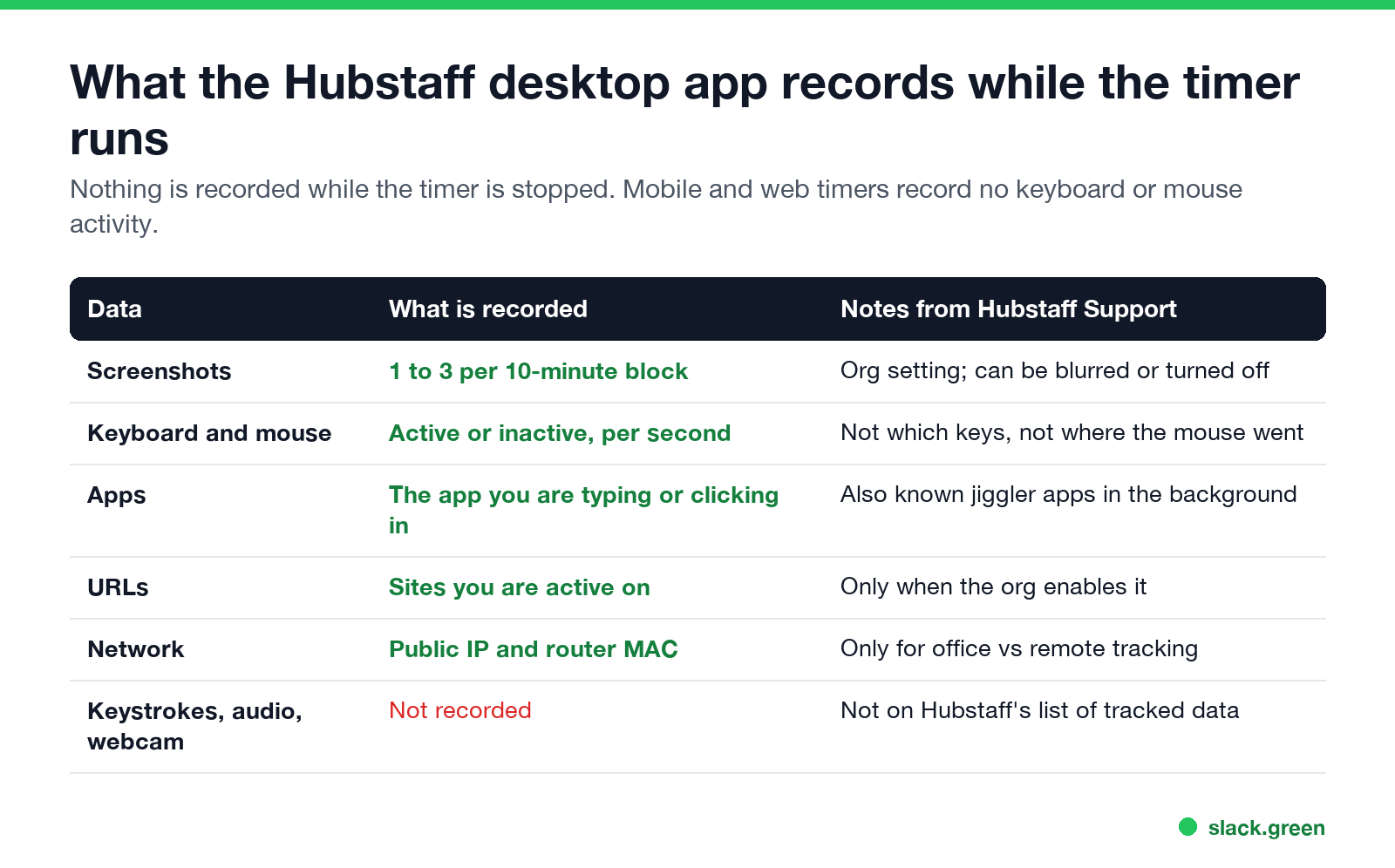
Hubstaff's page "What does the Desktop timer application track?" lists five kinds of data. All of them are recorded only while your timer runs:
How Hubstaff activity levels work
Hubstaff marks each second as active if you moved the mouse or pressed a key, and inactive if you did not. Your activity rate for each 10-minute block is active seconds divided by 600. Reading an article or watching a training video gives a low rate, and that is normal. By default, 20 minutes with no input marks you as idle, and Hubstaff asks whether to keep or discard that time.
The Hubstaff mobile apps and web timer cannot record keyboard or mouse activity, so time from them has no activity rate.
Does Hubstaff track keystrokes, record you, or hear you?
If you want to know what else may be running on a work laptop, see how to tell if you are being monitored at work and what is bossware.
Does Hubstaff affect your Slack or Teams status?
No. Hubstaff and your chat status are separate systems. Hubstaff measures input while its timer runs. Microsoft Teams sets you Away after about 5 minutes with no input anywhere on the computer. Slack sets you away 10 minutes after your last input inside the Slack window. A jiggler can keep Teams green and still get flagged by Hubstaff, and it does little for Slack unless the cursor sits over the Slack window.
Slack Green keeps only your Slack status active, from a server. It sends no input to your computer, so Hubstaff sees no activity from it, and it does not add tracked time. How that compares with a jiggler is in Slack Green vs a mouse jiggler. Whether a jiggler is allowed at all is covered in are mouse jigglers legal.
FAQ
Never appear "away" on Slack again
Cloud-based. No downloads. Works 24/7 even when your laptop is off.
Can Hubstaff detect a mouse jiggler?
Yes, with Hubstaff Insights. It flags known jiggler apps by name and flags input that looks automated, including from hardware jigglers.
Does Hubstaff track keystrokes?
No. It records only whether you pressed a key or moved the mouse in each second, not which keys.
Does Hubstaff take screenshots?
Yes, 1 to 3 per 10-minute block while the timer runs, if your company turns screenshots on.
Can Hubstaff hear you or use your webcam?
No. Hubstaff's list of tracked data has no audio and no webcam.
Does Hubstaff track you when the timer is off?
No. Hubstaff records screenshots, activity, apps and URLs only while you track time.
What is Hubstaff unusual activity?
A Hubstaff Insights report that flags patterns such as known time-fraud apps, automated input, and long periods of mouse use with no keyboard. It is calculated the next day.
Stop Jiggling Your Mouse.
Join hundreds of remote workers who never worry about their Slack status. Set it up once, stay green forever.
Related Articles
Can My Employer See My Browsing If I Use a VPN? It Depends Whose
A personal VPN hides the sites you visit from the office network, but not from monitoring software, a managed browser or IT on a work laptop. The company VPN shows your employer every site it carries. What each setup hides.
Teams Status on Multiple Devices: The Last Device You Used Wins
Signed in to Teams on a computer and a phone? Your status comes from the device you used most recently. That is why a quick look at your phone can turn you Away, and why a phone in your pocket shows Away instead of Offline at night.
Zoom Do Not Disturb: How to Turn It On, Schedule It, and What It Blocks
To turn on Do not disturb in Zoom, click your profile picture, point at your status and choose Do not disturb, then a time from 20 minutes to 24 hours, or Custom for a daily schedule. It blocks pop-up notifications for Zoom Team Chat and Zoom Phone calls. Busy, by contrast, mutes nothing. How the two differ, and how to keep a Zoom meeting free of pop-ups.