
Google Chat Do Not Disturb: How to Turn It On, Off and Schedule It
Do not disturb in Google Chat mutes Chat notifications on every device until the time you choose, and shows coworkers a red icon with how long you paused them. How to turn it on and off on a computer and a phone, how to schedule it, what others see, and why some bot messages still come through.
To turn on Do not disturb in Google Chat, click your status at the top of Google Chat or Gmail on a computer, choose Do not disturb, pick how long, and click Set. On a phone, tap Menu, the Down arrow next to your status, then Do not disturb. It mutes Google Chat notifications on all your devices until the time ends, and coworkers see a red icon with a white bar, plus how long you paused notifications. To turn it off early, click your status and choose Turn off Do not disturb, or on a phone choose Automatic.
Google Chat's status menu has three choices: Automatic, Do not disturb and Set as away. Do not disturb is the only one that stops notifications. The steps here come from Google Chat Help, "Change your availability status in Google Chat" and "Turn Google Chat notifications on or off", checked on 27 September.
Status is what we work on. We build Slack Green, which keeps your Slack status green during the hours you set. The same feature in other apps is in Slack do not disturb and Teams do not disturb.
How to turn on do not disturb in Google Chat
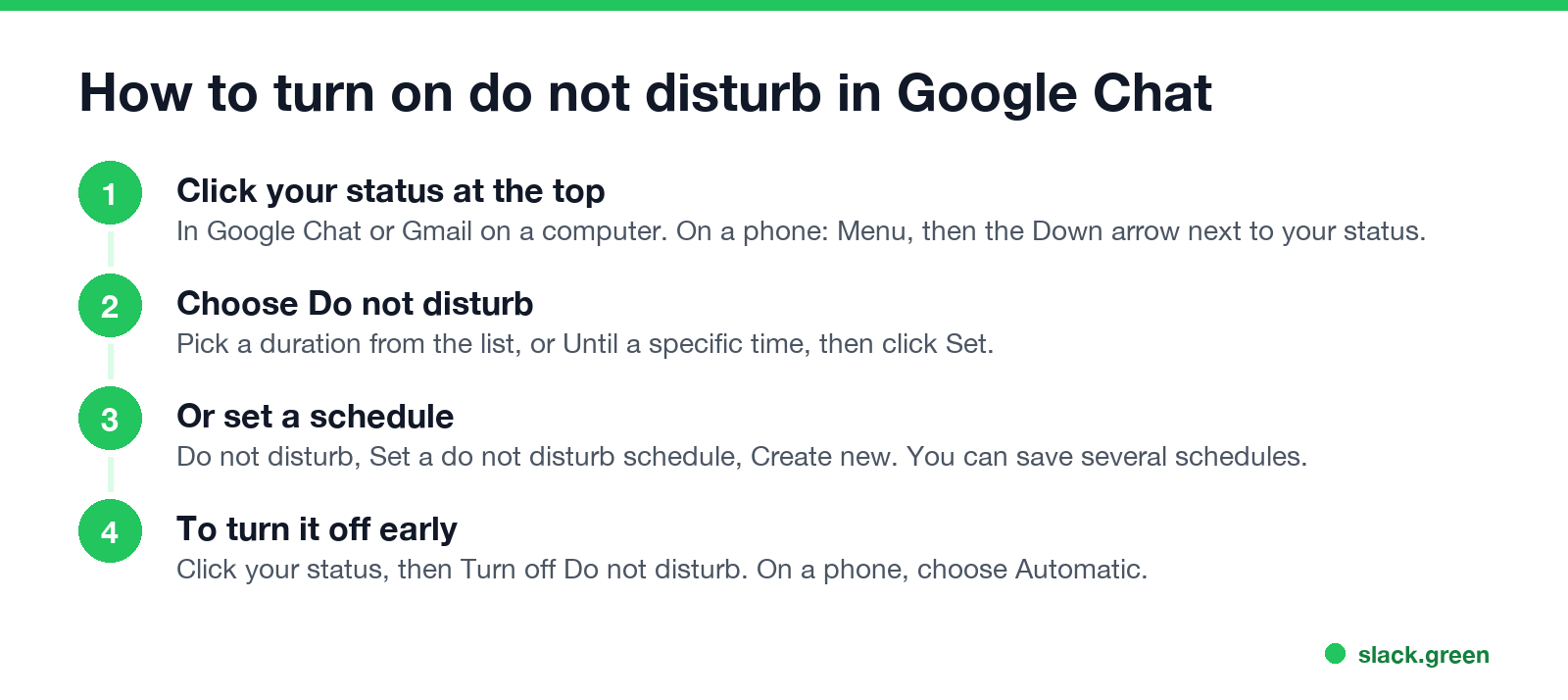
On a computer (Google Chat or Gmail):
- Open Google Chat or Gmail.
- At the top, click your status.
- Select Do not disturb.
- Pick a duration from the list, or click Until a specific time.
- Click Set.
- Open the Chat app or the Gmail app.
- At the top left, tap Menu.
- Tap the Down arrow next to your status, then Do not disturb.
- Under "Mute notifications for", pick a duration or tap Until a specific time.
- Tap Set.
- • Computer: click your status at the top, then Turn off Do not disturb.
- • Phone: tap Menu, the Down arrow, then Automatic.
On Android or iPhone (Chat app or Gmail app):
Notifications come back on by themselves when the time ends. Your status syncs, so turning it on from your phone also mutes Chat on your computer.
How to turn off do not disturb in Google Chat
If notifications still do not arrive after you turn it off, the cause is usually a browser or system setting. Google's troubleshooting steps say to allow notifications for both https://chat.google.com:443 and https://mail.google.com:443 in Chrome's site settings, and to check the "Allow chat notifications" box in Chat settings. A muted conversation also stays silent after Do not disturb ends.
Schedule do not disturb in Google Chat
Never appear "away" on Slack again
Cloud-based. No downloads. Works 24/7 even when your laptop is off.
You can pause notifications on a repeating schedule, such as every evening and weekend:
You can create more than one schedule, and notifications pause during each of them. If you travel, Google's settings let you match the schedule to your time zone.
On Workspace accounts, Google Calendar can also change your Chat status. When you are in a meeting or out of office, people who message you see your Calendar status next to your name. Your administrator decides which Calendar statuses, such as "Out of office" or "In focus time", appear in Chat.
What do not disturb means in Google Chat
The red circle with a white bar means the person turned on Do not disturb, and Chat notifications are muted on all their devices. Google says people "can tell how long you paused notifications so they don't expect an immediate response."
What it does not do:
On Workspace accounts, Do not disturb is visible only inside your organization's domain. People outside your company do not see it.
All the icons, including Idle and Away, are decoded in Google Chat status icons meaning.
Do not disturb vs the other ways to go quiet
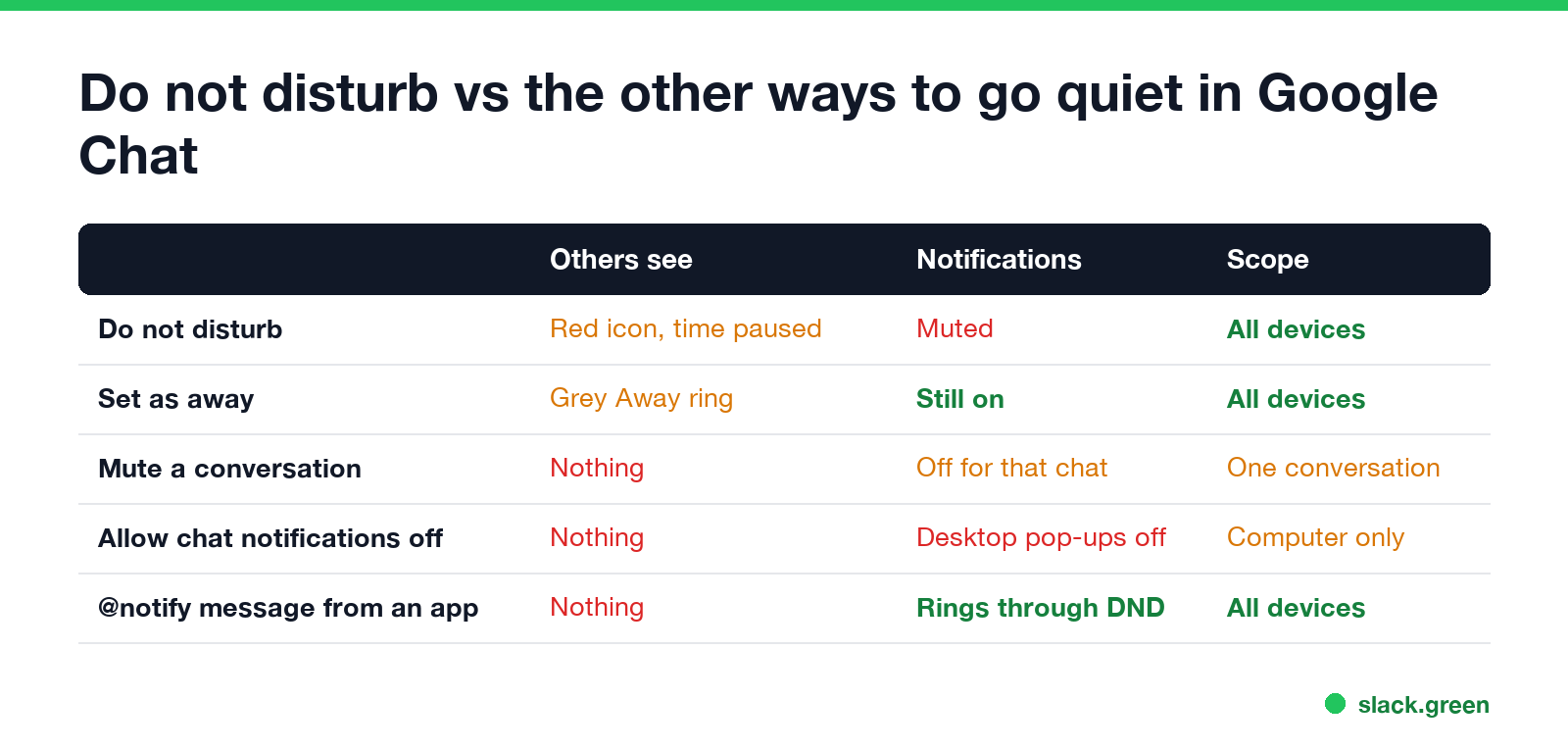
| Option | What others see | Notifications | Where it applies |
|---|---|---|---|
| Do not disturb | Red icon and how long you paused | Muted | All devices |
| Set as away | Grey Away ring | Still on | All devices |
| Mute a conversation | Nothing | Off for that conversation, @mentions still badge | One conversation or space |
| "Allow chat notifications" unchecked | Nothing | Desktop pop-ups off | The computer |
| @notify message from an app | Nothing | Rings through all of the above | All devices |
Set as away changes what people see without muting anything. Google Chat also sets Away on its own after 10 minutes idle; the timer is covered in how long before Google Chat shows away.
Mute a conversation works per chat: hover over it in your conversation list, click More options, then Mute. The conversation is not highlighted or moved to the top, but a badge still shows when someone mentions you.
Google Chat vs Slack, Teams and Zoom
Never appear "away" on Slack again
Cloud-based. No downloads. Works 24/7 even when your laptop is off.
| Google Chat | Slack | Microsoft Teams | Zoom | |
|---|---|---|---|---|
| Name in the app | Do not disturb | Pause notifications | Do not disturb | Do not disturb |
| Set a duration | Yes | Yes | Yes | 20 minutes to 24 hours |
| Repeating schedule | Yes, several | Yes | No; focus time through Viva Insights | Yes, daily |
| Urgent messages get through | @notify from apps | Notify anyway once a day, VIP list | Priority access list | Not listed by Zoom |
Details for each app: Slack do not disturb, Teams do not disturb, Zoom do not disturb and Webex do not disturb.
FAQ
What does "notifications paused" mean in Google Chat? The person turned on Do not disturb. Your message is delivered, but they will not get a notification until the pause ends.
How do I turn off do not disturb in Google Chat on my phone? Tap Menu, the Down arrow next to your status, then Automatic.
Does Do not disturb in Google Chat affect Gmail? It mutes Chat notifications in Gmail too, because Chat in Gmail uses the same status. Email notifications are separate.
Why am I still getting notifications on Do not disturb? An app sent an @notify message, which ignores Do not disturb, or your phone's own notifications are coming from a different Google account.
Stop Jiggling Your Mouse.
Join hundreds of remote workers who never worry about their Slack status. Set it up once, stay green forever.
Related Articles
Can My Employer See My iMessages on a Work Mac?
Not through device management or the network: Jamf or Intune cannot read Messages, and iMessage is end-to-end encrypted. But if you sign in to Messages on a work Mac, your texts are stored on that Mac, where monitoring screenshots, backups and admin access can reach them. How to check, and how to take iMessage off the Mac without deleting it from your iPhone.
Can My Boss See My Private Outlook Calendar Events?
Usually not the details. When you mark an Outlook event Private, someone who can read your calendar sees only Private appointment, the time and a lock. The exceptions are delegates you gave Can view private items, the people invited to the event, anyone with full access to your mailbox in new Outlook or the web, and compliance admins. How to check who has which access, and what Private does not hide.
Productivity Theater: Meaning, Numbers and How It Starts
Productivity theater is work done to look busy rather than to get results: extra messages, status updates, meetings to show progress, and keeping a green dot on. Slack's 2023 survey of 18,000 desk workers put it at 32% of the working week. Microsoft ties it to productivity paranoia, where 85% of leaders doubt remote staff are productive.