
Slack Desktop App vs Browser: Memory, Notifications and Presence
The Slack desktop app gives native notifications, offline reading and every shortcut. Slack in a browser needs no install and adds less memory if your browser is open anyway. Both mark you away 10 minutes after your last input in Slack. The full comparison and which to pick.
The Slack desktop app is better if you want notifications without a tab open, offline reading of conversations you already opened, and every keyboard shortcut and slash command. Slack in a browser is better if you cannot install apps, keep your browser open all day, or want less extra memory, since a tab shares the browser's processes. Presence works the same in both: Slack sets you away 10 minutes after your last input in the Slack window or tab. The browser adds one risk: memory-saving features can discard a background Slack tab, which ends that session.
Neither keeps your dot green while you work elsewhere. Slack Green keeps it active during the working hours you set, from its own servers, whether you use the app, a tab, or neither.
Slack desktop app vs browser compared
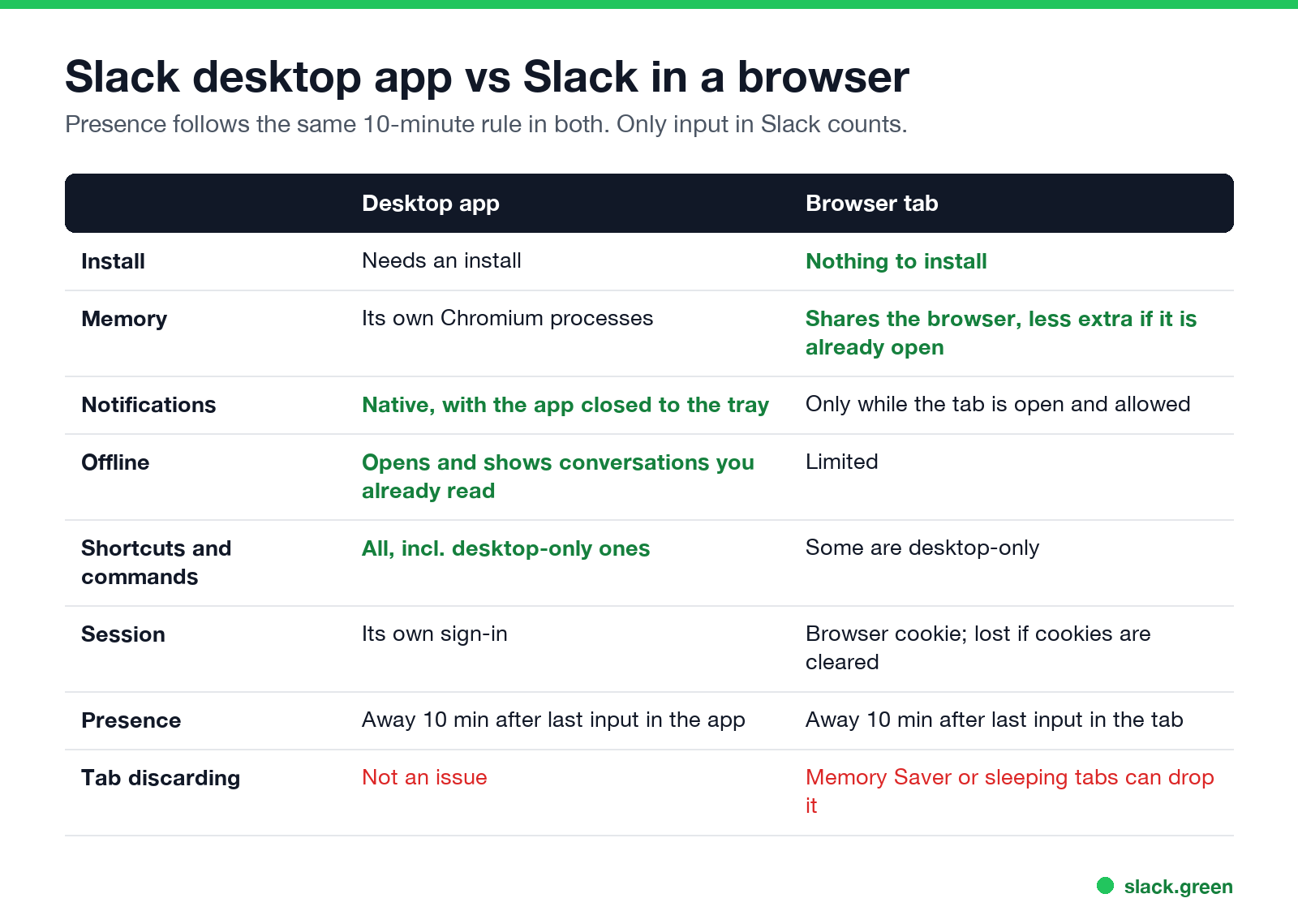
| Desktop app | Browser tab | |
|---|---|---|
| Install | Needed | None |
| Memory | Its own processes | Shares the browser |
| Notifications | Native, from the tray | While the tab is open and allowed |
| Offline | Opens and shows conversations you already read | Limited |
| Shortcuts and commands | All | Some are desktop-only |
| Session | Its own sign-in | Browser cookie |
| Presence | Away 10 min after last input | Away 10 min after last input |
Slack desktop vs web memory
The desktop app is Electron, a bundled Chromium browser, so it runs its own set of processes. A tab in a browser you already have open adds only the Slack page itself. If you keep Chrome or Edge open all day, the tab usually costs less extra memory; if you would open a browser only for Slack, the difference shrinks. Ways to cut Slack's memory in either are in why Slack uses so much memory.
Notifications, offline and shortcuts
Nunca más aparezcas como "ausente" en Slack
Basado en la nube. Sin descargas. Funciona 24/7 incluso con tu laptop apagada.
- • Notifications. The app sends native notifications even when its window is closed to the tray or menu bar. A tab needs to stay open and needs the browser's notification permission.
- • Offline. The desktop app can open without a connection and show conversations you already read; see Slack offline mode.
- • Shortcuts. Some keyboard shortcuts and slash commands work only in the desktop app, such as opening Threads with Cmd/Ctrl+Shift+T; see the shortcuts cheat sheet and slash commands list.
- • Tab discarding. Chrome's Memory Saver, Edge's sleeping tabs and similar features can unload a background Slack tab. An unloaded tab has no session, so it cannot keep you green. Add
app.slack.comto the browser's always-active list. - • Cookies. Clearing cookies on exit signs you out of Slack in that browser; see Slack keeps logging me out.
Slack web vs desktop presence
The rule is the same: you are active while you give input in the Slack window or tab, and away 10 minutes after the last input, or at once when the computer sleeps or locks. Two browser differences:
The browser-specific rules are in keep Slack active in the browser, and the desktop ones in how to keep Slack always active on desktop.
Slack web app keeps going away
If Slack in a tab shows you away while you work, check in order: the 10-minute rule (input elsewhere does not count), the tab being discarded, the computer sleeping or locking, and a dropped connection. The full diagnosis is in why Slack keeps showing you as away.
Which one to use
Nunca más aparezcas como "ausente" en Slack
Basado en la nube. Sin descargas. Funciona 24/7 incluso con tu laptop apagada.
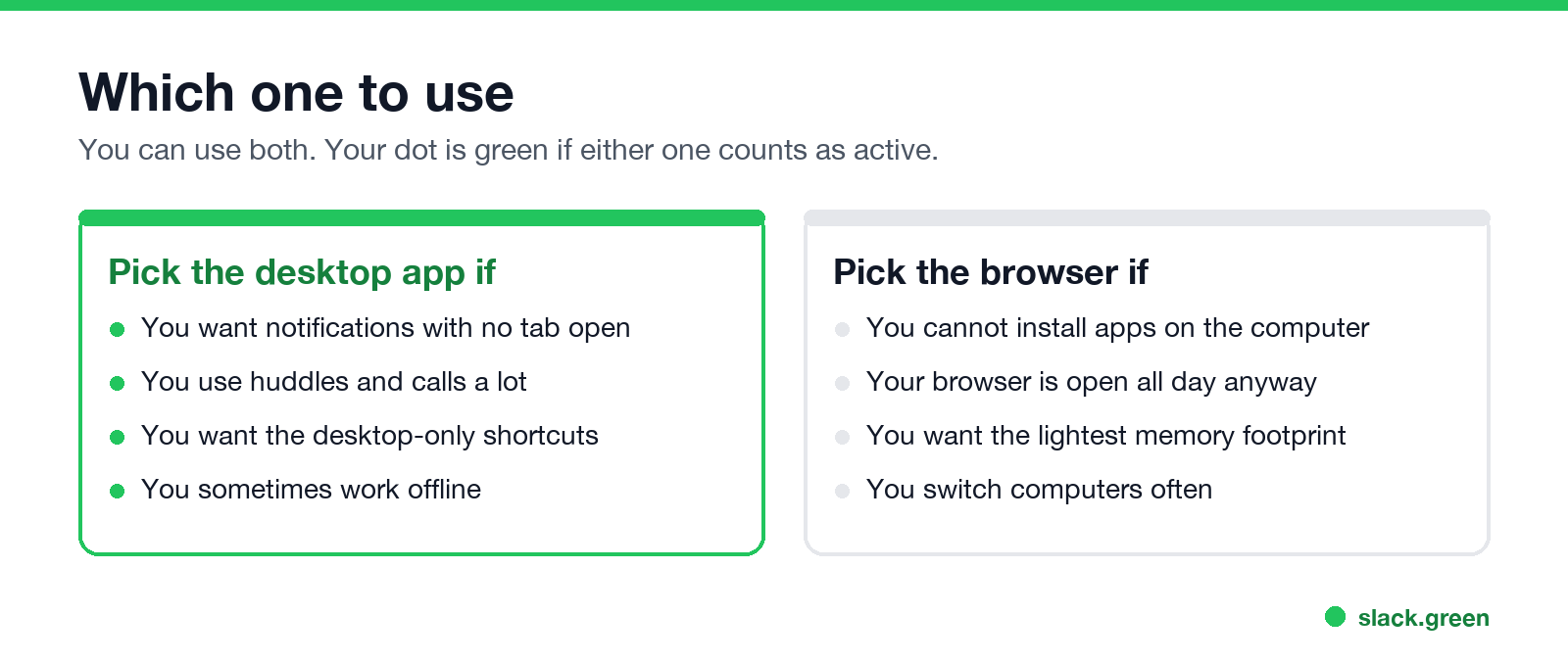
You can use both. Slack shows you active if either one counts as active. If links keep opening the wrong one, see Slack keeps opening in the browser. To stop the app launching with your computer, see how to stop Slack from opening on startup.
FAQ
Is Slack better in the browser or the app?
The app for notifications, offline reading and shortcuts. The browser for no install and less extra memory.
Does Slack use less memory in a browser?
Usually, if the browser is already open, because the tab shares its processes.
Does Slack in a browser keep me active?
Only while you give input in the Slack tab, and for 10 minutes after. A discarded tab ends the session.
Can I use the Slack app and browser at the same time?
Yes. Your dot is green if either one counts as active.
Why does Slack in Chrome keep going away?
The 10-minute rule, or Chrome's Memory Saver unloading the tab. Add app.slack.com to the always-active sites.
Deja de Mover el Ratón.
Cientos de trabajadores remotos ya no se preocupan por su estado de Slack. Configúralo una vez, mantente verde para siempre.
Related Articles
Slack Jira Integration: Setup, /jira Commands and Notifications
Install the Jira Cloud for Slack app, type /jira connect in a channel to send a Jira space's updates there, /jira notify for personal notifications as DMs, and create work items from any message with More actions. Every /jira command, Jira automation to Slack, and fixes when previews or notifications stop.
How to Create a Slack Workspace, on Desktop or Phone
Go to slack.com/get-started, enter your email, type the confirmation code, and click Create a Workspace. It is free to start, you become the Primary Owner, and it takes about five minutes. Steps for desktop, iPhone and Android, and what to set up next.
Slack Sidebar Sections: Create, Sort, Share and Fix Them
Slack sidebar sections are custom groups of channels, DMs and apps in your sidebar. Only you see them, and they need a paid plan. How to create one on desktop and mobile, move many channels at once, sort and filter each section, share a section with your team, and get disappeared sections back.