
Slack Workspace Owner vs Admin: Roles and Permissions
Slack Workspace Owners have every admin power plus billing and owner management. Admins manage members and channels but cannot see billing. One Primary Owner alone can delete or transfer the workspace. The full role list, and how to change roles.
In Slack, a Workspace Owner can do everything a Workspace Admin can, plus manage billing and promote other people to Owner. A Workspace Admin manages members, guests and channels, but cannot open the Billing page or manage billing details, and cannot demote an Admin or promote an Owner. Above both sits the Primary Owner. Each workspace has exactly one, and only that person can delete the workspace or transfer ownership. Owners are assigned by the Primary Owner, and Admins by Owners.
This comes from Slack's help articles "Types of roles in Slack" and "Change a member's role". We build Slack Green, a presence tool, and people often ask us what their admins can see. That question has its own page, can Slack admins see what you search. This page is about what each role can do.
Owner vs Admin at a glance
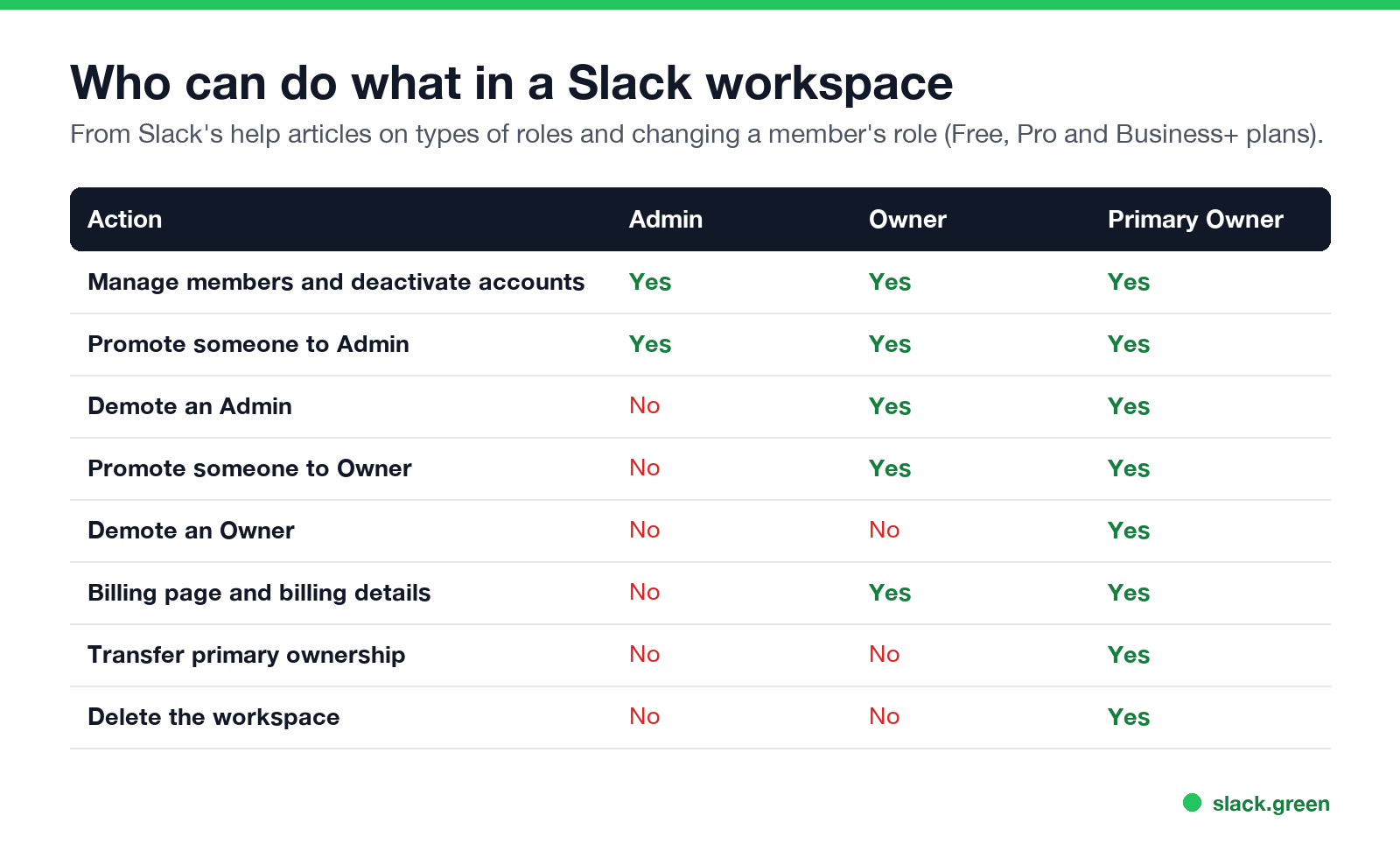
| Action | Admin | Owner | Primary Owner |
|---|---|---|---|
| Manage members and deactivate accounts | Yes | Yes | Yes |
| Promote someone to Admin | Yes | Yes | Yes |
| Demote an Admin | No | Yes | Yes |
| Promote someone to Owner | No | Yes | Yes |
| Demote an Owner | No | No | Yes |
| Billing page and billing details | No | Yes | Yes |
| Transfer primary ownership | No | No | Yes |
| Delete the workspace | No | No | Yes |
The table covers Free, Pro and Business+ workspaces. Slack warns that you may not be able to demote someone after you promote them, depending on your role, so promote with care.
Every role in a Slack workspace
- • Primary Owner. One per workspace, and it is whoever created the workspace (how to create a Slack workspace). The only person who can delete the workspace or transfer ownership.
- • Workspace Owners. Assigned by the Primary Owner. Same permissions as the Primary Owner except deleting and transferring the workspace.
- • Workspace Admins. Assigned by Owners. They manage members and do admin tasks, without access to billing.
- • Full members. Use every feature except the ones limited to Owners and Admins.
- • Multi-Channel and Single-Channel Guests. Paid plans only. Limited to the channels they are added to. See Slack Connect vs guest accounts.
- • Channel Managers. Paid plans only. Admin actions on the channels they are assigned.
- • Invited members. People who got an invite but have not joined yet.
User groups, such as @designers, are not roles. They are lists of people for mentions and default channels, covered in Slack user groups.
Enterprise plans add an Org Primary Owner, Org Owners and Org Admins at the organization level, plus system roles such as Analytics Admin, Audit Logs Admin, Export Admin and Security Admin. Business+ has a limited set of system roles.
What Owners can do that Admins cannot
Nunca más aparezcas como "ausente" en Slack
Basado en la nube. Sin descargas. Funciona 24/7 incluso con tu laptop apagada.
Three things matter most in practice.
One everyday example: Admins can make a channel private, but by default only Owners can make a private channel public. The steps are in how to make a private Slack channel public.
How to make someone an Admin or Owner in Slack
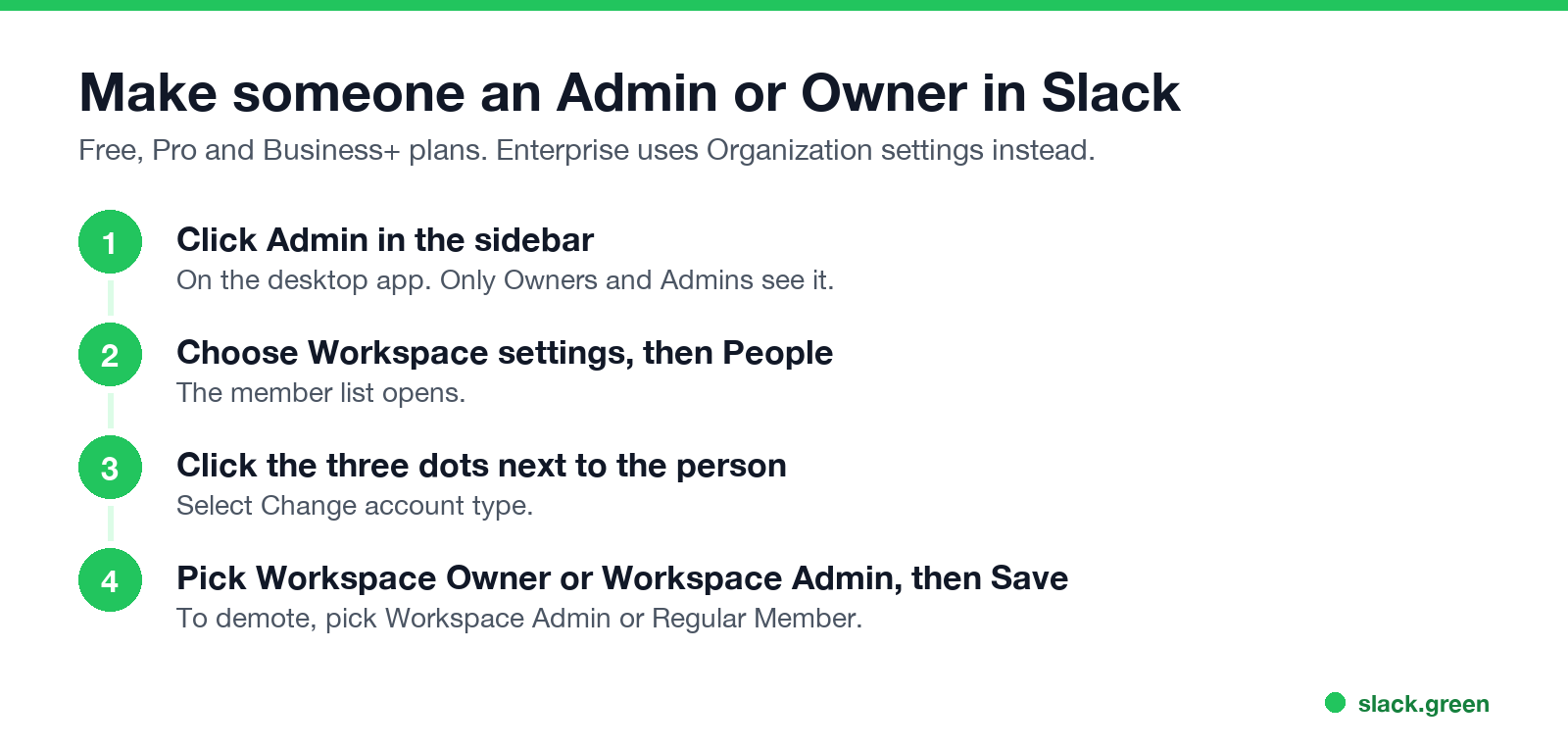
On Free, Pro and Business+ plans:
On Enterprise plans, Org Owners and Admins do this from Organization settings, under People.
How to transfer ownership of a Slack workspace
Only the current Primary Owner can transfer primary ownership, and only to one person, because the role holds one person at a time. If the Primary Owner has left the company and cannot do it, an Owner should contact Slack support through the help center and ask about a transfer.
How to see who the Slack admins are
Nunca más aparezcas como "ausente" en Slack
Basado en la nube. Sin descargas. Funciona 24/7 incluso con tu laptop apagada.
Open Directories at the top of the sidebar, go to People, click Filters, and filter by Account type. The same filter lists guests. Owners and Admins can also see every role in Workspace settings under People.
FAQ
What is the difference between a Slack Owner and an Admin?
Owners can manage billing and promote or demote other admins. Admins manage members and channels but cannot see billing or promote Owners.
Can a Slack Admin remove an Owner?
No. Only the Primary Owner can demote an Owner.
How many Primary Owners can a Slack workspace have?
One. Only that person can delete the workspace or transfer ownership.
Can a Slack Admin see my DMs?
Not in the app. Exports of DMs need an Owner, the right plan and sometimes Slack's approval. See can Slack admins see your DMs.
Who can make someone an Admin in Slack?
Admins, Owners and the Primary Owner can all promote a member to Admin.
Can a Slack Owner see my activity?
Owners and Admins see analytics such as days active and messages posted, plus access logs. The list is in can Slack be used to monitor employees.
Deja de Mover el Ratón.
Cientos de trabajadores remotos ya no se preocupan por su estado de Slack. Configúralo una vez, mantente verde para siempre.
Related Articles
Slack Lists Tutorial: Create, Organize and Share a List
Slack lists are tables of tasks inside Slack, with fields, assignees, due dates, a board view and a comment thread on every item. How to create a list from scratch or a template, set up fields, turn it into a kanban board, add messages to it, share it, and what the plan limits are.
Slack Jira Integration: Setup, /jira Commands and Notifications
Install the Jira Cloud for Slack app, type /jira connect in a channel to send a Jira space's updates there, /jira notify for personal notifications as DMs, and create work items from any message with More actions. Every /jira command, Jira automation to Slack, and fixes when previews or notifications stop.
How to Create a Slack Workspace, on Desktop or Phone
Go to slack.com/get-started, enter your email, type the confirmation code, and click Create a Workspace. It is free to start, you become the Primary Owner, and it takes about five minutes. Steps for desktop, iPhone and Android, and what to set up next.