
Outlook Do Not Disturb: Mute Mail on Phone, Windows and Mac
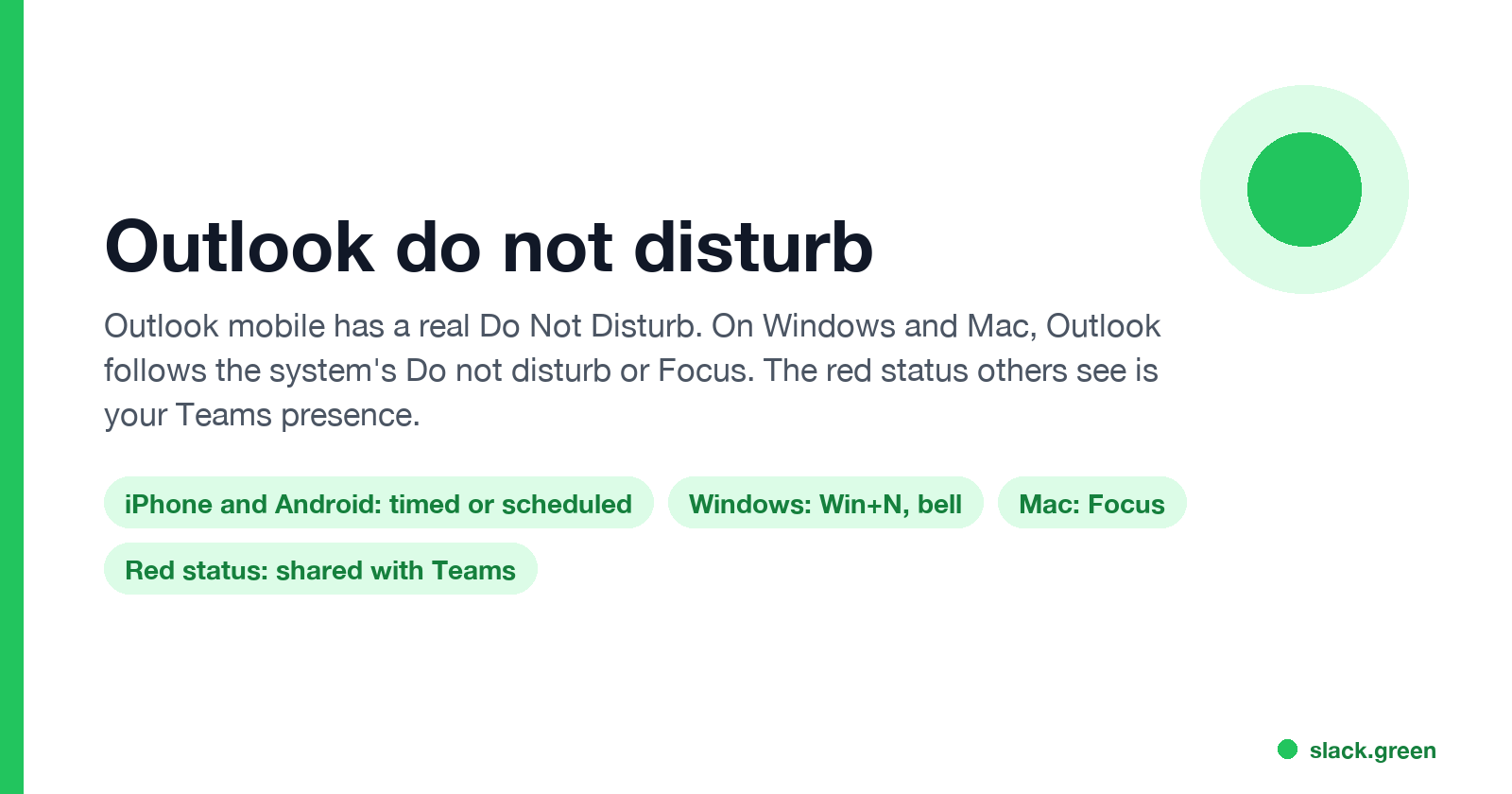
Outlook for iPhone and Android has its own Do Not Disturb, timed or on a schedule, per account. Outlook on Windows and Mac has none: it follows Windows Do not disturb or a Mac Focus, or you turn off new mail alerts. The red Do not disturb status coworkers see is your Teams presence, and it does not silence mail.
Outlook has a Do Not Disturb only on your phone. In Outlook for iPhone and Android, open the menu at the top left of the Inbox and tap the bell icon, or go to Settings, Notifications, Do Not Disturb, and mute an account for a set time or on a schedule. Outlook on Windows and Mac has no switch of its own. It follows Do not disturb in Windows (press Win+N and click the bell) or a Focus on the Mac, or you turn off new mail alerts in Outlook's settings.
There is a second thing people mean by "Outlook do not disturb": the red status with a white bar on your contact card. That is your presence, shared with Microsoft Teams. You set it from your profile picture in new Outlook, Outlook on the web or Teams. It tells coworkers not to interrupt you, and silences Teams, but Outlook still shows new mail alerts.
If your team also uses Slack, none of this reaches it. Slack keeps its own status and sets you away 10 minutes after your last input in the Slack window. Slack Green keeps your Slack status green from our servers during the hours you set.
Where do not disturb lives for each Outlook
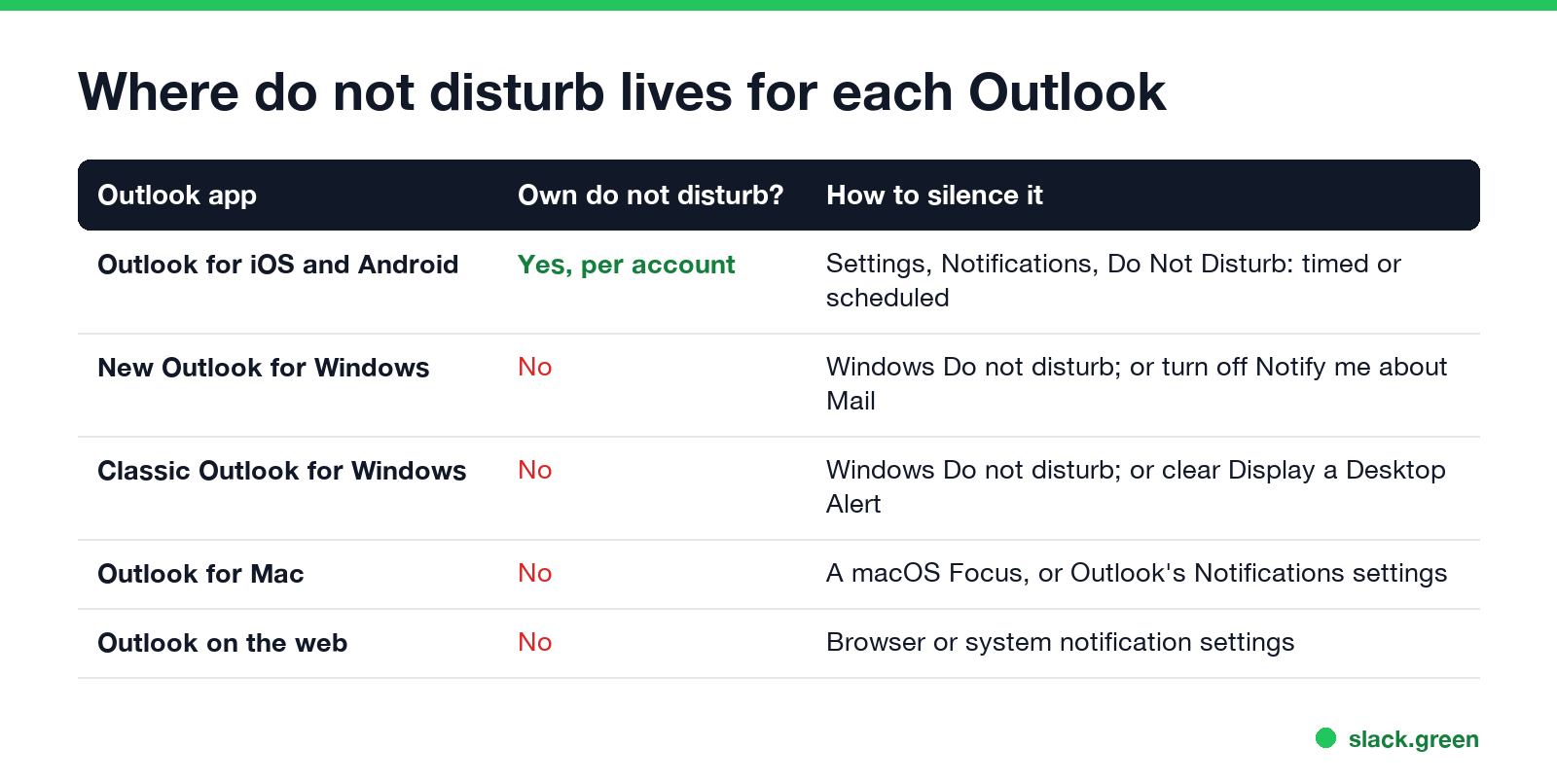
| Outlook app | Its own do not disturb? | How to silence it |
|---|---|---|
| Outlook for iOS and Android | Yes, per account | Settings, Notifications, Do Not Disturb: timed or scheduled |
| New Outlook for Windows | No | Windows Do not disturb, or turn off Notify me about Mail |
| Classic Outlook for Windows | No | Windows Do not disturb, or clear Display a Desktop Alert |
| Outlook for Mac | No | A macOS Focus, or Outlook's notification settings |
| Outlook on the web | No | The browser's or the system's notification settings |
Turn on Do Not Disturb in Outlook for iPhone and Android
- Open Outlook and tap your account icon or the menu at the top left of the Inbox.
- Tap the bell icon. Or tap Settings (the gear), then Notifications, and pick the account under Do Not Disturb.
- Pick a timed option, such as an hour or until tomorrow, or set a Scheduled period for evenings and weekends.
- Tap the checkmark to save.
Two details trip people up. The setting is per account: Microsoft's help page on Do Not Disturb that "doesn't seem to be working" points to one cause first: it is on for a different account in the app. And if you turn off Outlook's notifications in iOS Settings instead, iOS also turns off Background App Refresh for it, so mail only arrives when you open the app.
On a work Microsoft 365 account the scheduled option is called Quiet Time, under During Quiet Time. It has a Set on Teams and Outlook toggle. With it on, the same schedule, for Certain Hours or All Day, mutes both Teams and Outlook on every phone and tablet where you use that account.
Turn on Do Not Disturb for Outlook on Windows 11
Never appear "away" on Slack again
Cloud-based. No downloads. Works 24/7 even when your laptop is off.
To stop mail alerts from Outlook only, and keep other apps:
Two gaps in Windows Do not disturb, both confirmed on Microsoft Q&A. A classic Outlook rule that uses display a specific message in the New Item Alert window opens its own window and shows up even with Do not disturb on. And in new Outlook, Send notifications when Outlook is closed runs as a separate background service that does not check Do not disturb, according to a Microsoft moderator; clear that box and keep Outlook open if alerts slip through.
The same Windows switch covers Teams, Slack and every other app. For the rest of the Windows timers, see how to stop Windows 11 from locking.
Turn on Do Not Disturb for Outlook on a Mac
Open Control Center in the menu bar, click Focus, and pick Do Not Disturb. For a Focus that silences only work mail, open System Settings, Focus, create a Focus, and leave Outlook off its Allowed Notifications list. Outlook's own switches are under Outlook, Settings, Notifications & Sounds.
The Do not disturb status coworkers see
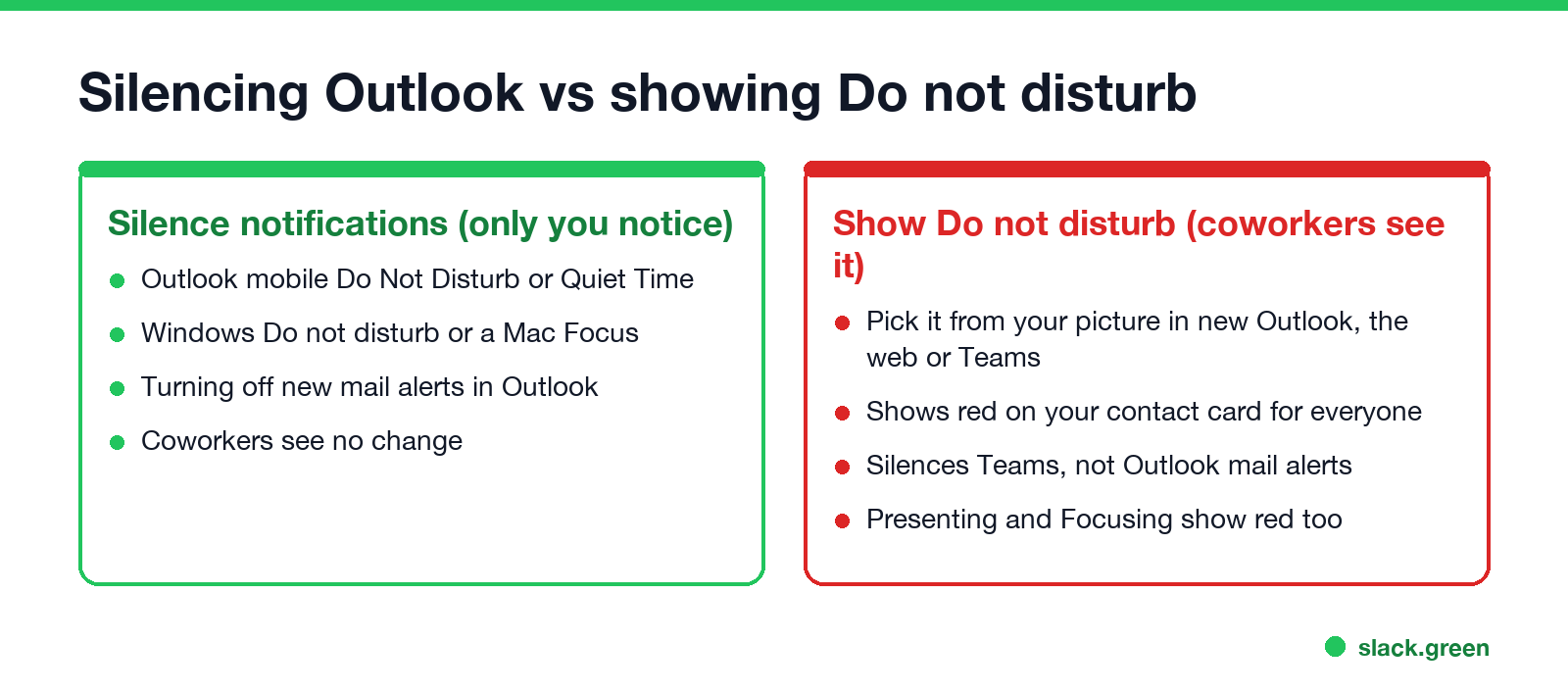
The red dot with a white bar in Outlook is presence, the same status Teams shows. To set it:
It changes what others see, and Teams holds back its notifications except from people with priority access. It does not mute Outlook's mail alerts; pair it with the Windows switch above for that. Teams also shows red when you present or are in a Viva Insights focus block, which shows as Focusing. More in Teams Do Not Disturb, what does Focusing mean in Teams, and the color list in Outlook status colors meaning.
Outlook focus time
Never appear "away" on Slack again
Cloud-based. No downloads. Works 24/7 even when your laptop is off.
"Focus time" in Outlook is a calendar block that Viva Insights books for you. You set a focus plan, and Viva Insights adds recurring blocks to your Outlook calendar. During each block, Teams sets you to Focusing and mutes Teams notifications. Outlook mail alerts still need Windows Do not disturb or a Mac Focus. If you only want a quiet hour without Viva Insights, add a calendar event marked Busy and turn on Windows Do not disturb for the same hour.
FAQ
Does Outlook have a do not disturb mode? On iPhone and Android, yes, under Settings, Notifications. On Windows and Mac, no; Outlook follows the system's Do not disturb or Focus.
Why is my Outlook status set to Do not disturb? You or a timer set it in Outlook or Teams, you are presenting, or a focus block is running. Pick Reset status from your profile picture to go back to automatic. See how to change your status in Outlook.
Does Do not disturb stop emails from arriving? No. Mail arrives and waits in your Inbox. Only the alerts stop.
Can I schedule do not disturb in Outlook? In Outlook mobile, yes, with a schedule or Quiet Time. On Windows, schedule it in Settings, System, Notifications, Turn on do not disturb automatically.
Will people know I turned on do not disturb? Not for the phone, Windows or Mac settings. Only the presence status changes what coworkers see.
Stop Jiggling Your Mouse.
Join hundreds of remote workers who never worry about their Slack status. Set it up once, stay green forever.
Related Articles
Can My Employer See What I Watch on YouTube at Work?
On a work laptop or the office network, your employer can see that you used YouTube, when, and for how long. With HTTPS inspection or monitoring software, they can see which videos, because the video address and the browser tab title both name it. On your own phone on mobile data, they see nothing.
Can My Employer See My iMessages on a Work Mac?
Not through device management or the network: Jamf or Intune cannot read Messages, and iMessage is end-to-end encrypted. But if you sign in to Messages on a work Mac, your texts are stored on that Mac, where monitoring screenshots, backups and admin access can reach them. How to check, and how to take iMessage off the Mac without deleting it from your iPhone.
Can My Boss See My Private Outlook Calendar Events?
Usually not the details. When you mark an Outlook event Private, someone who can read your calendar sees only Private appointment, the time and a lock. The exceptions are delegates you gave Can view private items, the people invited to the event, anyone with full access to your mailbox in new Outlook or the web, and compliance admins. How to check who has which access, and what Private does not hide.