
Slack Canvas Examples: 3 Canvases to Copy, Plus Slack's 18 Templates
Three Slack canvas examples you can paste in as Markdown (weekly update, meeting notes, onboarding checklist), the 18 templates Slack offers on the Free plan, and what broke when we pasted each one on October 29, 2026.
The fastest Slack canvas examples to start from are a weekly update, meeting notes and an onboarding checklist. Copy one of the three Markdown blocks below, open a new canvas, and paste: Slack turns the headings, checklists, tables and links into real canvas blocks. We pasted all three into a Free workspace on October 29, 2026, and the notes under each example say what came through and what did not. If you would rather start from Slack's own layouts, the Start with a template menu offered 18 templates in the same workspace.
Slack's built-in canvas templates
Open a channel, click Add canvas in the tab bar, then Start with a template. This is the picker we got on the Free plan:
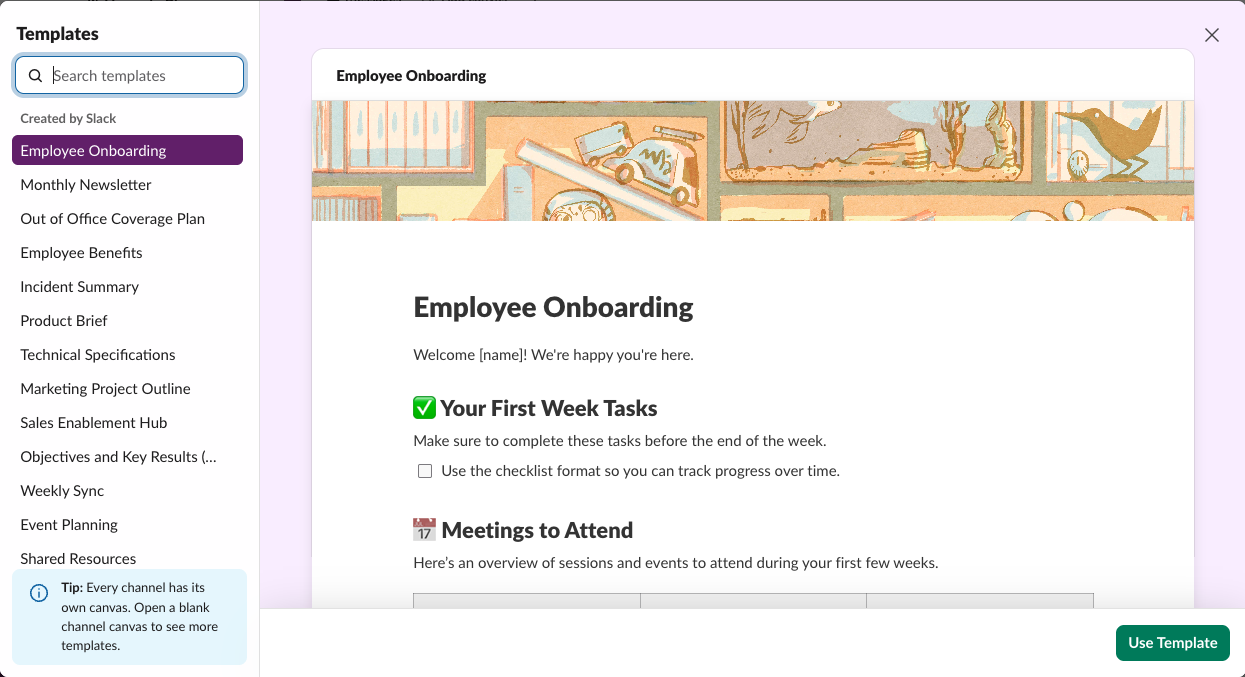
The full list under Created by Slack was:
| Team and people | Projects and planning | Meetings and reference |
|---|---|---|
| Employee Onboarding | Product Brief | Weekly Sync |
| Employee Benefits | Technical Specifications | Agenda |
| Company Handbook | Marketing Project Outline | Weekly 1:1 |
| Monthly Newsletter | Objectives and Key Results (OKRs) | Channel Overview |
| Out of Office Coverage Plan | Event Planning | Shared Resources |
| Sales Enablement Hub | Incident Summary | To-do list |
The sorting into three columns is ours; Slack lists them in one column. The picker's tip reads "Every channel has its own canvas", and that is the Free plan limit: one canvas per channel or DM. To try a second template, use another channel.
We picked Weekly Sync and clicked Use Template. Slack added the canvas as a tab named after the template, with a cover image and prompt questions:
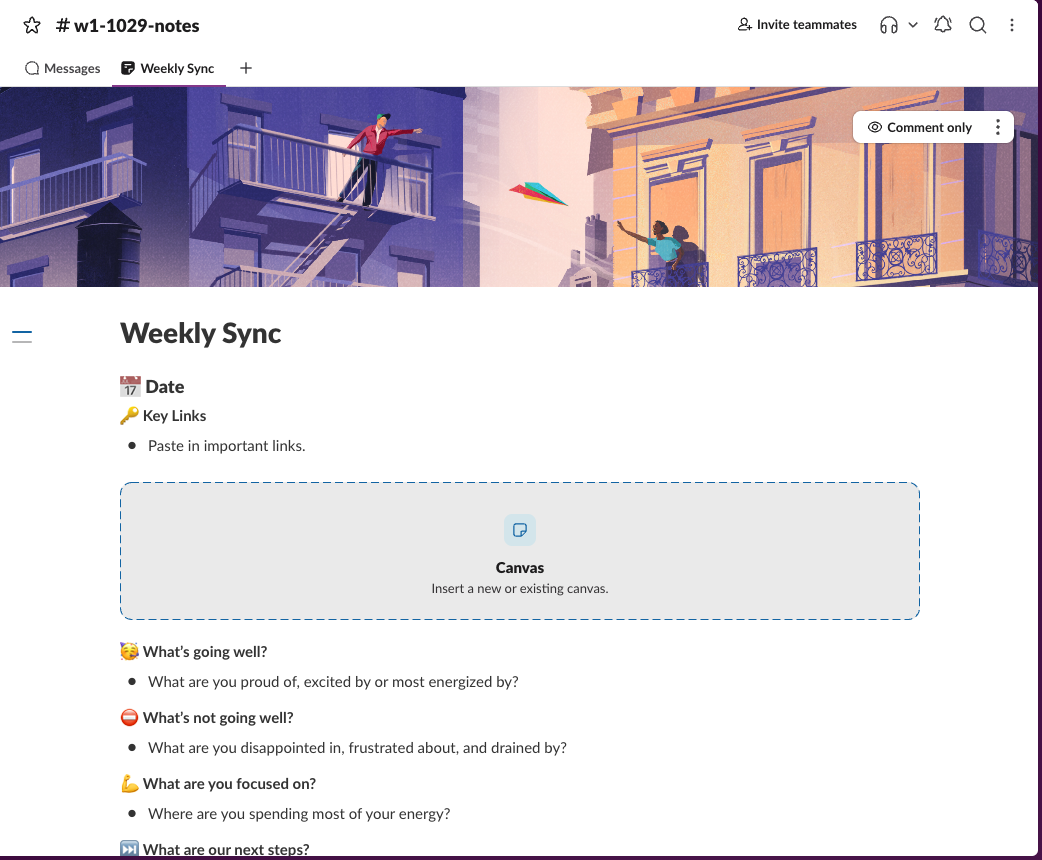
The template text is placeholder prompts, not an example to keep. Replace each grey line with your own, or delete the sections you do not use. The dashed Canvas box in the middle is a block for linking another canvas.
Example 1: weekly team update
Paste this into a blank canvas. Type the title first, press Enter, then paste the rest:
**Owner:** Dana  ·  **Status:** On track

## Shipped this week
- Billing page redesign is live for 100% of users
- Fixed the CSV export timeout (support ticket #4182)

## Next week
- [ ] Start the onboarding email test
- [ ] Review Q4 hiring plan with finance

## Numbers
| Metric | Last week | This week |
| --- | --- | --- |
| Signups | 412 | 467 |
| Churned accounts | 9 | 6 |

## Blockers
> Waiting on legal review of the new terms page.

See the [project board](https://example.com/board) for details.
This is how it looked after we reloaded the canvas:
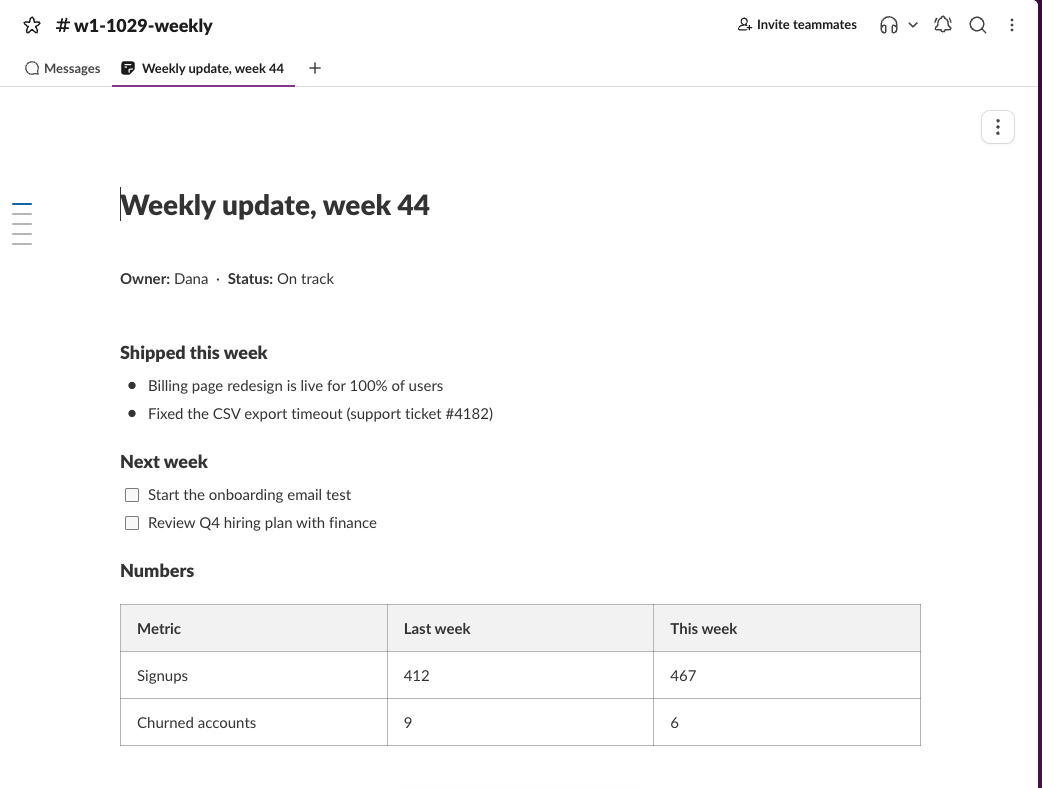
Everything in this example came through: bold text, ## headings, bullets, - [ ] checklist items, the table, the > quote and the link. A pasted table is a real canvas table you can edit cell by cell; a message also takes a pasted pipe table, as how to make a table in Slack shows, but only a canvas lets the team keep editing it. If you need the table in a message instead, the Slack table maker builds one you can paste. Make the update a habit by keeping one canvas per team channel and editing the same one each week; Slack keeps older copies in canvas version history.
Example 2: meeting notes
**Date:** Oct 29  ·  **Attendees:** @sieun, Dana, Lee

## Agenda
1. Q4 launch date
2. Support backlog
   - 14 open tickets
   - 3 older than a week
3. Anything else

## Decisions
- Launch moves to **Nov 12** (was Nov 5)
- ~~Hire a contractor~~ handled in-house

## Action items
- [ ] Dana: update the launch post by Friday
- [x] Lee: close the duplicate tickets

#### Parking lot
Rollback plan: `git revert` the release tag, then redeploy.

```
deploy --env prod --tag v2.4.1
```

---
:calendar: Next sync: Nov 5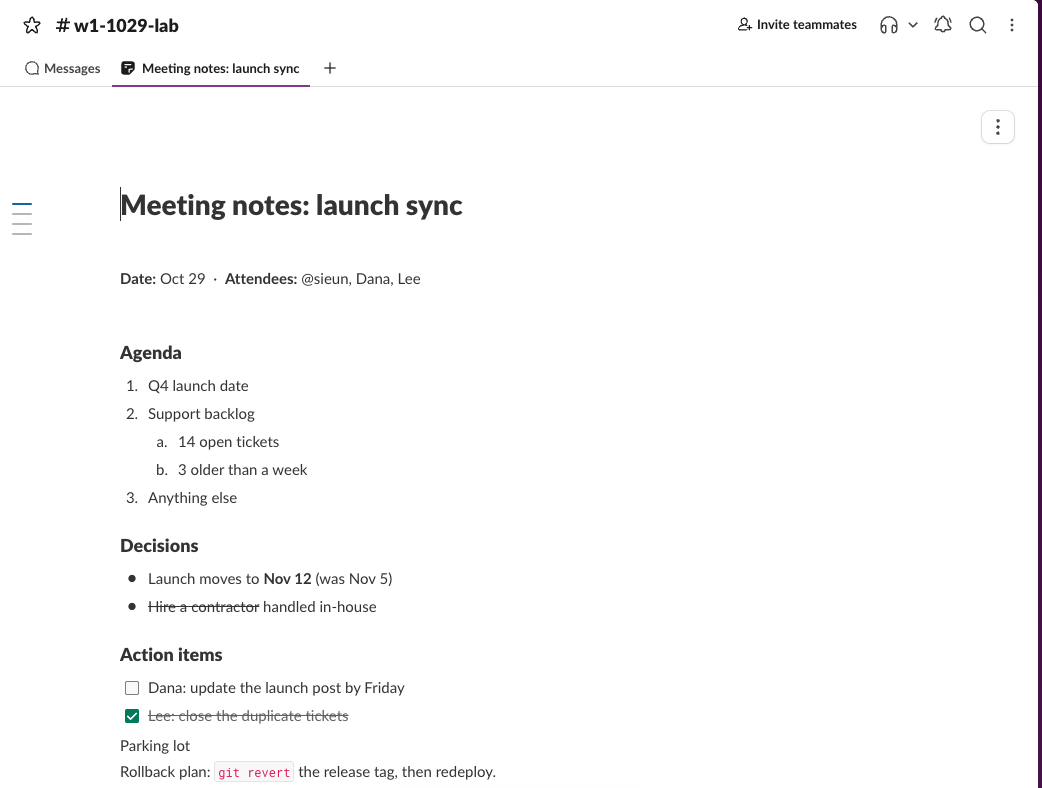
This one was the stress test. What we saw after the paste:
| In the Markdown | In the canvas |
|---|---|
1. list with indented - items | Numbered list; the sub-items became a. and b. |
~~strikethrough~~ | Struck through |
- [x] | Ticked checklist item, and the text was struck through |
#### Parking lot | Plain text, not a heading |
Inline code and a fenced block | Inline code and a code block |
--- | Divider |
:calendar: | The 📆 emoji |
@sieun | Plain text, not a mention |
Two fixes follow from it. Use #, ## or ### only, because the canvas has three heading sizes and a fourth level falls back to text. And re-add each name after the paste as a real mention, or the attendee never gets notified: type / in the canvas, where the menu lists a Profile item next to Channel. When we typed "Nov 5" on the last line, Slack also offered to turn it into a date chip (Thursday, November 5th), which is worth accepting in notes people will search later.
For meetings that happen in a huddle, Slack can also write the notes into a canvas for you on paid plans; how to record a Slack huddle covers what each plan gets.
Never appear "away" on Slack again
Cloud-based. No downloads. Works 24/7 even when your laptop is off.
Example 3: new hire onboarding checklist
Welcome! Work through this list in your first week. Ask questions in this channel.

## Day 1
- [ ] Set your Slack profile photo and title
- [ ] Join #announcements and #help-it
- [ ] Read the [employee handbook](https://example.com/handbook)

## Week 1
- [ ] Shadow two customer calls
- [ ] Ship one small fix
- [ ] Book a 1:1 with your manager

## Who to ask
| Topic | Person | Channel |
| --- | --- | --- |
| Laptop and accounts | IT team | #help-it |
| Payroll | People team | #ask-people |

> Tip: star this canvas so it stays at the top of your sidebar.
We pasted this with one more line under the table: a Markdown image (an exclamation mark, the alt text in brackets, then the image URL). The canvas does not load images from Markdown. It left a stray "!" in front of a plain link:
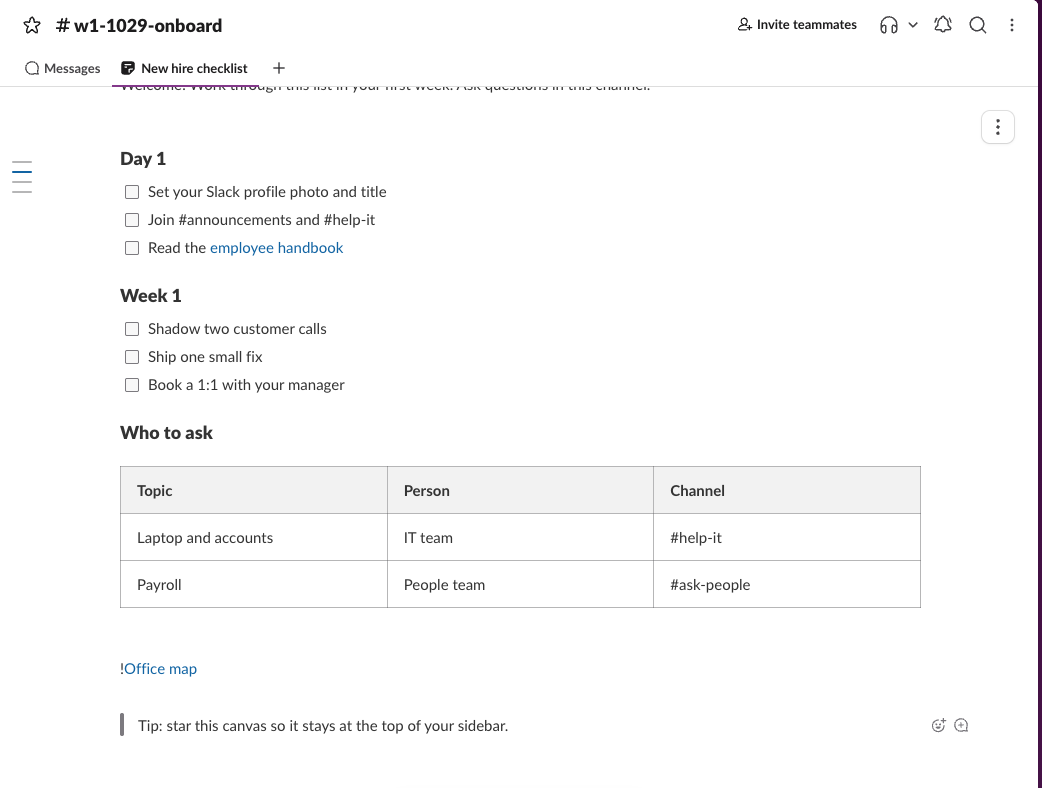
To add an image, drag the file into the canvas or use the paperclip in the canvas toolbar instead. The channel names #announcements and #help-it also stayed plain text; use the Channel item in the / menu if you want them clickable. Pin this canvas in a new hire's onboarding channel, and see are Slack canvases private before you put anything sensitive in it.
More Slack canvas ideas
Each of these worked in our tests as a canvas rather than a message, because people edit it over time:
- • Channel home page. A short "what this channel is for" line, the people to ask and a list of links. Add a table of contents once it grows past a screen.
- • Incident summary. Slack's own Incident Summary template, filled in the day after.
- • Roadmap. A table with one row per project and a column for the quarter. A Slack list is the better pick once you need owners, due dates and filters.
- • Newsletter. The Monthly Newsletter template, shared in a company-wide channel each month.
Canvases also have keyboard shortcuts for every block in these examples; they are in Slack canvas shortcuts, and the formatting rules are in Slack canvas formatting.
FAQ
Can I save my own canvas as a template on the Free plan?
We did not find a way. The canvas menu had no save-as-template item, and the picker listed only templates created by Slack. Keep a master canvas and copy it instead, as in how to copy a Slack canvas.
Why can't I add a second canvas to a channel?
On the Free plan each channel and DM gets one canvas. Our test channels showed one canvas tab each, and the template picker's tip says the same.
Are canvas templates free?
Yes. All 18 templates in the picker were available in our Free workspace with no upgrade prompt, and Use Template made a working canvas. The limit is the one canvas per channel or DM.
Stop Jiggling Your Mouse.
Join hundreds of remote workers who never worry about their Slack status. Set it up once, stay green forever.
Related Articles
Slack General Channel: What You Can and Cannot Change (Tested)
Slack's general channel (#all-<workspace> in new workspaces) can be renamed and limited to admins, but not archived, deleted, left or made private. We tried each as the workspace owner on October 29, 2026.
Can You Embed HTML or Video in a Slack Canvas? We Tested 8 Links
A Slack canvas cannot embed raw HTML or an iframe. Paste a link and choose Card instead: YouTube played inside the card and Spotify showed its player, while Vimeo and Google Sheets did not. Tested October 29, 2026.
Slack Canvas Shortcuts: Keyboard Keys, the / Menu and Dates
Slack canvases have their own keyboard shortcuts: Cmd + Option + 1 to 3 for headings, Cmd + Shift + 7, 8 and 9 for lists and checklists, and / for an insert menu that adds dates and reminders. We pressed every formatting shortcut in a real canvas on October 28, 2026.