
How to Keep Slack Active on Windows
Windows flips you to away three ways: Slack's 10-minute idle timer, screen sleep and lock, and on work laptops an IT lock policy you cannot change. What each fix covers, what Caffeine and PowerToys Awake miss, and what works with the lid closed.
On Windows, your Slack dot has two enemies, and on a work laptop a third. Slack's own idle timer marks you away 10 minutes after your last keyboard or mouse input. Windows power settings turn the screen off and lock the session after a few minutes of stillness, and a locked session shows you away in seconds, long before Slack's timer matters. On IT-managed machines a Group Policy lock timer does the same thing and ignores your settings. Slack Green keeps your dot green from a server, so none of the three matter, even with the laptop shut, free for 14 days with no card.
This page walks the Windows side: the Settings that stop sleep-away, the lid-close trick Macs do not have, why keep-awake tools like Caffeine and PowerToys Awake only solve half the problem, and what works when the laptop is closed or in a bag. One lid-closed option is the server-side tool we make, and it gets the same treatment as everything else. The full method-by-method comparison lives in how to keep Slack active.
The clocks working against you
Slack's idle timer. Ten minutes without typing, clicking or moving the mouse in any app (Slack desktop 4.52.178 code, checked 7 Oct 2026). Input in other apps counts; the app reads the idle time, not your mouse path, and no plan or setting changes the 10 minutes.
Windows screen and sleep. Defaults vary by manufacturer, but most laptops ship with the screen off after 3 to 5 minutes on battery and sleep soon after. Screen off leads to the lock screen, and a locked or sleeping session reports nothing, so Slack drops you to away almost immediately.
The IT lock policy. Corporate machines often enforce a lock after a fixed number of idle minutes through Group Policy. It overrides anything you pick in Settings, and on those machines the honest fix list shrinks to the last section of this page. To find out which of the six Windows lock triggers fires on your PC, and how to read the policy value, see how to stop Windows 11 from locking itself.
Try it
Close the laptop. Which one keeps you green?
Slack on your laptop
Active
Slack Green
Active
Free for 14 days, no card needed.
Stay green with the laptop closedStop Windows from cutting you off
Work through these in order on a machine you control:
- Screen and sleep. Settings, System, Power & battery, Screen and sleep. Set "turn my screen off" and "put my device to sleep" on both battery and plugged-in to longer than your longest break, or Never while you need the dot.
- The lock delay. Settings, Accounts, Sign-in options, "If you've been away, when should Windows require you to sign in again?" A locked session is an away session, so the sleep timing above is what actually decides when this hits.
- Lid close action. Search "lid" in the Start menu, open "Change what closing the lid does", set it to "Do nothing" on power. Unlike a Mac, a Windows laptop can keep running with the lid shut, which matters at a desk with an external monitor.
- One command instead of clicking.
powercfg /change monitor-timeout-ac 0andpowercfg /change standby-timeout-ac 0set screen-off and sleep to Never while plugged in. - • Touch Slack between tasks. Free, resets the 10 minutes, dies during any meeting that runs long.
- • A physical mouse jiggler. Moves the real cursor; the desktop app counts it wherever it is. Occupies a USB port and the drift is visible on screen shares.
- • An AutoHotkey script. The Windows counterpart of a jiggler without hardware: a few lines can nudge the cursor or send a key on a schedule. Some corporate antivirus flags AutoHotkey, so on managed machines this often ends at the install step.
- • A second signed-in device. Slack shows the most active session, so a phone with the app open and on screen keeps you green; limits in keep Slack active on mobile.
- • Server-side presence. A server-side tool holds your session active on its side on a schedule you pick, so the dot stays green with the laptop shut or in a bag. Nothing runs on the PC, so power settings, the lock policy, and the 10-minute timer all stop mattering. The trade: it is a paid service and your presence follows the schedule, not your keyboard.
Keep-awake tools do the same job with a switch: PowerToys Awake from Microsoft's own PowerToys, or Caffeine for Windows, which presses an invisible F15 key every minute. Here is the limit, and it is the same limit as on every platform: all of the above only stops the sleep and lock clock. A wide-awake, unlocked Windows machine still shows you away 10 minutes after your last keyboard or mouse input. Keeping the machine on creates no Slack activity; the caffeine-class test is in does Caffeine keep Slack active.
What resets Slack's timer on Windows
Same families as everywhere, with the Windows flavors:
The comparison table with costs and failure modes is in how to keep Slack active, and the desktop-wide walkthrough in keeping Slack always active on desktop. If the dot goes gray while you are typing in Slack itself, that is a bug, not a timer: Slack keeps showing away while working.
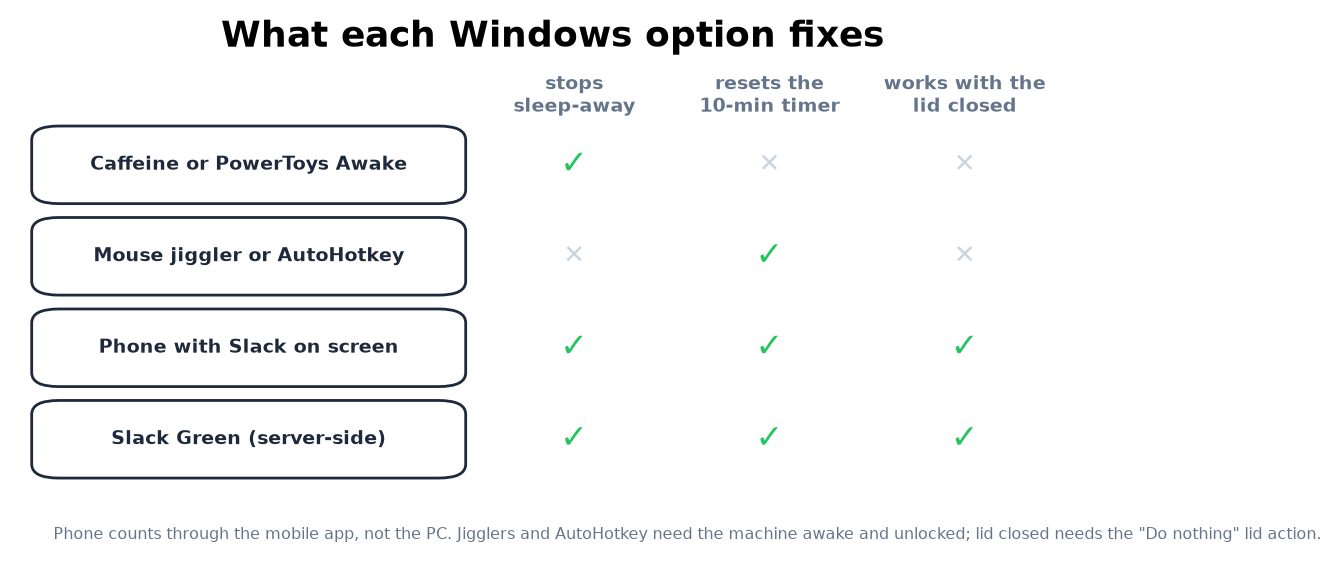
For a setup guide to Caffeine on Windows, its command-line switches, and how it compares with PowerToys Awake and Don't Sleep, see Caffeine app for Windows.
The work laptop case
On an IT-managed machine, Group Policy usually wins: the forced lock timer ignores your Settings, admin rights block powercfg, and antivirus flags AutoHotkey. That leaves exactly three options that survive a locked-down Windows build: using the computer yourself, a hardware jiggler (invisible to software policy, visible to anyone watching the cursor), or presence that never touches the machine, which is the server-side category.
Windows questions people search
Does Caffeine for Windows keep Slack active? It keeps the machine awake by simulating an F15 keypress, which stops the sleep-away. It creates no input, so the 10-minute timer still flips you. Full test.
Does PowerToys Awake keep your Slack dot green? Same class as Caffeine: it holds the machine awake and does nothing about Slack's own timer. Modes, setup and Teams: does PowerToys Awake keep Slack active.
If Slack starts with Windows, am I active all day? No. Autostart only means the app is running. You are green for the first 10 minutes after each input and away after.
Does closing the lid log me out of Slack? With the default lid action the laptop sleeps and you go away in seconds. Set the lid action to "Do nothing" on power and Slack keeps running, though you still need input, or a tool that provides it, to stay green.
Can I stop my work laptop from locking? Usually not; Group Policy overrides local settings. On managed machines the realistic options are the jiggler or server-side presence, covered above.
The short version
Fix the Windows clock first: Screen and sleep set longer, lid action on "Do nothing", or powercfg from a terminal, because most laptops lock minutes before Slack's timer even runs. That leaves the 10-minute timer, which any keyboard or mouse input resets: by hand, by jiggler or AutoHotkey; or a phone, or a server-side tool, which also survives the work-laptop lockdown. Every method compared: how to keep Slack active.
Stop Jiggling Your Mouse.
Join hundreds of remote workers who never worry about their Slack status. Set it up once, stay green forever.
Related Articles
How to See All Your DMs in Slack, Including the Hidden Ones
The DMs tab lists your direct messages with people. App DMs, Slackbot and DMs with deleted accounts sit elsewhere. We compared the tab with the full list the Slack API returned.
Slack Images Not Showing? 5 Causes We Reproduced
We uploaded images to a Slack test channel and then switched each image setting off, ran /collapse, and posted from a bot that was not in the channel. Five causes, each reproduced.
How to Message Yourself on Slack (and What It Notifies)
Your own name under Direct messages opens a private DM with yourself. We sent it a note, a file, a scheduled message and a reminder, and checked which ones raised a badge.