
Can My Employer Monitor My Personal Computer? Only Through What You Install
Your employer can monitor your personal computer only through something work puts on it: device management, a monitoring agent, the company VPN, or work apps and browser profiles. Each one sees a different slice. How to check which ones you have.
Your employer can monitor your personal computer only through something work puts on it. There are four ways in: device management you enrolled in (such as Microsoft Intune), a monitoring app you were asked to install (such as ActivTrak or Hubstaff), the company VPN while it is connected, and the work apps and browser profiles you sign in to. With none of those, a personal computer on your home Wi-Fi is invisible to your employer. With one of them, your employer sees the slice that tool collects, and nothing outside it.
The table below shows what each one sees. If you are only worried about your chat status, that is a separate question: Slack and Teams see activity in their own apps, not the rest of your computer. Slack Green keeps your Slack presence active from a server during the hours you set, and installs nothing on your computer.
What each work tool can see on a personal computer
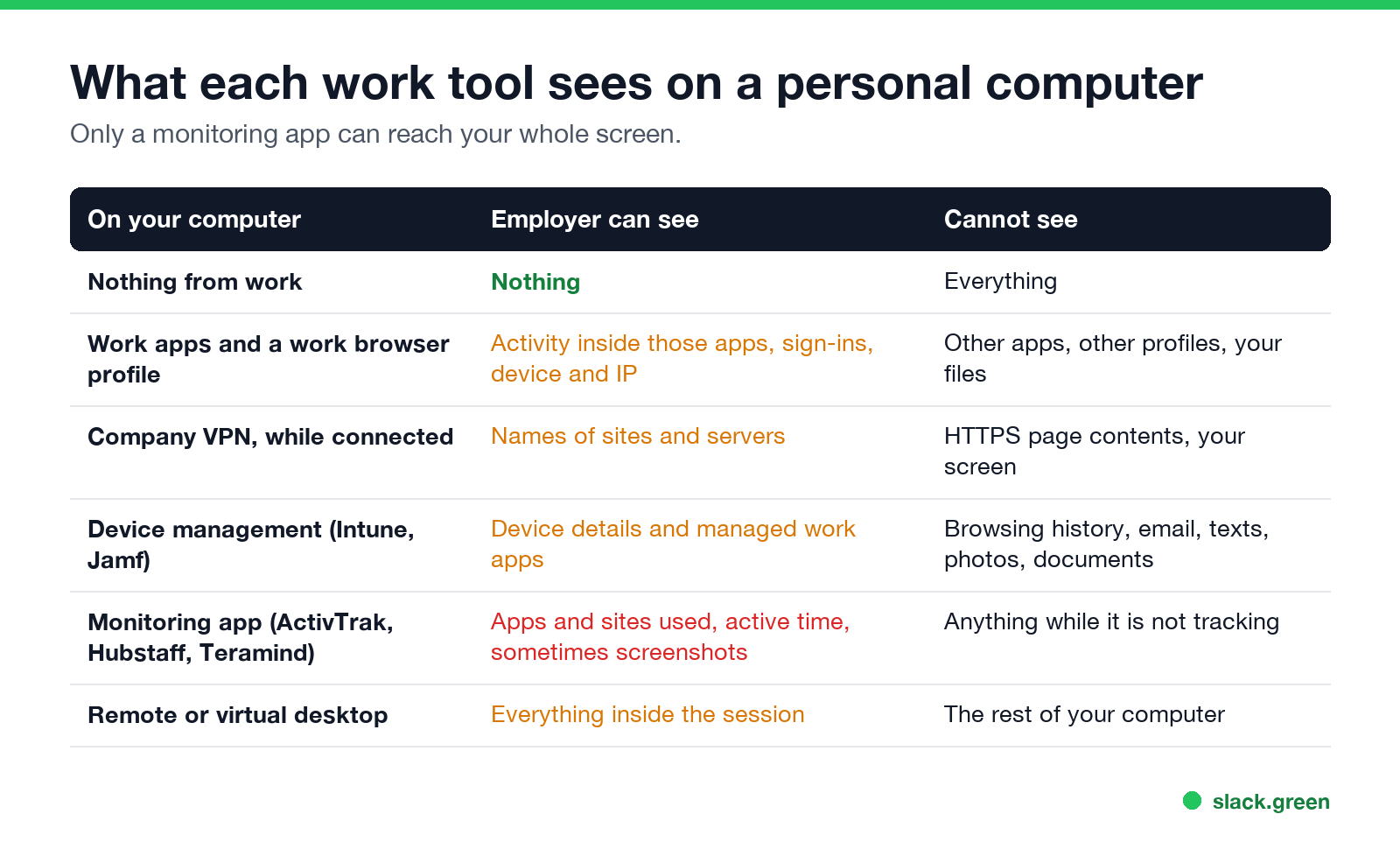
| What is on your computer | What your employer can see | What it cannot see |
|---|---|---|
| Nothing from work | Nothing | Everything |
| Work apps only (Slack, Teams, Outlook, a work browser profile) | Activity inside those apps: messages, sign-ins, files, the device and IP you used | Other apps, other browser profiles, your files |
| Company VPN, while connected | Names of sites and servers your traffic reaches | Page contents on HTTPS sites, your screen, traffic when the VPN is off |
| Device management (Intune, Jamf) on a personal device | Device name, model, serial number, OS version, and the managed work apps | Browsing history, email, texts, photos, files you create |
| A monitoring app (ActivTrak, Hubstaff, Time Doctor, Teramind) | What that app is set to collect: apps and sites used, active time, sometimes screenshots | Anything while it is not running or not tracking |
| Remote or virtual desktop (Citrix, Azure Virtual Desktop) | Everything inside the remote session | The rest of your computer |
The only row that can reach your whole screen is a monitoring app. The rest see less than people expect.
Device management on a personal computer
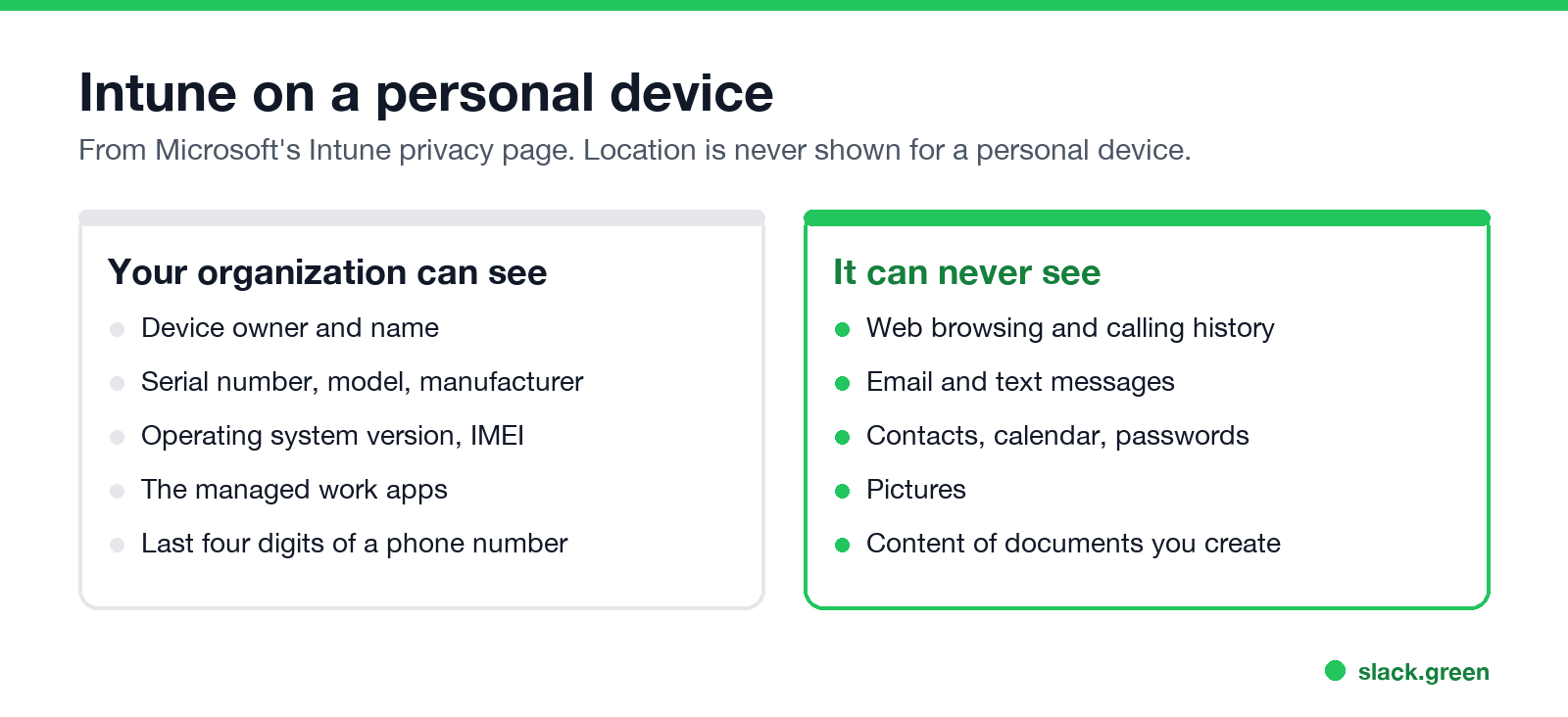
Many companies ask you to enroll a personal computer before you can open work email or files, often through Settings, Accounts, Access work or school on Windows or a profile on a Mac. Microsoft's Intune privacy page lists what the company gets:
- • Can never see: calling and web browsing history, email and text messages, contacts, calendar, passwords, pictures, and the content of documents you create.
- • Can always see: device owner, device name, serial number, model, manufacturer, operating system version and IMEI.
- • On a personal device, the list of managed work apps. Microsoft adds that "some configurations allow organizations to see more than just the managed app inventory on a personal device."
- • Location only for a lost company-owned device, never for a personal one.
The extra detail Intune can pull from Windows, such as running processes, registry entries and file names, is listed for corporate-owned Windows devices. Your Company Portal app shows whether your device is marked Corporate or Personal under Device details.
What device management does not do is watch your activity. It enforces rules: a password, disk encryption, an up-to-date OS. It can remove work data from the computer when you leave.
Monitoring apps on a personal laptop
Never appear "away" on Slack again
Cloud-based. No downloads. Works 24/7 even when your laptop is off.
This is the case to take seriously. If your employer asks you to install ActivTrak, Hubstaff, Time Doctor, Teramind or a similar agent on your own laptop, it collects on your laptop what it would collect on a company one. ActivTrak, for example, records every app and executable used, with time and duration, and with a paid add-on the full URL, window titles and alarm-triggered screenshots. It does not log keystrokes or use the webcam, according to its own data page.
Some tools track only while you have a timer running, which is how Hubstaff works by default. Others can run whenever the computer is on. Ask which one you are installing, and read the settings it shows you. What ActivTrak does with mouse jigglers is in can ActivTrak detect a mouse jiggler.
If you would rather not have it on your own computer, ask for a company laptop. Keeping work and personal use on separate machines is the only arrangement where the agent sees only work.
The company VPN on your own computer
While the VPN is connected, your traffic, or the part your company routes through it, passes a company server. The company can log the names of the sites and servers you reach, such as youtube.com at 14:03, but not the pages inside HTTPS sites or your screen. Disconnect, and it sees nothing. What a personal VPN hides from your employer is in can my employer see my browsing if I use a VPN. The details, including what incognito mode does and does not hide, are in can my employer see my browsing history.
Work apps and browser profiles
Signing in to Slack, Teams, Outlook or a work Chrome or Edge profile does not give your employer the rest of your computer. Each app logs its own activity: messages, files, sign-ins, and the device and IP address you signed in from. Slack admins see who was active and when; Teams admins see sign-ins and presence. Keep personal browsing in a separate browser profile from the work one, because a work profile can be managed by your company. What Slack shows admins is in can Slack be used to monitor employees, and what Teams logs is in does Teams track your activity.
How to check what is on your personal computer
Never appear "away" on Slack again
Cloud-based. No downloads. Works 24/7 even when your laptop is off.
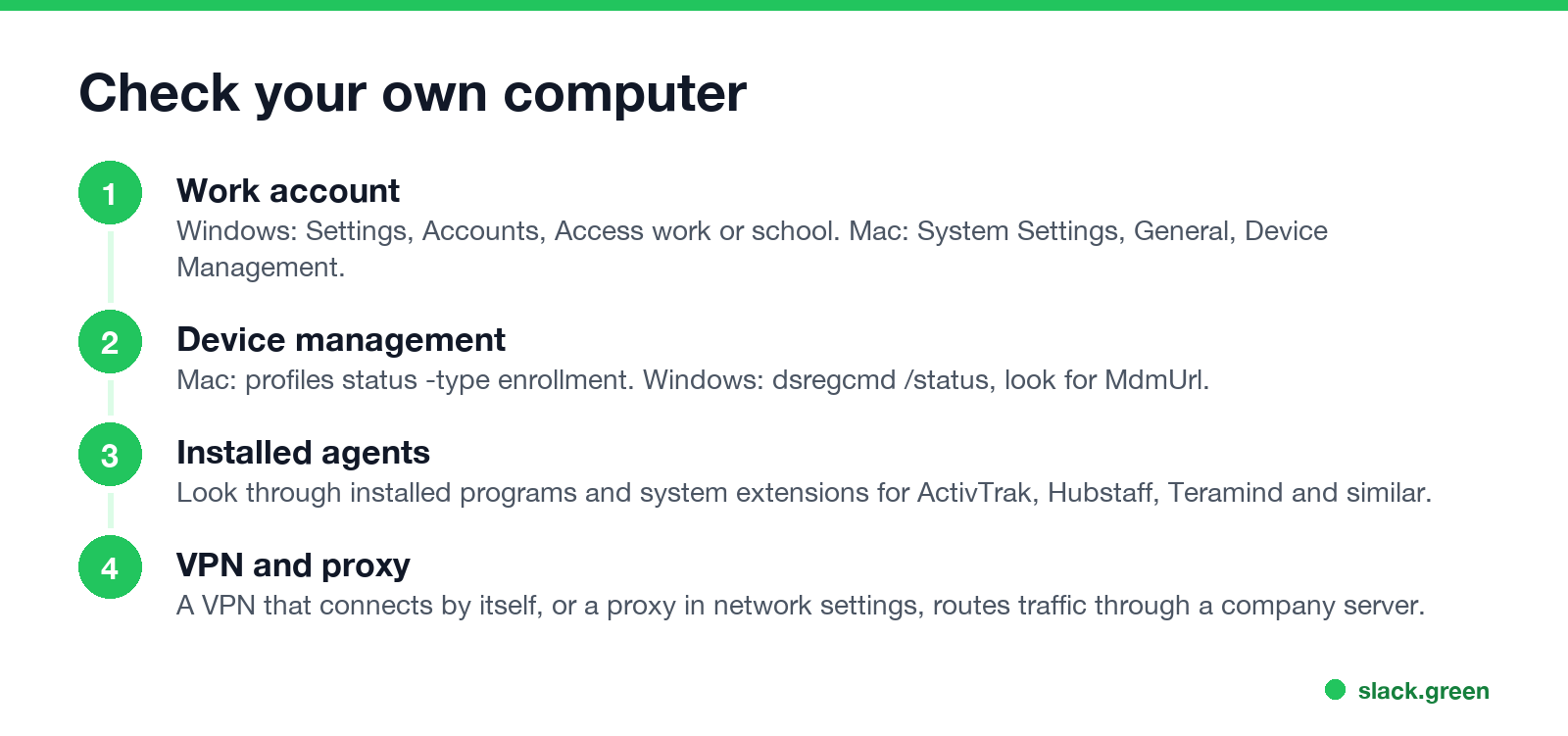
On a Mac, open Terminal:
# is this Mac enrolled in device management?
profiles status -type enrollment

# system extensions, where security and monitoring agents often sit
systemextensionsctl list
"MDM enrollment: No" means no device management. Also look under System Settings, General, Device Management, and Login Items & Extensions.
On Windows, open PowerShell:
# joined or registered to a work account? look for YES and an MdmUrl
dsregcmd /status | Select-String 'AzureAdJoined|WorkplaceJoined|MdmUrl'

# every installed program, to spot a monitoring agent
Get-ItemProperty 'HKLM:\Software\Microsoft\Windows\CurrentVersion\Uninstall\*',
  'HKLM:\Software\WOW6432Node\Microsoft\Windows\CurrentVersion\Uninstall\*' |
  Where-Object DisplayName | Sort-Object DisplayName | Select-Object DisplayName, Publisher
Also check Settings, Accounts, Access work or school. More checks, including proxies and browser extensions, are in how to tell if you are being monitored at work.
Is it legal to monitor a personal computer?
It depends on consent and where you work. In the US, installing monitoring software on a computer your employer does not own generally needs your permission, and a BYOD policy you signed is often that permission. In the EU and UK, monitoring has to be necessary, proportionate and disclosed to you, and monitoring a personal device is harder to justify. State rules, including New York's notice law, are in is it legal for my employer to monitor me.
Your chat status is a separate question
Slack and Teams do not read your personal computer. Slack sets you away after 10 minutes with no input in the Slack window. Teams sets you Away after a few minutes with no input on the computer. If your worry is looking idle while you read or think, a monitoring question does not apply. Slack Green keeps your Slack dot green from a server during the hours you set; the rules for Teams are in how to keep your Teams status available.
FAQ
Never appear "away" on Slack again
Cloud-based. No downloads. Works 24/7 even when your laptop is off.
Can my employer monitor my personal computer? Only through something work put on it: device management, a monitoring app, the company VPN while connected, or work apps and profiles.
Can my employer see my personal computer on the VPN? They can log the names of sites and servers you reach while it is connected. They cannot see your screen or your files through the VPN.
Can my employer see my browsing history if I enrolled my laptop in Intune? No. Microsoft lists web browsing history among the things your organization can never see on an enrolled device.
Can my employer install monitoring software on my personal laptop? Only with your consent in most places. If you are asked to, ask what it collects and whether it tracks only while you clock in.
Does signing in to Slack or Teams let my employer see my computer? No. Those apps log their own activity, not the rest of your computer.
How do I know if my personal computer is monitored? Check for a work account or device management profile, and look through installed programs for a monitoring agent.
Stop Jiggling Your Mouse.
Join hundreds of remote workers who never worry about their Slack status. Set it up once, stay green forever.
Related Articles
Can My Employer See My Browsing If I Use a VPN? It Depends Whose
A personal VPN hides the sites you visit from the office network, but not from monitoring software, a managed browser or IT on a work laptop. The company VPN shows your employer every site it carries. What each setup hides.
Teams Status on Multiple Devices: The Last Device You Used Wins
Signed in to Teams on a computer and a phone? Your status comes from the device you used most recently. That is why a quick look at your phone can turn you Away, and why a phone in your pocket shows Away instead of Offline at night.
Zoom Do Not Disturb: How to Turn It On, Schedule It, and What It Blocks
To turn on Do not disturb in Zoom, click your profile picture, point at your status and choose Do not disturb, then a time from 20 minutes to 24 hours, or Custom for a daily schedule. It blocks pop-up notifications for Zoom Team Chat and Zoom Phone calls. Busy, by contrast, mutes nothing. How the two differ, and how to keep a Zoom meeting free of pop-ups.