
How to Keep Your Zoom Status Active and Stop Showing Away
Zoom sets you Away after 15 minutes of inactivity by default, and unlike Slack or Teams it lets you turn that off. The setting, step by step, and what still turns your Zoom status to Away or Offline.
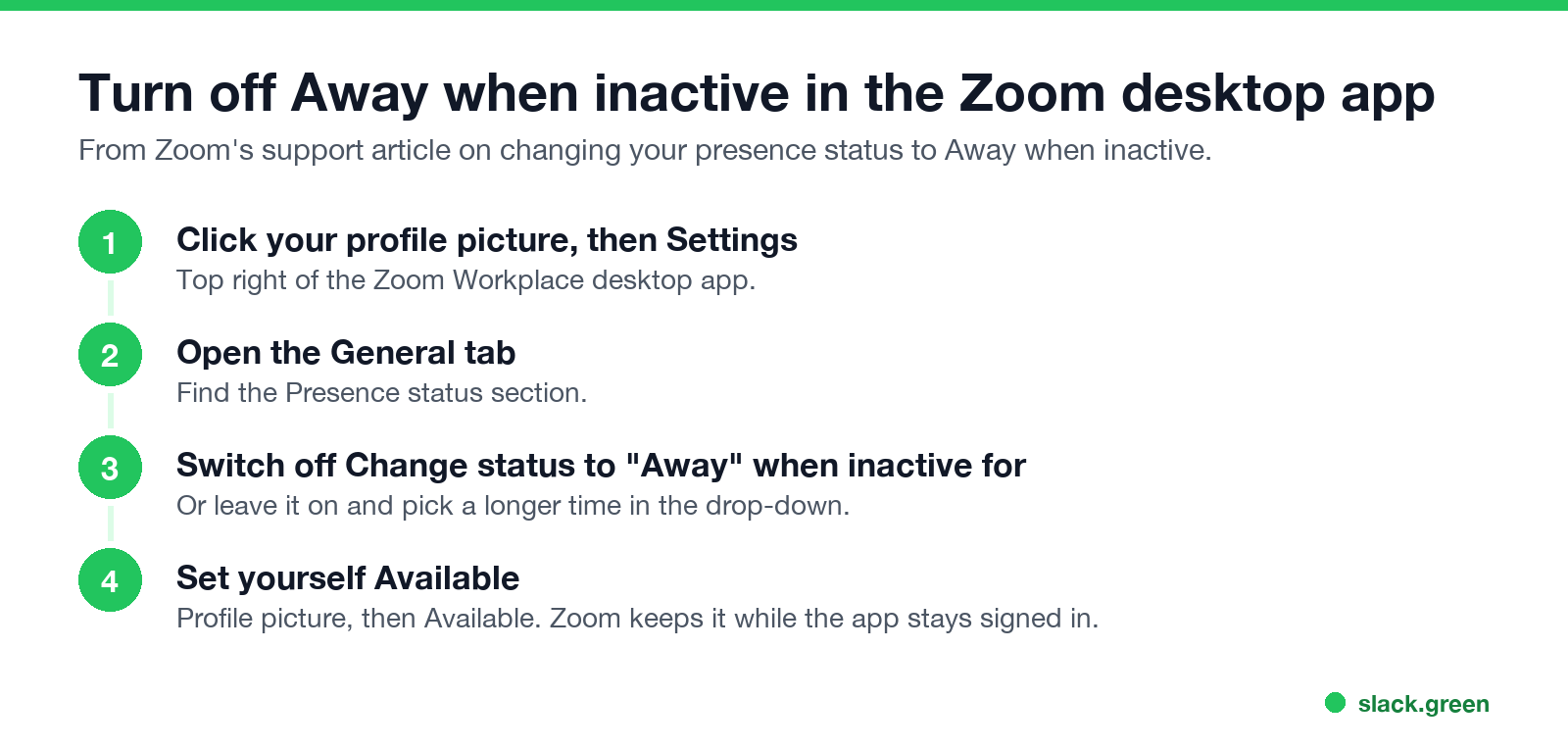
To keep your Zoom status active, turn off the automatic Away setting. In the Zoom Workplace desktop app, click your profile picture, then Settings, then the General tab. Under Presence status, switch off Change status to "Away" when inactive for. Then set yourself Available. By default Zoom sets you Away after 15 minutes of inactivity. Slack and Teams have no setting like this. You can also keep the toggle on and choose a longer time from the drop-down.
That missing setting is why so many people search for workarounds on Slack and Teams. We build Slack Green, which keeps a Slack status green on your working hours. It does not cover Zoom, and on Zoom you do not need it.
Turn off Away when inactive, step by step
Zoom desktop app (Windows, macOS, Linux):
- Sign in to the Zoom Workplace desktop app.
- Click your profile picture, then Settings.
- Click the General tab.
- Under Presence status, switch off Change status to "Away" when inactive for.
- Or leave it on and choose the number of minutes from the drop-down below it.
Zoom Web App: the same setting is available in the web app's settings, per Zoom's support article on changing your presence status to Away when inactive.
Then set your status by hand: click your profile picture and choose Available. If you set Busy, Zoom clears it after 24 hours.
If the toggle is missing or greyed out, your company's Zoom admin may control it, or your app may be older than Zoom's minimum version. Update the app first, then ask IT.
What still sets your Zoom status to Away or Offline
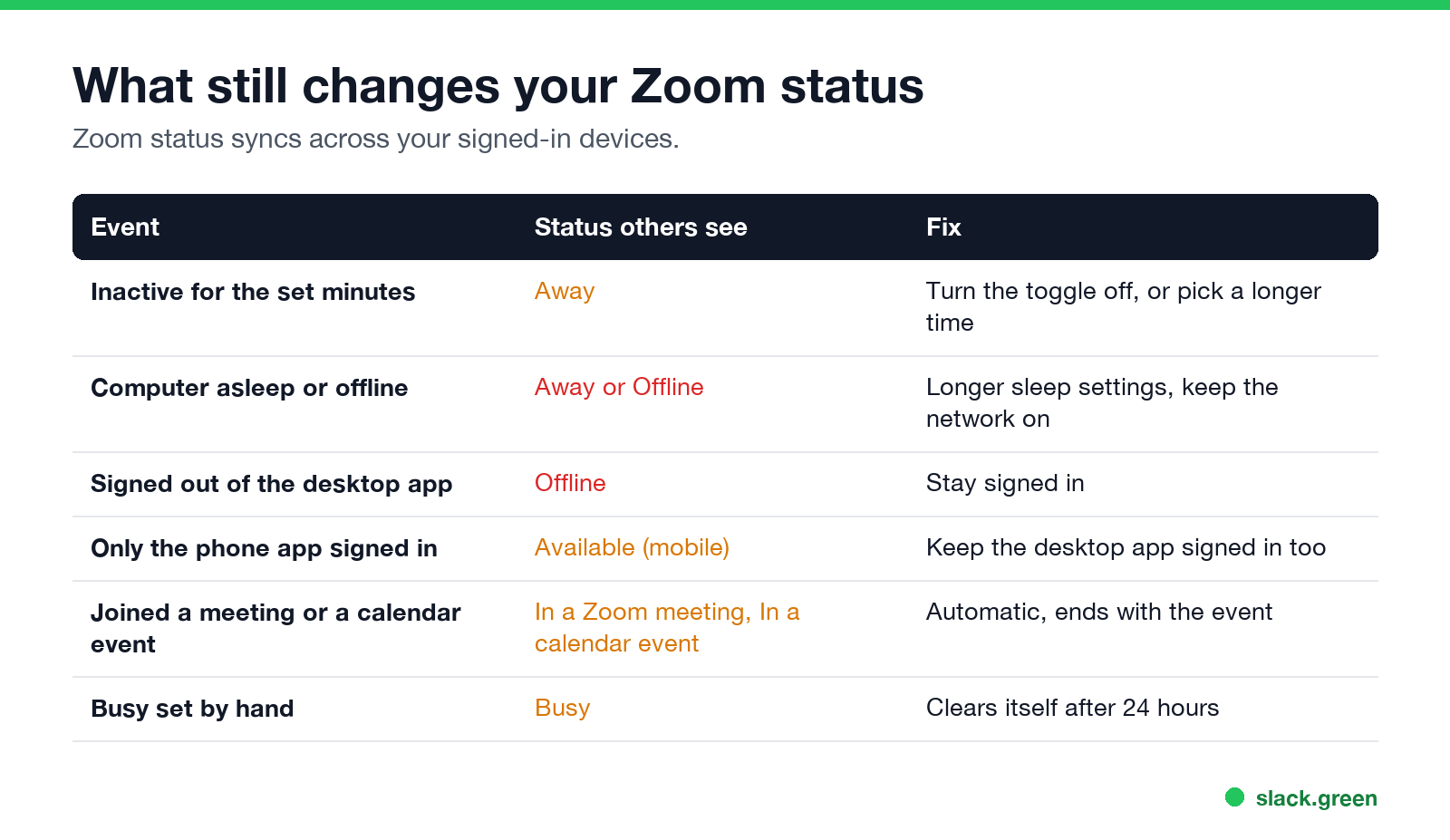
Turning off the inactivity timer stops the most common cause. Other events still change what people see:
| Event | Status others see | Fix |
|---|---|---|
| Inactive for the set minutes, with the toggle on | Away | Turn the toggle off, or pick a longer time |
| Computer asleep, or no network | Away or Offline | Longer sleep settings, keep the network on |
| Signed out of the desktop app | Offline | Stay signed in |
| Only the phone app is signed in | Available (mobile) | Keep the desktop app signed in too |
| In a meeting, presenting, or in a calendar event | In a Zoom meeting, Presenting, In a calendar event | Automatic, ends with the event |
| Busy set by hand | Busy | Clears after 24 hours |
Sleep. Zoom can only report you while the app runs and is online. Stop the computer from sleeping during work hours: on a Mac, System Settings, then Lock Screen; on Windows 11, Settings, then System, then Power & battery. A keep-awake tool also works; see keep your computer awake without admin rights.
Your phone. Zoom's status syncs across devices. If only the mobile app is signed in, contacts see Available (mobile), which has its own icon. When the desktop app is also signed in, the desktop status wins. So the phone does not replace the desktop app if you want the desktop Available status.
Meetings. Joining a meeting sets In a Zoom meeting automatically. If you set Available by hand during a meeting, Reset in the status menu brings back the automatic status.
What each Zoom icon means, from the green circle to the red camera, is in Zoom status icons meaning.
Does Zoom kick you out for inactivity?
Больше никогда не показывать "отошёл" в Slack
Облачное решение. Без загрузок. Работает 24/7 даже при выключенном ноутбуке.
Not from a meeting. Zoom does not end a meeting because you have not moved. Meetings on a free Zoom account end at the plan's time limit, 40 minutes, whether you are active or not. Your company can also sign you out of the app after a period set by its security policy, which is separate from presence.
Keeping Zoom, Slack and Teams green together
Many people run Zoom next to Slack or Teams. The three apps follow different rules:
| App | Default idle time | Can you turn auto-away off? |
|---|---|---|
| Zoom | 15 minutes | Yes, in Settings, General |
| Slack | 10 minutes of no input in the Slack window | No |
| Microsoft Teams | About 5 minutes of no input on the computer | No |
For Slack, input has to happen in the Slack window itself, and no setting changes that. The methods are in how to keep Slack active, and a scheduled option is Slack Green. For Teams, see how to keep Teams status available. If you run all of them, keep Teams and Slack active covers the pair, and how to keep Google Chat active covers Google's app.
FAQ
How do I stop Zoom from showing me as away?
Turn off Change status to "Away" when inactive for in Settings, General, Presence status, then set yourself Available.
How long before Zoom shows away?
15 minutes of inactivity by default. You can change the number of minutes or turn it off.
How do I keep the green dot on Zoom?
Stay signed in to the desktop app, turn off Away when inactive, set Available, and stop the computer from sleeping.
Can I keep Zoom active on my phone?
Your status syncs across devices. With only the phone signed in, contacts see Available (mobile). Keep the desktop app signed in for the desktop status.
Why does my Zoom status say In a calendar event?
Your calendar is synced with Zoom and you are in a calendar event. It changes back when the event ends, or use Reset after you set a status by hand.
Does a mouse jiggler keep Zoom active?
It stops the inactivity timer while the computer stays unlocked, but on Zoom you do not need one. Turn the setting off instead. Jigglers can show up on company laptops, as covered in can a mouse jiggler be detected.
Хватит Двигать Мышкой.
Сотни удалённых работников больше не беспокоятся о статусе Slack. Настройте один раз, оставайтесь зелёными навсегда.
Related Articles
Slack Lists Tutorial: Create, Organize and Share a List
Slack lists are tables of tasks inside Slack, with fields, assignees, due dates, a board view and a comment thread on every item. How to create a list from scratch or a template, set up fields, turn it into a kanban board, add messages to it, share it, and what the plan limits are.
Slack Jira Integration: Setup, /jira Commands and Notifications
Install the Jira Cloud for Slack app, type /jira connect in a channel to send a Jira space's updates there, /jira notify for personal notifications as DMs, and create work items from any message with More actions. Every /jira command, Jira automation to Slack, and fixes when previews or notifications stop.
How to Create a Slack Workspace, on Desktop or Phone
Go to slack.com/get-started, enter your email, type the confirmation code, and click Create a Workspace. It is free to start, you become the Primary Owner, and it takes about five minutes. Steps for desktop, iPhone and Android, and what to set up next.