
Caffeine App for Windows: Setup, Switches and Alternatives
Caffeine for Windows is a free tray app from Zhorn Software that keeps your PC awake by pressing an invisible F15 key every 59 seconds. How to set it up, the command-line switches worth using, and how it compares with PowerToys Awake, Don't Sleep and Mouse Jiggler, including what each does for Teams and Slack.
Caffeine for Windows is a free app from Zhorn Software that keeps your PC from sleeping, locking or starting the screen saver. It sits in the system tray as a coffee pot and presses the F15 key, a key no keyboard has, once every 59 seconds, so Windows thinks you are still at the keyboard. Download caffeine.zip from zhornsoftware.co.uk/caffeine, unzip it and run it; it needs no installer. The current version is 1.98, from November 2024.
If you want a keep-awake app for Windows that sends no keypresses, use PowerToys Awake from Microsoft or Don't Sleep. If what you want is a green status in Slack, no app on the PC does that reliably, because Slack counts only input inside its own window. We build Slack Green, which keeps your Slack status active during your working hours from our servers, with the PC asleep or off.
How to set up Caffeine for Windows
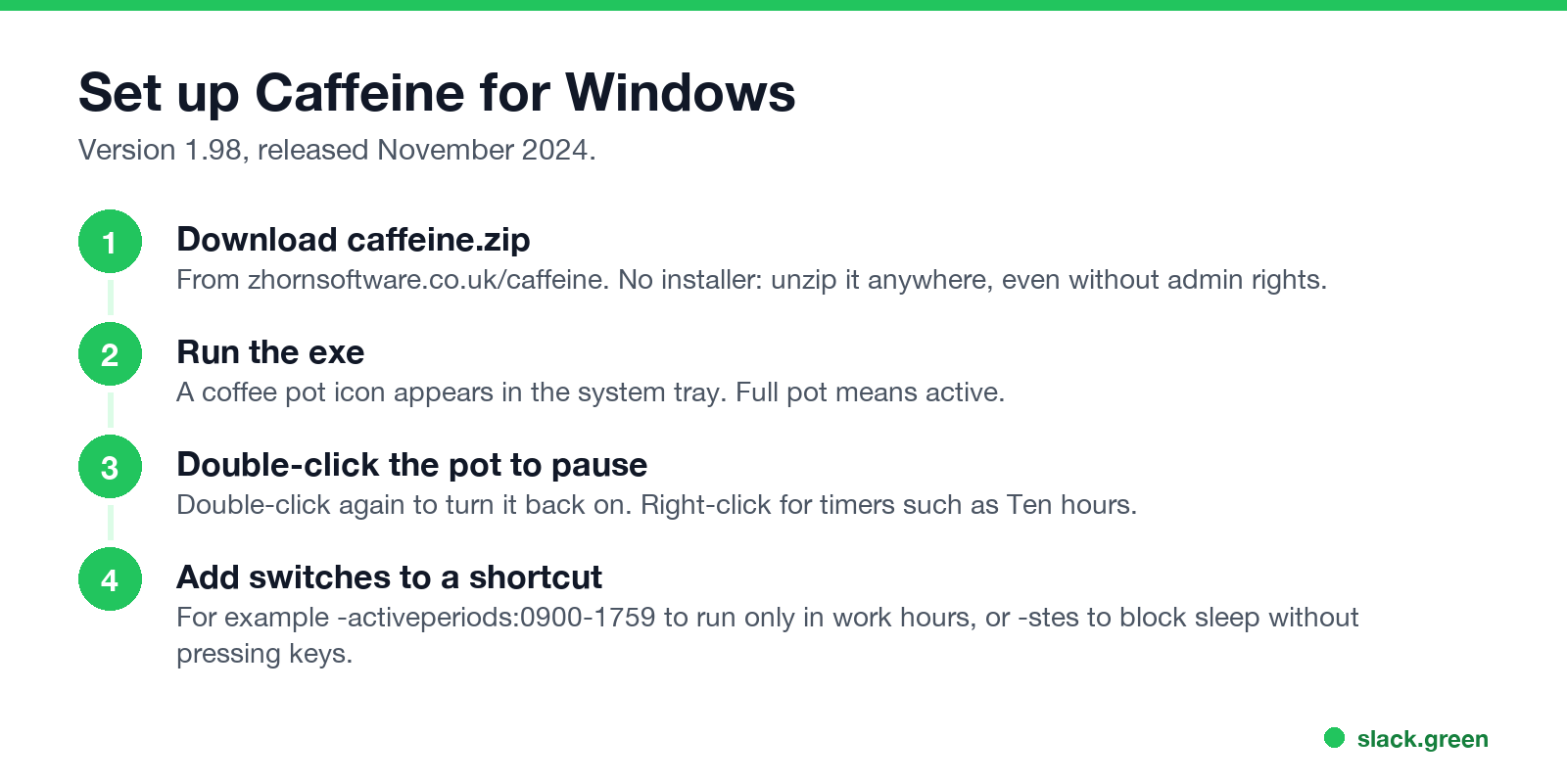
- Download caffeine.zip from Zhorn Software's Caffeine page. The zip has 32-bit and 64-bit versions.
- Unzip it into any folder you can write to. It runs without an install, so it works on many PCs without admin rights, unless your company blocks unknown apps.
- Run the exe. A coffee pot appears in the system tray. A full pot means Caffeine is keeping the PC awake.
- Double-click the pot to pause it, and again to turn it back on. Right-click it for timers such as Ten hours.
- To start it with Windows, put a shortcut to it in your Startup folder (press Win+R and type
shell:startup).
Caffeine switches worth using
Caffeine reads switches from its command line. Right-click your shortcut, choose Properties, and add them after the exe path in the Target box. These are the most useful, from Zhorn's own list:
| Switch | What it does |
|---|---|
-activeperiods:0900-1759 | Active only in those hours. Several ranges work: 0730-1200,1300-1800 |
-exitafter:90 | Quits after 90 minutes |
-activefor:60 | Goes inactive after 60 minutes |
-onac | Active only while the PC is plugged in |
-notwhenlocked | Goes inactive when you lock the PC |
-useshift | Presses Shift instead of F15 |
-stes | Blocks sleep with a Windows power request and sends no key at all |
-allowss | Like -stes, but lets the screen saver start |
-watchwindow:Zoom | Active only while a window with "Zoom" in its title is open |
A work-hours shortcut looks like this. Use your own path to the exe:
"C:\Tools\caffeine\caffeine64.exe" -activeperiods:0900-1759 -onac -notwhenlockedZhorn notes that the F15 method can cause problems in PuTTY sessions, PowerPoint, Google Docs and Smartsheet. If you see odd behavior in those apps, try -useshift or -stes.
Caffeine alternatives for Windows
Never appear "away" on Slack again
Cloud-based. No downloads. Works 24/7 even when your laptop is off.
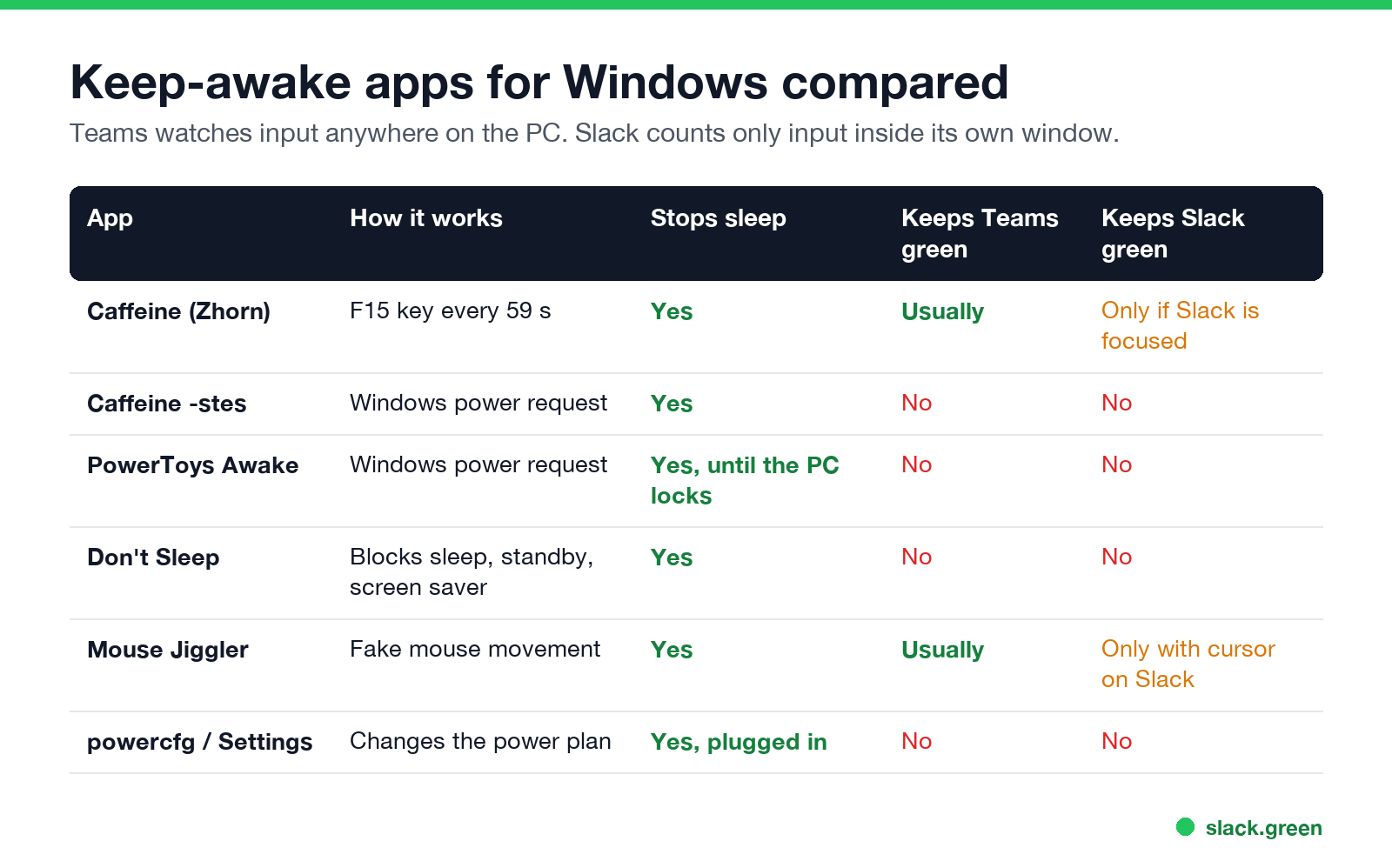
| App | How it works | Stops sleep | Keeps Teams green | Keeps Slack green |
|---|---|---|---|---|
| Caffeine (Zhorn) | Presses F15 every 59 seconds | Yes | Usually | Only if Slack is the focused window |
Caffeine with -stes | Windows power request, no key | Yes | No | No |
| PowerToys Awake | Windows power request | Yes, until the PC locks | No | No |
| Don't Sleep | Blocks sleep, standby, shutdown and the screen saver | Yes | No | No |
| Mouse Jiggler | Fake mouse movement | Yes | Usually | Only with the cursor over Slack |
| powercfg or Settings | Changes the power plan | Yes, plugged in | No | No |
PowerToys Awake. Part of Microsoft's free PowerToys. It keeps the PC awake indefinitely, for a set time, or until a date and time, and can keep the screen on. It does not change your power plan and sends no input. Microsoft's docs say it does not work while the lock screen is showing. More in does PowerToys Awake keep Slack or Teams active.
Don't Sleep. A free portable app from SoftwareOK, version 10.22. It blocks sleep, standby, hibernate, shutdown and the screen saver, with timers and rules based on CPU load or network traffic. It works on Windows 11 and 10 and on Windows Server.
Mouse Jiggler. Free and open source from Arkane Systems. It fakes mouse input to Windows, with a Zen mode that moves the pointer without visible movement. Setup and modes are in mouse jiggler for Windows.
No app. Settings, System, Power & battery, Screen and sleep, set to Never. Or two commands in a terminal, for when the PC is plugged in:
powercfg /change monitor-timeout-ac 0
powercfg /change standby-timeout-ac 0
For scripts that do the same job without an app, see keep your computer awake with PowerShell.
Does Caffeine keep Teams and Slack active?
Teams: usually yes. Teams sets you Away after about 5 minutes with no input anywhere on the PC. The F15 press is input, so it resets that timer, and Teams usually stays Available. The -stes and -allowss modes send no input, so they do not. Timing details are in how long before Teams shows away.
Slack: no. Slack counts only input inside the Slack window. Caffeine sends F15 to whatever window is in front, so Slack sees it only while Slack is the focused window. Keeping the PC awake does stop the instant away you get when a PC sleeps or locks, but 10 minutes after your last input in Slack you still turn away. We tested the Mac version the same way: does Caffeine keep Slack active. Windows options that work are in keep Slack active on Windows.
One more thing to know on a work PC: software keypresses are marked by Windows as injected input, and monitoring tools can see a running Caffeine process. See can a mouse jiggler be detected.
FAQ
Is Caffeine for Windows free?
Yes. It is freeware from Zhorn Software, with no installer.
Is Caffeine for Windows safe?
It is a small, long-running freeware app that presses F15 or makes a Windows power request. Download it only from zhornsoftware.co.uk. Your company may still block or flag it.
What is the best Caffeine alternative for Windows?
PowerToys Awake, if you want Microsoft's own tool and no fake keypresses. Don't Sleep, if you want more rules and timers.
Does Caffeine stop Windows from locking?
Yes in its default mode, because the F15 press counts as input. The -stes mode stops sleep but not a lock set by company policy.
Can I run Caffeine only during work hours?
Yes. Add -activeperiods:0900-1759 (or your hours) to its shortcut.
Stop Jiggling Your Mouse.
Join hundreds of remote workers who never worry about their Slack status. Set it up once, stay green forever.
Related Articles
How to Keep Skype Status Active: Skype for Business Idle Timers
To keep your Skype for Business status active, open Options, Status, and raise both idle timers, Inactive and then Away, from 5 minutes to as much as 360 minutes each. Consumer Skype shut down on May 5, 2025 and Skype for Business Online in 2021, so for most people the real question is now Teams. What still works, status icons, Outlook, and status not updating.
Is It Legal for My Employer to Monitor Me? US, EU and UK Rules
In the US it is mostly legal for an employer to monitor company devices, accounts and premises, often without asking. The limits are state notice laws in New York, Connecticut and Delaware, consent rules for audio recording and biometrics, bans on cameras in restrooms, and your personal devices. The EU, UK and parts of Canada and Australia add notice and proportionality rules.
Can My Employer See My Personal Email on My Work Computer?
Your employer cannot sign in to your Gmail, and doing so without permission can break the Stored Communications Act. But on a work computer, screenshot and keystroke monitoring, browser history, HTTPS inspection and Outlook's local cache can all expose personal email. Work email is fully visible, deleted messages included. Case by case, with what to do.