
How to Keep a Mac Screen From Locking (Without Breaking IT Rules)
To stop a Mac from locking, open System Settings, Lock Screen, set the screen saver and display-off times to Never or longer, and raise Require password after screen saver begins or display is turned off. Or run caffeinate -d. What a managed Mac allows, and why Slack still shows you away.
Free tool, runs in this tab
Keep your screen awake and see when Slack sets you away
Press Start. This tab keeps the screen on while it stays open, and shows the minute Slack, Teams and Zoom would set you away if nothing touches the keyboard or mouse.
This tab cannot move your pointer or press keys, so on its own it cannot keep Slack or Teams active. It reads the same idle time the Slack desktop app, Teams and Zoom read. To test a jiggler, start, then take your hands off for 6 minutes: if Your computer stays green, the jiggler keeps them active.
- Your computerNot measured yetPress Start and allow idle detection.
- Slack desktop app-Away after 10 min, any input.
- Microsoft Teams-Away after about 5 min, any input.
- Zoom-Away after 15 min by default, any input.
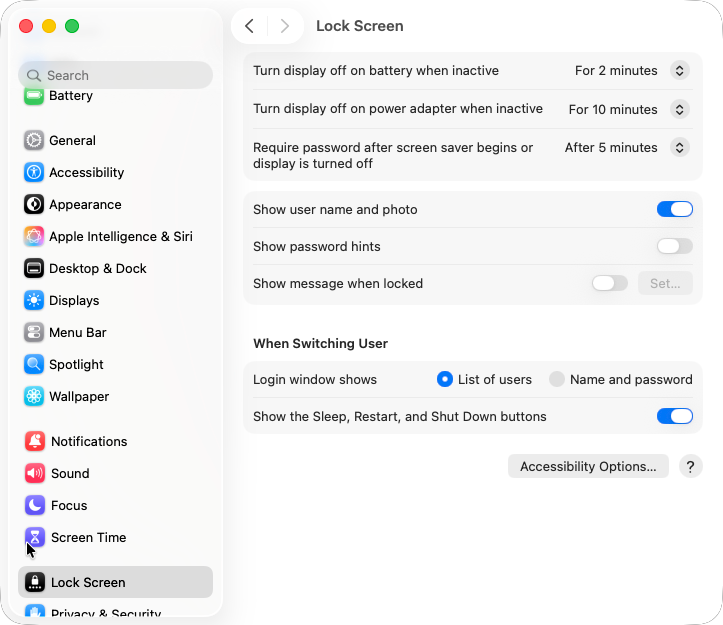
To stop your Mac from locking when idle, open System Settings, Lock Screen and change three things: set Turn display off on battery when inactive and Turn display off on power adapter when inactive to a longer time or Never, and set Require password after screen saver begins or display is turned off to a longer delay. For a temporary fix, run caffeinate -d in Terminal; it keeps the display on, so the lock that follows display-off never starts, until you press Ctrl+C. On a Mac managed by your company these menus can be greyed out, and then only IT can change them. An unlocked Mac still shows you away in Slack after 10 minutes without input, while Slack Green keeps your Slack dot green from a server even when the Mac locks or the lid is shut, free for 7 days with no card.
This is the Lock Screen page on a MacBook with macOS Tahoe 26.5.2, captured on 2 October. On this version the screen saver timer is no longer here; it moved to Wallpaper, Screen Saver....
How a Mac decides when to lock
A Mac locks in two steps. First the display turns off (or the screen saver starts). Then the Require password delay runs, and after it the Mac asks for your password. On the Mac above that meant a lock 2 + 5 = 7 minutes after the last input on battery, and 10 + 5 = 15 minutes on power. Lengthen either step and the lock comes later.
You can read all three values in Terminal without opening Settings. These are the outputs from the same Mac:
$ pmset -g custom | grep -E "^[A-Z]|displaysleep"
Battery Power:
 displaysleep         2
AC Power:
 displaysleep         10

$ sysadminctl -screenLock status
screenLock delay is 300 seconds
displaysleep is in minutes and matches the two Turn display off menus. The 300 seconds match After 5 minutes. Neither command needs an admin password. Sleep timers for the Mac itself are in how to change sleep settings on a Mac, and the screen saver timer is in how to turn off the screen saver on a Mac.
Setting the password delay to Never is possible on a personal Mac, but anyone who walks up can then use it.
A Mac that never locks still shows you away in Slack 10 minutes after your last keyboard or mouse input. A server-side tool keeps your Slack dot green with no input, even while the laptop sleeps or the lid is closed.
Stop the Mac locking for a while with caffeinate
caffeinate -dThis keeps the display on until you press Ctrl+C. Add a limit with -t, for example caffeinate -d -t 3600 for an hour. No admin password is needed. To see that it works, run pmset -g assertions in a second window. We ran caffeinate -d -t 25, and two seconds later the list showed:
pid 51580(caffeinate): [0x0003da2b0005a6d3] 00:00:02 PreventUserIdleDisplaySleep named: "caffeinate command-line tool"
Details: caffeinate asserting for 25 secs
The same list shows every other app holding the display on. On our Mac, Amphetamine held one too (PreventUserIdleDisplaySleep named: "Amphetamine (Single-Use - Display)"), and pmset -g summed it up as displaysleep 10 (display sleep prevented by Amphetamine). If your Mac never locks and you do not know why, that line names the app. Every caffeinate flag is in our caffeinate guide, and the Amphetamine test is in does Amphetamine keep Slack active.
Mac screen keeps locking anyway
- • Managed Mac. Run
profiles status -type enrollment.MDM enrollment: Yesmeans your organization manages the Mac and can enforce the lock times; ours printedMDM enrollment: No. Ask IT for a longer timeout rather than working around it. - • Hot Corners. In System Settings, Desktop & Dock, Hot Corners, a corner set to Lock Screen locks the Mac when the pointer touches it.
- • Closing the lid puts a MacBook to sleep, which locks it. See keep a laptop awake with the lid closed.
- • On battery the display timer is shorter. On the Mac above it was 2 minutes against 10 on power, so the lock comes 8 minutes sooner unplugged.
Lock vs sleep, and what Slack does
When the screen locks, Slack sets you away. Stopping the lock removes that. If you then read or sit on a call without touching anything, the Slack desktop app still sets you away 10 minutes after your last keyboard or mouse input; input in any app counts (Slack desktop 4.52.178 code, checked 7 Oct 2026). The Mac rules for Slack are in keep Slack active on Mac. For Windows, the same fixes are in how to stop Windows 11 from locking itself. A mouse jiggler only helps if it runs before the lock; does a mouse jiggler work when the computer is locked explains why.
FAQ
How do I see my Mac's lock time without opening Settings? Run sysadminctl -screenLock status for the password delay and pmset -g custom for the display-off minutes. The lock comes at the sum of the two.
Can I keep a Mac from locking without admin rights? Yes. Your own Lock Screen settings and caffeinate -d need no admin password, unless your organization manages the Mac.
Does keeping my Mac unlocked keep Slack active? Not by itself. The Slack desktop app sets you away 10 minutes after your last keyboard or mouse input on the Mac.
Related Articles
Amphetamine Alternatives for Mac, and When to Switch
Amphetamine is free and covers almost every keep-awake case, so switch only for a reason: open source, one click, Shortcuts, a lid-closed setup without Enhancer, or nothing to install. The alternative for each, compared on price and features.
The Best Mouse Jiggler for Remote Work, by Type
The best mouse jiggler depends on the computer. A free app for your own PC, a USB dongle for a personal laptop, a mechanical mover for a managed one. Picks per type, what IT sees, and what each does for Slack.
How to Keep a Laptop Awake With the Lid Closed (Windows and Mac)
On Windows, set closing the lid to Do nothing in Power Options. On a Mac, use clamshell mode: power adapter, external display, keyboard and mouse. Commands for both, the admin and heat caveats, and why Slack still shows you away with the lid closed.