
How to Keep a Mac Screen From Locking (Without Breaking IT Rules)
To stop a Mac from locking, open System Settings, Lock Screen, set the screen saver and display-off times to Never or longer, and raise Require password after screen saver begins or display is turned off. Or run caffeinate -d. What a managed Mac allows, and why Slack still shows you away.
To keep a Mac screen from locking, open System Settings, then Lock Screen. Set Start Screen Saver when inactive and Turn display off when inactive (on battery and on power adapter) to Never or a longer time, and set Require password after screen saver begins or display is turned off to a longer delay. For a temporary fix, open Terminal and run caffeinate -d, which keeps the display on, and with it the lock that follows display-off, until you press Ctrl+C. On a company Mac these settings may be greyed out by your organization; then only IT can change them.
A Mac that never locks stops Slack's instant away, but not its 10-minute timer: Slack counts only input inside its own window. Slack Green keeps your Slack presence active during the working hours you set, from the cloud, so the Mac can lock as often as policy demands.
Mac settings that decide when the screen locks
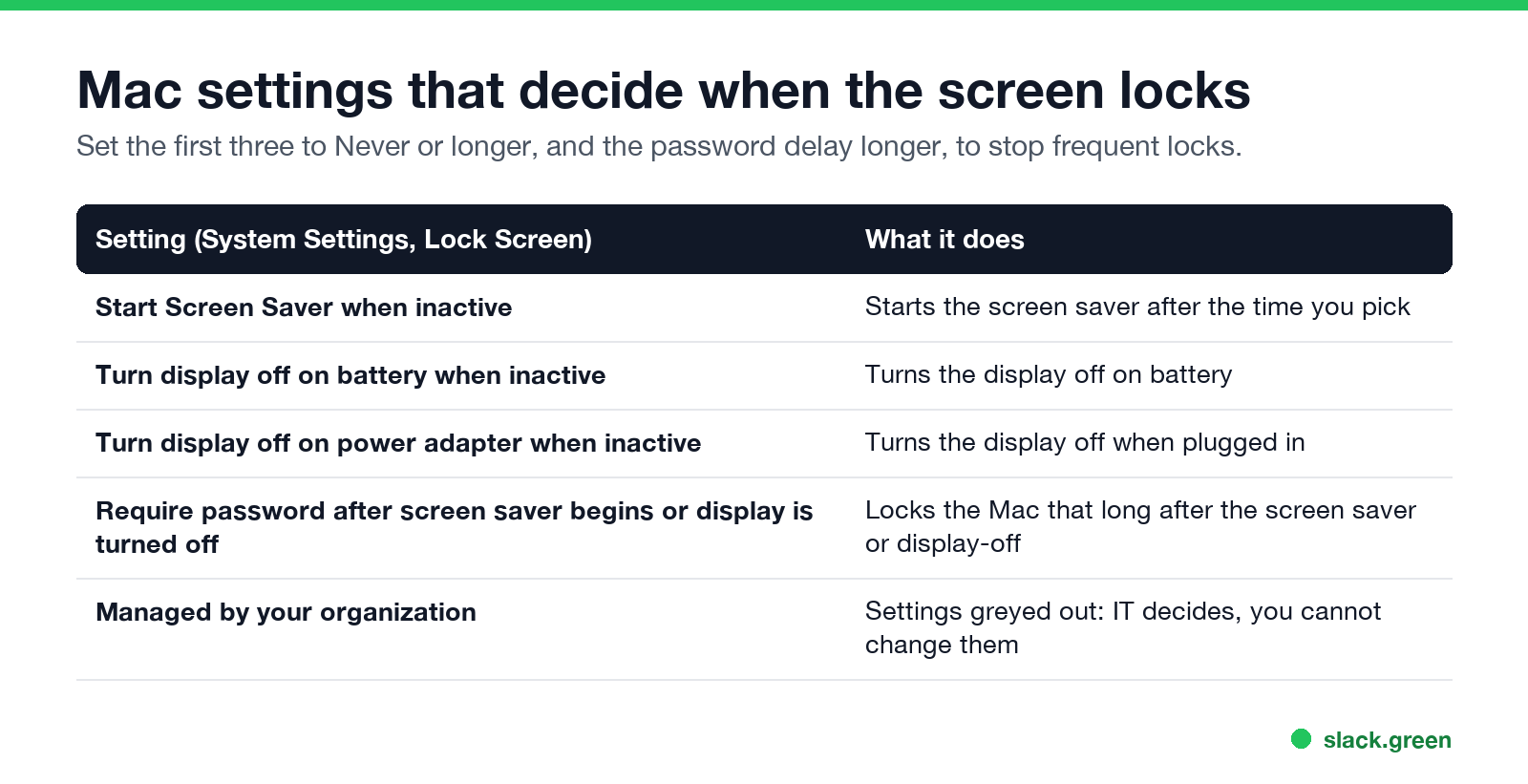
| Setting in System Settings, Lock Screen | What it does |
|---|---|
| Start Screen Saver when inactive | Starts the screen saver after the time you pick |
| Turn display off on battery when inactive | Turns the display off on battery |
| Turn display off on power adapter when inactive | Turns the display off when plugged in |
| Require password after screen saver begins or display is turned off | Locks the Mac that long afterwards |
A Mac locks when the screen saver starts or the display turns off, and then the password delay runs out. Lengthen the first two, or the delay, and it locks less often. Setting the password to Never is possible on a personal Mac but leaves it open to anyone nearby.
Stop the Mac locking for a while with caffeinate
caffeinate -dThis keeps the display on until you press Ctrl+C. Add a time limit with -t, for example caffeinate -d -t 3600 for an hour. No admin password is needed. Every flag is in our caffeinate guide; the Amphetamine app does the same with a menu-bar switch, as tested in does Amphetamine keep Slack active.
Mac screen keeps locking anyway
Больше никогда не показывать "отошёл" в Slack
Облачное решение. Без загрузок. Работает 24/7 даже при выключенном ноутбуке.
- • Managed Mac. If the settings are greyed out or reset themselves, a profile from your organization enforces them. Ask IT for a longer timeout rather than working around it.
- • Hot Corners. In System Settings, Desktop & Dock, Hot Corners, a corner set to Lock Screen or Start Screen Saver locks the Mac when the pointer touches it.
- • Closing the lid puts a MacBook to sleep, which locks it. See keep a laptop awake with the lid closed.
- • Low Power Mode on a MacBook can turn the display off sooner.
Lock vs sleep, and what Slack does
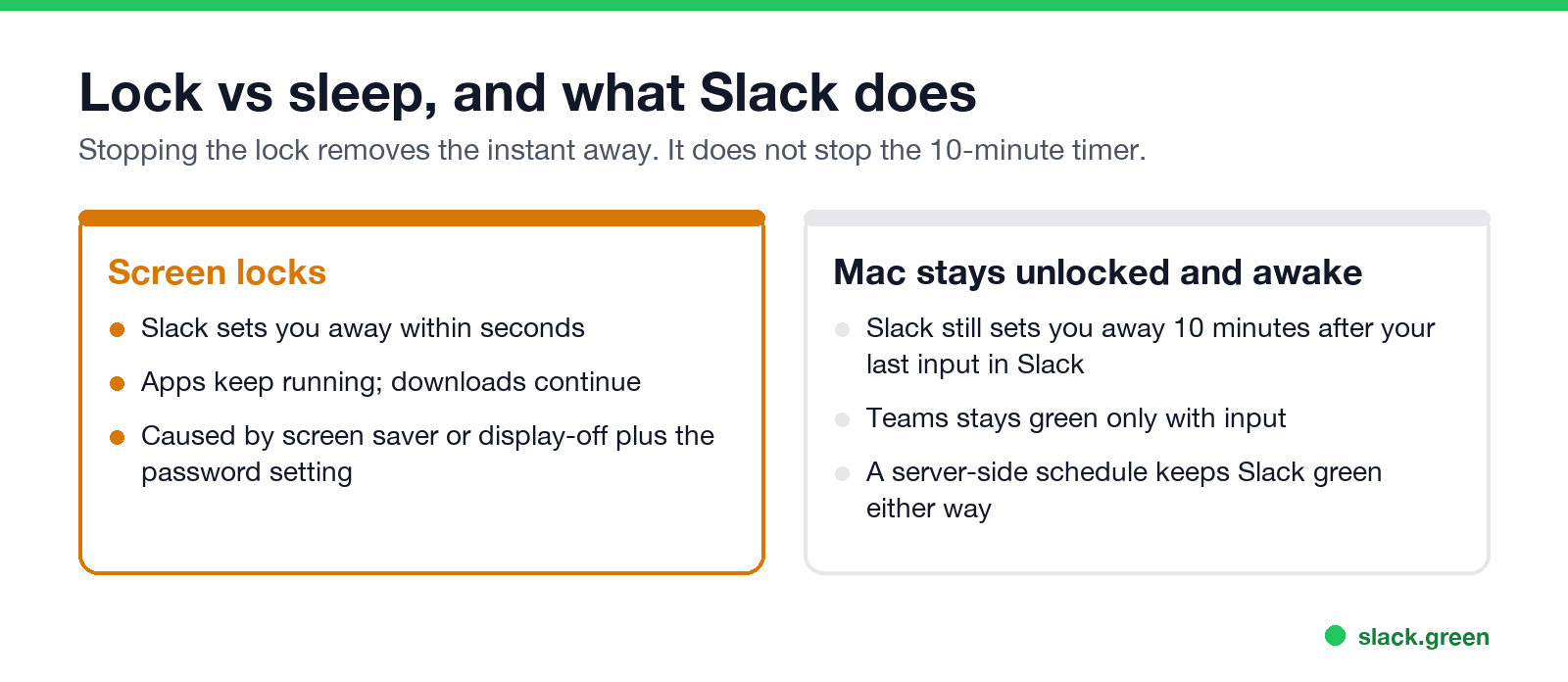
When the screen locks, Slack sets you away within seconds. Stopping the lock removes that instant away. If you then work in other apps, or read, Slack still sets you away 10 minutes after your last input in the Slack window. The Mac-specific rules are in keep Slack active on Mac, and whether Slack shows you away at the lock screen at all is in Slack shows me active when I am not. For Windows and Linux equivalents, see keep a work computer awake without admin rights.
FAQ
How do I stop my Mac from locking after inactivity?
System Settings, Lock Screen: set the screen saver and display-off times longer, and the password delay longer.
Can I keep a Mac from locking without admin rights?
Yes, with your own Lock Screen settings or caffeinate -d, unless your organization manages them.
Why does my Mac screen keep locking?
A short screen saver or display-off time, a Hot Corner, a closed lid, or a policy from your organization.
Does keeping my Mac unlocked keep Slack active?
No. Slack sets you away 10 minutes after your last input in its window.
Is it safe to stop a Mac from locking?
Only where nobody else can reach it. On a work Mac, follow your company's policy.
Хватит Двигать Мышкой.
Сотни удалённых работников больше не беспокоятся о статусе Slack. Настройте один раз, оставайтесь зелёными навсегда.
Related Articles
Slack Workflow Builder Examples: 12 Workflows to Copy, With Triggers and Steps
Twelve Slack Workflow Builder examples with the exact trigger and steps for each: daily standups, channel welcomes, time-off approvals, help desk requests, emoji escalations, keyword routing, incidents, list updates and webhooks from other tools. Plus where Workflow Builder lives, what it costs and how branches work.
Slack Timer: How to Set a Countdown, Pomodoro or Focus Timer in Slack
Slack has no built-in timer, but four built-in tools act like one: /remind me to ... in 25 minutes, a status that clears itself, /dnd for a focus block, and Workflow Builder for dated countdowns. For a live countdown in a channel, use a Marketplace app or a 15-line bot script.
Slack Saved for Later: Where the Later Tab Is and How It Works
Saved messages in Slack live in the Later tab, which replaced stars and Saved items in 2023. Hover a message and click Save for later, or press A. Add a reminder, mark items complete, and find them with is:saved. Where Later is on desktop and mobile, and what changed.