
Why Slack Keeps Showing You as Away While You Work
Slack sets you away about 10 minutes after your last keyboard or mouse input, at once when the last Slack window closes, and for as long as a manual away is on, even while you type. We measured each in a real workspace.
Slack keeps showing you as away when it sees no input for 10 minutes. The desktop app counts input anywhere on the computer (Slack desktop 4.52.178 code, checked 7 Oct 2026), so typing in a document keeps you green, but a long Zoom call, reading or watching without touching anything does not. Slack in a browser tab follows its own rules; our test tab stayed active for 30 minutes with no input. The other causes are a closed or disconnected Slack, and a "Set yourself as away" you forgot. We reproduced the last two on 2 October 2026 in a test workspace, and the results below tell you which one you have. If the cause is the idle timer during long reads or calls, Slack Green keeps you active from a server through the hours you set, even with the laptop closed.
Once you know the cause, how to stop Slack from showing you as away has the fix for each one.
What we measured in a real workspace
We used the Slack web app in a one-person workspace and called users.getPresence for our own user after every step. That method returns the same state your coworkers see as a green or hollow dot. Times are UTC on 2 October 2026.
| Step | presence | manual_away | connection_count | What it shows |
|---|---|---|---|---|
| No Slack window open (01:03) | away | false | 0 | No connection means away |
| One web tab opened (01:04) | active | false | 1 | Opening Slack makes you active at once |
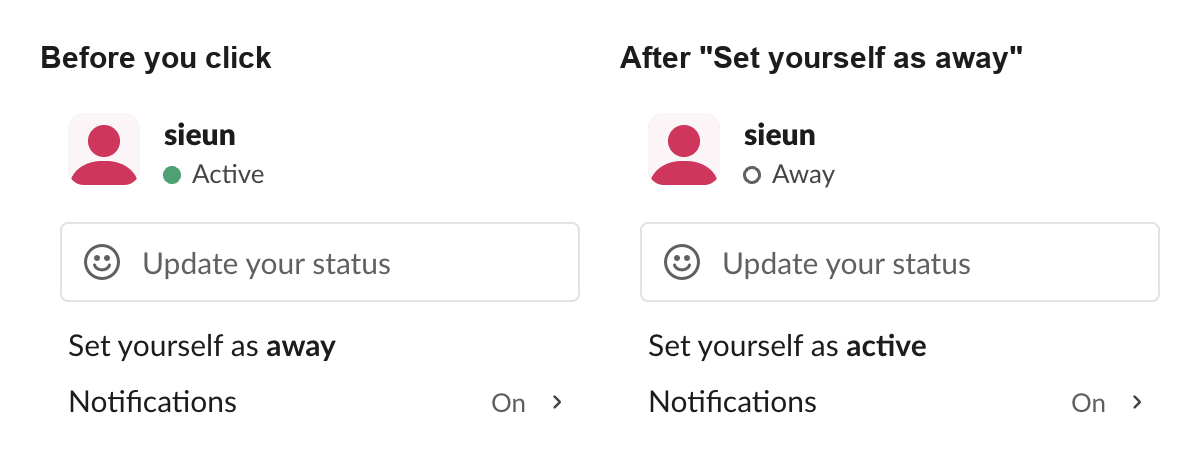
| Clicked Set yourself as away (01:04:53) | away | true | 1 | Manual away, Slack still open |
| Typed and sent a message while away (01:05:11) | away | true | 1 | last_activity moved, the dot did not |
| Clicked Set yourself as active (01:05:43) | active | false | 1 | Only the menu item undoes it |
| Second tab opened, then closed (01:06) | active | false | 2, then 1 | Any open connection keeps you active |
| Last tab closed (3 tries) | away | false | 0 | Away 0.4 to 0.5 seconds after the close |
Two results matter most for diagnosis. A manual away survives typing in Slack, so a grey dot while you are chatting means you set it yourself. And closing the last Slack window turns you away in under a second, not after 10 minutes.
Try it
Close the laptop. Which one keeps you green?
Slack on your laptop
Active
Slack Green
Active
Free for 14 days, no card needed.
Stay green with the laptop closedFind your cause from when the dot went grey
| When you went grey | Most likely cause | How to check |
|---|---|---|
| About 10 minutes after you last touched the computer | The idle timer: no keyboard or mouse input in any app | Note when you last typed or moved the mouse |
| The moment you closed Slack | No open connection | Watch your dot from another device while you quit the app |
| While you were typing in Slack, and it stays grey | You set yourself away | Open the profile menu |
| Everyone in the workspace went grey together | Slack or your network lost the connection | Check Slack showing everyone offline |
The causes, with the tell for each
1. You were not touching the computer. This is the usual cause: a call, a long read or a video with no keys pressed and no mouse moved for 10 minutes. The tell is the timing: you turn grey about 10 minutes after your last input in any app. The desktop app does not record where your mouse goes; it only reads how long the computer has been idle (see does Slack track mouse movement). The timer for each device is in how long does Slack stay active.
2. Slack lost its connection. Slack shows you active only while a Slack app or tab holds a live connection. In our test, closing the last tab dropped connection_count to 0 and set us away within half a second, three times out of three. Anything else that ends the connection should do the same until Slack reconnects: quitting the desktop app, a sleeping laptop, or a VPN or Wi-Fi change. We tested only the closed tab. If an IT policy locks or sleeps the laptop after a few minutes, see why Slack goes idle so quickly.
3. You set yourself away and forgot. The manual setting stays until you undo it. In our test we sent a message while set to away: Slack recorded the activity, and the dot stayed hollow. Click your profile picture. If the menu offers Set yourself as active, this is your cause.

Stop Jiggling Your Mouse.
Join hundreds of remote workers who never worry about their Slack status. Set it up once, stay green forever.
Do several devices make Slack flip to away?
Not in our test. With two Slack tabs open, connection_count was 2 and we showed active. Closing one tab left us active on the other. Slack showed us active while any session stayed open, so an extra signed-in tab or device kept us green and never turned us grey.
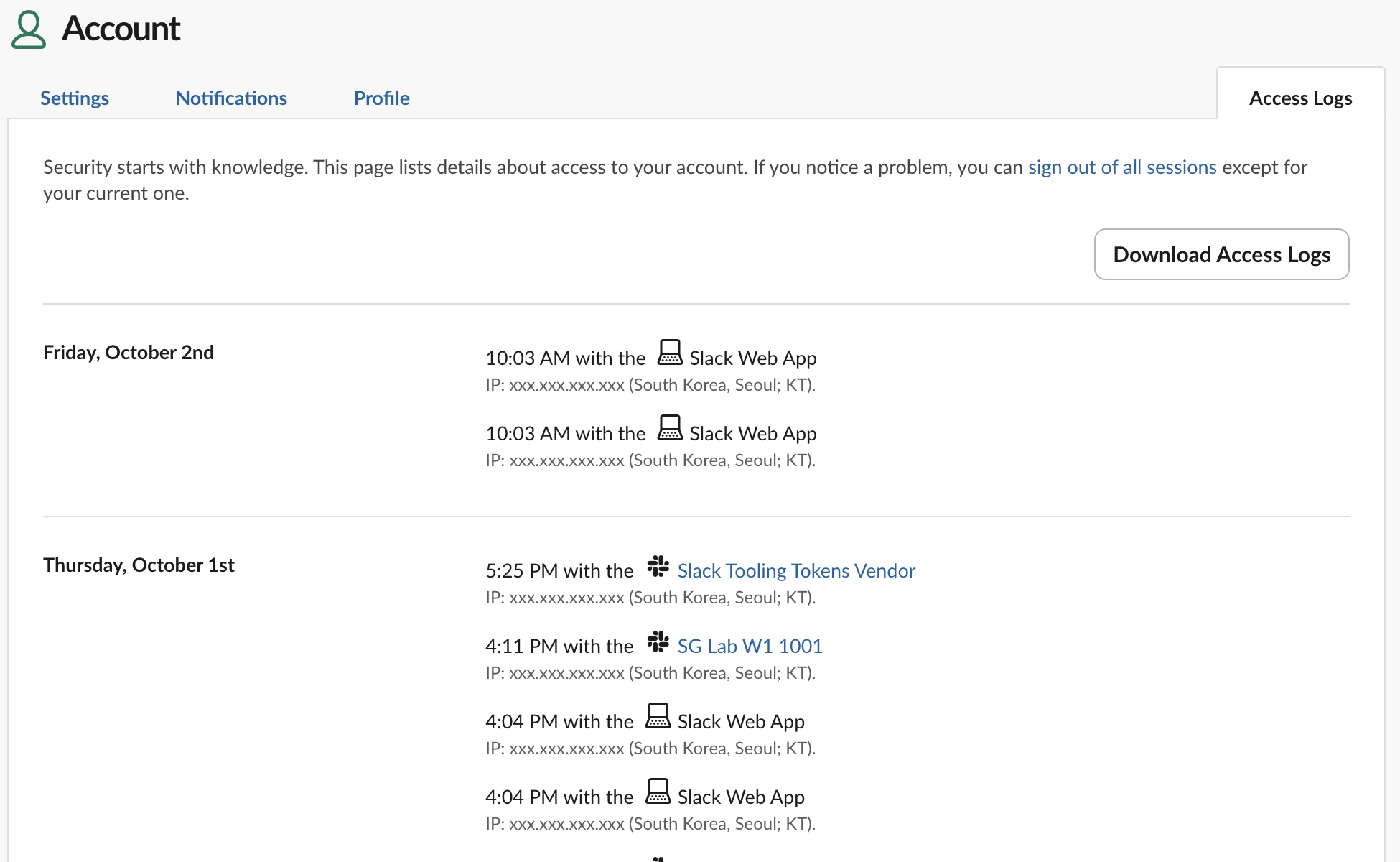
If you still want to see where you are signed in, open Account settings, then Access Logs, or go to https://<your-workspace>.slack.com/account/logs. Each sign-in shows the time, the app and the IP address. Opening two extra browser tabs added no new rows, so the log lists sign-ins, not open windows. Sign out of all sessions is on the same page.
How to fix each cause
- • No input (cause 1): touch the keyboard or mouse before minute 10, or use a service that keeps your presence active for you. Slack has no setting to change the 10-minute timer; see can you change Slack's away time.
- • Lost connection (cause 2): keep the desktop app running, change the sleep and lock settings you control, and restart Slack or reload the tab after a VPN or network change.
- • Manual away (cause 3): click Set yourself as active in the profile menu. Typing a message will not undo it.
Coworkers cannot tell these causes apart, because Slack uses the same hollow dot for each; Slack away status meaning shows what they see, and Slack status icons meaning lists every icon. If the idle timer is your cause, for example during long reads or calls, a server-side tool can keep your Slack presence active on a schedule you choose, even with the laptop closed or asleep. Every method, with what it costs, is compared in how to keep Slack active.
FAQ
Why does Slack keep setting me to away after a few seconds?
On a computer, Slack has lost its connection: the app closed, the laptop slept or the network dropped. In our test, away came less than a second after the last Slack window closed.
Does a custom status stop Slack from showing me as away?
No. A status such as "Focusing" shows next to your name, but the dot still follows your presence. Status text and presence are separate systems.
Does restarting Slack fix a stuck away status?
It fixes a lost connection. It does not clear a manual away; in our test the manual setting held while we kept using Slack, until we clicked Set yourself as active.
Related Articles
Slack: Download All Files From a Channel (Script and Test)
Slack has no download-all button for a channel. We uploaded 8 files, checked what the Files tab and search show, and ran a files.list script that saved all 8, after it first found only 4.
How to Remove Someone From a Slack Channel (3 Ways, Tested)
Use /remove @name in the channel, the channel details window, or conversations.kick. We tried all three, checked what the removed member could still do, and what the channel saw.
How to Remove an App From Slack, and What Stays Behind
Remove an app from one channel with /remove or channel details, or uninstall it from the workspace in Manage apps. We did both with a test app and checked its tokens, messages and files afterwards.