
일하는 중인데 슬랙이 자리 비움으로 표시되는 이유: 원인 3가지 검증
슬랙은 마지막 키보드나 마우스 입력 후 약 10분 뒤, 마지막 슬랙 창을 닫는 즉시, 그리고 수동 자리 비움이 켜져 있는 동안에는 입력 중에도 자리 비움으로 표시합니다. 각각을 실제 워크스페이스에서 측정했습니다.
슬랙이 자꾸 자리 비움으로 표시되는 것은 10분 동안 입력을 보지 못했을 때입니다. 데스크톱 앱은 컴퓨터 어디서든 입력을 세므로(Slack 데스크톱 4.52.178 코드, 2026년 10월 7일 확인), 문서에서 타이핑하면 초록으로 남지만, 아무것도 건드리지 않는 Zoom 회의, 읽기, 동영상 시청은 그렇지 않습니다. 브라우저 탭의 슬랙은 자기 규칙을 따르며, 저희 테스트 탭은 입력 없이 30분 동안 활성으로 남았습니다. 다른 원인은 슬랙이 닫혀 있거나 연결이 끊긴 경우, 그리고 '자리 비움으로 설정'을 해 두고 잊은 경우입니다. 이 중 뒤의 두 가지를 2026년 10월 2일에 테스트 워크스페이스에서 재현했습니다. 아래 결과를 보면 내 경우가 어느 쪽인지 알 수 있습니다.
원인을 찾았다면 슬랙이 자리 비움으로 표시되지 않게 하는 법에 원인별 해결 방법이 있습니다.
실제 워크스페이스에서 측정한 결과
멤버가 한 명뿐인 워크스페이스에서 슬랙 웹 앱을 쓰고, 단계마다 내 사용자에 대해 users.getPresence를 호출했습니다. 이 메서드가 돌려주는 상태는 동료에게 초록 점이나 빈 점으로 보이는 것과 같습니다. 시각은 2026년 10월 2일 UTC 기준입니다.
| 단계 | presence | manual_away | connection_count | 알 수 있는 것 |
|---|---|---|---|---|
| 슬랙 창을 열지 않음(01:03) | away | false | 0 | 연결이 없으면 자리 비움 |
| 웹 탭 하나를 엶(01:04) | active | false | 1 | 슬랙을 열면 바로 활성 |
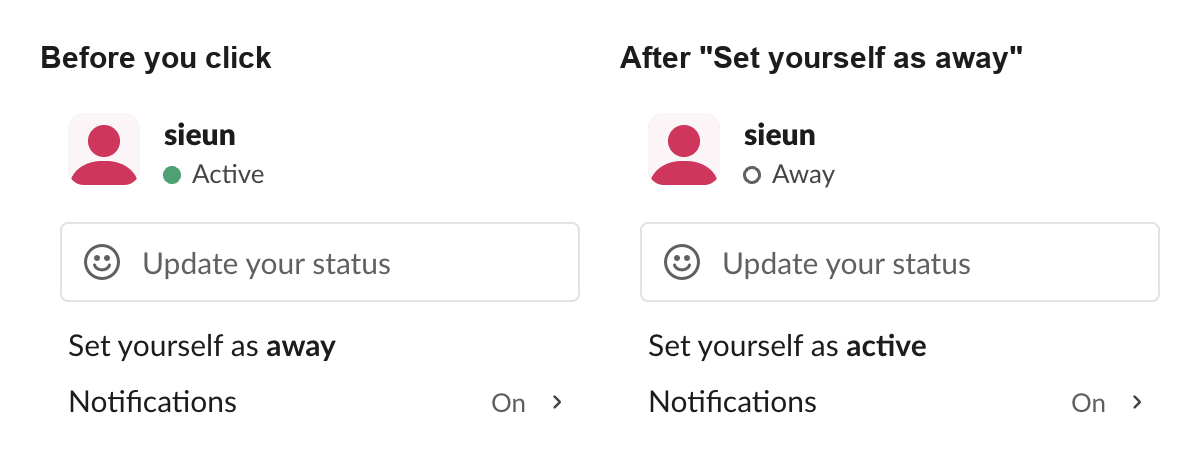
| 자신을 자리 비움으로 설정 클릭(01:04:53) | away | true | 1 | 슬랙을 연 채로 수동 자리 비움 |
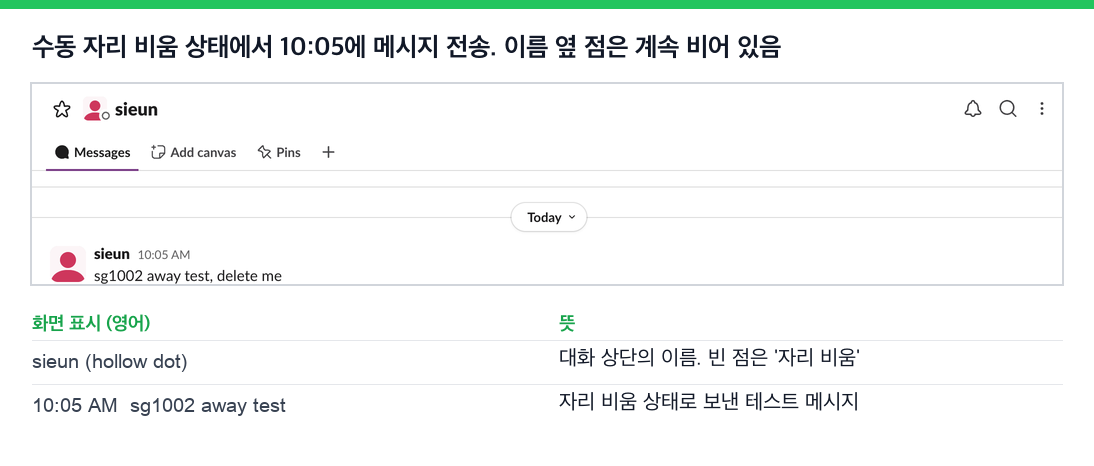
| 자리 비움 상태에서 메시지 입력 후 전송(01:05:11) | away | true | 1 | last_activity는 바뀌었지만 점은 그대로 |
| 자신을 활성으로 설정 클릭(01:05:43) | active | false | 1 | 이 메뉴 항목으로만 되돌릴 수 있음 |
| 두 번째 탭을 열었다가 닫음(01:06) | active | false | 2, 그다음 1 | 연결이 하나라도 남아 있으면 활성 |
| 마지막 탭을 닫음(3회 시도) | away | false | 0 | 닫고 0.4~0.5초 뒤 자리 비움 |
원인을 가리는 데 가장 중요한 결과는 두 가지입니다. 수동 자리 비움은 슬랙에서 입력해도 풀리지 않습니다. 대화 중인데 점이 회색이라면 직접 설정한 것입니다. 그리고 마지막 슬랙 창을 닫으면 10분 뒤가 아니라 1초도 안 돼서 자리 비움이 됩니다.
직접 해보기
노트북을 닫으면 어느 쪽이 초록불로 남을까요?
노트북의 Slack
활성
Slack Green
활성
14일 무료, 카드 필요 없음.
노트북을 닫아도 초록불 유지하기점이 회색으로 바뀐 시점으로 원인 찾기
| 회색이 된 시점 | 가능성이 큰 원인 | 확인 방법 |
|---|---|---|
| 컴퓨터를 마지막으로 만진 지 약 10분 뒤 | 유휴 타이머. 키보드도 마우스도 건드리지 않았음 | 키나 마우스를 마지막으로 쓴 시각을 떠올린다 |
| 슬랙을 닫은 순간 | 열린 연결이 없음 | 앱을 종료하면서 다른 기기에서 내 점을 본다 |
| 슬랙에서 입력하는 중이었는데 계속 회색 | 직접 자리 비움으로 설정함 | 프로필 메뉴를 연다 |
| 워크스페이스 전원이 한꺼번에 회색 | 슬랙이나 내 네트워크의 연결이 끊김 | 슬랙에서 모두 오프라인으로 보일 때를 확인한다 |
원인별로 알아보는 법
1. 컴퓨터를 건드리지 않았다. 가장 흔한 원인입니다. 통화, 긴 읽기, 동영상 동안 키도 누르지 않고 마우스도 움직이지 않은 채 10분이 지났습니다. 구별하는 단서는 타이밍입니다. 어느 앱에서든 마지막 입력 후 약 10분 뒤에 회색이 됩니다. 데스크톱 앱은 마우스가 어디로 가는지 기록하지 않고, 컴퓨터가 얼마나 유휴 상태였는지만 읽습니다(슬랙은 마우스 움직임을 추적할까 참고). 기기별 타이머는 슬랙은 얼마 동안 활성으로 유지될까에 정리했습니다.
2. 슬랙 연결이 끊겼다. 슬랙은 슬랙 앱이나 탭이 연결을 유지하는 동안에만 활성으로 표시합니다. 저희 테스트에서 마지막 탭을 닫자 connection_count가 0이 되었고, 0.5초 안에 자리 비움이 되었습니다. 세 번 모두 같았습니다. 연결을 끝내는 다른 일, 예를 들어 데스크톱 앱 종료, 노트북 절전, VPN이나 와이파이 변경도 슬랙이 다시 연결될 때까지 같은 결과를 낼 것입니다. 다만 직접 시험한 것은 탭을 닫는 경우뿐입니다. IT 정책 때문에 몇 분 뒤 노트북이 잠기거나 절전된다면 슬랙이 금방 유휴 상태가 되는 이유를 보세요.
3. 직접 자리 비움으로 해 두고 잊었다. 수동 설정은 직접 되돌릴 때까지 유지됩니다. 테스트에서 자리 비움으로 설정한 채 메시지를 보냈습니다. 슬랙은 활동을 기록했지만 점은 계속 비어 있었습니다. 프로필 사진을 클릭했을 때 메뉴에 자신을 활성으로 설정이 보이면 이것이 원인입니다.
기기를 여러 대 쓰면 슬랙이 자리 비움으로 바뀔까
테스트에서는 그렇지 않았습니다. 슬랙 탭 두 개를 열자 connection_count가 2였고 활성으로 표시되었습니다. 하나를 닫아도 나머지 탭에서 활성이 유지되었습니다. 세션이 하나라도 열려 있는 동안 슬랙은 활성으로 표시했으므로, 로그인한 탭이나 기기가 늘어도 초록색이 유지될 뿐 회색이 되지는 않았습니다.
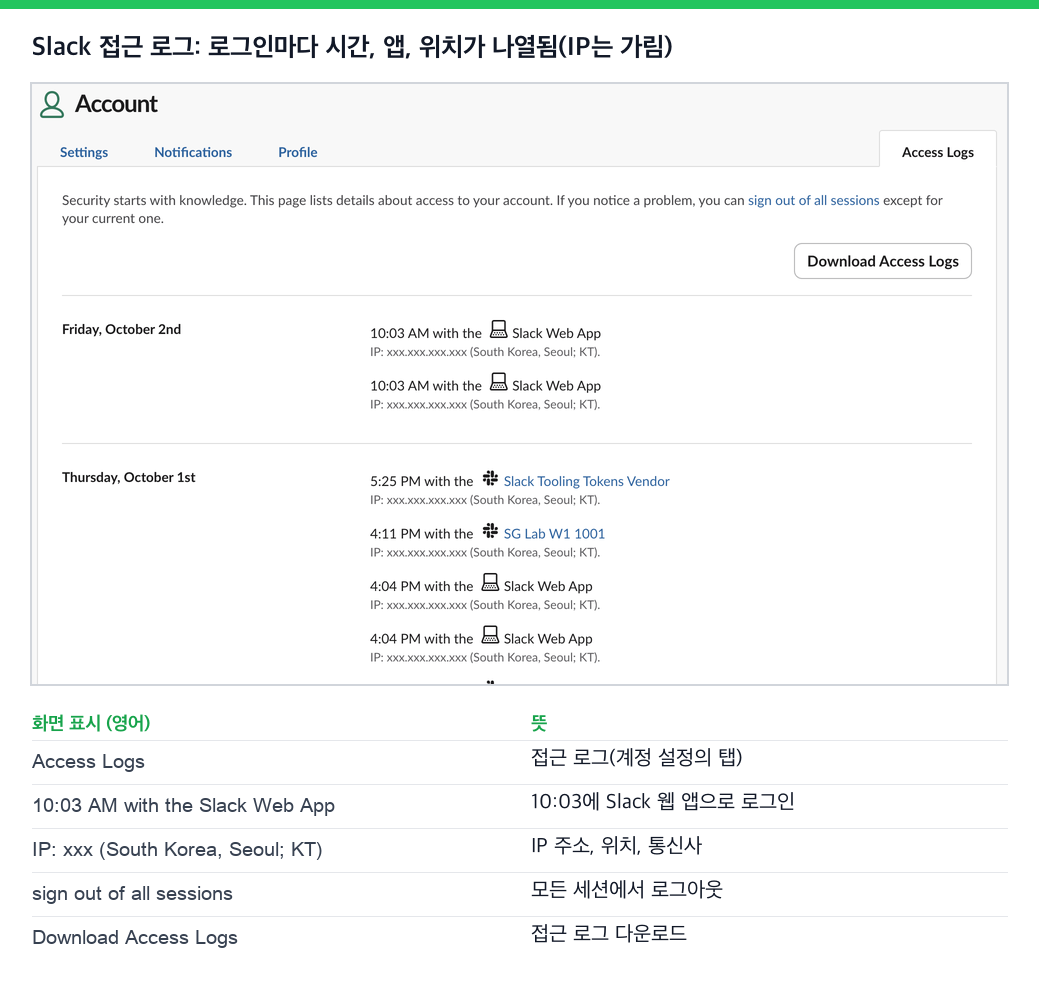
어디에 로그인되어 있는지 보고 싶다면 계정 설정에서 접근 로그를 열거나 https://<워크스페이스>.slack.com/account/logs로 이동하세요. 로그인마다 시간, 앱, IP 주소가 나옵니다. 브라우저 탭 두 개를 더 열어도 행이 늘지 않았으니, 이 로그는 열린 창이 아니라 로그인을 기록합니다. 같은 페이지에 모든 세션에서 로그아웃이 있습니다.
원인별 해결 방법
- • 입력 없음(원인 1): 10분이 되기 전에 키보드나 마우스를 건드리거나, 접속 상태를 활성으로 유지해 주는 서비스를 씁니다. 슬랙에는 10분 타이머를 바꾸는 설정이 없습니다. 슬랙의 자리 비움 시간은 바꿀 수 있을까를 보세요.
- • 연결 끊김(원인 2): 데스크톱 앱을 켜 두고, 직접 바꿀 수 있는 절전과 잠금 설정을 조정합니다. VPN이나 네트워크를 바꾼 뒤에는 슬랙을 다시 시작하거나 탭을 새로 고칩니다.
- • 수동 자리 비움(원인 3): 프로필 메뉴에서 자신을 활성으로 설정을 클릭합니다. 메시지를 입력해도 풀리지 않습니다.
동료는 이 원인들을 구별할 수 없습니다. 슬랙은 어느 경우에나 같은 빈 점을 쓰기 때문입니다. 동료에게 무엇이 보이는지는 슬랙 자리 비움 상태의 의미에, 모든 아이콘은 슬랙 상태 아이콘의 의미에 있습니다. 원인이 유휴 타이머라면, Slack Green은 컴퓨터가 꺼져 있거나 잠자기 중이거나 잠겨 있거나 닫혀 있어도 정해 둔 시간대에 슬랙 접속 상태를 활성으로 유지합니다. 다른 방법과 각각의 비용은 슬랙을 활성 상태로 유지하는 법에서 비교합니다.
자주 묻는 질문
몇 초 만에 슬랙이 자리 비움으로 바뀌는 이유는 무엇인가요?
컴퓨터에서라면 슬랙 연결이 끊긴 것입니다. 앱이 닫혔거나, 노트북이 절전 모드에 들어갔거나, 네트워크가 끊겼습니다. 테스트에서는 마지막 슬랙 창을 닫고 1초도 안 돼 자리 비움이 되었습니다.
맞춤 상태를 설정하면 자리 비움으로 표시되지 않나요?
아닙니다. '집중 중' 같은 상태는 이름 옆에 나오지만 점은 접속 상태를 따릅니다. 상태 문구와 접속 상태는 서로 다른 시스템입니다.
슬랙을 다시 시작하면 풀리지 않는 자리 비움이 고쳐지나요?
연결이 끊긴 경우라면 고쳐집니다. 수동 자리 비움은 풀리지 않습니다. 테스트에서 슬랙을 계속 써도 수동 설정은 유지되었고, 자신을 활성으로 설정을 클릭하고 나서야 돌아왔습니다.
Related Articles
How to See All Your DMs in Slack, Including the Hidden Ones
The DMs tab lists your direct messages with people. App DMs, Slackbot and DMs with deleted accounts sit elsewhere. We compared the tab with the full list the Slack API returned.
Slack Images Not Showing? 5 Causes We Reproduced
We uploaded images to a Slack test channel and then switched each image setting off, ran /collapse, and posted from a bot that was not in the channel. Five causes, each reproduced.
How to Message Yourself on Slack (and What It Notifies)
Your own name under Direct messages opens a private DM with yourself. We sent it a note, a file, a scheduled message and a reminder, and checked which ones raised a badge.