
Slack 자리비움 안 되게 하는 법: 4가지 원인과 해결
Slack에는 자리비움 표시를 끄는 설정도, 10분 타이머를 바꾸는 설정도 없습니다. 자리비움이 되지 않게 하려면 수동 전환, 유휴 타이머, 절전과 잠금, 다른 기기라는 원인별로 고쳐야 합니다. 각각의 순서와 각 방법이 막는 범위.
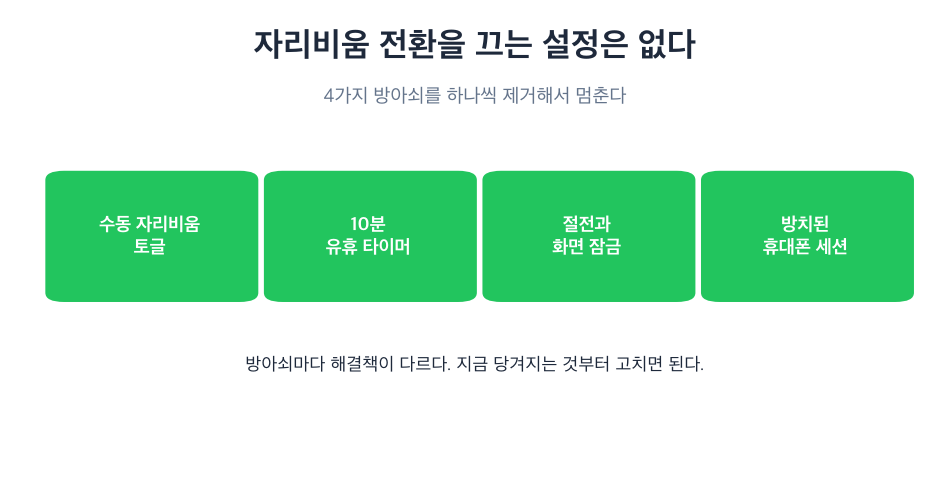
Slack이 나를 자리비움으로 표시하지 않게 하려면, 자리비움을 만드는 원인을 고쳐야 합니다. 자리비움 표시를 끄는 Slack 설정은 없기 때문입니다. 원인은 네 가지입니다. 직접 자리비움으로 설정했다면 프로필 사진을 클릭하고 활성 상태로 설정을 고릅니다. 10분 유휴 타이머가 끝나기 전에 컴퓨터에서 키보드나 마우스 입력을 이어 갑니다. 컴퓨터의 절전과 화면 잠금 시간을 늘립니다. 쓰지 않는 기기에서 로그아웃합니다. 대부분이 걸리는 것은 유휴 타이머입니다. 데스크톱 앱은 나든 도구든 컴퓨터 어디서든 들어온 입력으로 이 타이머를 초기화합니다(Slack 데스크톱 4.52.178 코드, 2026년 10월 7일 확인).
어떤 원인인지 모르겠다면 일하는 중인데 Slack이 자리비움이 되는 이유에서 점이 회색이 된 시각으로 원인을 찾을 수 있습니다.
해결 1: "자리비움으로 설정" 해제하기
수동 자리비움은 직접 풀 때까지 유지되고, 재시작해도 남습니다.
데스크톱:
- 사이드바에서 프로필 사진을 클릭합니다.
- 메뉴에 활성 상태로 설정이 보이면 클릭합니다.
- 프로필 사진을 탭합니다.
- 활성 상태로 설정을 탭합니다.
모바일:
아무 메시지 입력란에 /active를 입력해도 같습니다. Slack의 기본 명령어 목록은 이것을 "Mark yourself as active"라고 설명합니다. 메뉴에는 지금 상태가 아닌 쪽 전환만 나오므로, 활성 계정에는 Set yourself as away (자리 비움으로 설정)가 보입니다.
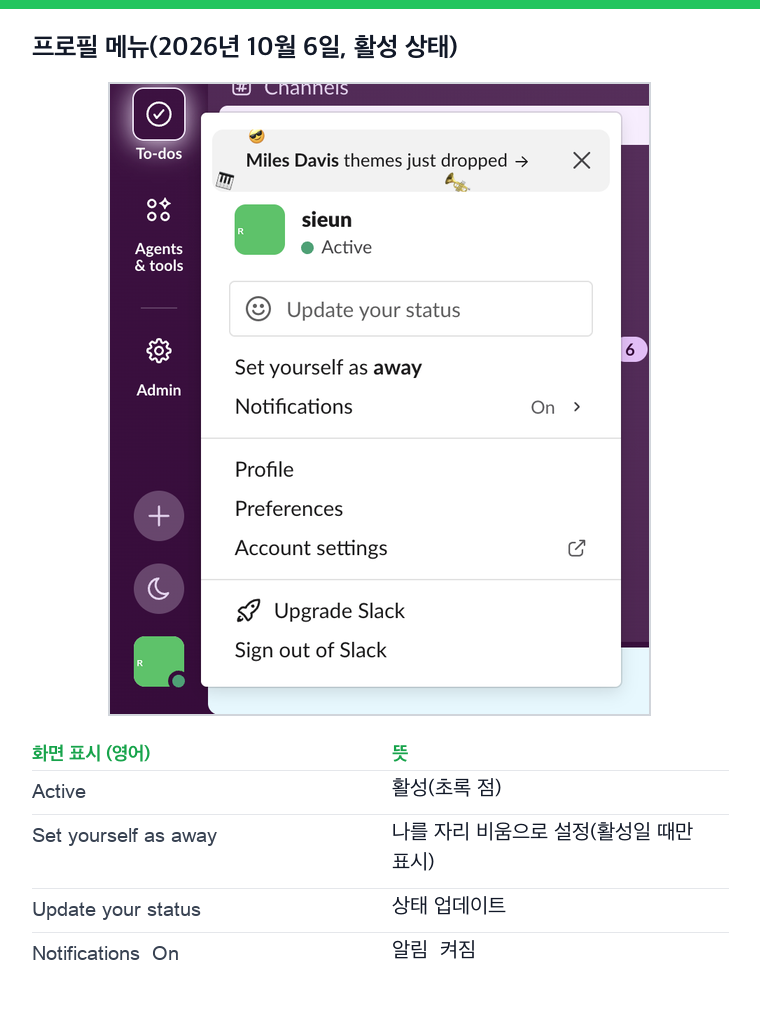
이것은 수동 설정만 풉니다. 유휴 타이머는 멈추지 않으니, Slack의 마지막 입력 후 10분이 지나면 다시 자리비움이 됩니다.
설정이나 API 호출로도 그 이상은 할 수 없습니다. 2026년 10월 6일 테스트 워크스페이스의 소유자 계정에서 users.setPresence를 보낸 결과입니다.
users.setPresence presence=active   -> invalid_arguments
users.setPresence presence=online   -> invalid_arguments
이 메서드는 auto와 away만 받기 때문에, 앱으로도 활성 상태를 고정할 수 없습니다.
해결 2: 10분 유휴 타이머 막기
컴퓨터에서는 Slack 데스크톱 앱이 어느 앱에서든 마지막 클릭, 키 입력, 마우스 움직임 후 10분이 지나면 나를 자리비움으로 바꿉니다. 컴퓨터의 유휴 시간을 10초마다 읽습니다. 이 타이머는 바꾸거나 끌 수 없습니다. 이유는 Slack 자리비움 시간을 바꿀 수 있나에서 설명합니다. 바꿀 수 있는 것은 10분이 되기 전에 입력이 있느냐입니다.
기기별 정확한 시간은 Slack은 얼마나 오래 활성 상태를 유지하나에 있습니다.
해결 3: 절전과 화면 잠금으로 자리비움이 되지 않게 하기
컴퓨터가 절전에 들어가거나 잠기면 Slack은 거의 곧바로 나를 자리비움으로 바꿉니다. 둘 다 평소 쉬는 시간보다 길게 기다리도록 바꿉니다. 이 전환이 왜 이렇게 빠른지는 Slack이 금방 자리비움이 되는 이유에 있습니다.
Mac: 시스템 설정에서 잠금 화면을 엽니다. 비활성 상태일 때 디스플레이 끄기와 화면 보호기가 시작되거나 디스플레이가 꺼진 후 암호 요구를 더 길게 바꿉니다. 노트북이라면 배터리와 전원 어댑터 설정도 확인하세요.
Windows 11: 설정, 시스템, 전원 및 배터리, 화면 및 절전(새 빌드에서는 화면, 절전 및 최대 절전 모드 시간 제한) 순서로 열고, 전원 연결 시 시간을 늘립니다.
절전 방지 앱을 쓰면 설정을 바꾸지 않고 같은 효과를 냅니다. Mac 터미널에서 caffeinate -d를 실행하거나 Amphetamine을 씁니다. 이것이 막는 것은 절전으로 인한 즉시 자리비움뿐입니다. 해결 2의 10분 유휴 타이머는 계속 돕니다. Caffeine으로 Slack이 활성 상태로 유지되나에서 테스트한 결과와 같습니다. 회사 노트북은 IT가 이 설정을 잠가 둘 수 있습니다.
해결 4: 쓰지 않는 기기에서 로그아웃하기
로그인한 기기는 각자 자기 상태를 보내고, Slack은 그것을 합칩니다. 오래된 브라우저 탭, 두 번째 노트북, 휴대폰이 있으면 점이 제멋대로 바뀌는 것처럼 보입니다. my.slack.com/account의 접속 기록에서 세션을 확인하고 쓰지 않는 것에서 로그아웃하세요. 휴대폰에서는 앱이 화면에 떠 있는 동안만 활성이라는 규칙을 기억하세요. 자세한 내용은 모바일에서 Slack 활성 상태 유지에 있습니다.
Slack에서 다시는 '자리 비움'으로 표시되지 마세요
클라우드 기반. 다운로드 불필요. 노트북이 꺼져 있어도 24시간 작동.
어떤 방법이 어떤 원인을 막나
| 방법 | 유휴 타이머 | 절전·잠금 | 노트북 닫힘 | 비용 |
|---|---|---|---|---|
| 자리비움으로 설정 해제 | 안 됨 | 안 됨 | 안 됨 | 무료 |
| 평소처럼 키와 마우스 쓰기 | 됨 | 안 됨 | 안 됨 | 무료, 아무것도 안 건드리는 시간엔 안 됨 |
| 절전·잠금 시간 늘리기 | 안 됨 | 됨 | 안 됨 | 무료 |
| 절전 방지 앱 | 안 됨 | 됨 | 안 됨 | 무료 |
| 마우스 지글러 | 깨어 있고 잠기지 않은 동안 | 됨 | 안 됨 | 25~35달러 |
| 서버 방식 표시 상태 일정 | 됨 | 됨 | 됨 | 무료 요금제, Pro 월 3.99달러 |
노트북을 닫아도 초록을 지키는 것은 서버 방식뿐입니다. 컴퓨터에서 도는 방법은 모두 컴퓨터가 켜져 있고 잠기지 않아야 하기 때문입니다. 모든 방법의 비교는 Slack을 활성 상태로 유지하는 법에, 데스크톱 전용 단계는 데스크톱에서 Slack을 항상 활성 상태로 유지하는 법에 있습니다.
자리비움 표시를 막지 못하는 방법
반대로 활성으로 보이지 않으면서 Slack을 쓰고 싶다면 Slack에서 오프라인으로 보이는 법을 보세요.
Slack에서 활성 상태 표시를 끄는 법
프로필 사진을 클릭하고 자리 비움으로 설정을 고르거나 아무 메시지 입력란에 /away를 입력하면, 다시 활성으로 설정할 때까지 모든 기기에서 점이 회색으로 남습니다. 데스크톱과 휴대폰에서의 순서는 Slack에서 오프라인으로 보이게 할 수 있을까에 있습니다.
자주 묻는 질문
Slack이 자동으로 자리비움이 되지 않게 하려면?
10분 타이머가 끝나기 전에 컴퓨터에서 입력을 이어 가거나, 표시 상태를 활성으로 유지해 주는 도구를 쓰세요. 타이머를 바꾸는 Slack 설정은 없습니다.
Slack 자리비움은 어떻게 끄나요?
직접 자리비움으로 설정했다면 프로필 사진을 클릭하고 활성 상태로 설정을 고릅니다. 자동 자리비움을 끄는 설정은 없습니다.
Slack 자리비움 전환 시간은 얼마인가요?
컴퓨터에서는 키보드나 마우스 입력이 없는 채로 10분입니다. 휴대폰에서는 앱을 나가는 즉시입니다. 절전이나 화면 잠금은 곧바로 자리비움을 만듭니다.
관리자가 워크스페이스 전체의 자동 자리비움을 끌 수 있나요?
아니요. 자리비움 타이머를 바꾸거나 끄는 관리자 설정은 없습니다.
"활성 상태로 설정"을 누르면 초록으로 남나요?
입력 없는 다음 10분이 지날 때까지만입니다. 수동 자리비움을 풀 뿐, 타이머는 멈추지 않습니다.
휴대폰에서 자리비움 표시를 막을 수 있나요?
앱을 화면에 띄워 두는 방법뿐입니다. 앱을 나가면 몇 초 안에 자리비움이 됩니다. 휴대폰을 잠근 채 초록으로 남는 방법은 서버 방식 표시 상태 도구뿐입니다.
Related Articles
How to See All Your DMs in Slack, Including the Hidden Ones
The DMs tab lists your direct messages with people. App DMs, Slackbot and DMs with deleted accounts sit elsewhere. We compared the tab with the full list the Slack API returned.
Slack Images Not Showing? 5 Causes We Reproduced
We uploaded images to a Slack test channel and then switched each image setting off, ran /collapse, and posted from a bot that was not in the channel. Five causes, each reproduced.
How to Message Yourself on Slack (and What It Notifies)
Your own name under Direct messages opens a private DM with yourself. We sent it a note, a file, a scheduled message and a reminder, and checked which ones raised a badge.